
Sync Items Between Maxio and Xero
Applies to: Maxio Core
Last updated on Sep 19, 2026
Review how Items sync between Maxio and Xero, when a new Item needs a Maxio Profile before it can be used, and how the Xero Code field affects a sync.
Items in Maxio Platform can be created in two ways:
- Maxio Platform Created Items - Create an Item using the Maxio Platform Admin menu.
- Xero Created Items - Items in Xero are synced to your Maxio Platform account. Before they can be used, you must add a Maxio Profile to each Item.
Items correspond to Products in Xero and are an integral part of Maxio Platform, as all Transactions and Invoice Line Items contain associated Items. You may not have been using Products in Xero before adopting Maxio Platform, which is why we require you to create them during implementation. Make sure to maintain your Products in Xero to continue using the integration without issue. If Maxio Platform receives an Invoice Line Item that does not use an Item, it will use the selected "Placeholder Item" from the Xero settings page.
Maxio Platform Created Items
An Invoice that contains an Invoice Line Item associated with an Item that was created in Maxio Platform will not sync to Xero. Generally speaking, you do not create Items in Maxio Platform when using Maxio Platform and Xero together. However, you can use Maxio Platform created Items for forecasts, historical data creation, and other one-off use cases where you never want the Invoice data to sync to Xero.
Xero Created Items
Unless the "Automatically Generate Maxio Profiles for Items" setting is enabled, the sync between Maxio Platform and Xero will stop whenever Maxio Platform receives a new Item/Product from Xero. The Xero home page Action Required section will contain a link to any Items that need a Maxio Profile. Completion of the Maxio Profile is required to define the default revenue recognition template, default invoicing method, and other important settings related to revenue recognition, invoicing, and subscription renewal management.
When all Xero Items have completed Maxio Profiles, you can initiate another sync and Customer and Invoice data will flow between Maxio Platform and Xero. If you wish to create Invoices in Maxio Platform that will sync to Xero, you must use an Item that was created in Xero.
While a complete list of all Xero Items is synced and stored in Maxio Platform, you must also select Sync=YES in the Item Maxio Profile to enable the syncing Invoice Line Items for that Item.
Items with no GL account in Xero
A Product in Xero can exist without an Account assigned to it. When such a Product syncs to Maxio Platform as an Item, the sync still completes normally — that Item, along with everything else in the sync run, imports successfully. The Item itself imports with no GL Account, and Maxio Platform shows a warning on that Item's row in the Item list and on its Item Detail page: "This Item was imported from Xero without a GL Account. Assign an Account to it in Xero and re-sync to include it in GL Accounting sync."
Because this Item still imports and the rest of the sync proceeds without issue, this warning does not appear in the Sync Issues tab, and the sync banner reports a normal successful sync. Check the Item list itself to find Items that need a GL Account.
To resolve the warning, assign an Account to the corresponding Product in Xero, then run another sync. Maxio Platform matches the Account automatically once the Xero Product has one. You cannot assign the GL Account for an already-synced Xero Item from within Maxio Platform — neither Edit Accounts nor the Xero setup wizard's account-assignment step exposes that field once an Item is linked to Xero, so the fix must happen in Xero itself.
Automatically Generate Maxio Profiles for Items
This special setting results in the automatic creation of Maxio Profile Information for any new Items/Products synced from Xero to Maxio Platform.
Items that exist in Maxio Platform prior to enabling this function are unaffected, as this setting only affects how Maxio Platform deals with an Item the first time it's synced from Xero to Maxio Platform.
Editing the Xero Code
Xero users can now edit the Xero Code for non-synced Xero Items to enter a unique code that is meaningful. When an Item is created in Maxio Platform and is then pushed down to Xero, this unique Xero Code is required.
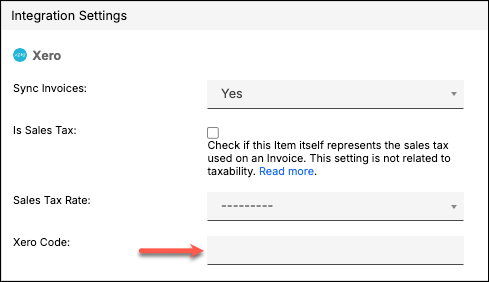
When editing a Xero Code, you are limited to 30 characters. You may use any combination of letters, numbers, and even spaces. Note, however, a space is counted as one character.
During a sync, this Xero Code is sent to Xero. A sync error occurs if the Xero Code is invalid (for example, it's a duplicate of an existing Xero Code or it contains invalid characters). To fix this, click the "Xero Code Required" link to view the list of Items not synced. Then click on the Item to edit the Xero Code.
Prior to a sync, if you leave the Xero Code blank, then the first 30 characters of the Item name will be synced into Xero. Again, a sync error appears if this is a duplicate of an existing Xero Code.
Related information
For the full list of what syncs between Maxio and Xero, see Sync Data Between Maxio and Xero.
Still need help?
Reach out and our support team will take it from here.