
Link Invoice Line Items and Transactions in Bulk
Applies to: Maxio Core
Last updated on Aug 24, 2026
To make the initial data migration easier and troubleshoot linkages going forward, you can associate all of a Contract's Invoice Line Items and Transactions in bulk.
This article is related to Maxio Platform's Transactions object and associated functionality. The Transaction is a specific type of financial record that represents a Contract element in Maxio Platform.
To link Invoice Line Items and Transactions in bulk
-
When viewing a Contract, hover over the Contract drop-down menu, then select Transaction and Invoice Line Item Linkage.
-
If needed, use the Item, Out of Balance, and From/Through date filters to narrow down the Transactions and Invoice Line Items shown.
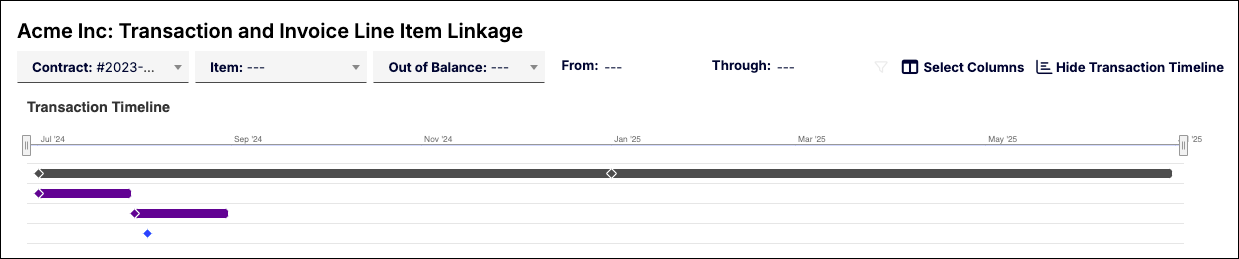
-
Drag and drop Invoice Line Items between the Unassociated Invoice Line Items list on the left and the Transactions on the right to adjust associations, or click Auto-match to have Maxio suggest matches for you.
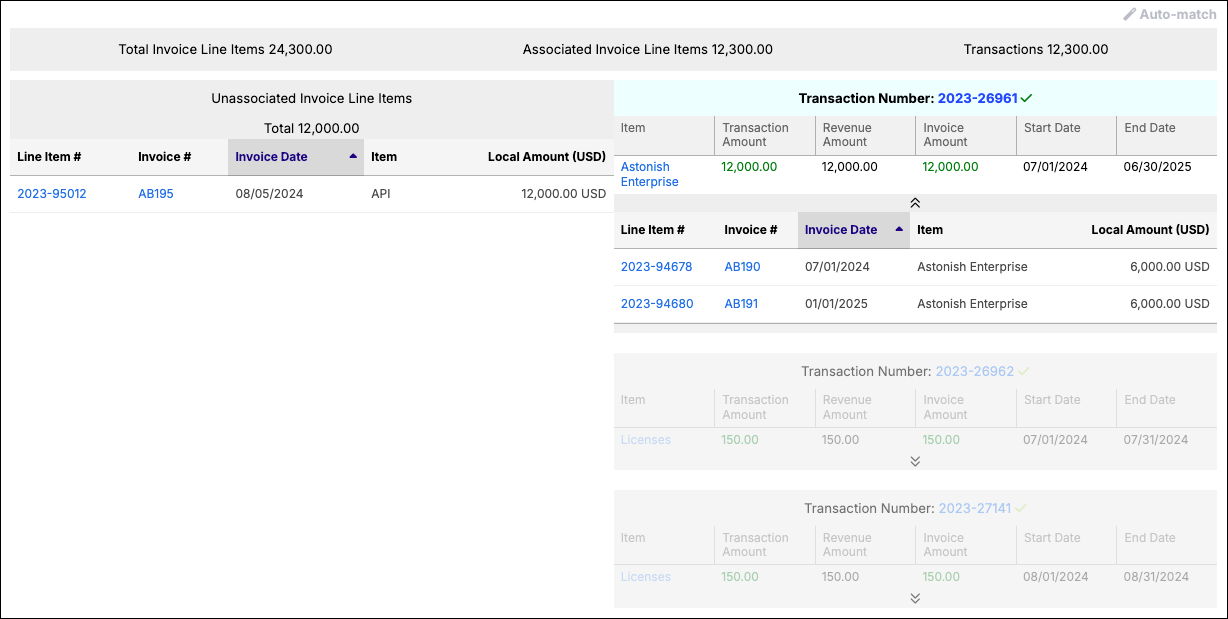
-
Click Save Associations, then confirm to submit your changes.
Auto-match discards any unsaved association changes first, and only runs once per visit to this screen. It's unavailable for a Contract with no out-of-balance Transactions, or with more than 100 unassociated Invoice Line Items. For larger Contracts, use the account-level Invoice Line Item to Transaction Bulk Linkage task instead.
Changing the Item, Out of Balance, or date filters keeps any association changes you've made. Changing the Contract filter while you have unsaved changes prompts you to save or discard them first.
Related information
For a broader look at how Transactions work, see Understanding Transactions.
Still need help?
Reach out and our support team will take it from here.