
Move Transactions Between Contracts
Applies to: Maxio Core
Last updated on Aug 24, 2026
If you need to move Transactions between Contracts, or to a new Contract, Maxio's Advanced Move Transaction feature can help. It walks you through three decisions:
- What Transactions do you want to move?
- Do you want to move similar Transactions too?
- Where do you want to move them?
Before moving any Transaction, consider the implications: Maxio is designed to keep Total Transactions, Total Revenue, and Total Invoices equal within a Contract.
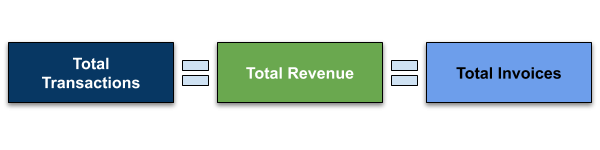
If you move a Transaction without moving its associated Invoices, this creates an out-of-balance condition.
This article is related to Maxio Platform's Transactions object and associated functionality. The Transaction is a specific type of financial record that represents a Contract element in Maxio Platform.
What Transactions do you want to move?
You can select a Transaction to move from either of the following:
-
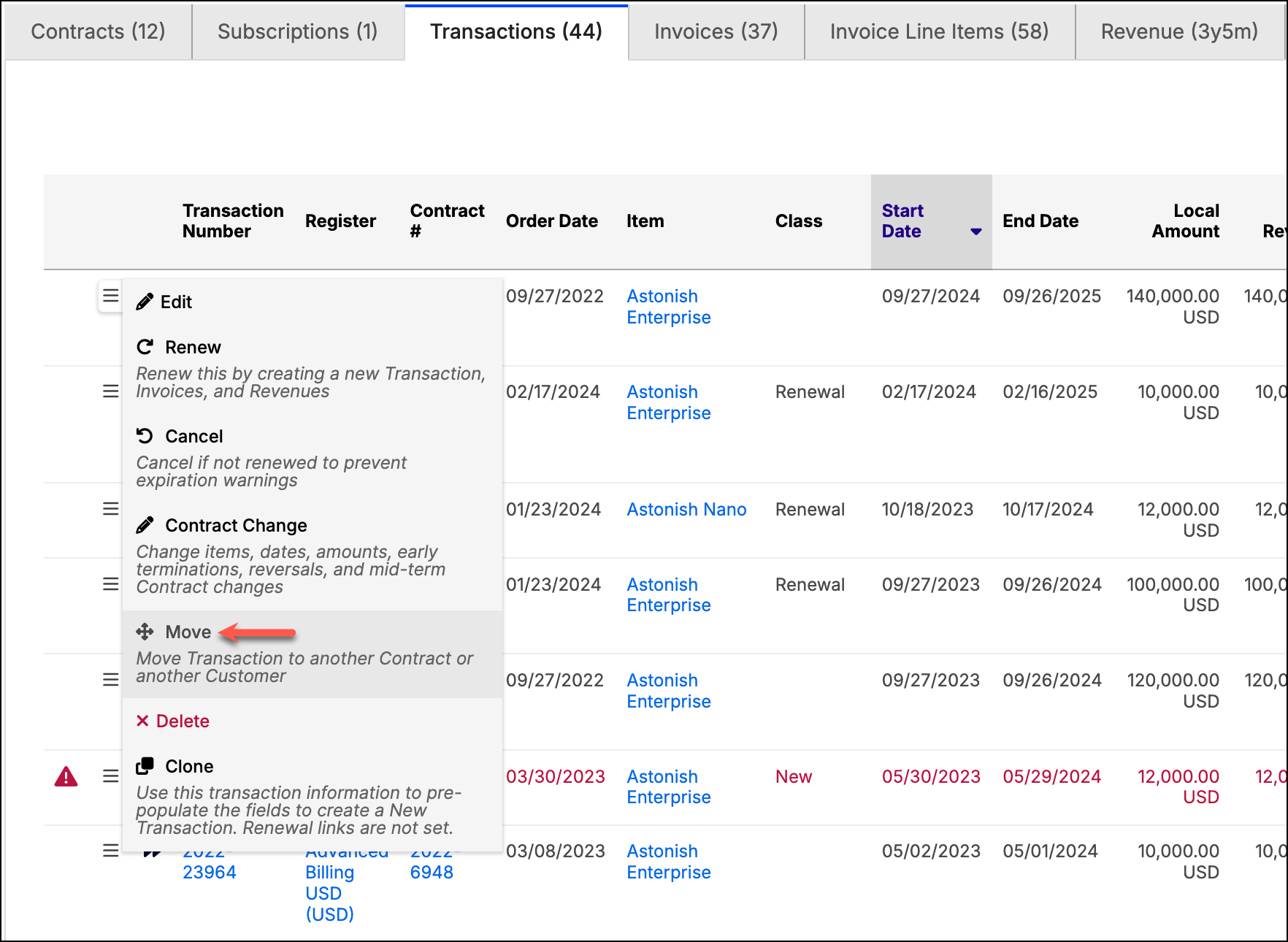
The menu icon to the left of a Transaction in a list.
-
The Transaction drop-down menu at the top of the Transaction page.
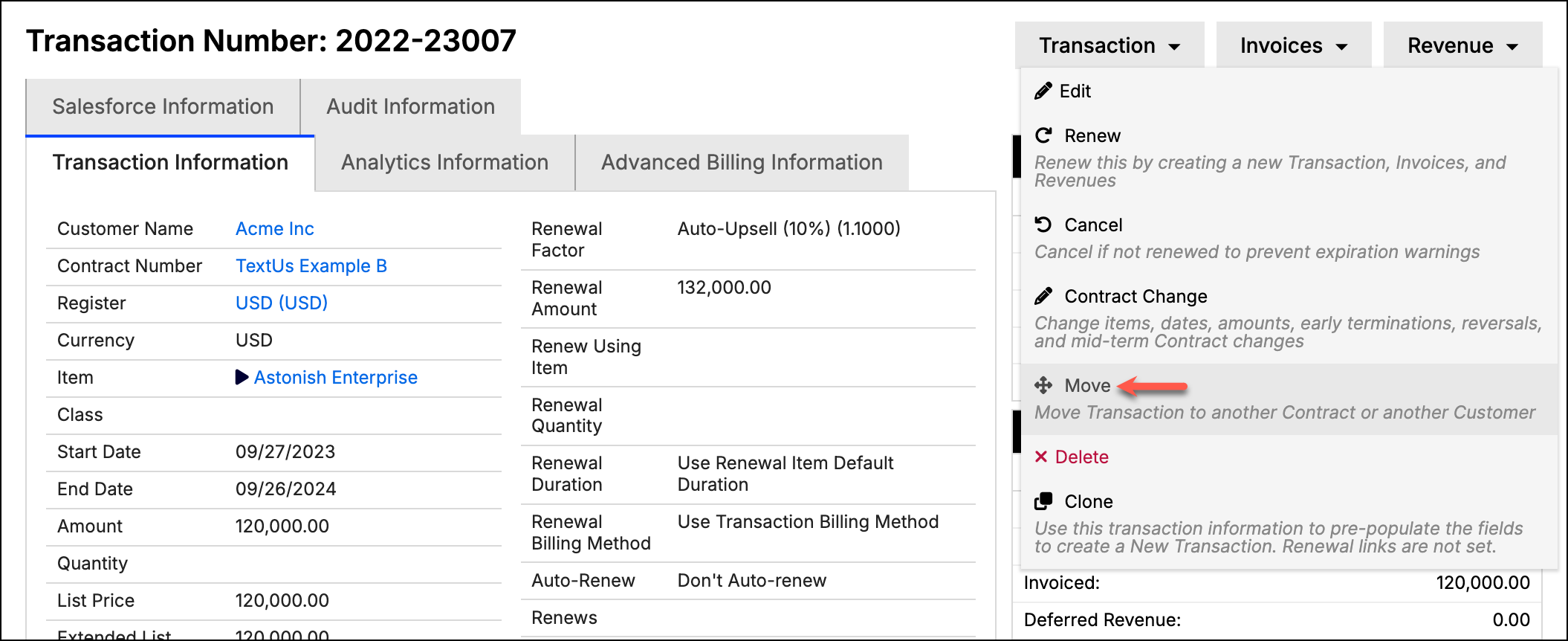
Both include a Move option that starts the Advanced Move Transaction wizard.
Do you want to move similar Transactions too?
Many users need to move more than one Transaction at once. After you select a Transaction to move, Maxio asks whether you also want to move "similar" Transactions, meaning other Transactions listed on the same Invoice(s) as the one you selected.
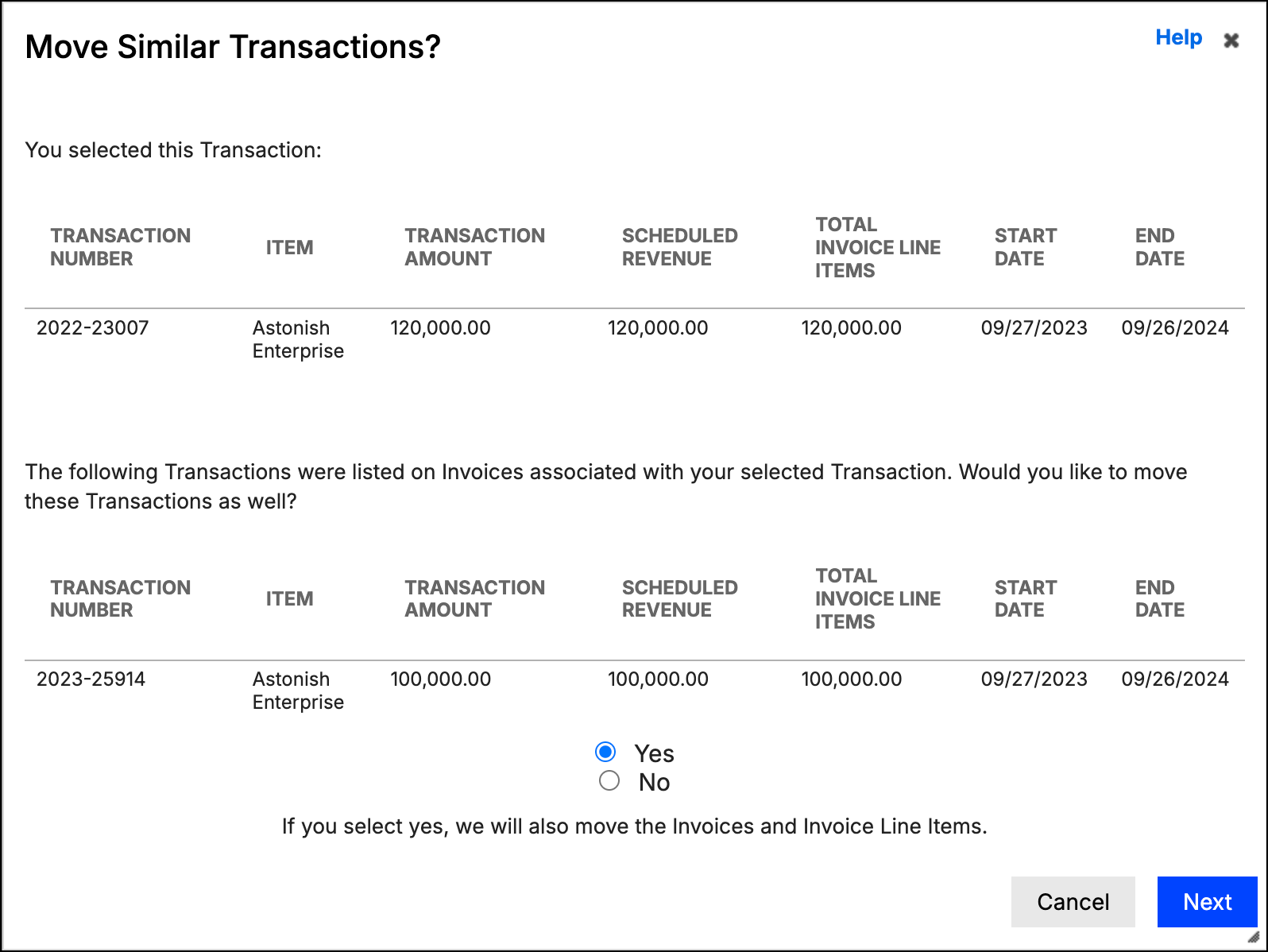
If you select Yes, Maxio moves the selected and similar Transactions, along with their revenue and Invoices. This keeps the original and destination Contract in balance.
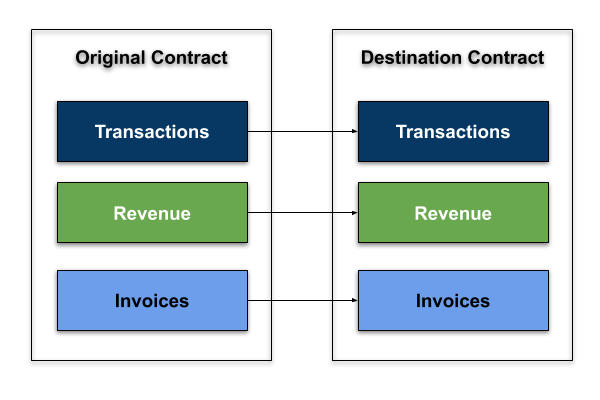
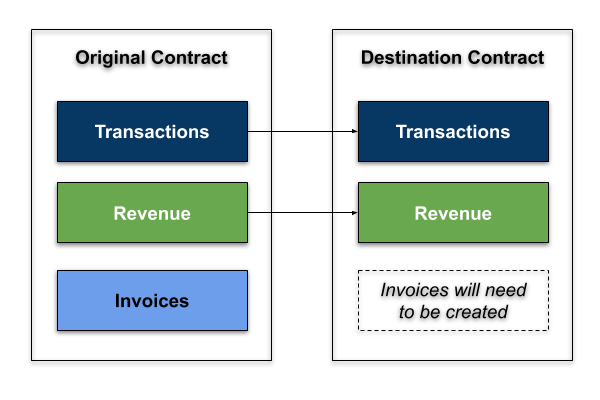
If you select No, Maxio moves only the selected Transaction and its revenue, not its Invoices. This creates an out-of-balance condition in both the original and destination Contract, until you create or move Invoices or Transactions to balance them again.
Where do you want to move them?
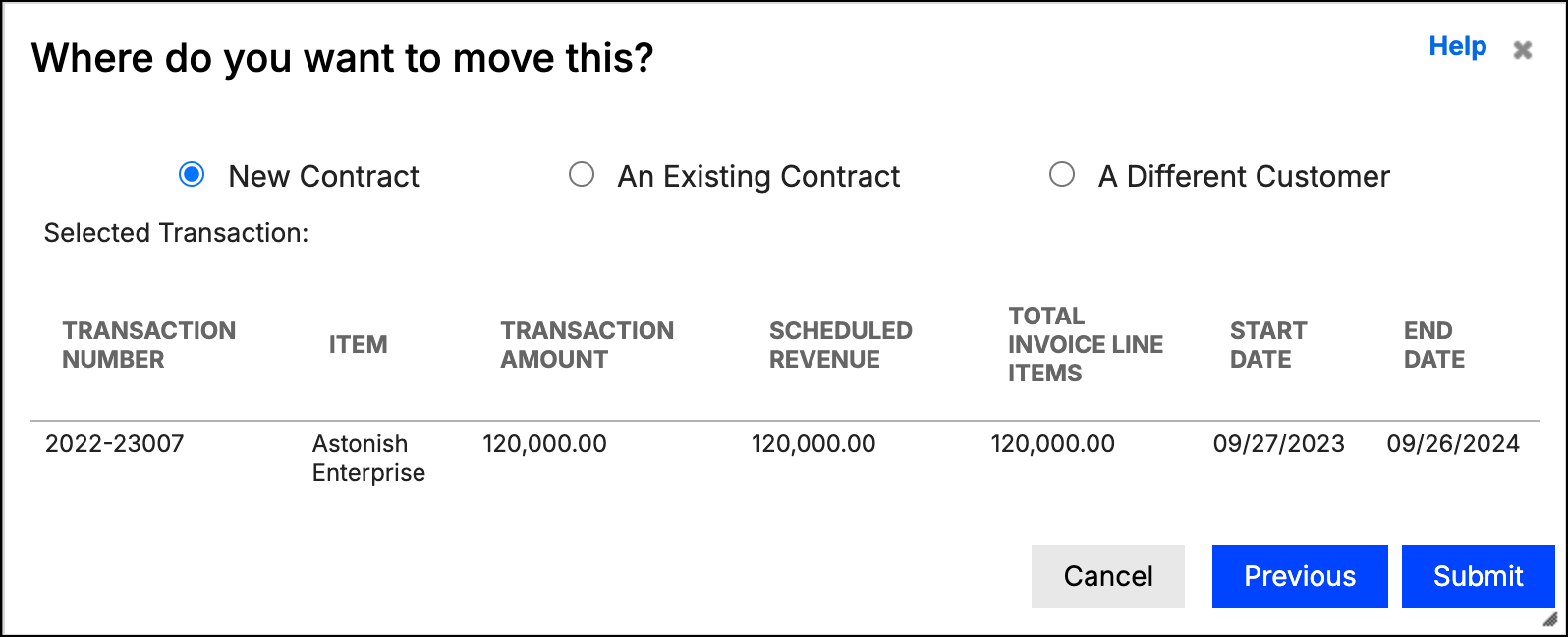
You can move a Transaction to a new Contract, an existing Contract under the same Customer, or a Contract under a different Customer. If you choose an existing Contract, Maxio lists the available Contracts to choose from. If you choose a new Contract, Maxio creates it under the same Customer and Register as the original.
The destination Contract's Register must use the same currency as the Transaction.
If a Transaction has a synced Invoice and its current Contract has a QuickBooks Job ID, it can't be moved.
Related information
For a broader look at how Transactions work, see Understanding Transactions.
Still need help?
Reach out and our support team will take it from here.