
Build Precise Searches Using List Filters
Applies to: Maxio Core
Last updated on Aug 26, 2026
List filters exist to ensure users have the ability to achieve ultimate specificity when searching for records. A single filter could return exactly the records you need to review, edit, export, and so forth. Or maybe a more sophisticated search with multiple filters will do the trick. List filters are widely available throughout Maxio Core. After navigating to a List or Home page, click the filter icon in the filter bar to create a filter. It is a sliders symbol, and hovering over it shows the label Select Filters.
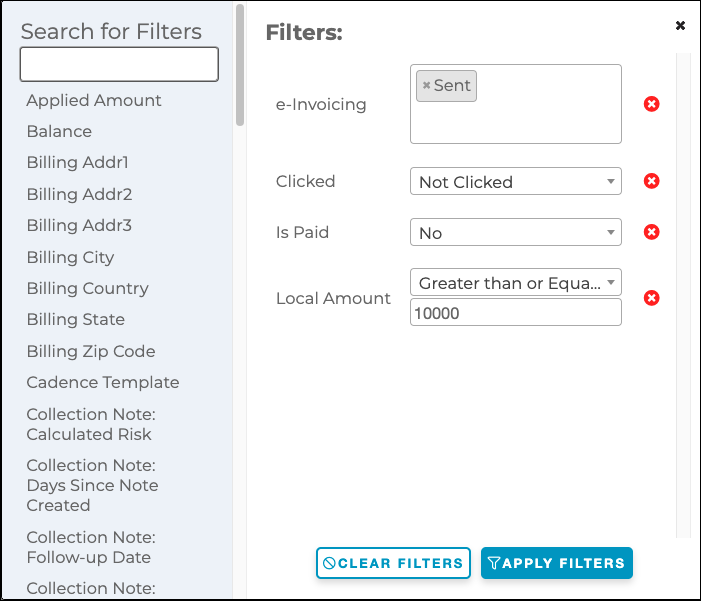
A pop-up then appears that allows you to apply one or more filters. There is no limit to the number of filters that can be applied to a single search but the more filters applied, the more specific the search. Here is an example from the Invoice List that will show all sent e-Bills with an amount over $10,000 that the customer has not clicked or paid.
Filter types
Below are the types of filters currently available.
Boolean
For binary fields, typically displayed as a checkbox within the Maxio Core edit screens. Two opposing options are provided but only one value may be selected.
Customer List Example:
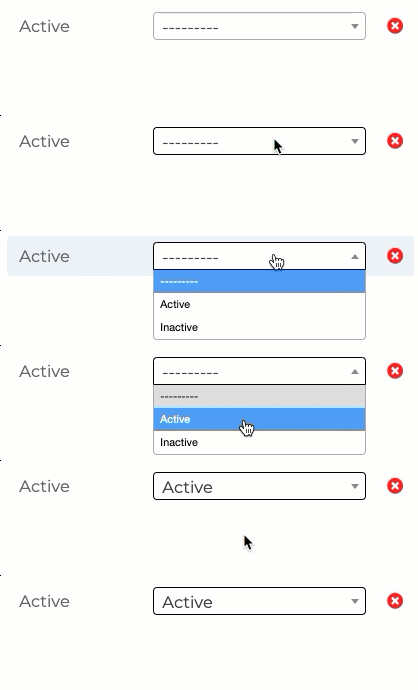
Simply click inside the box to produce a drop-down. Then click on an individual value to include in the search. This example would result in returning only Active Customer records.
Multi-select
Available where there are multiple values for a field, typically where a drop-down is available in Maxio Core edit screens. Search for one or more values.
Transaction List Example:
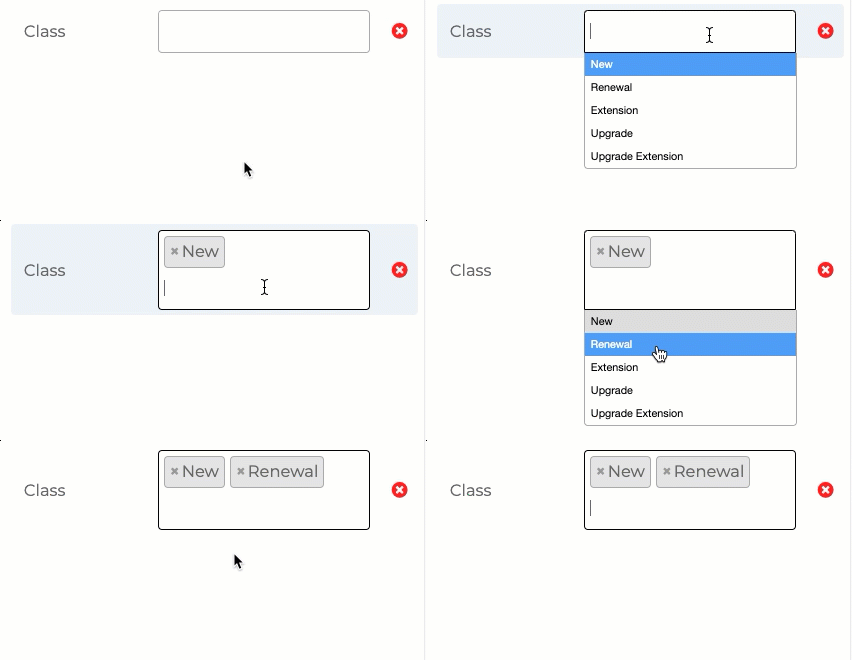
Simply click inside the box to produce a drop-down. Then click on the individual values to include in the search. This example would result in returning only Transactions with New or Renewal classes.
Text field
For searching text string or character fields. There are several available operators detailed below.
| Operator: | Returns all records that: |
|---|---|
| Equal to | Exactly match the search term. Example: Transactions created by only Thomas Bouchard (user). |
| Contains | Contain the search term. Example: Several of my customers have the text "SaaS" in their Customer Name. I am seeking all Invoices with "SaaS" in their Customer Name. |
| Does Not Contain | Do not contain the search term. Example: Several of my customers have the text "SaaS" in their Customer Name. I am seeking all Invoices that do not have "SaaS" in their Customer Name. |
| In | Exactly match the search term(s). Logic: either Text1 or Text2 or Text3, etc. Example: I am searching for all Transactions that use the following Items: Item A, Item B, Item Z. Type a value and press [return] or [enter] to create a search term. |
| Not In | Do not exactly match the search term(s). Logic: neither Text1 nor Text2 nor Text3, etc. Example: I am searching for all Transactions that do not use the following Items: Item A, Item B, Item Z. Type a value and press [return] or [enter] to create a search term. |
| Is Null | Have blank values Example: I am searching for all Contract records that have a blank value in a custom text field. |
| Is Not Null | Do not have blank values Example: I am searching for all Contract records that do not have blank values in a custom text field. |
Number field
For searching number fields. There are several available operators detailed below.
| Operator: | Returns all records that: |
|---|---|
| Equal to | Exactly match the search term. Example: I am searching for all Invoice Line Item records that have a Quantity of "12." |
| Greater than | Are greater than the value of the search term. Example: I am searching for all Payment records that have Amounts greater than "400." |
| Less than | Are less than the value of the search term. Example: I am searching for all Payment records that have Amounts less than "400." |
| Greater than or Equal to | Are greater than the search term, or exactly match it. Example: I am searching for all Payment records that have Amounts of "400" or more. |
| Less than or Equal to | Are less than the search term, or exactly match it. Example: I am searching for all Payment records that have Amounts of "400" or less. |
| Is Null | Have blank values Example: I am searching for all Contract records that have a blank value in a custom number field. |
| Is Not Null | Do not have blank values Example: I am searching for all Contract records that do not have blank values in a custom number field. |
Date field
For searching date fields. There are several available operators detailed below.
| Operator | Details |
|---|---|
| Custom | - Date Range: A static date range, manually entered. From X date Through Y date. - Is Null: Returns all records that have blank dates. - Is Not Null: Returns all records that do not have blank dates. |
| Past | - Yesterday: Returns all records with yesterday's date. - Last Week: Sunday - Saturday - Last Month: Last calendar month - Last Quarter: Relative quarter is based on Admin Setting → Fiscal Year Start Month - Last Year: Relative year is based on Admin Setting → Fiscal Year Start Month - Last 7 Days: Yesterday and the 6 days prior (does not include today) - Last 30 Days: Yesterday and the 29 days prior (does not include today) - Last 60 Days: Yesterday and the 59 days prior (does not include today) - Last 90 Days: Yesterday and the 89 days prior (does not include today) |
| Present | - Today: Returns all records with today's date. - This Week: Sunday - Saturday - This Month: This calendar month - This Quarter: Relative quarter is based on Admin Setting → Fiscal Year Start Month - This Year: Relative year is based on Admin Setting → Fiscal Year Start Month |
| Future | - Next Week: Sunday - Saturday - Next Month: Next calendar month - Next Quarter: Relative quarter is based on Admin Setting → Fiscal Year Start Month - Next Year: Relative year is based on Admin Setting → Fiscal Year Start Month - Next 7 Days: Tomorrow and the following 6 days (does not include today) - Next 30 Days: Tomorrow and the following 29 days (does not include today) - Next 60 Days: Tomorrow and the following 59 days (does not include today) - Next 90 Days: Tomorrow and the following 89 days (does not include today) |
Still need help?
Reach out and our support team will take it from here.