
Manage a Subscription Group
Applies to: Advanced Billing
Last updated on Oct 8, 2026
Manage a Subscription Group's payments, credits, and lifecycle from the Group Actions dropdown, found on the top right of the group's page.
From Advanced Billing, go to Billing > Subscriptions, then select the blue Group - Primary or gray Group - Member tag on any Subscription in the group. This opens the Subscription Group page, where you'll find Group Actions on the top right.
Only users with Customer Support permissions or higher can see the Group Actions dropdown.
Manage group members
Select Manage Group Members to open the Manage Subscription Group screen. See Add an Existing Subscription to a Group for the full procedure.
View payments
Select View Payments to see a table of every payment recorded against the Subscription Group.
Export group members
Select Export Members to queue a CSV export of every Subscription in the group, along with membership and billing details. The export doesn't download immediately — retrieve the finished file from Downloads (Exports) once it completes.
Give or deduct a service credit
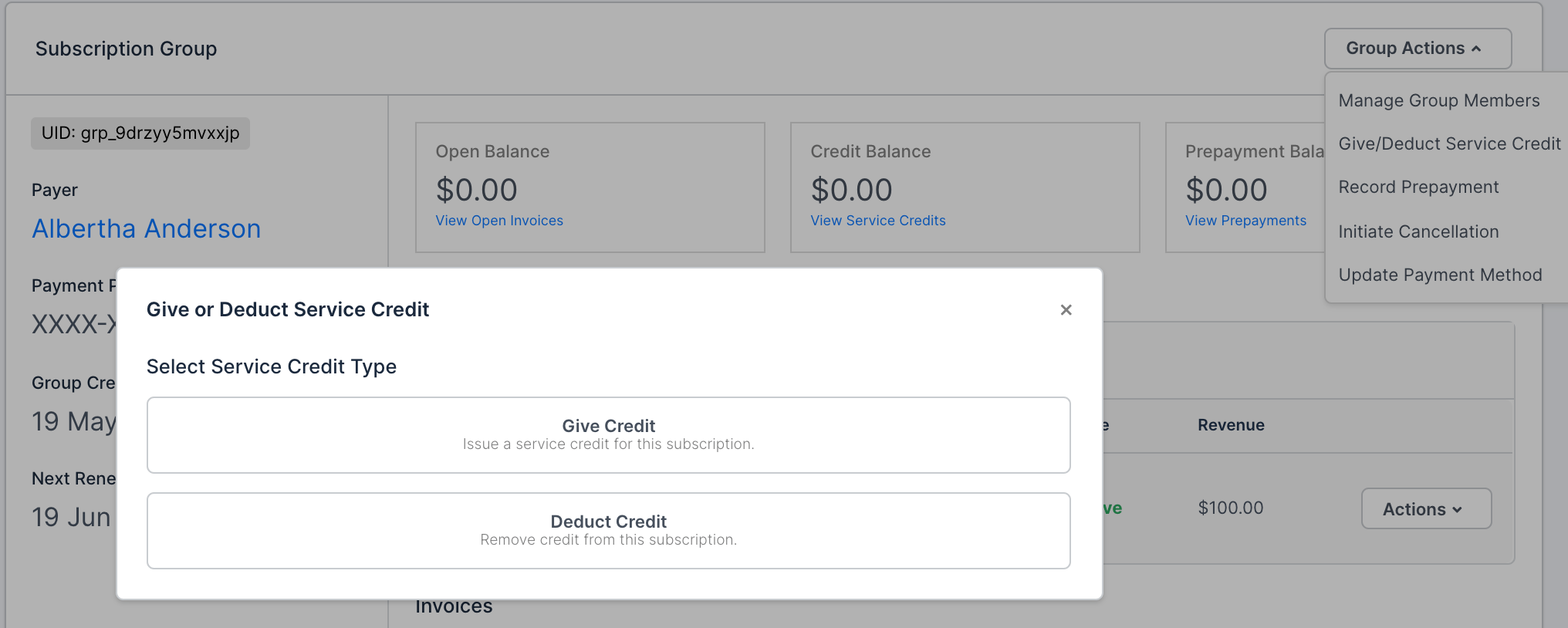
You can give or deduct a service credit at the Subscription Group level, the same way you would on an individual Subscription. Select Give Credit to issue a credit, or Deduct Credit to remove credit from the Subscription. These credits apply to the next issued consolidated invoice.
Record prepayment
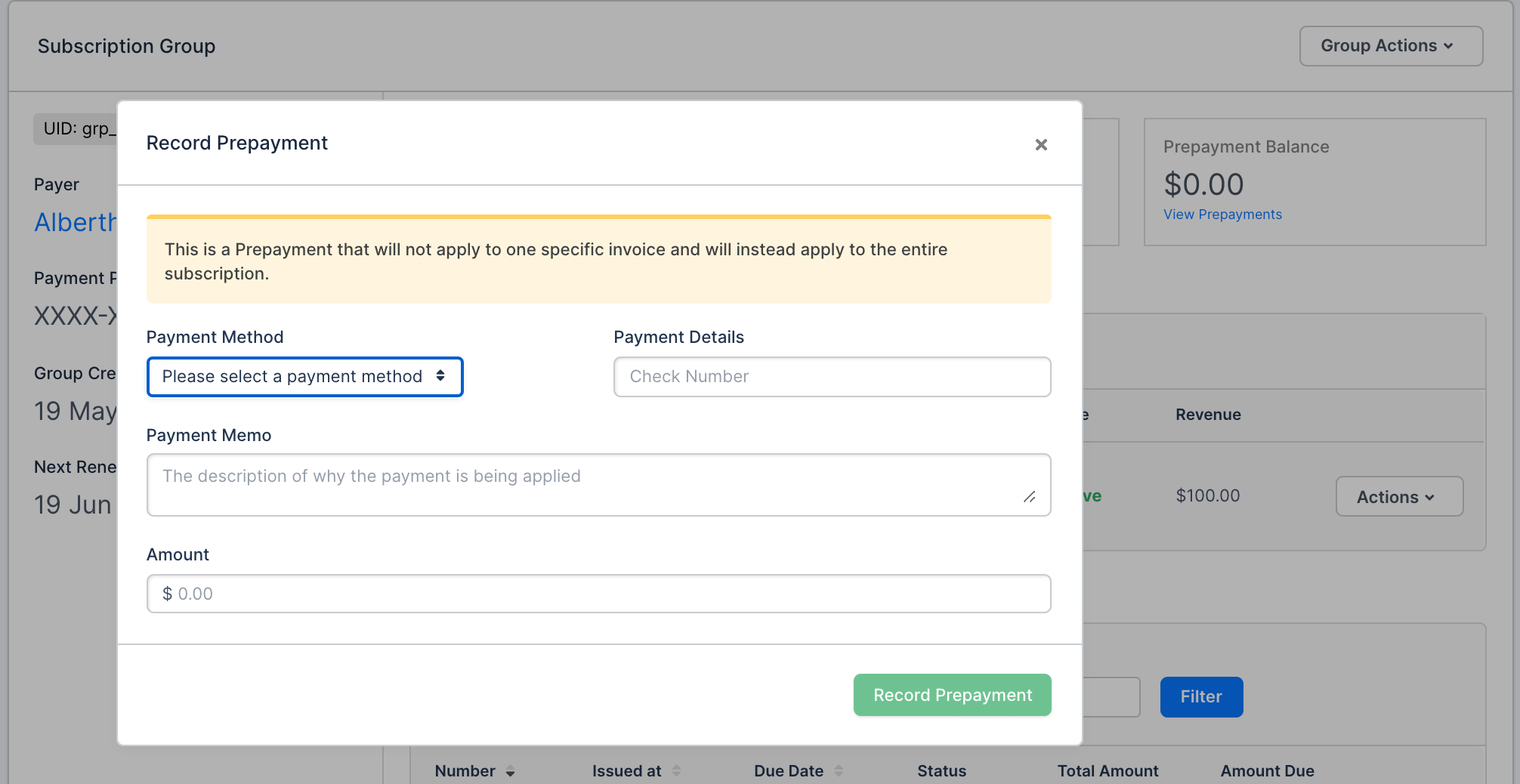
Select Record Prepayment to apply a prepayment to the Subscription Group. This prepayment doesn't apply to one specific invoice; it applies to the entire Subscription instead. Set the Payment Method, Payment Details, Payment Memo, and Amount, then click Record Prepayment.
Initiate cancellation
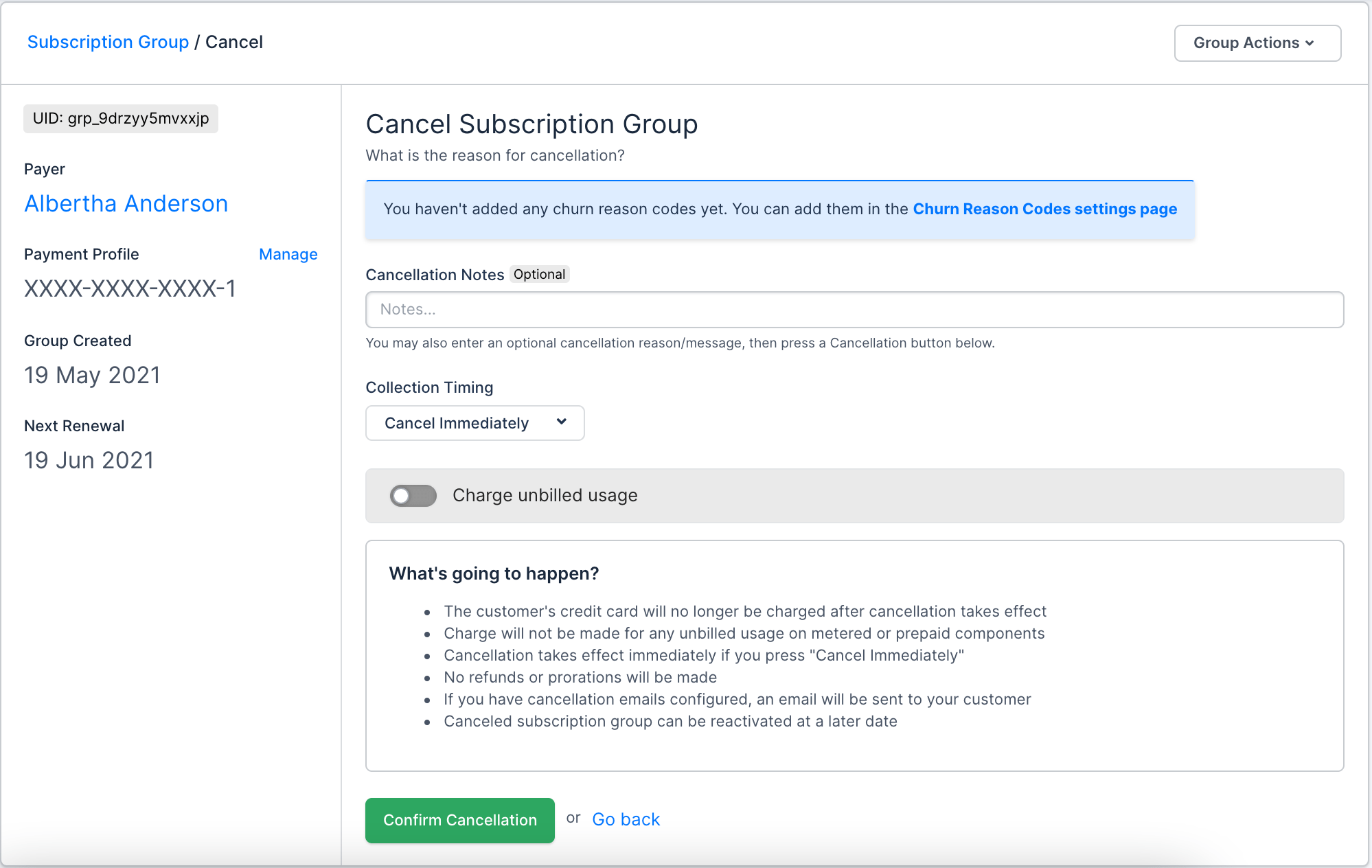
Select Initiate Cancellation to open the Cancel Subscription Group screen. Add optional cancellation notes, set Collection Timing to Cancel Immediately or Cancel at End of Period, and choose whether to charge for unbilled usage.
Canceling a Subscription Group:
- Stops future charges to the Customer's payment method.
- Doesn't charge for unbilled usage on metered or prepaid Products, unless you enable that option.
- Takes effect immediately if you select Cancel Immediately.
- Doesn't issue refunds or prorations.
- Sends a cancellation email to the Customer, if you have cancellation emails configured.
- Can be reversed later with Reactivate.
If you select Cancel at End of Period and the member Subscriptions don't all share the primary's billing period, each member cancels as soon as the primary's own cancellation takes effect, even if the member's current billing period hasn't ended yet. The primary owns the group's consolidated invoice, so a member is not left active under a canceled primary.
- A member whose billing period ends at the same time as the primary's still completes its own final billing before it cancels.
- A member that is on hold when the primary's cancellation takes effect is canceled with the group.
- A member that is already canceled is not affected.
Clear pending cancellation
If a Subscription Group has a cancellation scheduled for the end of the period, select Clear Pending Cancellation to cancel that schedule and keep the group active. This takes effect immediately, with no confirmation screen.
Reactivate
Select Reactivate to bring back a canceled Subscription Group. This option only appears when the primary Subscription is canceled, and it restores every member Subscription, not just the primary.
A few things to know before you reactivate:
- The primary Subscription can't already be active.
- Your site must use invoice-centric billing.
- Every Subscription in the group must use the Automatic collection method.
- None of the Subscriptions can be on a trial.
- A Subscription Group using Calendar Billing can't reactivate mid-period. Use Resume instead.
- A member Subscription that was suspended for prepaid usage when the group canceled stays canceled. Reactivating the group doesn't bring it back.
- If you choose Start New Billing period, the primary and each member are billed for a new billing period. If Resume eligible member subscriptions is selected, which it is by default, members with time left in their current billing period are resumed instead, with no additional charge.
Update Payment Method
Select Update Payment Method to add, edit, or remove the Subscription Group's payment method.
Put on hold
Select Put On Hold to pause billing on one or more Subscriptions in the group. Choose which Subscriptions to hold, then set a resume date or choose to resume manually.
A Subscription can only be put on hold if it's Active or Trialing, and its current billing period ends more than an hour from now.
Resume
Select Resume to bring one or more on-hold Subscriptions back to Active. Resuming takes effect immediately: if the hold ends before the Subscription's next renewal, it becomes Active right away; if the hold already passed the renewal date, Maxio processes that billing immediately instead.
Related information
See Understand Subscription Groups for how Subscription Groups work overall.
Still need help?
Reach out and our support team will take it from here.