---
title: Set Up a Scheduled Renewal
url: https://docs.maxio.com/billing/subscriptions/configuration/term-renewal/set-up-a-scheduled-renewal
applies_to: Advanced Billing
updated: 2026-11-21
---
# Set Up a Scheduled Renewal
Manually add and configure a Term Subscription's next renewal instead of relying on Auto-Renewal, then choose exactly when it locks in.
> **Important:** Scheduled Renewal requires Term Subscriptions and this feature enabled for your site. Contact [support@maxio.com](mailto:support@maxio.com) for assistance. In the product UI, this option appears as **Manual One-Time** when you choose a renewal type.
## Add and configure a renewal
Renewals keep a Term Subscription active beyond its current term. Without one configured, a Term Subscription expires when its current term ends.
**To add a Renewal**
1. Select **Change** in the Subscription's Term section, then select **Add Renewal +**.
2. Choose **Manual One-Time** instead of **Auto Renewing**. This creates a draft Renewal.
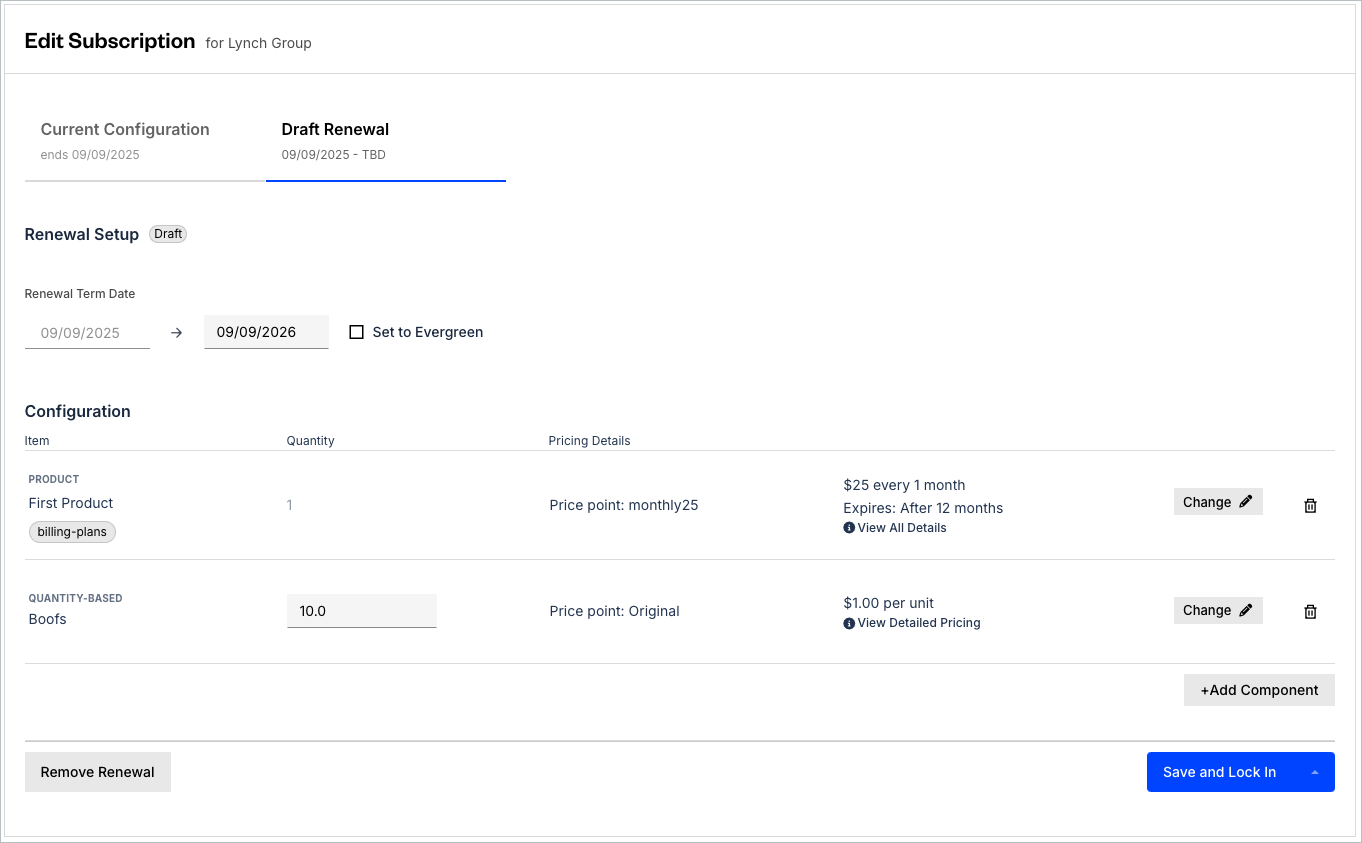
The draft Renewal is pre-populated with the Subscription's current Product, Components, price points, and quantities. From there, you can:
- Select a different Product from the Catalog.
- Add or remove a Component.
- Change a quantity.
- Change a price point.
> For a Subscription in a secondary currency, you can only select price points that have Definitive Pricing set. If it isn't set, select the Product or Component, then set up Custom Pricing instead.
## Set the renewal term
The **Renewal Term Date** defaults to 12 months from the Subscription's current expiration date, not its current term length. If the Product's price point bills over a longer period than 12 months, the default extends to one full billing period of that Product instead, so the Product's first billing period fits inside the term. A Component billing over a longer period doesn't change this default, so set an end date that covers that Component's billing period. Set a different end date to fit your needs, but not one earlier than the longest billing period of the Products and Components on the draft Renewal, counted from the Renewal's start date. Advanced Billing rejects an earlier date.

Advanced Billing automatically prorates the final billing period if the renewal term length isn't evenly divisible by the billing period length.
Select inside the **Renewal Term Date** end-date field, then select a new date from the date picker.
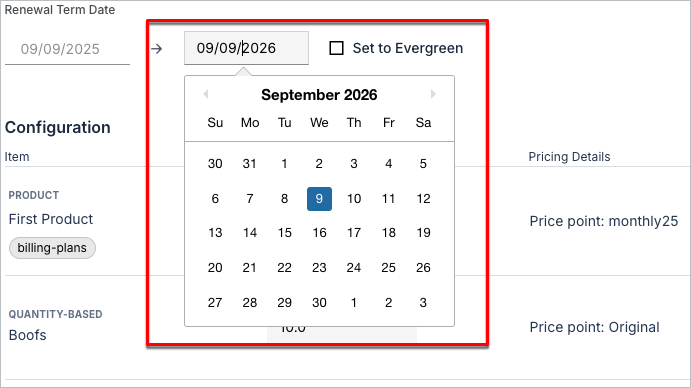
> By default, the date picker highlights the day of the month you're currently billing on as you page through months.
Select **Set to Evergreen** instead to remove the fixed end date. When the Subscription's current term ends, its term changes to Term and Evergreen Subscription Options, and it stays active until canceled.
## Save and lock in a renewal
You can leave a Renewal in Draft status without saving it; a Draft Renewal doesn't affect the Subscription until you save it.
- Select **Save and Lock In** to save and lock in the Renewal immediately. The Renewal enters Pending status; its term hasn't started yet, but Advanced Billing creates the billing schedule for the new period.
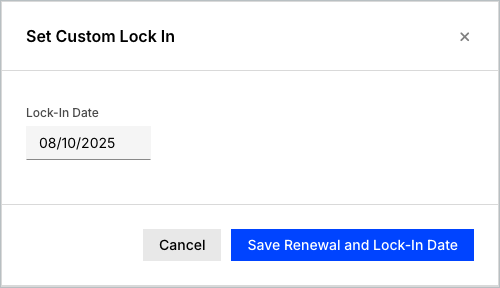
- Select **Save and Set Custom Lock In** to save the Renewal and schedule its lock-in for a future date instead, giving you time to remove the Renewal before then. On the **Set Custom Lock In** screen, select **Save Renewal and Lock-In Date** to confirm. The Renewal enters Scheduled status until the lock-in date, then moves to Pending status.
### How a rating interval affects a renewal
If the Renewal includes a metered Component whose Price Point has a rating interval, Advanced Billing checks two things before it locks in the Renewal:
- **The term:** the new term must be a whole number of that Component's rating windows. This is the same constraint that applies when you edit a Subscription's term directly.
- **The Price Point:** the Renewal is checked against the rules for changing a rating-interval Component's Price Point. The lock-in is rejected if the Renewal starts a rating interval on a metered Component that has already been active on the Subscription, or switches a rating-interval Component to a Price Point with a different rating interval or billing interval. For the full rules, see Report Product Usage and Allocations.
Advanced Billing also checks the term while you configure the draft Renewal, so you can fix a term that doesn't fit before you lock it in. The term is checked when you:
- Add a Component to the draft Renewal or change one of its Components. Only the Component you add or change is checked, so you can fix a Renewal that doesn't fit several Components one Component at a time.
- Change the **Renewal Term Date**. Every rating-interval Component that the Renewal will bill is checked against the new date.
- Select **Save and Set Custom Lock In**. Every rating-interval Component that the Renewal will bill is checked.
These checks cover each rating-interval Component that the Renewal will bill in the new term. For a Component that's already on the Subscription's billing schedule, the term is checked against that schedule. For a Component that the Subscription doesn't bill yet, or one whose earlier billing ended before the new term starts, the term is checked against the billing periods that the Renewal will create for it, the same way lock-in checks it. A Component that the Renewal won't bill in the new term isn't checked. Creating the draft Renewal isn't checked, so the draft always includes the Subscription's current Components.
What happens when a check fails depends on the option you select:
- **Save and Lock In:** the lock-in is rejected with a message naming the Component. For a term that doesn't fit, the message also names its rating interval and the term end date you set, and the Renewal stays in Draft status until you change the term end date or the Component's Price Point.
- **Save and Set Custom Lock In:** a term that doesn't fit is rejected when you save, with the same message, and the Renewal stays in Draft status. The Price Point check runs when the lock-in date arrives. A Renewal that fails a check then is not locked in, the rejection is only logged, and the Subscription expires at the end of its current term instead of renewing.