
Understand Multi-Currency in Advanced Billing
Applies to: Advanced Billing
Last updated on Aug 26, 2026
Advanced Billing supports defining multiple currencies per site. When creating a site, you can define your primary currency and then, once your site has been created, you may define additional currencies that you want to support in Settings > Multi-Currency.
Secondary currencies
Each currency that you define beyond your primary currency will be accessible through the app and the API for your catalog items and subscriptions. You are able to choose how secondary currencies relate back to your primary currency by either defining specific pricing for each catalog item, or by using an exchange rate. For each catalog item (product price points, component price points, and coupons), you will be able to choose which strategy to use for pricing.
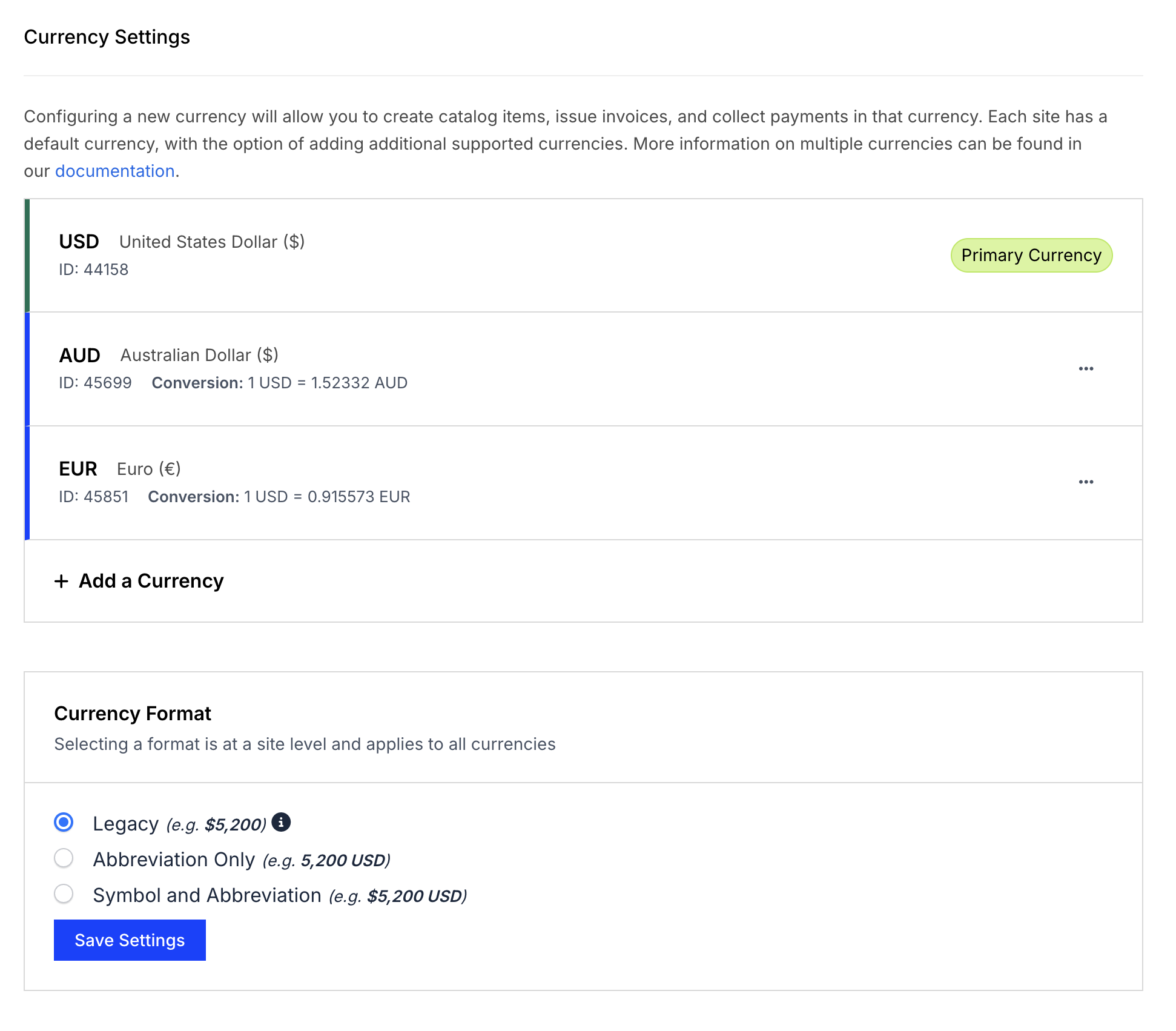
A listing of currencies defined in the multi-currency settings.
Definitive pricing
Use definitive pricing when you want to set the price for each currency yourself rather than deriving it from your primary currency. The result is a specific price per currency, which is cleaner and localized to that market.
For contrast: on a USD site that also supports EUR, a $10.00 product priced by exchange rate would float with the rate, so a rate of 0.823 returns €8.23. With definitive pricing you set the EUR price directly and it does not move with the market.
Exchange rate
If you do not want to define pricing for currencies on each item in your catalog, you can also choose to have pricing calculated by an exchange rate. This is currently the default behavior for existing catalog items when a second currency is introduced.
Custom rate
When defining a new currency, you may choose to define a specific exchange rate. This will ensure that as subscriptions renew each month, the price they’re charged doesn’t change each billing cycle based on the market rate.
Floating rate
Advanced Billing caches exchange rates every hour through our integration with https://openexchangerates.org/. Selecting this option will ensure that as market exchange rates fluctuate, your pricing stays in line with those changes.
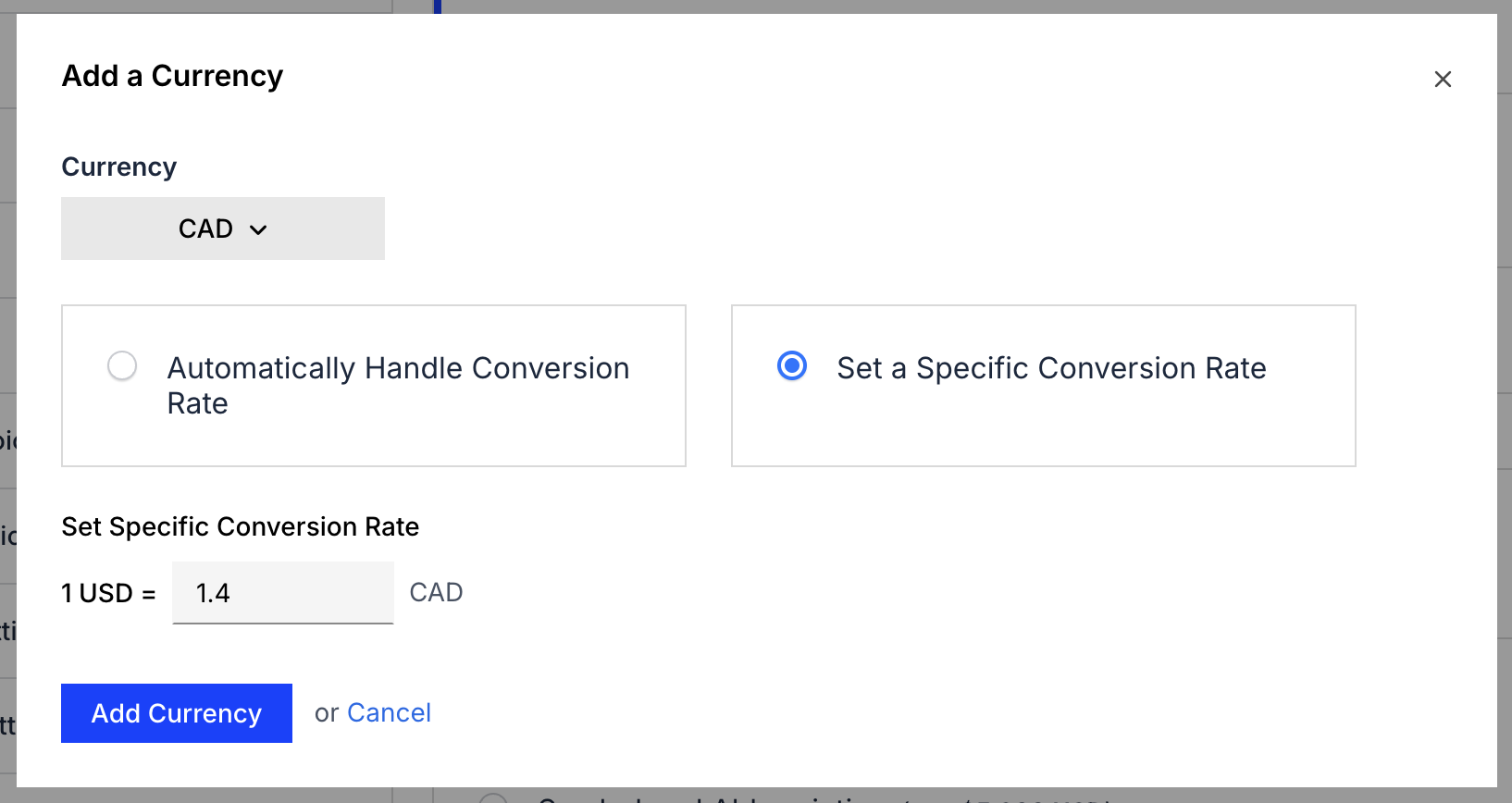
An example of defining a custom rate when managing a currency.
Subscriptions
Currency is stored on the subscription level. When creating a subscription, you are able to specify a non-primary currency that has been defined within your site settings. You will need to ensure that any products, components, or coupons you assign to the subscription support that currency either by being set to convert pricing based on the exchange rate, or by having defined currency-specific pricing. If any of the items do not support the subscription’s currency, it will return an error and not get created.
It is not possible to change the currency of an existing subscription at this time.
Catalog items
Each product price point, component price point, and coupon in your catalog can either convert its pricing by exchange rate or define currency-specific pricing. For any items set to define their own pricing, adding a new currency means going back and adding pricing for each of those catalog items. If they were set to use the exchange rate, they will automatically support any new currencies that are added.
Related articles
Still need help?
Reach out and our support team will take it from here.