
Understand Self-Service Pages
Applies to: Advanced Billing
Last updated on Oct 5, 2026
Advanced Billing lets a subscriber securely update their own payment information online, without you handling their card data. This page is called the Self-Service Page (SSP).
Distribute the Self-Service Page link automatically
The Self-Service Page URL can be included in many of Advanced Billing's automatically-generated emails. Add {{update_url}} to any of your Advanced Billing-generated emails to link a subscriber to their own Self-Service Page:
- Settings > Retries and Dunning > Add Message: include
{{update_url}}in your dunning messages. - Settings > Emails > Edit Template: include
{{update_url}}in your other email templates.
See Customize Email Templates for the full list of dynamic variables available and for customizing these emails.
Manually send the Self-Service Page link
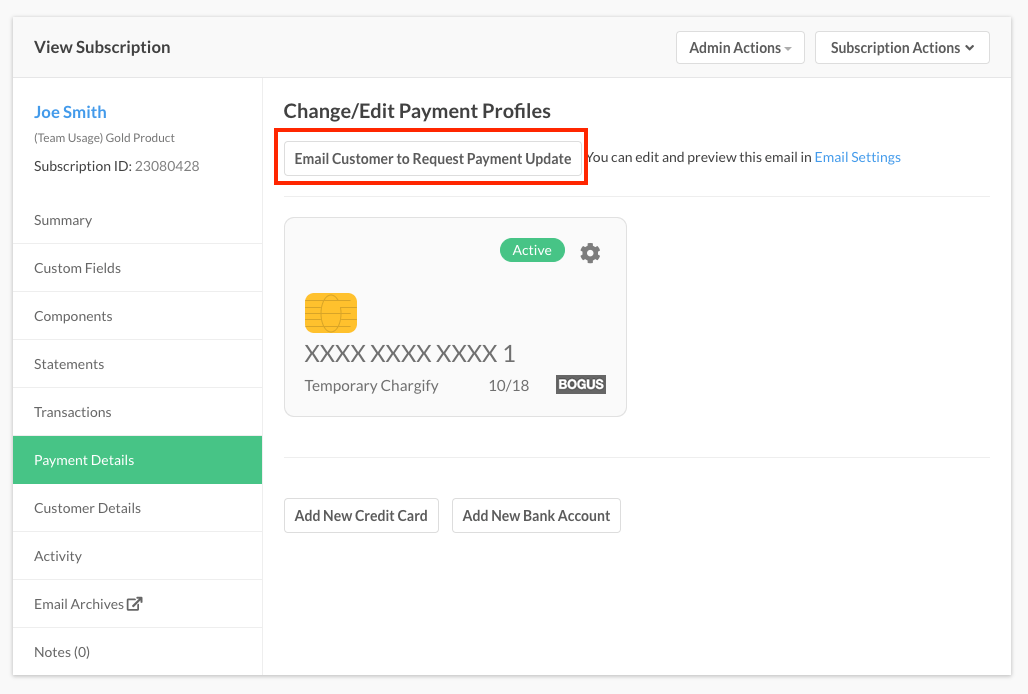
Select Email Customer to Request Payment Update from a Subscription's Payment Details tab to email a link to the Customer's addresses on file.
How subscribers use the Self-Service Page
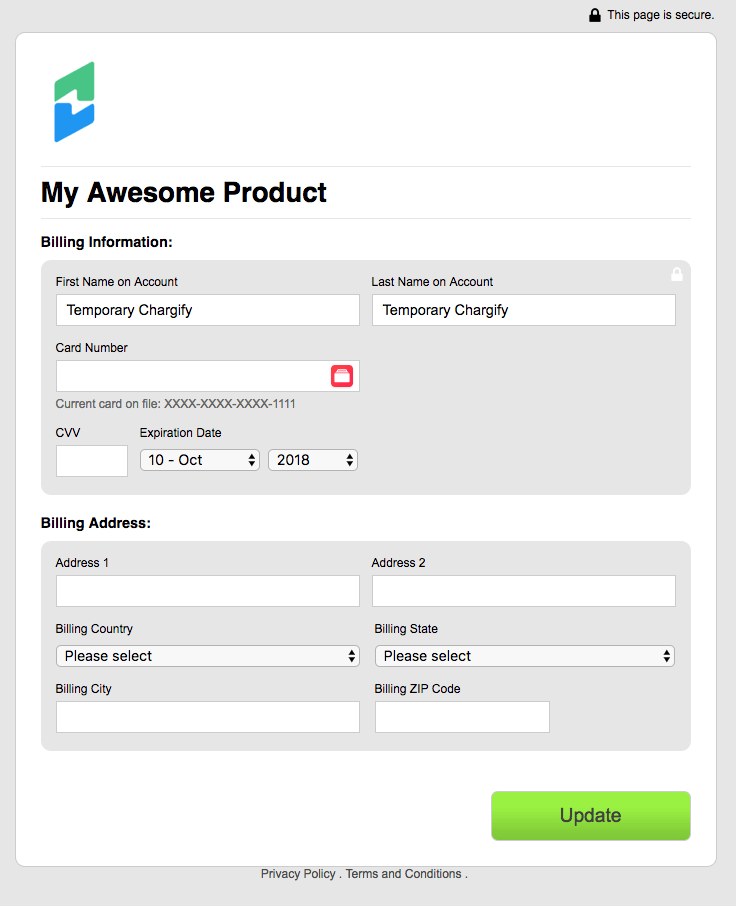
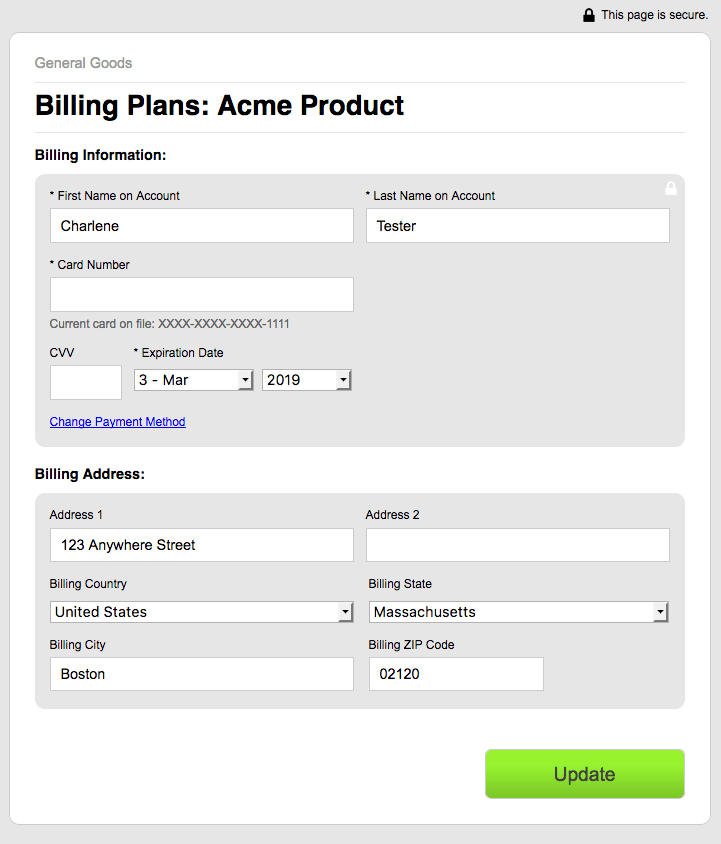
Below is an example of a Self-Service Page a Customer can use to update their payment method. A subscriber enters their information and selects Update. This new card becomes the active payment method on file for the Subscription.
Customers can also update their payment information via the Billing Portal. See Understand the Billing Portal for an overview. Self-Service Pages are an alternative for subscribers to update their cards if you choose not to enable the Billing Portal.
Update via a digital wallet
If your site uses the Maxio Payments gateway with Apple Pay or Google Pay enabled, a subscriber can choose either wallet from the Payment Method options on the Self-Service Page instead of typing in a card.
Apple Pay only appears as an option in Apple-supported environments, such as Safari on iOS or macOS. Google Pay has no such browser restriction.
Selecting Apple Pay or Google Pay opens the wallet's own secure authorization window; once the subscriber approves the payment there, the Self-Service Page captures the returned card details automatically, without the subscriber typing a card number. The subscriber then selects Update to finish, the same as with any other payment method.
See Enable Apple Pay for how to turn on Apple Pay and route it to the Maxio Payments gateway, and Enable Google Pay for Google Pay.
Update via PayPal
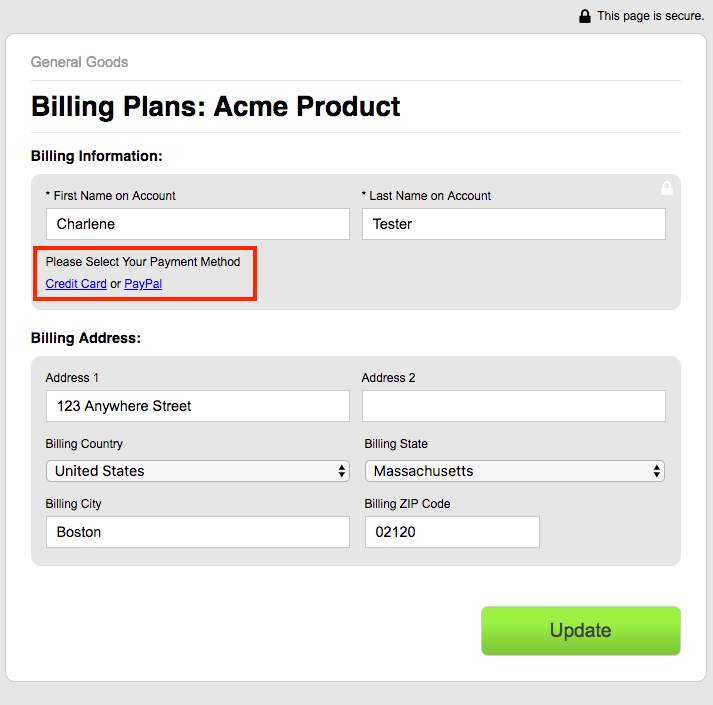
If your site uses a PayPal-capable gateway, such as Braintree, a subscriber can switch from a credit card to PayPal on the Self-Service Page by selecting PayPal from the Payment Method options.
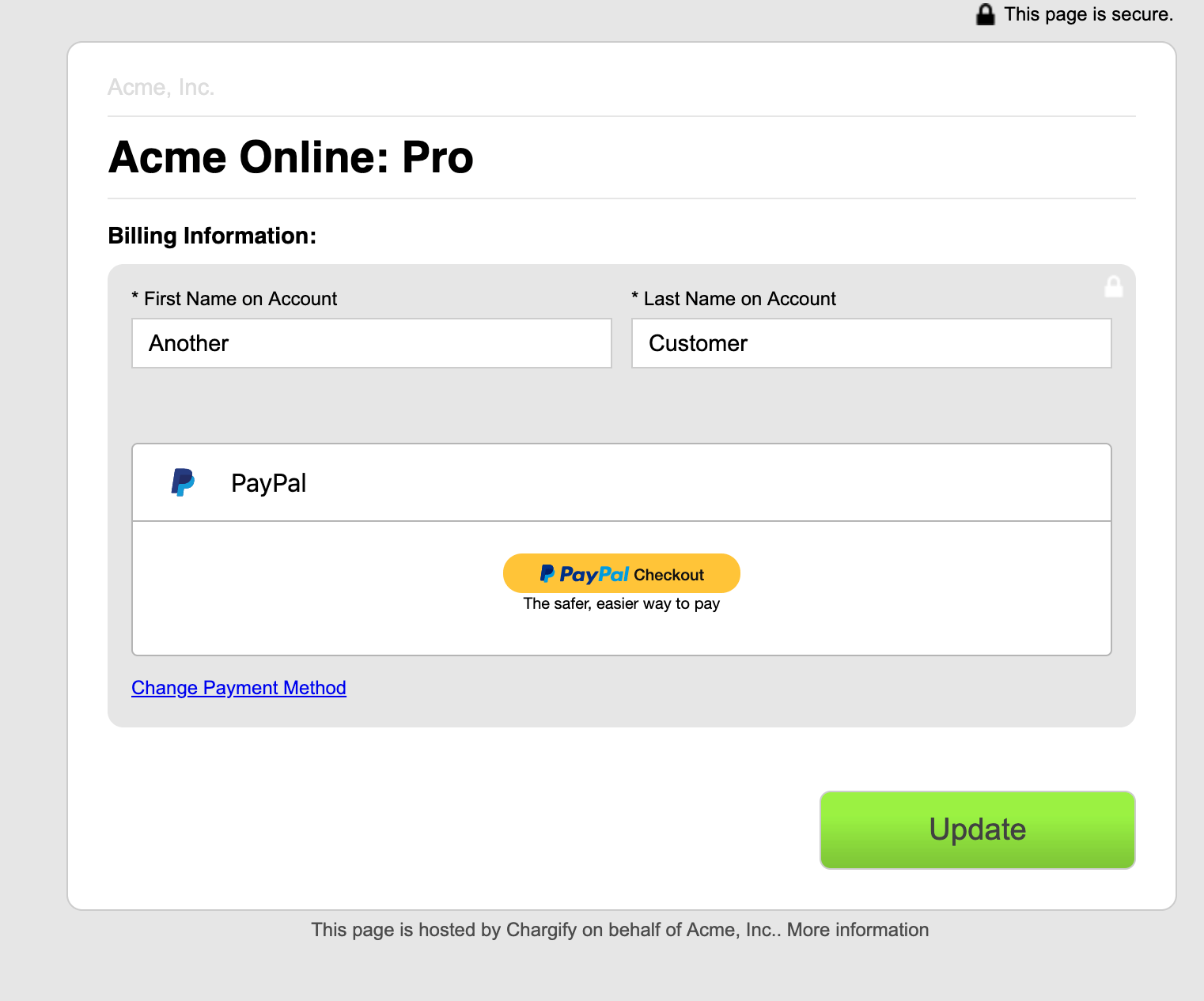
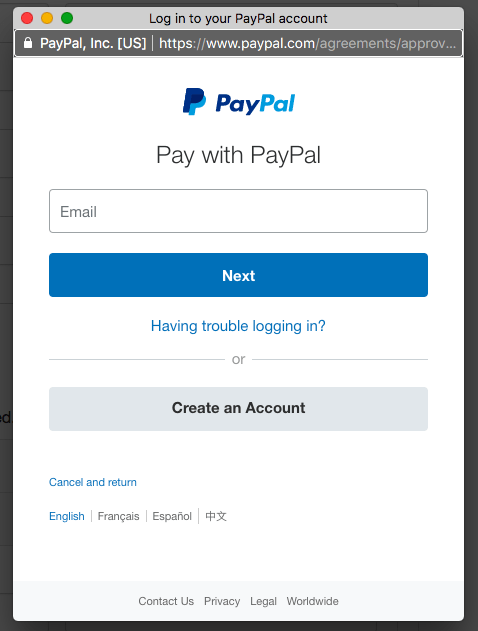
The subscriber selects PayPal Checkout, which opens a PayPal popup where they securely enter their PayPal credentials.
Switch payment methods without losing entered details
If a subscriber changes their selected payment method on the Self-Service Page — for example, switching from Credit Card to Direct Debit — the page keeps the billing address and profile names they already typed, instead of clearing the form. A brief loading indicator appears while the page updates, and their information reappears once the new payment method's fields are ready. An edited billing address takes priority over the one pre-filled from a stored payment profile.
Card numbers, bank account and routing numbers, and other sensitive payment details are never retained across a switch. Manually reloading the page, rather than switching payment methods, still starts the form over from empty.
Collect a full billing address on the Self-Service Page
Some gateways require a full billing address for every payment method. Enable this per Plan under Require a shipping or billing address, and select Request on Self-Service Page. See Creating Plans for details.
Understand Self-Service Page limits
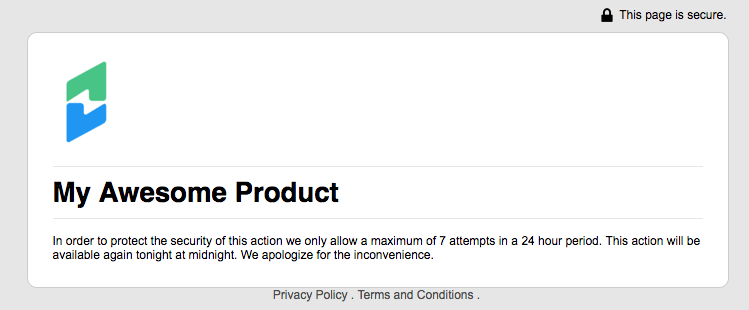
A subscriber gets 7 attempts to update their credit card per calendar day. After the 7th failed attempt, updates are locked until the next calendar day begins, at midnight Eastern Time, regardless of your site's own timezone.
Understand gateway routing on the Self-Service Page
If your site has multiple gateways configured, a payment type (credit card, PayPal, and so on) is only available on the Self-Service Page when one gateway is set as the default for that payment type. A subscriber's new or updated payment method is always saved to the default gateway for its type, even if their existing payment method is stored with a different gateway.
Related information
See View Subscription Self-Service Page for how to open a subscriber's Self-Service Page yourself.
See Generate Self-Service Page URLs for constructing a Self-Service Page URL directly.
See Translate Public Page Content with Custom JavaScript for adding translations to your Public Pages.
Still need help?
Reach out and our support team will take it from here.