
Subscription Summary Overview
Applies to: Advanced Billing
Last updated on Aug 26, 2026
Use the Subscription page to manage everything about one Customer’s purchase: its Product and Price Point, billing dates, payment method, Invoices, and credits. Maxio creates a Subscription each time a Customer purchases a Product from your catalog, and gives each Subscription its own page. To open one, go to Billing > Subscriptions and select View Subscription on the Subscription you want.
A Customer can own many Subscriptions. A Customer with two Subscriptions has two Subscription pages, and a single page never covers more than one Subscription.
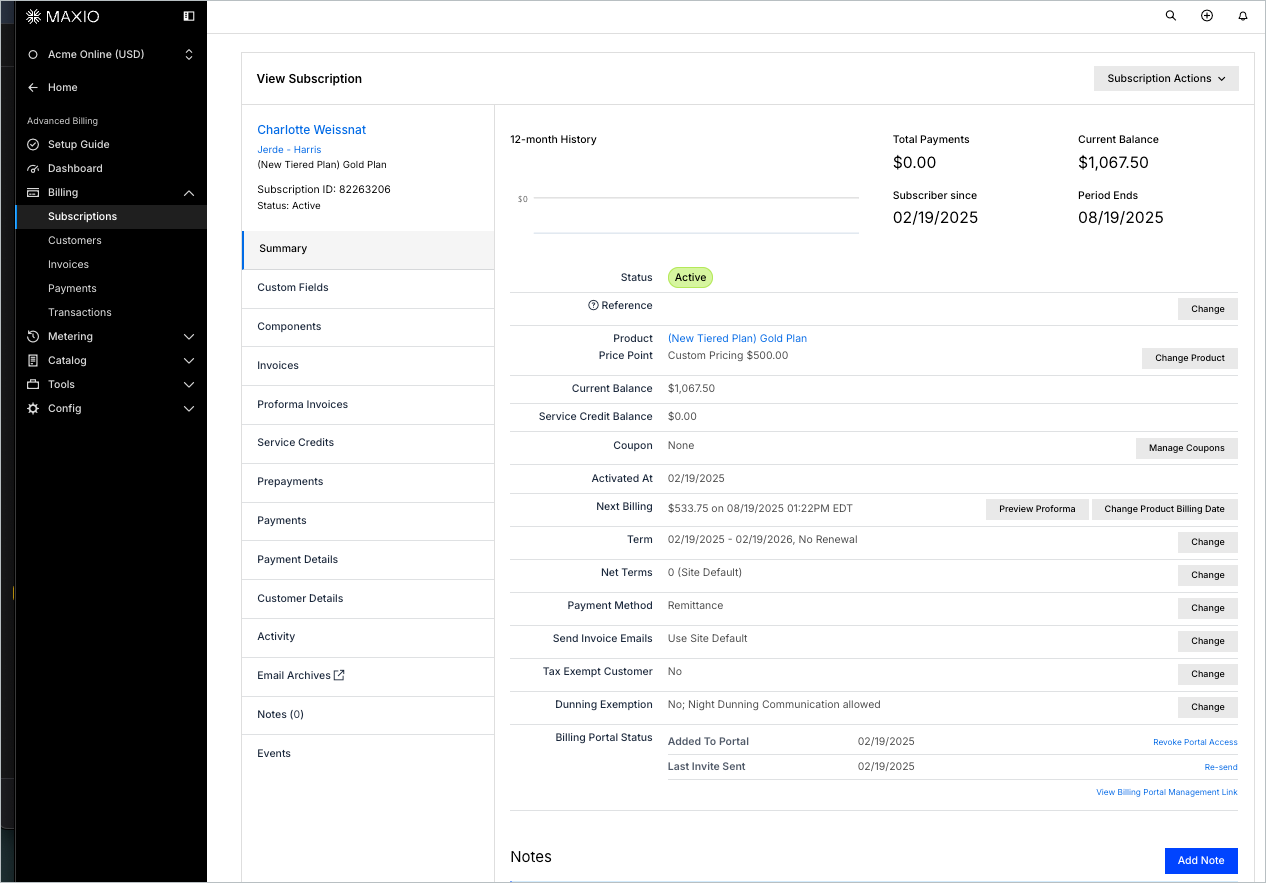
Find the article for each tab
Tabs down the left side of the page group a Subscription’s details by topic, covering its setup, its billing history, and the Customer behind it.
Important: Which tabs appear depends on how your Site is configured. Sites using Relationship Invoicing show the Invoices, Proforma Invoices, Service Credits, Prepayments, and Payments tabs; Sites that don’t show Statements instead. The Proforma Invoices tab is also hidden for prepaid Subscriptions and for Subscriptions that haven’t reached their signup date. On Sites that allow Subscriptions without a Product, the Components tab is labeled Products.
| Tab | Article |
|---|---|
| Summary | Understanding the Subscription Summary Page |
| Custom Fields | Viewing and Editing Custom Fields |
| Components | Managing Components and Usage |
| Invoices | Viewing Subscription Invoices |
| Proforma Invoices | Previewing and Creating Proforma Invoices |
| Service Credits | Managing Service Credits |
| Prepayments | Recording Prepayments |
| Payments | Viewing Payments |
| Payment Details | Managing Payment Methods |
| Customer Details | Updating Contact and Organization Information |
| Activity | Reviewing Subscription Activity History |
| Email Archives | Viewing and Downloading Email Archives |
| Statements | View Statements (Legacy) |
Still need help?
Reach out and our support team will take it from here.