
Subscription FAQs
Applies to: Advanced Billing
Last updated on Aug 28, 2026
Get answers to common questions about billing cycles and renewals, Past Due status, exports, external payments, refunds, and Billing Portal configuration in Advanced Billing.
Billing cycle and renewals
These cover billing timing, whether a renewal has actually started, and what happens when a trial ends without payment.
The Next Billing time has arrived and a transaction hasn't been initiated. What's wrong?
Once a Subscription's Next Billing date arrives, Advanced Billing attempts a renewal or transaction within 20-30 minutes. Advanced Billing processes renewals in batches for efficiency, so a short delay is normal while the system works through the scheduled renewals. Renewals can also pause briefly during normal maintenance. Longer delays are common on days when many Subscriptions renew at once, such as the first of the month.
What happens when a trial expires and a credit card hasn't been captured on the Subscription?
A trial expiring doesn't create a new Subscription. It's the same Subscription record throughout, and its billing period always advances by one full period from the trial's end date, whether or not payment succeeds.
For example, say a customer signs up on Jan. 1 for a Plan with a 10-day trial and a 1-month billing cycle:
- Jan. 1 - Jan. 10: trialing
- Payment is attempted on Jan. 10
- If payment succeeds, the Subscription becomes Active, with its next billing period running Jan. 10 - Feb. 10.
- If payment fails, the billing period still advances to Jan. 10 - Feb. 10, but the Subscription moves to Past Due status instead.
Past Due and balance
These cover how to find and resolve a Past Due Subscription, and how balance resets work when reactivating one.
How do I get a list of Past Due amounts for all Subscriptions?
Go to Subscriptions, open the Filter dropdown, and choose Past Due from the Status dropdown.
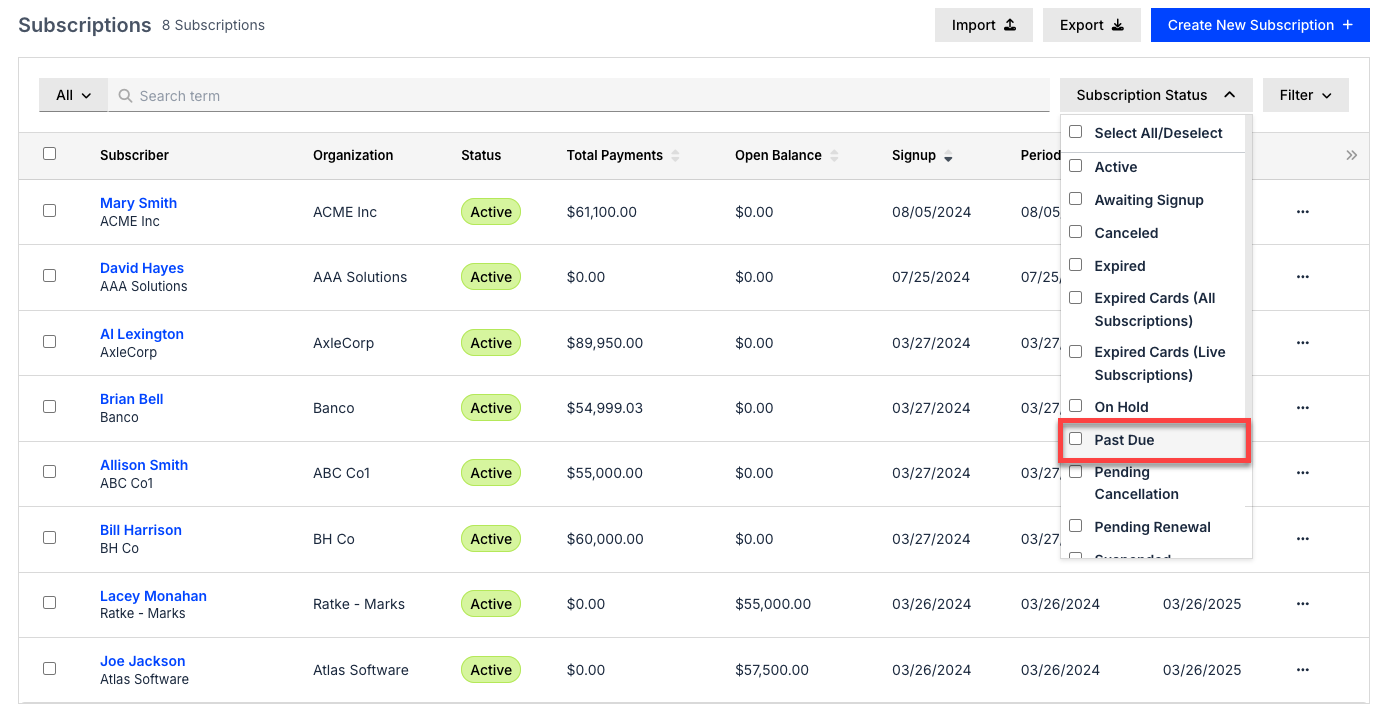
To limit this to a specific timeframe, change the date range. Once your settings are ready, select Apply Filters, then select Export to download a CSV file.
How do I get a Subscription out of Past Due status?
There are two ways to do this. The first is to pay the current outstanding balance in full, which moves the Subscription from Past Due to Active.
The second is to select Reset to $0 on the Subscription. This adds an adjustment that brings the balance to $0 and, after confirmation, moves the Subscription back to Active.
Why would I reset a reactivated Subscription's balance to $0?
Resetting a Subscription's balance to $0 is a separate, optional action you can take when reactivating a Subscription that was canceled for non-payment. It isn't something reactivation does automatically.
Businesses use it for two reasons:
- To avoid what could be perceived as an overcharge.
- Many recurring billing businesses prefer to forgive any unpaid amount that led to the cancellation, since they're happy to have the customer back.
If a Subscription is automatically canceled by a Dunning strategy for non-payment and the customer wants back in shortly after, charging the full overdue balance plus a new period's charge on top may not be the outcome you want. Resetting the balance to $0 avoids that. The exact number of days before an unpaid Subscription is automatically canceled depends on your site's Dunning strategy, configured under Config > Retries & Dunning.
If you'd rather capture the overdue balance instead of resetting it, add a one-time charge once the Subscription is active again.
Billing Portal
These cover self-service actions your customers take through the Billing Portal.
What happens if my customer upgrades via the Billing Portal?
This depends on the settings you have enabled for the Billing Portal. It may prorate the change, or it may delay the Plan change. See Configuring Billing Portal Options to configure the workflow you want.
How do I add a logo to the Billing Portal?
Go to Config > Settings > Billing Portal, then upload your image under Logo. See Configuring Billing Portal Options for the full list of Billing Portal settings.
Payments and refunds
These cover ways to collect or refund a payment outside of your standard payment gateway flow.
How can a customer pay by check?
Subscriptions can record payments captured outside of Advanced Billing, like checks or offline credit card charges. From the Customer's Invoice, select More Options, then choose Record Payment. See Record and Manage Invoice Payments.
What if Advanced Billing does not support refunds for my gateway?
If Advanced Billing doesn't currently support refunds at your gateway, you can still accurately record the refund for your Customer:
- Issue the refund directly through your gateway's terminal.
- Record the transaction as an external refund. See Refund an Invoice.
Imports and exports
These cover moving Subscription and tax data in and out of Advanced Billing.
Can I include component allocations in the CSV file?
Unfortunately, no. Add Components to each Subscription after the import completes, either in the application or through the API's Allocations and Metered Usage endpoints.
Why is my export taking so long?
The size of the export can add to longer than normal export times. Enabling additional export fields under Config > Settings > CSV Exports, like Estimated Next Billing Amount or Last Amount Invoiced, can also increase how long it takes to create and deliver the file. See Configure CSV Export Settings for the full list of available fields.
How do I locate my tax history?
Go to Config > Taxes, then select View Tax History. From there, select Export Tax History to download a comma-separated file of your tax line items.
Customer and Subscription details
These cover a Subscription's currency and its statements, both of which stay fixed once set.
If I change a customer's name or address, will it be changed on all their old statements?
No, changes do not appear on previous statements. Statements reflect historical financial information and generally aren't modified after they're settled. If you need to provide an updated statement to your customer, download a text, HTML, or PDF version and edit it locally before sending it to them.
Can I change a Subscription's currency?
Once a Subscription is created for a given currency, the currency cannot be changed. If you need to update a Subscription's currency, create a new Subscription with the updated currency instead.
Related information
For a conceptual overview of how Subscriptions work, see Understand Subscriptions.
Still need help?
Reach out and our support team will take it from here.