
Refund an Invoice
Applies to: Advanced Billing
Last updated on Oct 14, 2026
Reverse or adjust a Customer payment on a paid Invoice, choosing whether to refund to a Payment Profile or externally, and whether the balance stays collectible.
Refund an invoice
Refunds are issued from the paid Invoice itself, whether the original payment was a credit card, ACH, external payment, or prepayment.
To refund an invoice
-
Open the paid Invoice, then from the More Options dropdown, select Refund Invoice.
-
Choose the payment to refund. Refunds apply to automatic and external payments, as well as prepayments.
-
Choose the refund method:
- Refund Payment to Payment Profile refunds the payment directly to the stored payment method.
- Record External Refund records a refund that was processed outside of Advanced Billing.
The available refund options depend on the original payment method. For example, if the Invoice was paid with an external payment, a direct refund to the payment profile is not possible. This also applies to refunding a prepayment: Refund Payment to Payment Profile is only available if that specific prepayment was originally paid through a Payment Profile, not externally.
-
Enter the refund amount and a memo, then choose whether to credit or rebill the Invoice (see below).
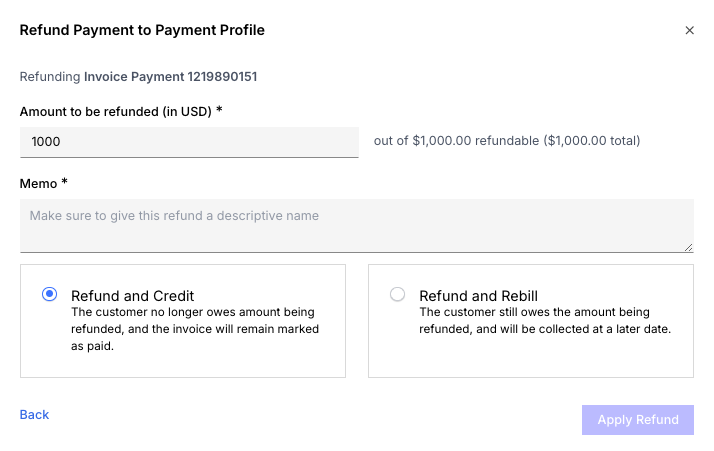
Choose to credit or rebill the invoice
Every site can credit an Invoice. Credit the Invoice is selected by default: the refunded amount is no longer owed by the Customer, and the Invoice remains marked Paid. Once submitted, the Invoice updates with a new Refunds total, and the refund appears in the Invoice history.
The second option's label and behavior depend on your site:
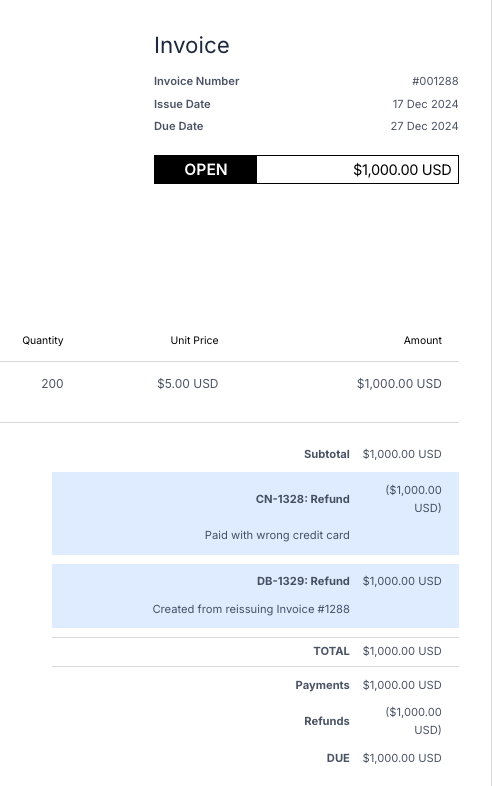
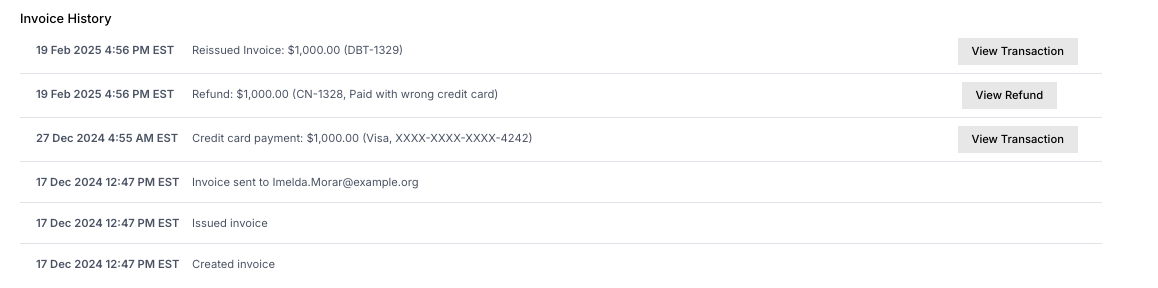
- Refund and Rebill (current sites) refunds the original payment and creates a new Invoice for the amount due, so you can collect payment again. The Invoice is updated with a Credit Note (CN) for the refund and a Debit Note (DB) to restore the amount due; you'll see both entries in the Invoice history. If the Invoice still has an unpaid balance, its status returns to Open.
- Refund but do not credit the Invoice (a small number of older sites still using this option) leaves the Invoice open without creating a Credit Note or Debit Note. This option is being phased out in favor of Refund and Rebill.
If a reopened Invoice uses automatic payment collection, Advanced Billing attempts to charge it again during a regular billing and collection run. This can happen before the Subscription's next renewal date if the Invoice is otherwise eligible for collection. If automatic collection is not desired, update the Invoice to use remittance payment collection instead. If the automatic payment attempt is unsuccessful, the Invoice balance stays open until it's paid, credited, or otherwise resolved.
If Maxio Payments holds a refund for review
Maxio Payments can hold a refund for risk review instead of accepting or declining it right away. The notice you see says this happens due to the refund volume over the last 30-day period. When this happens:
- You see a persistent notice reading "Refund Under Review: Your refund request has been submitted for review due to the volume over the last 30-day period. Please contact support@maxio.com for more information." It stays visible until you dismiss it.
- The Invoice history shows "Refund for amount: X was submitted for review," and no View Refund button appears, since there's no completed refund to show yet.
- Once the review releases the refund to the gateway, the Invoice history updates to the usual pending-refund entry while the gateway processes it.
- If review rejects the refund, the Invoice history shows "Refund for amount: X was rejected by review" instead, and the refund is not applied to the Invoice.
- When the gateway completes a refund that was released from review, it resolves the same way any other refund does, crediting or rebilling the Invoice the way you chose when you submitted it.
Refunding a prepayment through Maxio Payments can be held for review the same way, with the same persistent notice shown on the Prepayments tab.
If a bank reverses a refund
Occasionally, a refund that completed successfully is later reversed by the bank, for example when the Customer's own bank rejects the returned funds after the fact. When Advanced Billing receives that reversal, it automatically undoes the refund on the Invoice:
- If the refund had credited the Invoice (the default Credit the Invoice option), the original Credit Note is marked Reversed and a new Debit Note is added to the Invoice to restore the amount due.
- If the refund had instead been recorded as a balance adjustment (the Refund and Rebill or Refund but do not credit the Invoice options), that adjustment is reversed the same way, restoring the balance due.
- If the refund had drawn down a prepayment or service credit balance, that balance is credited back by the reversed amount.
If reversing the refund brings a previously settled Invoice back into balance, its status returns to Paid, and a Subscription that had gone into dunning because of the reopened balance recovers automatically.
The reversal appears in the Invoice history alongside the original refund, and it logs a refund_reversed event on the account's activity feed, with a message such as "Refund of $50.00 to Jane Doe's subscription to Pro Plan was reversed by the bank." If your site has an endpoint subscribed to the refund_failure webhook, you also receive that webhook for the reversal. See Review Webhook Events.
Refund a consolidated invoice
For a payment on a consolidated Invoice, you can choose which segments to refund.
After selecting a payment, choose to refund the full amount or enter a partial amount. For a consolidated Invoice, a partial refund is distributed proportionally across the selected Invoice segments, based on each segment's own refundable amount.
Example: If Invoice A is $15.00 and Invoice B is $5.00, a $10.00 refund (50% of the total) is applied as follows:
- Invoice A: $7.50 refunded
- Invoice B: $2.50 refunded
Related information
To record a new payment instead of reversing one, see Record and Manage Invoice Payments.
For how prepayments, service credits, and consolidated Invoice payments behave more generally, see How Invoice Payments Behave.
If you need to cancel an Invoice entirely rather than refund a payment on it, see Void an Invoice.
To learn more about how Credit Notes work, see How Credit Notes Work.
Still need help?
Reach out and our support team will take it from here.