
Using the Avalara ELR Integration
Applies to: Advanced Billing
Last updated on Oct 6, 2026
When enabled, the Avalara ELR (E-Invoicing & Live Reporting) integration allows Maxio to validate, submit, and track compliant eInvoices across multiple global mandates. This article explains how to generate and submit invoices through Avalara ELR, either manually or automatically, and how to monitor submission status.
Manual document submission
You can submit an invoice or credit note to Avalara ELR directly from the document screen.
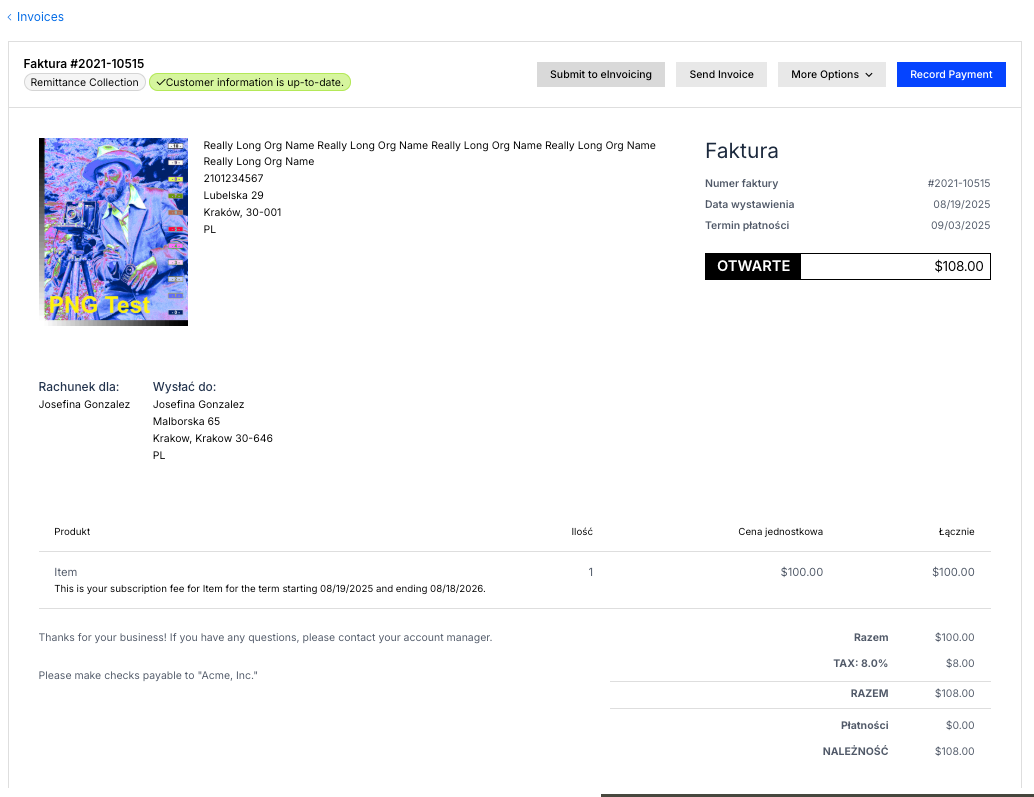
To submit a document manually
Important: Missing details such as VAT/GST IDs or invalid addresses prevent submission.
- Navigate to the Invoice or Credit Note you want to submit.
- Click Submit to eInvoicing.
- Maxio checks that eInvoicing is enabled in your integration settings, and that a matching mandate is active for the customer record. If a matching mandate exists but isn't active, the submission fails with "Mandate settings were found, but they are deactivated."
- Maxio then checks the mandate's Avalara activation status. If Avalara hasn't finished activating the mandate, the submission fails with "Cannot submit document, activation for the [mandate] mandate is not complete in Avalara (status: [status])." If Avalara doesn't serve that mandate through its eInvoicing API at all, the submission fails with "Cannot submit document, the [mandate] mandate is not supported by the Avalara eInvoicing API." A mandate whose activation status hasn't been checked yet is not blocked by this step. See Avalara activation status below for what each status means and how to resolve it.
- If successful, Avalara returns an External Document ID, which displays on the submission record.
Automatic document submission
Instead of manually submitting documents, you can configure a sync schedule.
To configure automatic submission
Important: Missing details such as VAT/GST IDs or invalid addresses prevent submission here too — an automatically submitted document goes through the same validation as a manually submitted one.
-
Go to Config > Invoicing > eInvoicing.
-
Under Sync Schedule, choose one of the following:
- Manual – Maxio never checks automatically; submit each document yourself as described in Manual document submission above.
- Fifteen minutes – Maxio checks for eligible documents and submits them every fifteen minutes.
- Hourly – Maxio checks for eligible documents and submits them every hour.
- Nightly – Maxio checks for eligible documents and submits them once per day.
-
Once set to an automated interval, Maxio automatically checks for new invoices that match a mandate's execution rules and submits them to Avalara ELR. The same Avalara activation check described under Manual document submission applies here too, so a scheduled submission fails the same way for a mandate that isn't fully activated.
Manage mandates from the eInvoicing dashboard
The same Config > Invoicing > eInvoicing page serves as your eInvoicing dashboard. From it, you can verify your tax ID information, review your active registrations, and set your sync schedule, alongside the Mandate Configuration table.
The Mandate Configuration table lists every mandate available to your account.
To bulk activate or deactivate mandates
- Select multiple mandates in the Mandate Configuration table.
- Choose to activate or deactivate them all at once.
- If needed, click Reverse Change right after to undo the bulk action.
To manage a single mandate
- Open the mandate's row menu.
- Select Activate, Deactivate, Edit Mandate Mappings, Edit Execution Rules, or Clone.
If you activate a mandate that can't currently submit documents, Maxio shows a warning naming that mandate instead of the usual success message. The mandate still activates; it just can't submit until the underlying Avalara issue is resolved. See Avalara activation status below.
Avalara activation status
The Mandate Configuration table's Avalara Activation column shows whether Avalara has finished activating each mandate, and whether it's a mandate Avalara serves through its eInvoicing API at all. Hover a status to see the reason and, where available, when Maxio last checked it.
- Completed: Avalara has finished activating this mandate. Documents can be submitted under it.
- Information Required, Failure, or another Avalara-reported status other than Completed: Avalara hasn't finished activating this mandate. Documents can't be submitted under it until Avalara's status changes to Completed. Resolve the activation in your Avalara account, then click Fetch Registrations to refresh the status in Maxio.
- Not supported: Avalara doesn't serve this mandate through its eInvoicing API. Documents can never be submitted under it.
- Not synced yet: Maxio hasn't checked this mandate's activation status with Avalara yet. Submission isn't blocked while a mandate is in this state.
- No registration: Maxio checked, and no Avalara registration currently covers this mandate. Documents can't be submitted under it until a covering registration is completed in Avalara.
Maxio refreshes these statuses automatically once a day, and immediately whenever you click Fetch Registrations on this page.
Monitoring submission status
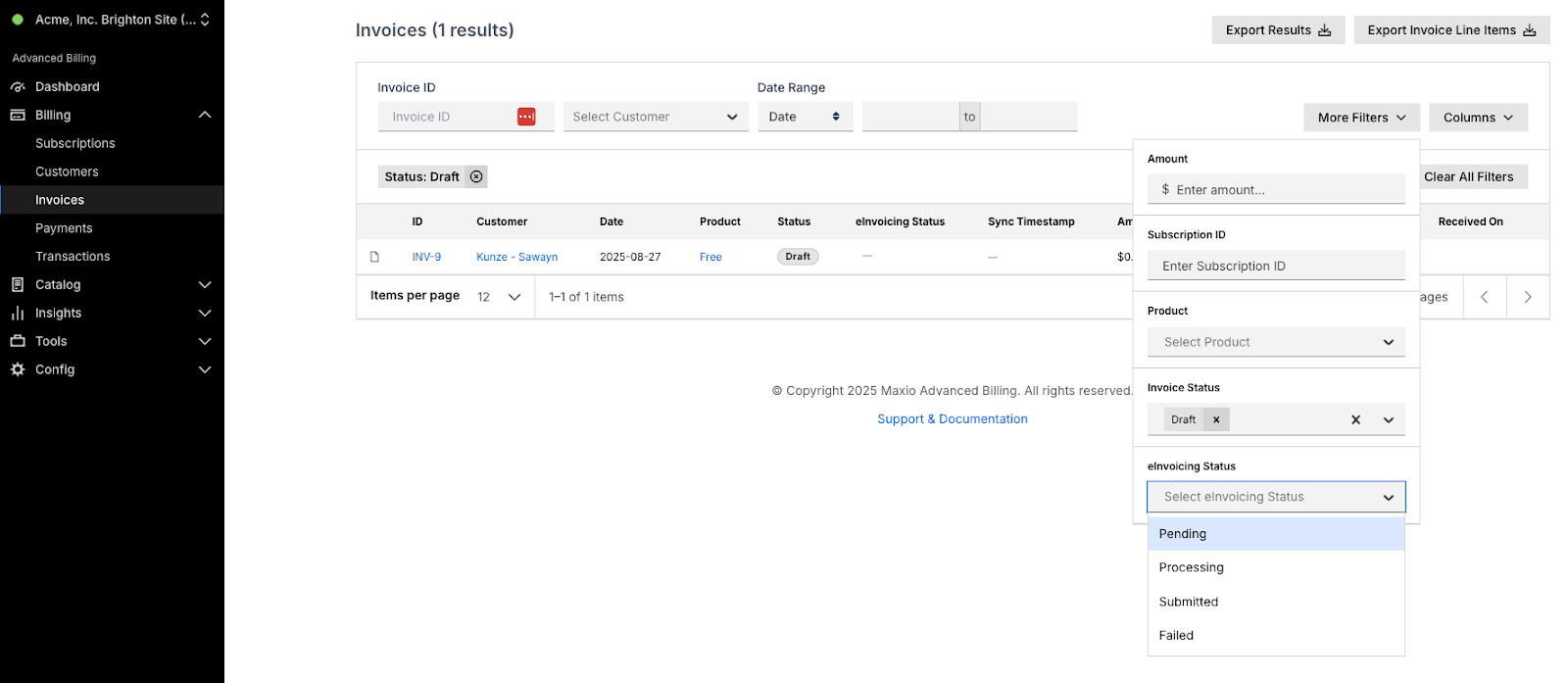
To view submission status
- Go to the Invoices page.
- Select the eInvoicing tab to see only documents submitted to Avalara ELR.
- Use the Document Type toggle if you want Credit Notes instead of Invoices.
Each submitted document shows one of the following:
- Not submitted: the document hasn't been sent to Avalara.
- Pending: submission is queued or awaiting confirmation.
- Processing: Avalara has received the document and is working on it.
- Submitted: Avalara returned a valid External Document ID.
- Failed: submission failed. Open the document to review error details.
For mandates that report back more than one party's response (currently France's B2B e-invoicing mandate), the document also carries a trading partner status and a tax authority status alongside this overall status. See Trading partner and tax authority status below.
To see all three statuses together
- Open the Invoices page.
- Select Show eInvoicing details on the document.
The Documents tab lists every submission for that document alongside its status, External Document ID, and mandate.
Trading partner and tax authority status
Some mandates report back the response from more than one party. For these mandates, opening an invoice or credit note's eInvoicing details shows two additional, source-labeled statuses alongside the overall status:
- Trading partner status: the status returned by the receiving business (for example,
Paid). - Tax authority status: the status returned by the tax authority itself. While the authority hasn't responded yet, this reads Awaiting response.
Currently, France's B2B e-invoicing mandate (
FR-B2B-EINVOICE) is the only mandate that reports a tax authority status this way. Mandates that don't report a tax authority response, including Peppol-based mandates, show only the overall status described above.
Complete does not always mean fully accepted
For France's B2B e-invoicing mandate, an overall status of Submitted means Avalara has accepted and forwarded the document. It does not yet mean the tax authority has approved it. Maxio keeps checking for the tax authority's response for up to about 26 hours after Avalara reports the document submitted:
- While the tax authority hasn't answered yet, Tax authority status reads Awaiting response, and downloading the document returns the error "The eInvoicing document is awaiting approval by authorities."
- If the tax authority accepts the document, Tax authority status updates to the authority's response, and the document becomes available to download.
- If the tax authority rejects the document, the overall status changes to Failed, even though Avalara originally reported it submitted, and downloading the document returns the error "The eInvoicing document was not approved by authorities."
If no tax authority response arrives within that window, the document is no longer held back from download, but its status won't reflect a tax authority determination.
Choosing a document format to download
Once a document is available to download (see Complete does not always mean fully accepted above), you can choose which of the mandate's formats to save it in.
To download a document
- Open the invoice or credit note.
- Select More Options, then Download.
- In the format list, tick one or more formats. Formats are grouped by purpose — for example This invoice, Tax authority evidence, Received from counterparty, and Attachments — and a human-readable PDF is preselected where the mandate offers one.
- If the mandate offers more formats than fit on screen, select Show all [number] formats to reveal the rest. Formats you already ticked stay visible and ticked either way.
- Select Download. Each ticked format downloads as its own file.
The formats a mandate offers vary. Some mandates advertise only the legacy eInvoice UBL and eInvoice XML formats, which download as invoice-[number].ubl and invoice-[number].xml, just as they always have. Mandates with a larger catalogue, such as France's B2B e-invoicing mandate (FR-B2B-EINVOICE), advertise many purpose-specific formats — additional copies of the invoice itself, tax authority evidence, acknowledgements received from the counterparty, and attachments — and Maxio never filters this list down: every format the mandate offers is downloadable, even ones collapsed behind Show all formats until you ask to see them. Files for these formats are named after the document and the format, and download with a .pdf extension for the human-readable and Factur-X formats and a .xml extension for the rest.
If you request a format the mandate doesn't currently offer — for example, through a direct download link — Maxio rejects the download before contacting Avalara and returns the error "Download document format is not acceptable."
Related information
If a submission fails, see Avalara ELR Troubleshooting and FAQs.
For an overview of what the Avalara ELR integration does, see Avalara ELR Integration Overview.
Still need help?
Reach out and our support team will take it from here.