
Loading article…
Loading article…
Last updated on Aug 26, 2026
An Account Group is a named set of GL accounts, which lets you select many accounts at once when configuring a report. Groups are typically built around expense categories such as Sales & Marketing (S&M) or General & Administrative (G&A).
Account Groups feed three calculations:
Important: Account Groups require both the QuickBooks integration and Expenses to be enabled. If either is off, the Account Balances & Groups screen does not appear on the Admin menu. Only accounts that have synced to QuickBooks can be added to a group, so accounts created in Maxio, or synced from NetSuite, Sage Intacct, Xero, or Rillet, are not available for selection.
Viewing Account Groups requires Editor permissions. Creating, editing, copying, and deleting them requires Admin permissions.
Go to Admin > Lists > Account Balances & Groups, then click Add Account Group.
Enter a Name for the group. The name must be unique. A Description is optional.
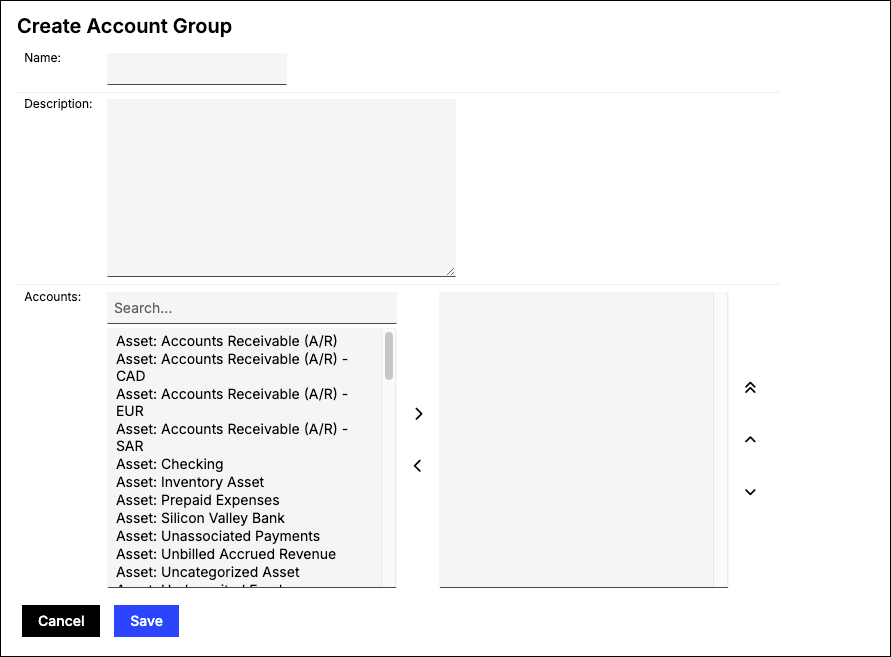
Select the Accounts for this group by moving them into the box on the right. Use the search box above the left-hand list to find an account by name.
Click Save.
Maxio opens the new group, showing its Description and a table of its member accounts with each one's Type, Name, and linked GL Account.
Open a group from the Account Groups list to reach these actions:
| Action | What it does |
|---|---|
| Edit | Changes the group's name, description, or member accounts. |
| Save As | Creates a copy of the group. The accounts carry over and the name is left blank for you to fill in. |
| Delete | Removes the group after a confirmation prompt. |
WARNING: Deleting an Account Group removes it from any saved report that used it, which changes what those reports calculate. Maxio does not warn you which reports are affected.
The Account Groups list can be sorted and exported.
Create the group before configuring the report. Both report types hide their Account Group setting entirely when no Account Groups exist.
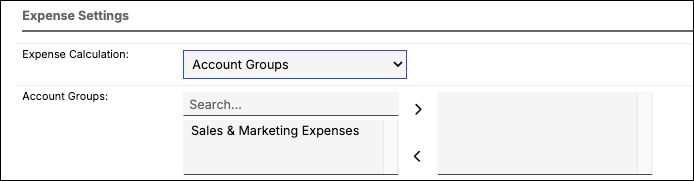
Margin Analysis Report. In the report's Expense Settings, select one or more Account Groups. A separate Accounts field is available if you would rather pick individual accounts, and you can use both together.
Subscription Momentum Report. In the Customer Lifetime Value section, check Use Account Group for CAC Set, then choose a single Account Group. The Account Group is required once that box is checked.
Still need help?
Reach out and our support team will take it from here.