
Loading article…
Loading article…
Last updated on Aug 28, 2026
An Account is a record in your Chart of Accounts that can be synced in from a connected general ledger, or created and managed in Maxio directly. You do not need a general ledger integration to maintain a Chart of Accounts in Maxio. Where several Accounts are reported together, group them with Account Groups.
If you are using Accounts, then Items in Maxio should be linked with one or more Accounts. Those linkages are set on the Item itself: see Item Fields for the account rules, and Add, Edit, and Remove Items for how to edit an Item.
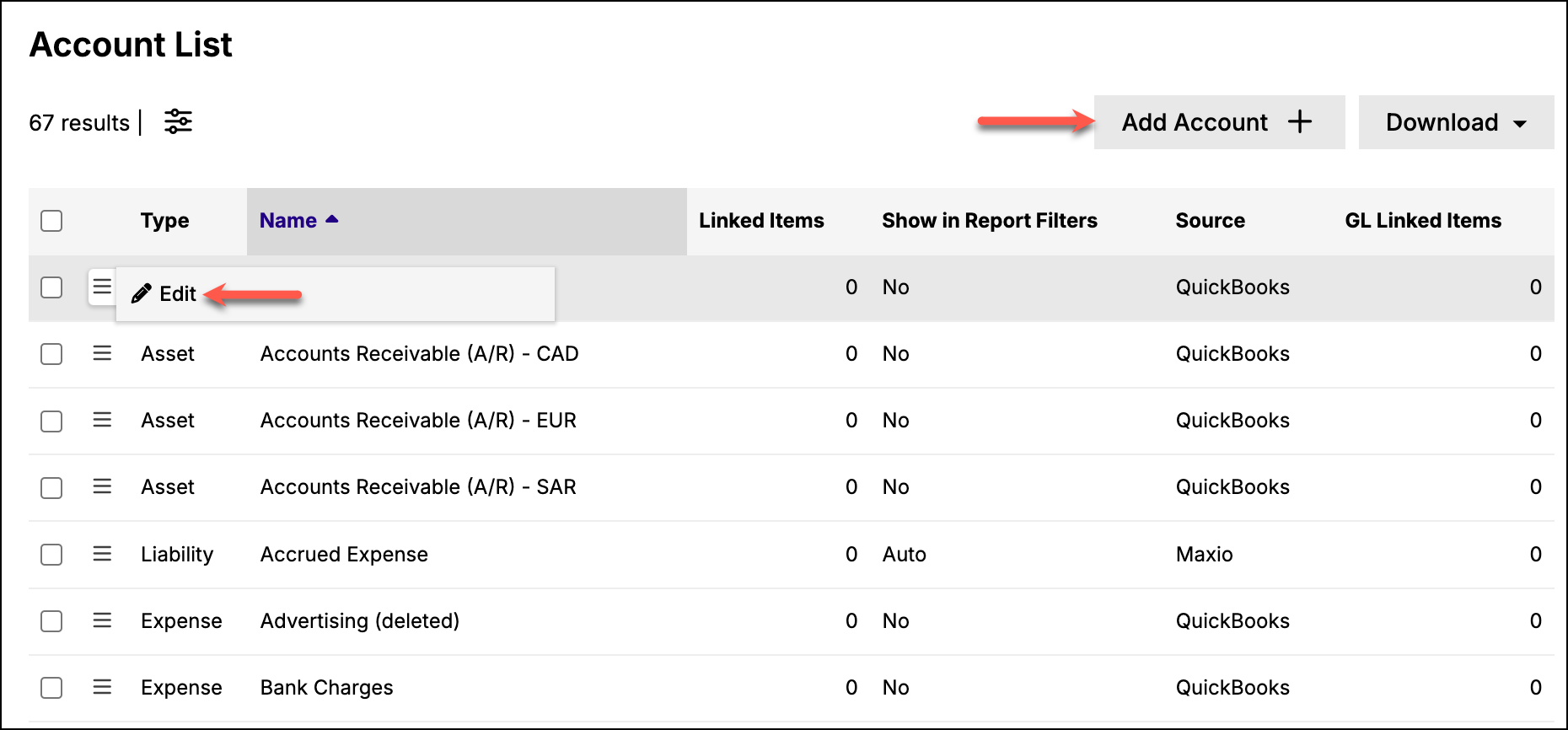
Create an Account with Add Account at the top of the Accounts list. Edit or delete an individual Account using the menu icon to the left of it.
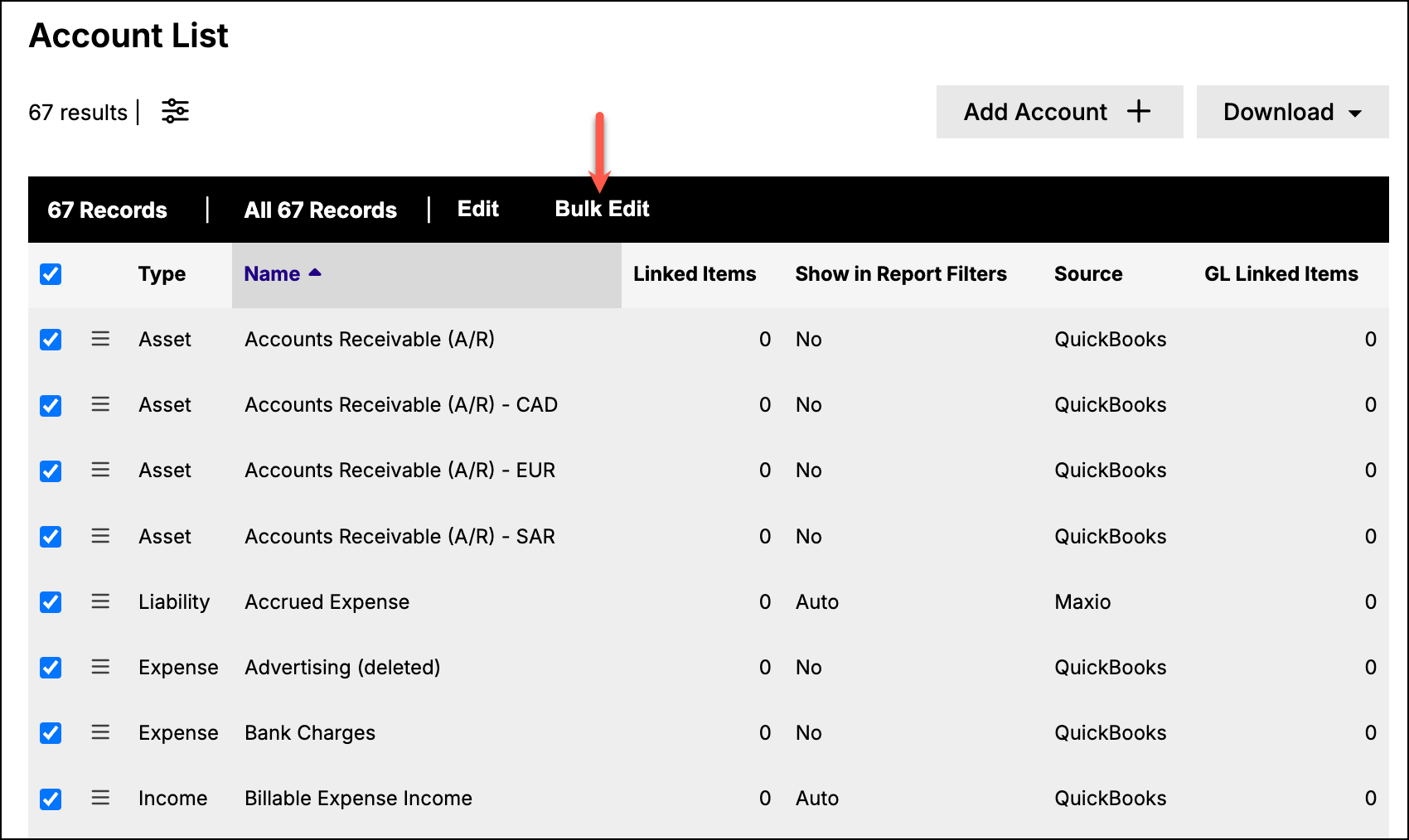
There is also a bulk edit function that allows you to edit the complete account list at one time.
| Field | Description |
|---|---|
| Account Type | One of Income, Asset, Liability, Expense, or Other. |
| Name | The name of the Account. Where the Account is synced from NetSuite, Intacct, Xero, or Rillet, this name comes from that system. |
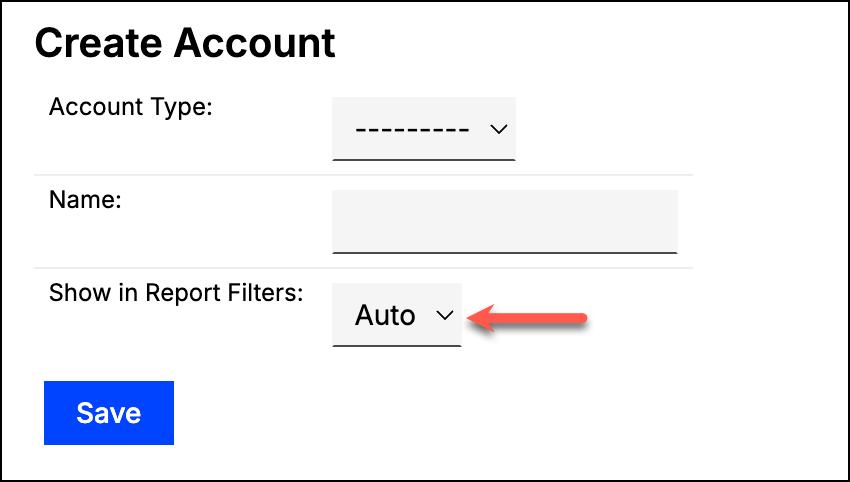
| Show in Report Filters | Determines whether the Account appears in the Accounts list when creating finance reports. See the descriptions below. |
| Linked GL Account | The general ledger Account this one is linked to. Set automatically when the Account is created by a sync. This field appears only when a general ledger integration applies to your account. |
The Accounts list also displays each Account's Currency, Source System, and GL Account Number, and you can filter on all three.
| Setting | Behavior |
|---|---|
| Auto | The Account displays as an available option in finance reports if it is linked to an Item in Maxio. This is the default. |
| Yes | The Account always displays in report filters. |
| No | The Account never displays in report filters. |
If you are creating your Accounts yourself, add an income account for each income reporting category, and for each category that has deferred revenue. Also add a liability and an asset account.
Be sure to update any Items created automatically by syncing an integrated application such as Stripe, so the appropriate accounts are selected for accurate reporting.
Maxio blocks the deletion of an Account in any of these cases:
Keep the following in mind when syncing accounts with a connected general ledger.
If you sync with QuickBooks, a set of Accounts is created automatically for you by copying the QuickBooks Chart of Accounts. While the Maxio Accounts are initially named after the QuickBooks Account Name, the Maxio Accounts are separate and distinct from the QuickBooks Accounts. A Maxio Account can be linked to a QuickBooks Account through the Linked GL Account field, and is linked automatically if it was created through the QuickBooks sync. Edits to the Maxio Account name do not sync back to QuickBooks.
If you sync with NetSuite or Intacct, a set of Accounts is created automatically for you by populating the Maxio Chart of Accounts values in the Maxio Account names. Unlike the QuickBooks Account name, which is a separate field, the NetSuite and Intacct Account names sync from NetSuite or Intacct to Maxio and set the Maxio Account name. Changes made in NetSuite or Intacct also sync and update the Maxio Account name. Edits to Accounts made in Maxio do not sync back to NetSuite or Intacct.
Still need help?
Reach out and our support team will take it from here.