
Create Renewal Deals in HubSpot
Applies to: Maxio Core
Last updated on Sep 19, 2026
Send Renewal Deals creates deals in HubSpot for Transactions that are approaching their end date, so your sales team can start the renewal conversation before the subscription lapses. You control it with renewal rules, which run manually or on a schedule, hourly or nightly.
What a renewal rule covers
A rule takes the renewal amount from the original Transaction, whether the Renewal Amount field holds a value, holds a percentage, or is blank. Renewal factors are supported too, so a renewal deal amount is calculated the same way a Transaction renewal is calculated in Maxio.
Rules apply to individual Transactions, though you can set one at the Customer level. Where a rule covers several Transactions that share an end date and a Contract, Maxio puts them on a single deal.
WARNING: Once a deal is created, Maxio never updates it again. Give the sales team enough lead time to work the renewal, but not so much that Contract and Transaction changes are likely before it closes. If a Transaction changes in Maxio after its deal exists, make the equivalent change in HubSpot manually.
How far ahead a rule fires is therefore the main thing to get right, and it is worth knowing which Transactions a rule skips entirely.
Important: Renewed, canceled, and expired Transactions never get a renewal deal, which keeps rules from generating deals for historical data. A Transaction added with an end date already in the past counts as expired, so no rule applies to it.
How rules decide when to create a deal
Example 1. You have several large or complex subscriptions and want the renewal worked months ahead, so you set a rule that creates a deal four months before those subscriptions end. Most of your other subscriptions only need a month, so you set a second rule at 45 days.
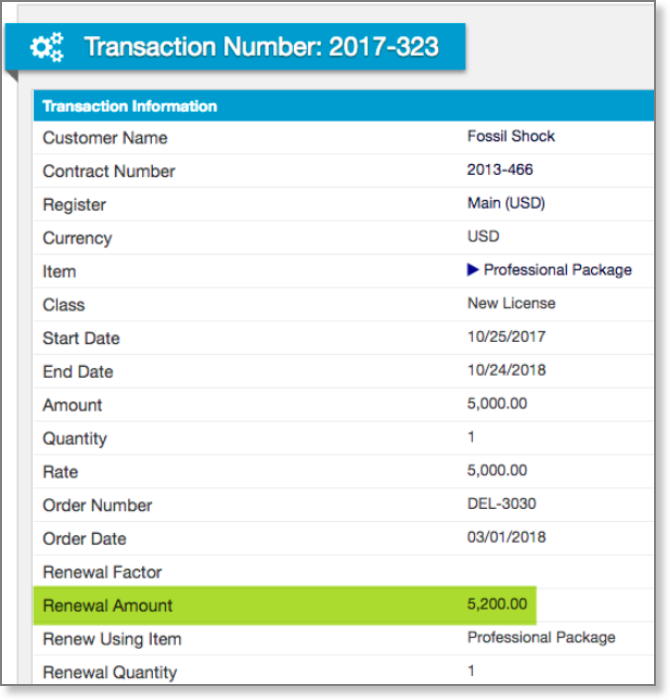
Example 2. The Transaction below produces a renewal deal worth $5,200, taken from its Renewal Amount rather than its Amount.
Example 3. A Transaction is added on 6/15/22 with an end date of 6/30/22, under a rule with Trigger Days set to 30. The trigger date is 5/31/22, which is already past, so Maxio creates the renewal deal on 6/15/22.
Create a renewal deal rule
A rule pairs a trigger, which decides when the deal appears, with the deal details Maxio sends to HubSpot.
To create a renewal deal rule
-
Go to Admin > Integrations > HubSpot, then click the pencil icon to open HubSpot Integration Settings.
-
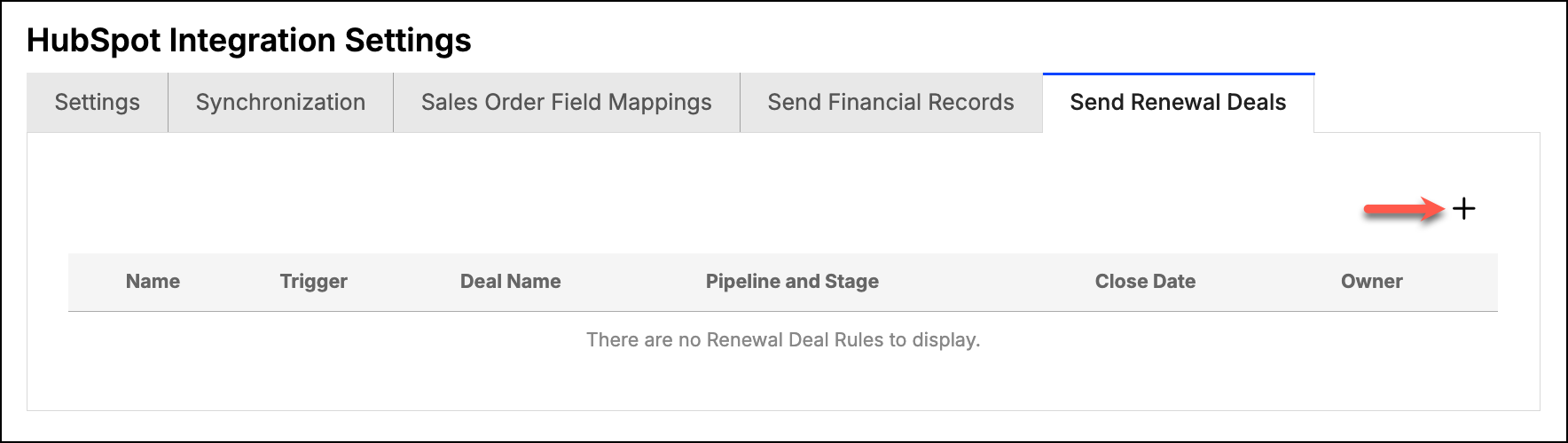
Click the Send Renewal Deals tab.
-
Click the plus icon on the right to open Create Renewal Deal Rule.
-
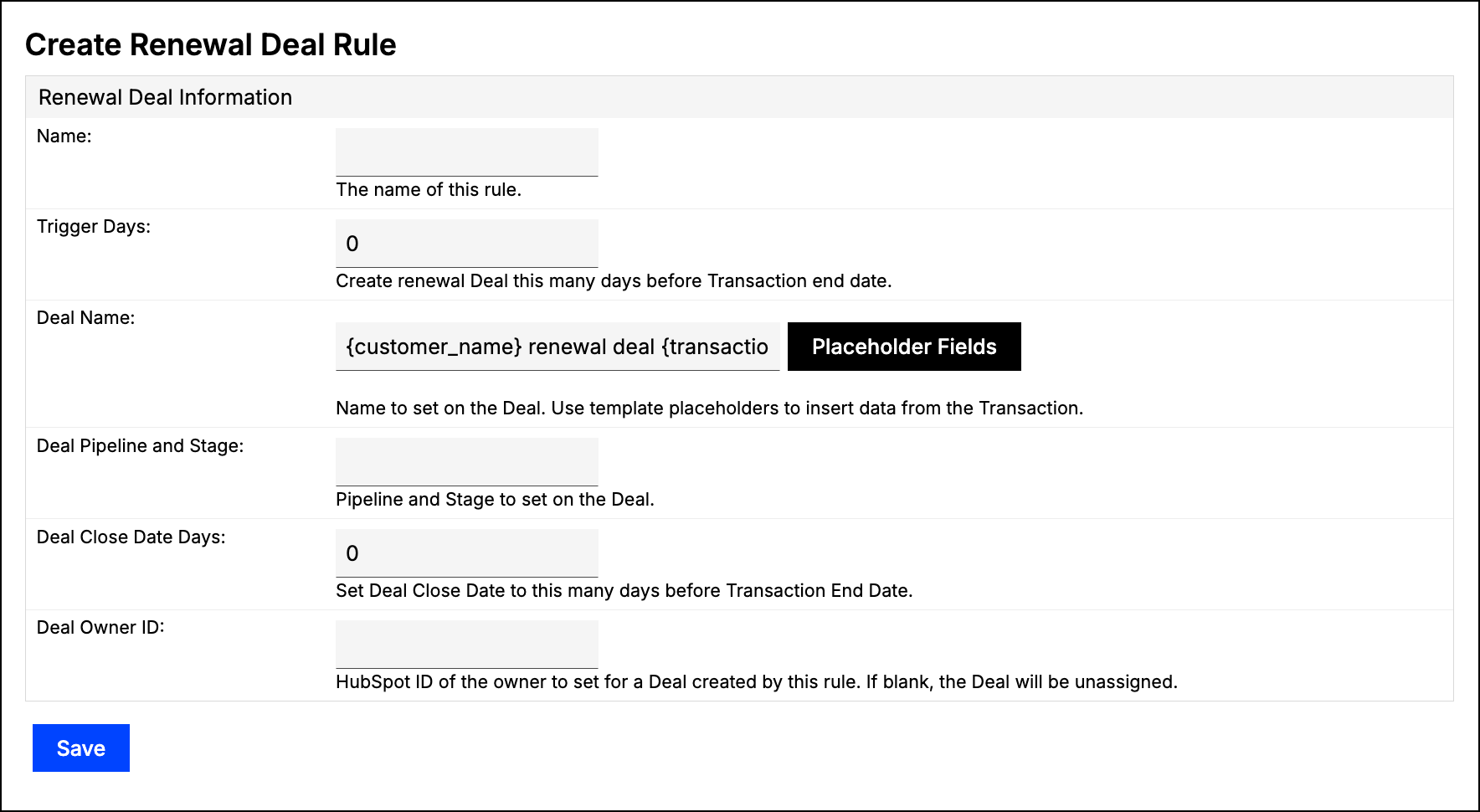
Complete the fields described below.
-
Click Save.
Renewal deal rule fields
| Field | Description |
|---|---|
| Name | (Required) The name of the rule. Make it descriptive, since the rules list shows nothing else to tell two rules apart. |
| Trigger Days | (Required) How many days before the Transaction's end date the rule creates the deal. A rule fires for any Transaction that is not expired once the trigger date is on or before today. Two values behave specially: 0 creates the deal on the end date itself, shown in the rules list as Upon Expiration, and 9999 creates it immediately, shown as Create Immediately. 9999 is also the highest value the field accepts. |
| Deal Name | (Required) The name Maxio gives the deal in HubSpot. Use text, placeholders, or both. Defaults to {customer_name} renewal deal {transaction_end_date}. Click Placeholder Fields beside the field to see the placeholders you can use. |
| Deal Pipeline and Stage | (Required) The HubSpot pipeline and deal stage to create the deal in. Where Maxio can read your pipelines from HubSpot this is a drop-down; otherwise it is a text field, and an invalid value means the deal is not created. |
| Deal Close Date Days | (Required) How many days before the renewal start date the deal's close date is set to. The renewal start date is the day after the Transaction's end date, so a value of 30 puts the close date 29 days before the end date. |
| Deal Owner ID | The HubSpot owner to assign the deal to. Where Maxio can read your HubSpot owners this is a drop-down labeled Deal Owner; otherwise enter the HubSpot owner ID. Leave it blank to create the deal unassigned. |
Use placeholders in the deal name
Maxio replaces these placeholders when it creates the deal. Dates use the date display format configured for your account.
WARNING: Use only the placeholders listed below. A placeholder Maxio does not recognize produces no error. Maxio gives up on the name and uses your template exactly as typed, so the deal reaches HubSpot with the placeholder text visible in its name.
Placeholders you can use in a deal name
| Placeholder | Inserts |
|---|---|
{customer_name} | The Customer's name. |
{contract_number} | The Contract number. |
{transaction_end_date} | The Transaction's end date. |
{renewal_start_date} | The day after the Transaction's end date. |
{count} | How many Transactions are included in the renewal. |
Examples: {customer_name} Renewal for Subscription renewing on {transaction_end_date}, or {customer_name} Renewal for {count} products renewing on {renewal_start_date}.
Related information
To connect HubSpot and enable the Send Renewal Deals step, see the Set Up HubSpot Integration help article.
For the financial summary Maxio pushes back to each HubSpot Company, see the Push Financial Records to HubSpot help article.
Still need help?
Reach out and our support team will take it from here.