
Sync and Process Sales Orders
Applies to: Maxio Core
Last updated on Oct 19, 2026
Once the HubSpot integration is configured, syncing pulls qualifying deals into Maxio as Sales Orders, and processing turns those Sales Orders into financial records.
Run a sync manually
Click the sync icon in the top-right corner of the HubSpot Integration page, beside the wrench. The same control is available on the Synchronization tab of the integration settings.

The sync brings in any deals that match your configured deal stages and close date filter, and converts them into Sales Orders. It runs every sync step you have enabled, so if Send Financial Records or Send Renewal Deals are on, those run too.
While a sync is running, the sync icon on the HubSpot Integration page is disabled and the sync status next to the page title reads Syncing. Wait for the sync to finish before you start another.
The Attention Needed panel on the same page tracks what the sync produced: counts and amounts for unprocessed Sales Orders and unprocessed Sales Order Line Items, plus a Sync Issues entry the first time you open the page after a sync that reported problems.
Process a Sales Order
Follow Processing Sales Orders to process a synced Sales Order.
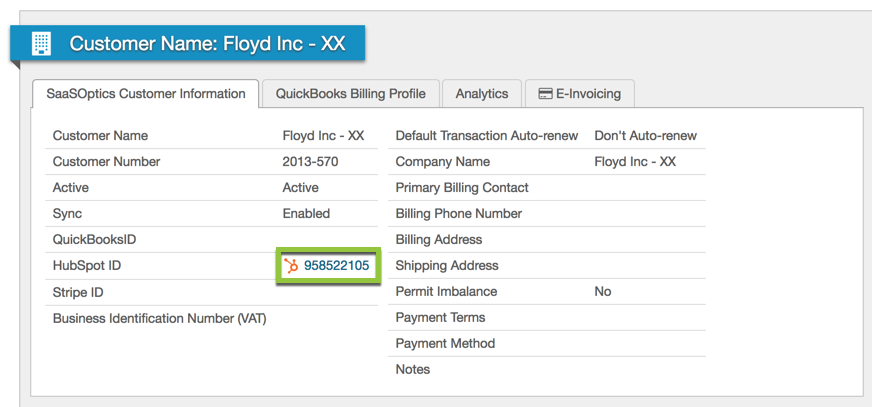
Once a Sales Order is processed, the records it created or updated carry HubSpot IDs. Click an ID to open the matching record in HubSpot.
An old deal occasionally syncs in that you do not want to process, a side effect of how HubSpot's API reports recently modified deals. Exclude those Sales Orders to take them out of your queue.
Still need help?
Reach out and our support team will take it from here.