
Switch Organizations from Maxio Core
Applies to: Maxio Core
Last updated on Sep 19, 2026
If you belong to more than one organization, you can return to the Org Picker from inside Maxio Core and open an instance belonging to a different organization. You do this through the instance switcher at the top of the left navigation pane, which is labeled with the instance you are currently in.
Switch to another organization
Moving between organizations means going back through the Org Picker, which you reach from the instance switcher rather than from a settings page.
To switch to another organization
- Open the instance switcher at the top of the left navigation pane.
- Select View All Organizations.
Maxio returns you to the Org Picker, where you can choose another organization. Once you select one, Maxio asks you to pick an instance within it.
View All Organizations and View All Instances sit side by side in the same menu. View All Instances opens the Entity Hierarchy page for the organization you are already in, so it is not a step on the way to switching organizations.
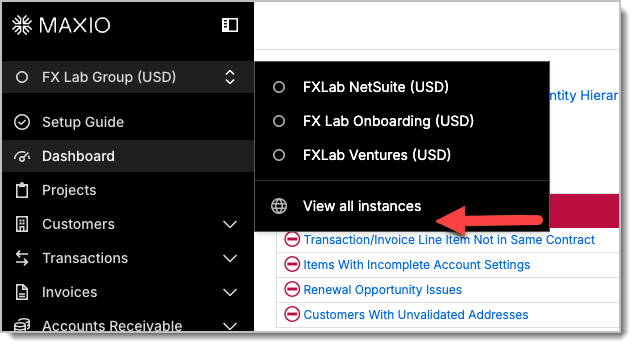
The switcher marks each instance according to its type: a filled circle for a live instance, a hollow one for any other. Hovering the switcher shows the entity you are currently in.
By default the switcher lists every other instance in your organization, including any you cannot open. Where instance filtering is switched on for your environment, the list is narrowed to the instances you hold permissions on.
Why you might not see the option
View All Organizations is not always present. It appears only when all of the following are true:
- Multi-Entity Available is set for your account.
- Your current organization has more than one instance. The switcher itself is hidden otherwise.
- Multi-Entity Enabled is set for your account, which covers the paid Multi-Entity features. This also governs whether View All Instances appears.
- Your environment has the organization picker available, and you signed in through single sign-on. View All Instances can be present without View All Organizations for either reason.
Where instance filtering is switched on for your environment, the switcher additionally requires that you have been granted permissions on at least one instance.
Admin permissions are not required. Any user who can see the switcher and meets the conditions above can use it.
View All Instances can appear in the menu and still deny access when you open it, since the Entity Hierarchy page requires the Report role on top of the paid features.
Related information
To change what a team member can reach once they are in an organization, see Manage Users.
For what each role can do, see Understand User Roles and Access Controls.
For the equivalent flow in Advanced Billing, see the Switch Organizations from Advanced Billing help article.
Still need help?
Reach out and our support team will take it from here.