
Understand the Open Balance Home Screen
Applies to: Maxio Core
Last updated on Sep 19, 2026
The Open Balance home screen is where you check the state of a migration in progress: which dates the plan covers, whether your balances reconcile, who changed what, and any notes the team has left. It is also the launch point for every builder and importer in the utility.
What the home screen shows
The home screen carries up to four tabs, DM Plan, Reconciliation, Audit Information, and Notes, plus an Invoicing and Revenue summary of the balances you have entered.
Two of the tabs appear as you go. Reconciliation appears once you have configured the data migration plan. Audit Information appears once at least one amount has been entered or imported.
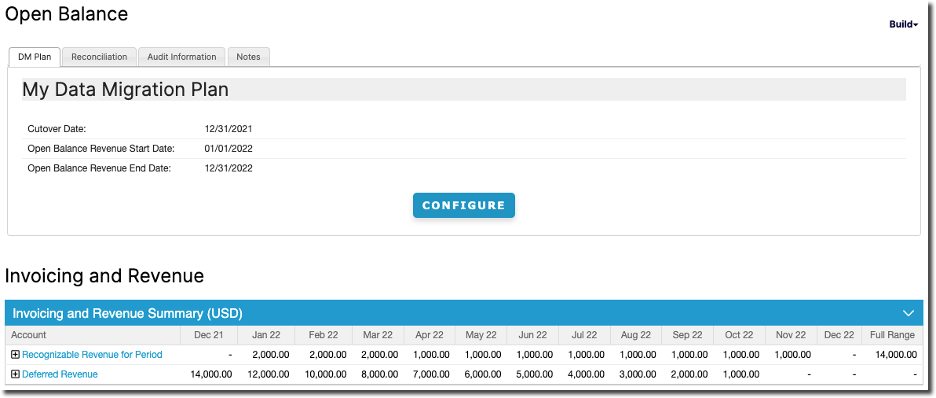
DM Plan tab
Shows the dates from your data migration plan: Cutover Date, Open Balance Revenue Start Date, and Open Balance Revenue End Date. Configure reopens the plan, which an Administrator can edit later within limits: see Step 1 of Migrate Legacy Data with Open Balance.
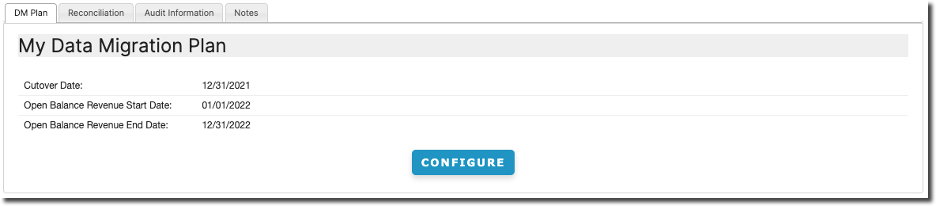
Reconciliation tab
Three pre-filtered checks, each with a count and an amount, that tell you whether your Open Balance and your Transactions agree:
- Transactions out of balance with a start date on or before the cutover date.
- Invoice Line Items on or before the cutover date not marked as Included in Open Balance.
- Invoice Line Items after the cutover date marked as Included in Open Balance.
Each check links to the matching list, so you can work straight from it.
Audit Information tab
Shows Modified and Modified By for the most recent change to any Open Balance amount, whether it was entered manually or imported. Useful when several people are entering data.

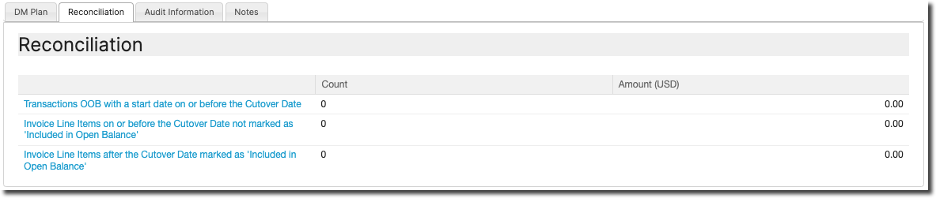
Notes tab
Record and share notes about the migration, such as changes to the plan or something to come back to. Each note is stamped with its author and the date it was created. Add Note adds one.
Still need help?
Reach out and our support team will take it from here.