
Configure Multi-Currency
Applies to: Maxio Core
Last updated on Sep 19, 2026
Bill, invoice, and recognize revenue in more than one currency, with every record carrying both its own Local value and a Home value converted back to your reporting currency.
WARNING: Enabling multi-currency cannot be undone. Once it is on, it cannot be turned off, and your home currency cannot be changed.
Turn on multi-currency
Maxio makes multi-currency available for your account as a licensing step. Once it is available, an Administrator turns it on from Account Settings and confirms by typing a phrase. Support staff cannot enable it for you, which is deliberate: the choice of home currency is permanent, so it has to be made by someone in your own account.
You also need at least one Register for each currency you work in. Maxio Core loads FX rates daily, so from the moment a Contract, Transaction, or Invoice is created it carries both values.
Effects of multi-currency
Turning multi-currency on changes how several areas of Maxio Core behave, each described below.
Registers
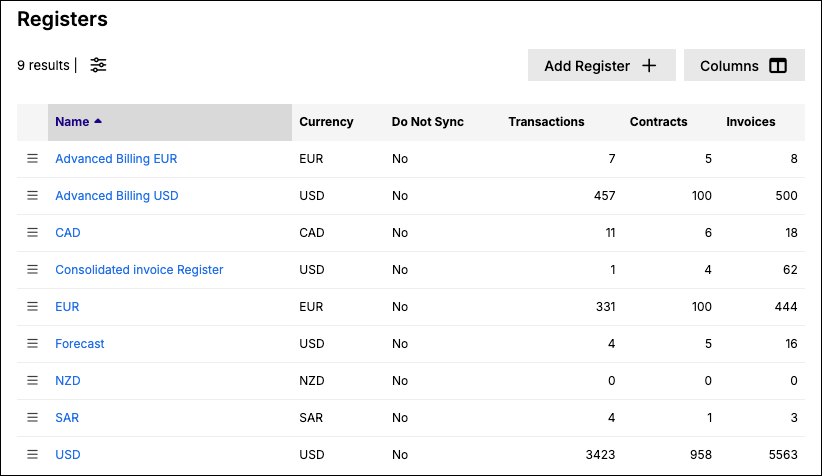
You need at least one register for each currency in use. A register named Autocreated Register for followed by a currency code, such as Autocreated Register for EUR, was created by Maxio Core rather than by you: an integrated application sent records in a currency that had no register to hold them. QuickBooks syncing and contracts generated by Advanced Billing both do this.
Contracts and transactions
When you work with financial records on a contract in a register that does not use your home currency, you enter amounts in the local currency and Maxio Core shows both Local and Home values. This applies to the transaction amount, MRR and ARR, revenue, and invoices.
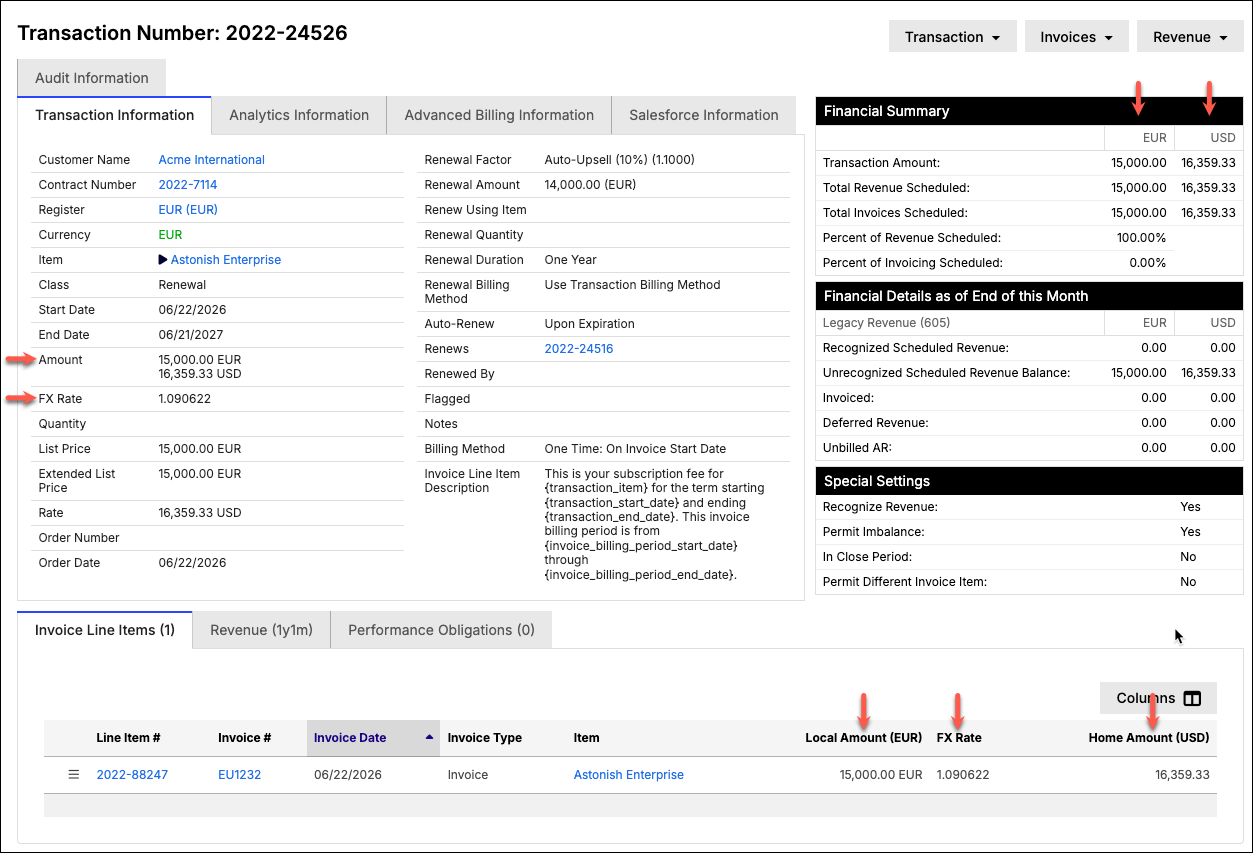
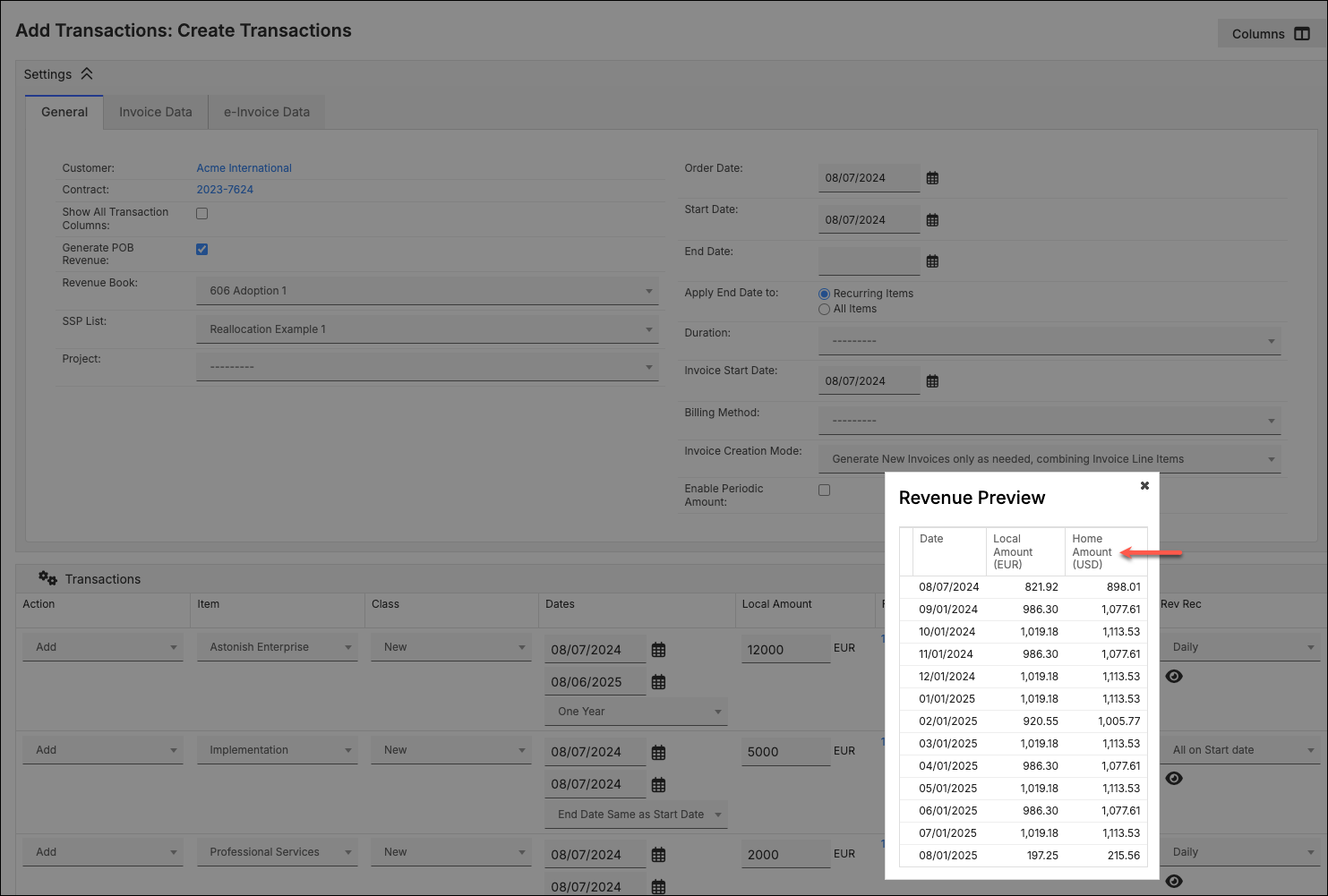
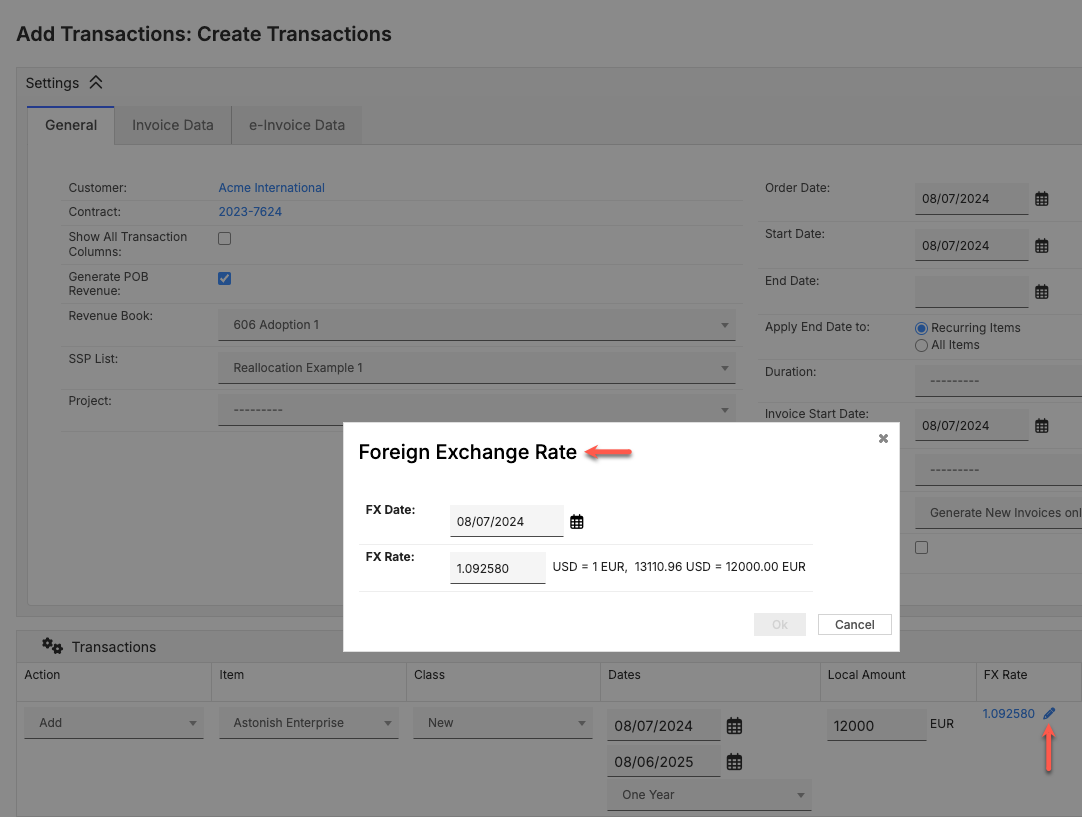
The FX rate is applied automatically to produce the home values. To set it yourself, click the FX rate in the Transactions grid to open Foreign Exchange Rate, where you can change both the FX Date and the FX Rate. This is a single-use rate for that transaction only.
On a contract in a register that uses your home currency, no FX rate or Home and Local values appear.
Reports
Reports offer a Currency Presentation choice of Home Currency, Single Local Currency, or FX Restated Reporting. Choose Home Currency to report across registers in different currencies. Reporting Currency and Conversion Strategy only take effect under FX Restated Reporting, and those fields appear only once Maxio has enabled CTA for your account.
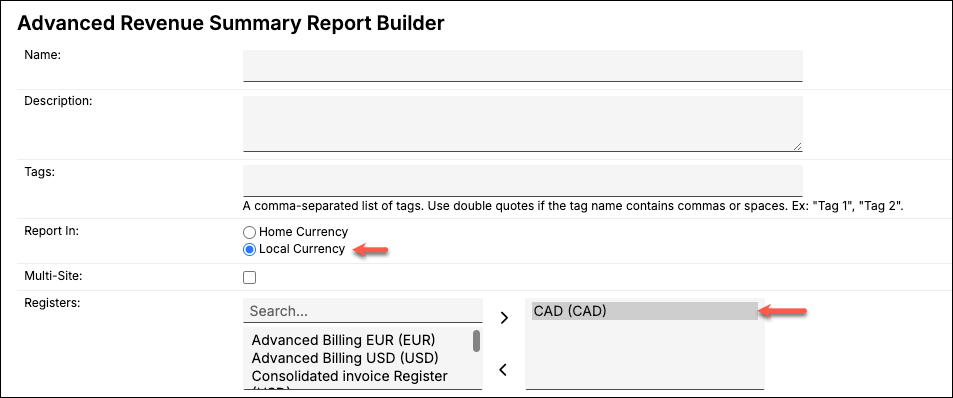
Local Currency reports on one currency at a time. Selecting registers with different currencies returns "Must select at least one Register, and all selected Registers must use the same currency."
Reports also carry a Reporting Currency and a Conversion Strategy, which decides which rate converts your amounts:
- Average Rate for Period uses the average of the daily rates across each period in the report.
- Constant Currency uses the rates from one date, which you set in Constant Currency Date, for every conversion in the report.
Report conversions use the Spot and Monthly Average rates. A Modified FX Rate you enter changes the home values stored on transactions, but it does not change how a report converts to a reporting currency. The exception is Subscription Momentum, which has a Use Modified Rate option, off by default.
QuickBooks
QuickBooks holds its own currency records, so a multi-currency sync has to reconcile two sets of rates rather than just push yours across.
See Sync QuickBooks Multi-currency for details.
Salesforce
If you have multiple currency support in Salesforce and are syncing orders, you can map the Customer or Opportunity currency from the Salesforce Account::CurrencyIsoCode or Opportunity:CurrencyIsoCode field. The currency arrives on the Sales Order as Customer Currency.
FX rounding: out-of-balance conditions
Because rates are applied to six decimal places, the home values on a transaction, meaning the amount, the sum of its revenues, and the sum of its invoice line items, can end up out of balance by a few cents. A difference between -0.50 and 0.50 is usually rounding rather than a real problem.
WARNING: Adjusting for FX rounding directly changes a transaction's home amount and its revenue entries. On a single transaction the confirmation lists the exact amounts, so review them before confirming. When you adjust several at once the confirmation shows only a count, so check the selection itself first.
Adjust for FX Rounding corrects it, for a single transaction or several at once. On a single transaction, open the Transaction menu on its detail page and select Adjust for FX Rounding. To correct several, select them in the transaction list and click Adjust for FX Rounding in the selection bar that appears above the table. Maxio Core adjusts each selected transaction's home amount and its revenues to match its invoice total. If you select multiple transactions, Maxio Core skips any that don't need this adjustment.
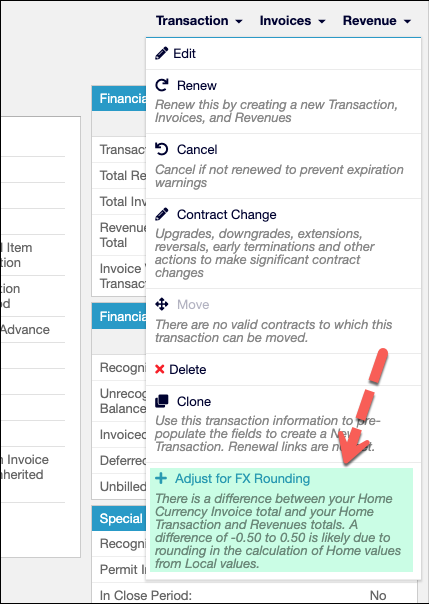
The option appears only when the home amounts are out of balance and the local amounts are not, since that combination is what points to rounding rather than to a genuine imbalance. It is also hidden when Permit Imbalance is set on the transaction, and when the transaction's start date falls on or before your account's transaction lock date. Adjusting requires Editor permissions.
Revenue in a closed period is never adjusted: Maxio Core adjusts a revenue entry dated after your latest closing date, creating one in the following month if none exists.
Related information
To add a currency or adjust the rates this setting relies on, see Manage Currency Codes and FX Rates.
For how multi-currency works on the Advanced Billing side, see Understand Multi-Currency in Advanced Billing.
To route payments in a Customer's own currency, see Set Up Multi-Currency Routing.
Still need help?
Reach out and our support team will take it from here.