
Edit Subscriptions in Bulk
Applies to: Advanced Billing
Last updated on Sep 30, 2026
Change the billing date, Plan, auto-renewal cycle, or Branding Theme for multiple Subscriptions at once, instead of updating each Subscription individually.
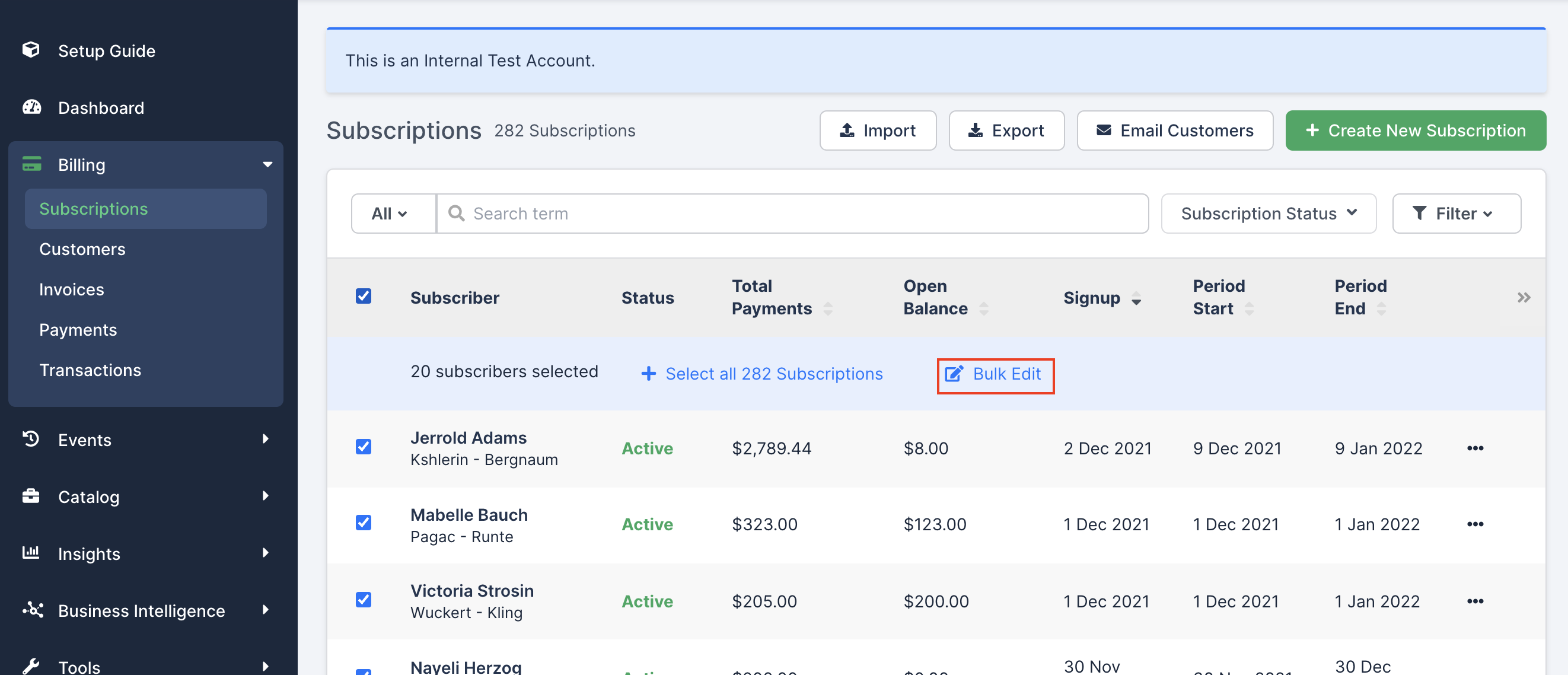
Filter existing Subscriptions by a search term, Plan and Plan Price Point, status, Custom Field, or date to find the exact collection of Subscriptions you want to change.
What you can change
Select multiple Subscriptions, then click Bulk Edit to choose one of the following:
- Change Billing Date
- Change Plan
- Set Auto-Renewal Cycle (Subscriptions with a Term only)
- Change Branding Theme
Change the billing date
Bulk billing date changes are available for Active, Assessing, Pending, Trialing, or Awaiting Signup Subscriptions that aren't on calendar billing. Calendar billing Subscriptions can't be changed in bulk due to potential proration issues (see Choose How Calendar Billing Charges at Signup); update them individually instead. Term Subscriptions can't have their billing dates changed through bulk actions. Advanced Billing skips any ineligible Subscriptions you select.
- Changing the next billing date only affects the next billing date. Advanced Billing doesn't bill the selected Subscriptions again until the chosen date and time.
- After the next billing, the selected Subscriptions return to their Plans' normal recurring period.
- None of the Subscriptions' balances, renewal amounts, or billing periods change.
Important: This tool changes only the billing date, or the billing date and time together. It never changes only the billing time. Daylight saving time changes also affect the renewal timestamp. For example, if you set the renewal timestamp to 12:00 AM, Subscriptions may process at 11:00 PM one day before your expected date after a daylight saving time adjustment. To avoid this, set the time to 12:00 PM.
To change the billing date in bulk
- Select the checkboxes next to the Subscriptions you want to edit.
- Click Bulk Edit, then select Change Billing Date.
- Select the new date under Next Billing Date.
- Select Keep the existing billing times to leave times unchanged, or select Change all billing times to and choose a new time. This choice is available whether or not Multi-Frequency billing is enabled for your Site.
- Click Update Subscriptions.
Change the Plan
Use the Bulk Edit tool to move multiple Subscriptions to a different Plan. This is available for Subscriptions in the Active, Pending, Trialing, Past Due, Paused, Unpaid, Canceled, Trial Ended, On Hold, Assessing, or Awaiting Signup states.
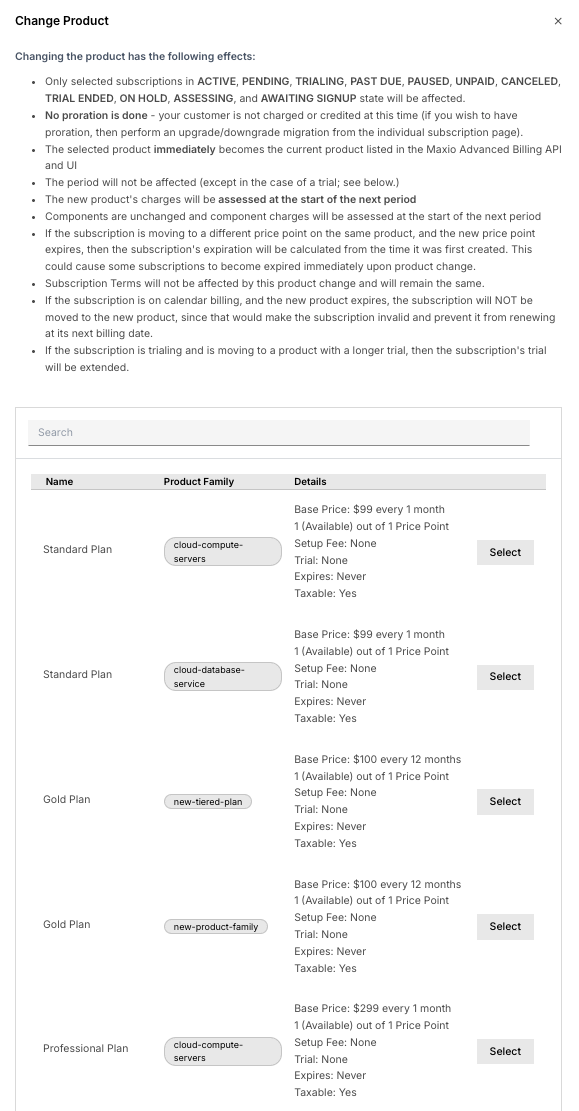
Changing the Plan has the following effects:
- Advanced Billing doesn't prorate the change. Your Customer isn't charged or credited at this time. To apply proration instead, perform an upgrade or downgrade migration from the individual Subscription page.
- The selected Plan and Price Point immediately become the current Plan listed in Advanced Billing and the API.
- The billing period generally isn't affected, except for a trial. If the new Plan has a longer trial than the current one, the trial is extended.
- The new Plan's charges are assessed at the start of the next period. Products remain unchanged, and Product charges are also assessed at the start of the next period.
- If the Subscription moves to a different Price Point of the same Plan and that Price Point expires, its expiration is calculated from the Subscription's original creation date. This could cause immediate expiration.
- If the Subscription is on calendar billing and the new Plan expires, Advanced Billing blocks the change to prevent the Subscription from becoming invalid and unable to renew at its next billing date.
Whether moving a Subscription to a different, expiring Plan recalculates its expiration date from the date of the change (or removes the expiration date entirely for a non-expiring Plan) depends on whether Subscription Terms is enabled for your Site. Contact Maxio support if you're not sure which behavior applies.
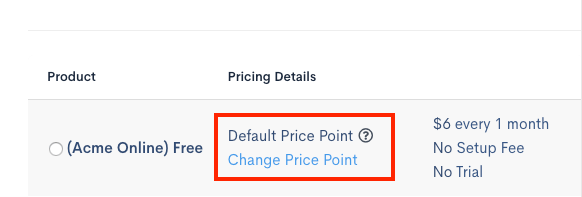
By default, changing the Plan moves Subscriptions to the default Price Point of that Plan. To move Subscriptions to a specific, non-default Price Point instead, select Change Price Point after choosing the new Plan.
To change the Plan in bulk
-
Select the checkboxes next to the Subscriptions you want to edit.
-
Click Bulk Edit, then select Change Plan.
-
Select the Plan you want to move the selected Subscriptions to.
-
To use a non-default Price Point, select Change Price Point and choose the Price Point you want.
-
Click Move To Selected Plan.
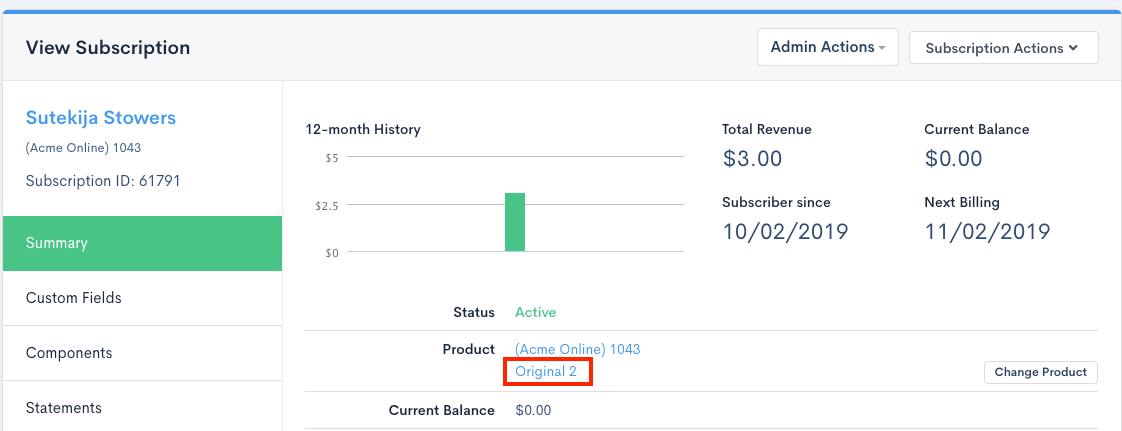
You can confirm the updated Price Point on the Subscription page. The applied Price Point is listed beneath the Plan name; click it to go to the Pricing page for that Plan.
Set the auto-renewal cycle
Set Auto-Renewal Cycle updates the auto-renewal interval for multiple Subscriptions with a Term at once. This is available for Subscriptions with a Term in the Pending, Trialing, Assessing, Active, Past Due, or Awaiting Signup states.
To set the auto-renewal cycle in bulk
- Select the checkboxes next to the Subscriptions you want to edit.
- Click Bulk Edit, then select Set Auto-Renewal Cycle.
- Select a Renewal Term Length.
- Select an Auto-Renewal Profile, which determines when the auto-renewal locks in before expiration.
- Optionally, select a Renewal Factor to apply a price adjustment during renewal.
- Click Apply.
- Review the number of Subscriptions affected, then click Confirm.
Change the Branding Theme
Change Branding Theme applies a Branding Theme to multiple Subscriptions at once.
- The selected Branding Theme applies to the Subscription on a go-forward basis.
- The change only affects Invoices generated after you update the Branding Theme.
- Only the Subscriptions you selected are updated.
To change the Branding Theme in bulk
- Select the checkboxes next to the Subscriptions you want to edit.
- Click Bulk Edit, then select Change Branding Theme.
- Select a theme, or select None to remove the current Branding Theme.
- Click Apply Branding Theme.
Related information
To edit properties for multiple Customers instead of Subscriptions, see Edit Customer Properties in Bulk.
To apply proration when moving a single Subscription to a new Plan, see Upgrade or Downgrade a Subscription.
Still need help?
Reach out and our support team will take it from here.