
Search and Filter Subscriptions
Applies to: Advanced Billing
Last updated on Sep 28, 2026
Find a specific Subscription quickly, whether you know its exact reference or need to search and filter through a list. Search within the Billing section to locate Subscriptions or Customers within your current Site.
Search by name, reference, or card number
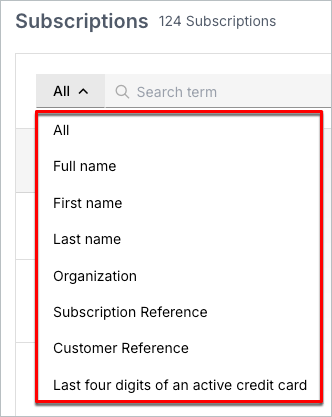
In the search term box, Advanced Billing lets you search Subscriptions by:
- All
- Full name
- First name
- Last name
- Organization
- Subscription Reference
- Customer Reference
- Last four digits of an active credit card
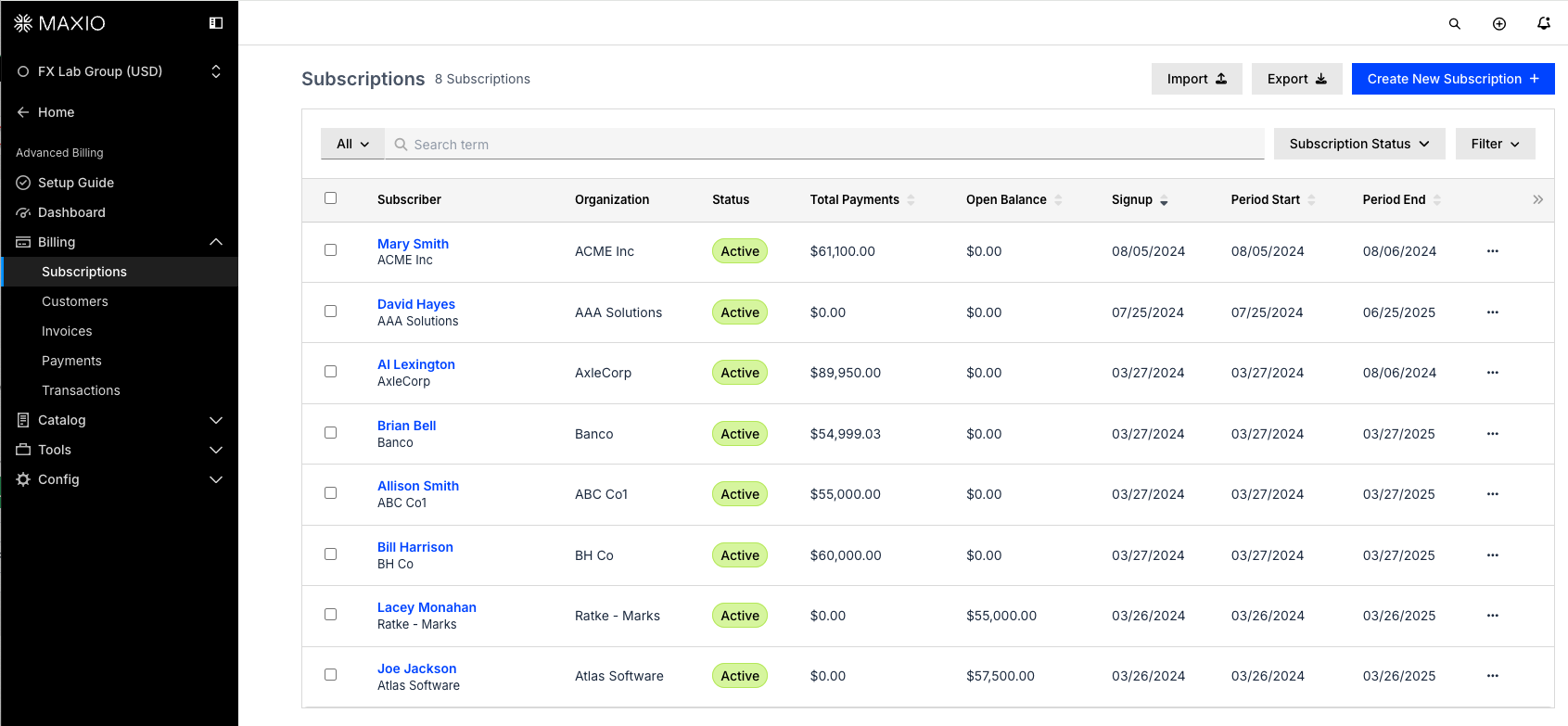
You can also filter by Subscription status using the dropdown to the right of the search box; see Understand Subscription States for the full list of statuses.
Filter your search results
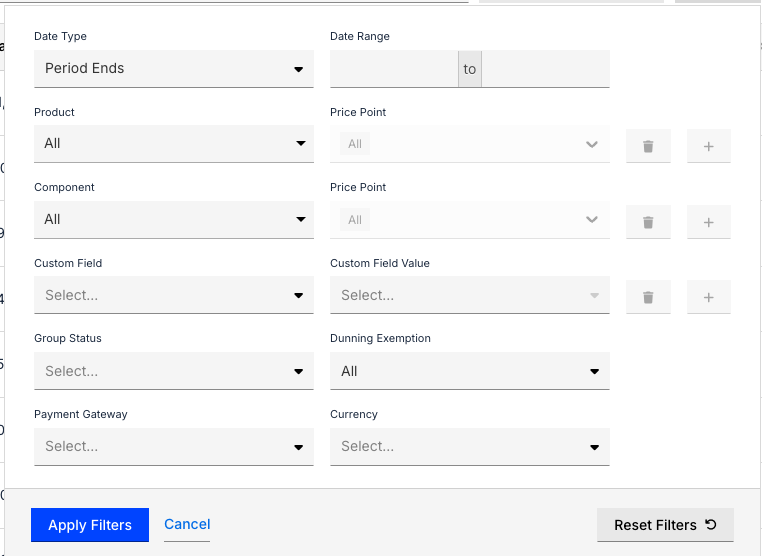
Use the filter panel to narrow down your search results using the following criteria.
Date
Search by a specific date attribute, then set the range it falls within:
| Date Type | Description |
|---|---|
| Period Ends | Search by the date the current billing period ends (the next billing date). |
| Period Started | Search by the date the current billing period began. |
| Created | Search by the date the Subscription was created. |
| Activated At | Search by the date the Subscription was activated. |
| Canceled | Search by the date the Subscription was canceled. |
| Expires | Search by the Subscription's expiration date. |
| Trial Started | Search by the date the trial started. |
| Trial Ends | Search by the date the trial ended. |
| Updated At | Search by the date any of the Subscription's attributes were last updated. |
Set the range of dates your selected Date Type searches within, using From Date and To Date.
Plan
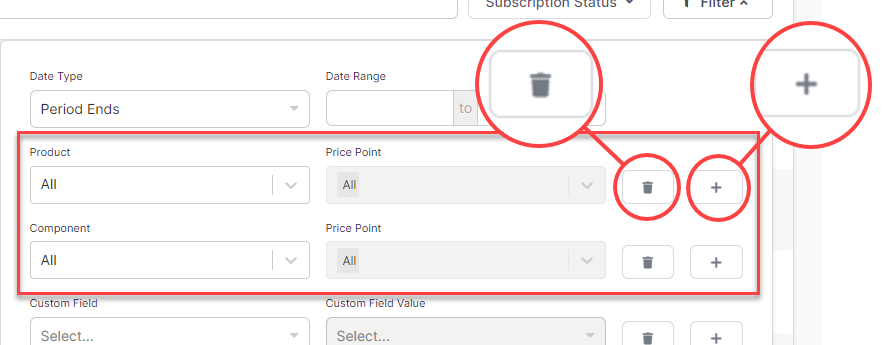
Locate Subscriptions by Plan using the dropdown labeled Plan, and optionally narrow further by that Plan's own Price Point. You can add multiple Plan filter rows to search by more than one Plan at a time, using the plus button to add a row and the trash icon to remove one.
Product
Locate Subscriptions by Product using the dropdown labeled Product, and optionally narrow further by that Product's own, separate Price Point. As with Plan, you can add multiple Product filter rows to search by more than one Product at a time.
Custom Fields
Locate Subscriptions by Custom Field. Select a field from the Custom Field dropdown, then enter or select its value in Custom Field Value, depending on the field's type. Add up to 5 Custom Field filter rows using the plus button, or remove one using the trash icon.
See Understand Custom Fields for how Custom Fields work.
Other filters
The remaining filters are single dropdowns with no row limit:
| Filter | Description |
|---|---|
| Group status | Locate Subscriptions by whether they're in a Subscription Group or an Individual Subscription. See Understand Subscription Groups for how Subscription Groups work. |
| Dunning Exemption | Locate Subscriptions by whether they're exempt from dunning. See Understanding How Dunning Works for how dunning works. |
| Payment Gateway | Locate Subscriptions by their current Payment Gateway. You can select multiple Payment Gateways, including more than one of the same kind. See Understand Payment Gateways for more. |
| Currency | If your Site has more than one currency, locate Subscriptions by Currency. See Configure Site Currency for how to add currencies to your Site. |
| Collection Method | Locate Subscriptions by how they're billed: Automatic, Remittance, or Automatic — no payment method, which returns Automatic Subscriptions that have no payment method they can charge. See Update Subscription Payment Method for what causes that state and how to fix it. This option never returns a Subscription Group member, even if the Group has nothing to charge. The Group's Primary Subscription is returned instead. |
| Branding Theme | If Branding Themes is enabled for your Site, locate Subscriptions by their assigned Branding Theme. |
| Coupon Code | Locate Subscriptions by the Coupon Code applied to them. Matches both exact and partial codes. |
Term and renewal filters
If your Site has Term Subscriptions enabled and at least one Subscription with an upcoming term expiration, four more filters appear at the end of the panel:
| Filter | Description |
|---|---|
| Term Type | Locate Subscriptions by whether they're Term or Evergreen. |
| Renewal Type | Locate Term Subscriptions by whether their upcoming renewal is Automatic or Scheduled. A Subscription with both an Auto-Renewal and a Scheduled Renewal configured only matches Automatic, since Auto-Renewal takes precedence. |
| Renewal Status | Locate Term Subscriptions by the status of their upcoming renewal: Draft, Scheduled, or Pending. See Understand Scheduled Renewal for what each status means. |
| Renewal Factor | Locate Term Subscriptions with an upcoming Auto-Renewal by its Renewal Factor. Choose a comparison operator (equals, greater than, less than, greater than or equal to, less than or equal to) and a numeric value. |
A Term Subscription matches these three filters only while it has a renewal that hasn't started yet — one still in Draft, Scheduled, or Pending. Once its current term ends and the Renewal becomes the new current term, it stops matching them, as does a Term Subscription with no renewal configured at all. See Choose Between Auto-Renewal and Scheduled Renewal for how the two renewal methods differ.
Add optional columns to your results
You can show extra columns in your search results to see more about each Subscription without opening it. For example, if Multi-Frequency billing is enabled for your Site, you can show a Term Type column indicating whether each Subscription is Term or Evergreen.
If your Site has Term Subscriptions enabled and at least one Subscription with an upcoming term expiration, three more columns are available:
- Renewal Type — Automatic or Scheduled, matching the Renewal Type filter above.
- Renewal Status — the upcoming renewal's status: Draft, Scheduled, or Pending.
- Renewal Factor — the numeric Renewal Factor applied by an upcoming Auto-Renewal.
All three columns are blank for an Evergreen Subscription, for a Term Subscription with no renewal configured, and for one whose Renewal has already become its current term.
Search limitations
In the Subscriptions tab, you can't search by:
- Credit card name
- Billing address
- Phone
- Address information (city, state, zip, and so on)
- VAT
Combine filters
All active filters, including the search box, combine using AND logic: a Subscription must match every condition to appear in your results. For example, filtering by Period Ends and Plan together only returns Subscriptions whose period end date falls in your range and whose Plan matches.
You can also select multiple values within most individual filters, such as Plan, Product, or Subscription status, to broaden a single condition while still narrowing the rest.
Related information
See Find Subscriptions with Quick Find to search across all your Sites with just a few keystrokes.
Once you've found the Subscriptions you want, see Edit Subscriptions in Bulk to update them together.
Still need help?
Reach out and our support team will take it from here.