
Manage Transactions in Advanced Billing
Applies to: Advanced Billing
Last updated on Sep 3, 2026
Review, filter, and export all financial activity across your Subscriptions from the Transactions tab, so you can analyze Invoices, Payments, Credits, and Refunds, troubleshoot Customer billing issues, and prepare accurate financial reports.
If you use the Maxio Platform workflow instead of Advanced Billing, see Understanding Transactions instead.
Navigate the Transactions tab
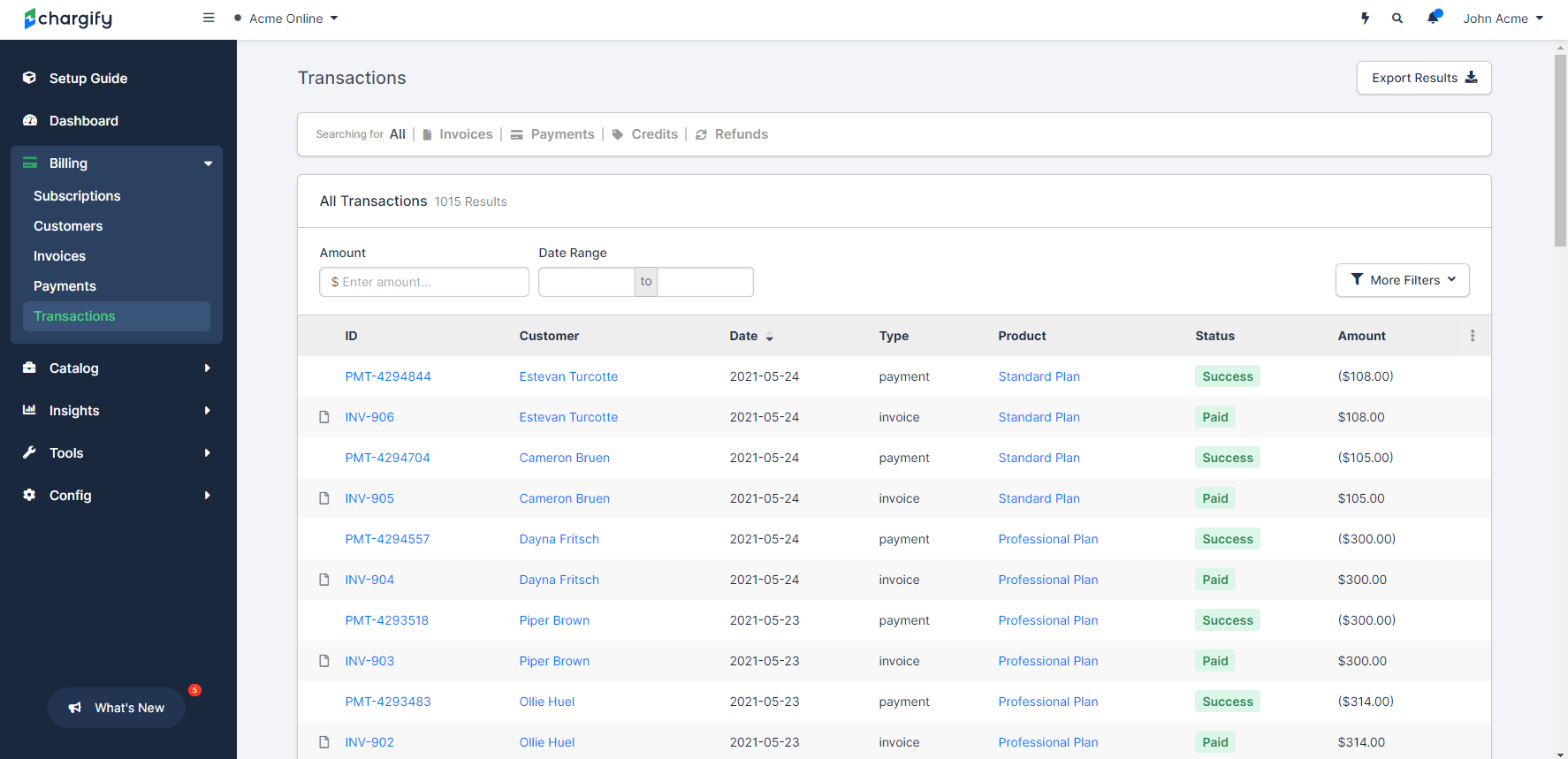
The Transactions tab provides a bird's-eye view of all Transaction activity across your Site. The most recent Transactions appear at the top; older Transactions appear as you scroll down. You can choose from five tabs: All, Invoices, Payments, Credits, or Refunds. To see every Transaction in one view, use the All tab. To focus on a specific type, select the corresponding tab.
Add or remove columns
The screenshot above shows the default columns on the Transactions tab. Each Transaction type also has its own tab. The table below describes the default columns and where each column is available.
| Column | Description | Relevant Tabs |
|---|---|---|
| Consolidation Level | Displays an icon for all Invoice Transactions indicating whether the Invoice is normal, consolidated, or a consolidated segment. This column does not have a header, but it appears in the column selector. | A, I |
| ID | The unique identifier for the Transaction. Prefixes indicate type: INV for Invoice, PMT for Payment, CN for Credit, RFD for Refund, SC for Service Credit. | A, I, P, C, R |
| Customer | Displays the Customer Organization name if available, otherwise the Customer first and last name. | A, I, P, C, R |
| Date | The date of the Transaction. Invoice Transactions display the issue date. Payments, Credits, and Refunds display the creation date. | A, I, P, C, R |
| Type | The Transaction type: Invoice, Payment, Credit, or Refund. | A, I, P, C, R |
| Plan | The Plan associated with the Subscription. | A, I, P, R |
| Status | Indicates whether the Transaction was successful. | A, I, P, C, R |
| Amount | The Transaction amount formatted in currency. | A, I, P, C, R |
| Amount Due | The outstanding amount of an Invoice Transaction. Only Invoice Transactions include this attribute. | I |
A = All, I = Invoices, P = Payments, C = Credits, R = Refunds
Use the column selector to add or remove columns as needed. Click the Columns button above the table to open the selector.
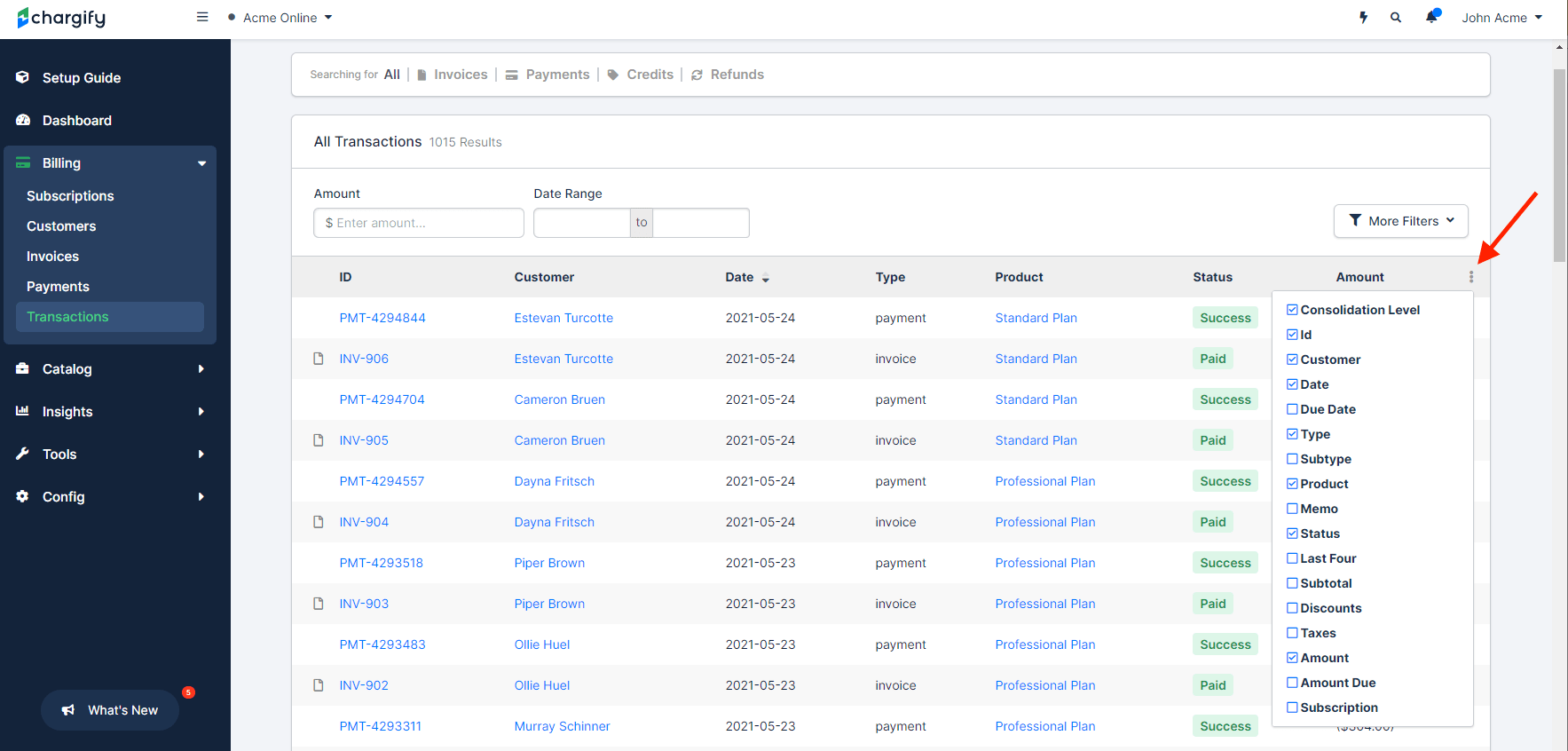
The table below lists additional columns you can add.
| Column | Description | Relevant Tabs |
|---|---|---|
| Due Date | The Invoice due date. Only Invoice Transactions include this attribute. | A, I |
| Subtype | Indicates how the Transaction was generated:
| A, I, P, C, R |
| Memo | A note about the Transaction. | A, I, P, C, R |
| Last Four | The last four digits of the credit card used. Only Payment Transactions include this attribute. | A, P |
| Subtotal | The Invoice amount for Plan and Product charges. Included for Invoices and Credit notes. | A, I, C |
| Discounts | The discount amount on the Invoice or Credit note. | A, I, C |
| Taxes | The tax amount on the Invoice or Credit note. | A, I, C |
| Subscription | The Subscription identifier associated with the Transaction. | A, I, P, C, R |
A = All, I = Invoices, P = Payments, C = Credits, R = Refunds
Filter Transactions by date, status, or amount
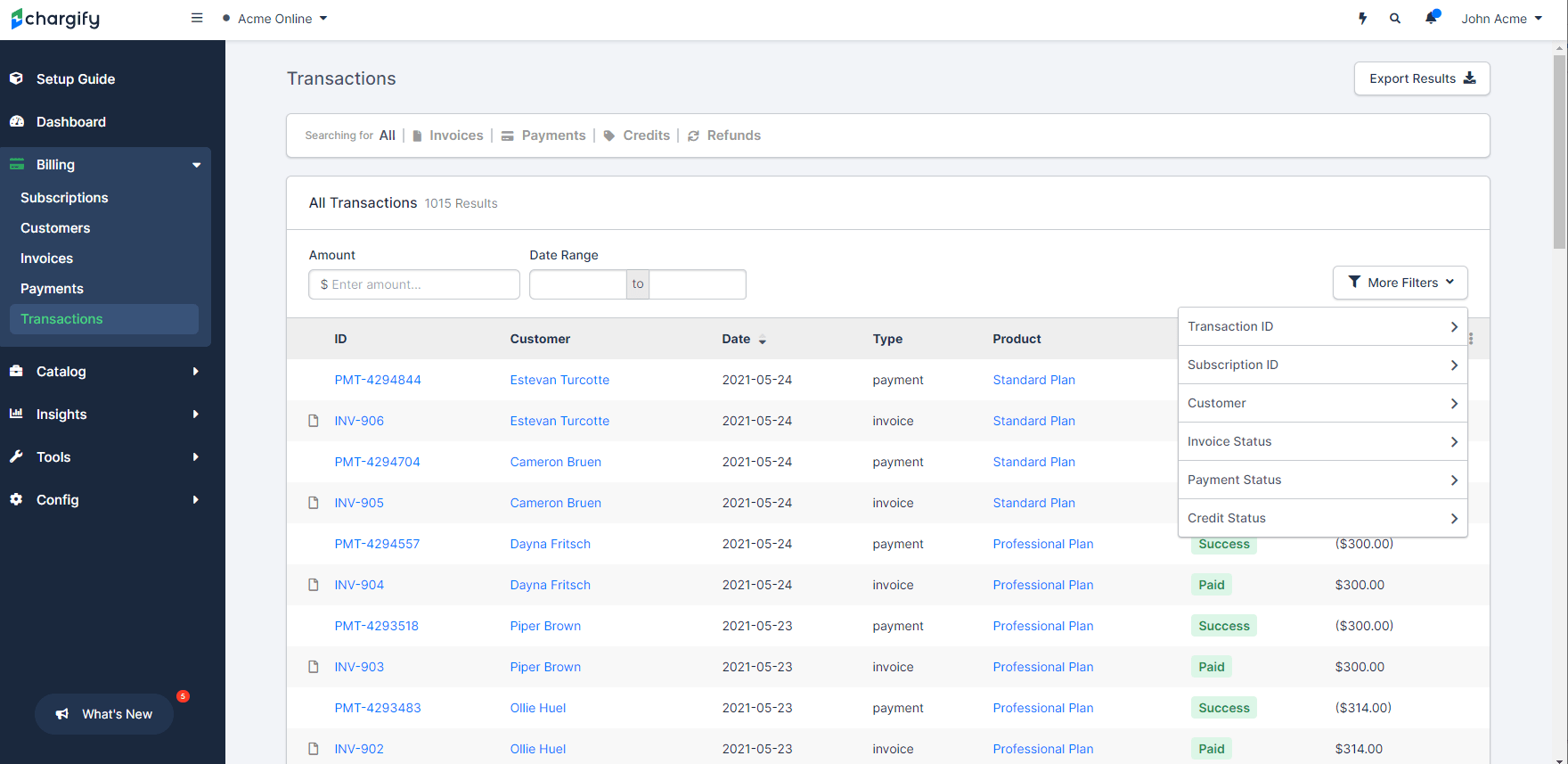
Use Advanced Billing filters to control which Transactions appear in the list. Filtering helps narrow down results and is especially useful before exporting. Amount and date filters appear on the page, and additional filters are available through the More Filters button.
| Filter | Description | Relevant Tabs |
|---|---|---|
| Amount | Filter by a specific Transaction amount. Results include positive and negative values that match your criteria. | A, I, P, C, R |
| Date Range | Filter Transactions by date range. | A, I, P, C, R |
| Due Date Range | Filter by the Invoice due date range. | I |
| Transaction ID | Search for a specific Transaction. You can include the prefix or search by number only. Searching "123" returns both PMT-123 and INV-123. Exact number matches only. | A, I, P, C, R |
| Subscription ID | Filters for Transactions linked to a specific Subscription. Supports only one Subscription ID. | A, I, P, C, R |
| Customer | Search for one or more Customers and view associated Transactions. | A, I, P, C, R |
| Plan | Filters by the Plan on the Subscription. The report is not broken into Invoice Line Items, so only the primary Plan appears. | I, P, R |
| Last 4 of Credit Card | Filters Payment Transactions by credit card last four digits. Limited to one value. | P |
| Role | Filters Invoice Transactions by role — Signup, Renewal, Usage, Reactivation, Proration, Migration, or Ad Hoc. Clear the Role filter to filter by Invoice Status, Payment Status, or Credit Status instead. | A, I |
| Invoice Status | Filters by one or more Invoice statuses. You cannot filter across Transaction types. Invoice status definitions appear in Understand How Invoices are Generated. | A, I |
| Payment Status |
| A, P |
| Credit Status |
| A, C |
| Product | Filters by the Product on the Subscription. | I |
| Gateway Handle | Filters by the payment gateway used to process the Transaction. | A, P |
| Status Description | Filters by the detailed status text returned for the Transaction. | A, P |
| External Payment Type | Filters by the type of payment recorded outside Advanced Billing. | P |
A = All, I = Invoices, P = Payments, C = Credits, R = Refunds
Paginate through your Transactions
Transactions in Advanced Billing are paginated with 50 Transactions per page. Use the page numbers at the bottom of the list to navigate. Each tab, Invoices, Payments, Credits, and Refunds, displays up to 500 rows. If your filtered data exceeds 500 records, the export still includes all results.

Export Transaction data
You can export Transaction data from the Transactions tab. Results are limited to the filters applied at the time of export.
How Subscription Groups affect Transactions
Transactions processed as part of a Subscription Group function differently from a stand-alone Subscription. This section explains how they appear on the Transactions tab.
- Invoices - All Invoices appear on the Transactions tab and show an icon indicating whether each Invoice is normal, consolidated, or a consolidated segment. When reviewing totals, remember that parent and child Invoices appear separately. For example, INV-11 for $250 consolidates segment Invoices INV-12 for $200 and INV-13 for $50. The list shows all three, totaling $500, even though the actual balance impact is $250. You can use the Consolidation Level column in exports to filter as needed.
- Payments - Payments applied to a consolidated Invoice are reposted to the segment Invoices. Using the example above, PMT-1 is applied to INV-11 for $250. Two additional Payments are created, PMT-2 for $50 to reapply amounts to child Subscriptions, and PMT-3 for $50 applied to Customer B. These additional Payments include memos explaining the action, such as Splitting payment with other subscriptions on INV-11.
- Credits - Credit Transactions are created at the child account level. For example, CN-22 applied to INV-123 appears on the consolidated Invoice INV-122.
- Refunds - Refunds follow the same logic as Payments. Refunds applied to consolidated Invoices generate additional Refunds for segment Invoices. Memos indicate why the Refund was generated, such as Splitting refund with other subscriptions on INV-11.
Related information
For details on which data appears in your export, see Understand Data Export.
For answers to common Transactions questions, see Transactions FAQ.
Still need help?
Reach out and our support team will take it from here.