
Understand Coupon Settings
Applies to: Advanced Billing
Last updated on Oct 1, 2026
Each coupon setting controls a specific part of how a discount is calculated and applied. This article covers what each one does, organized the same way they appear on the coupon edit screen. For questions that come up once coupons are live — stacking, expiry, and how discounts interact with proration — see Coupon FAQ.
Coupon details
These fields identify the coupon and control how customers reference it:
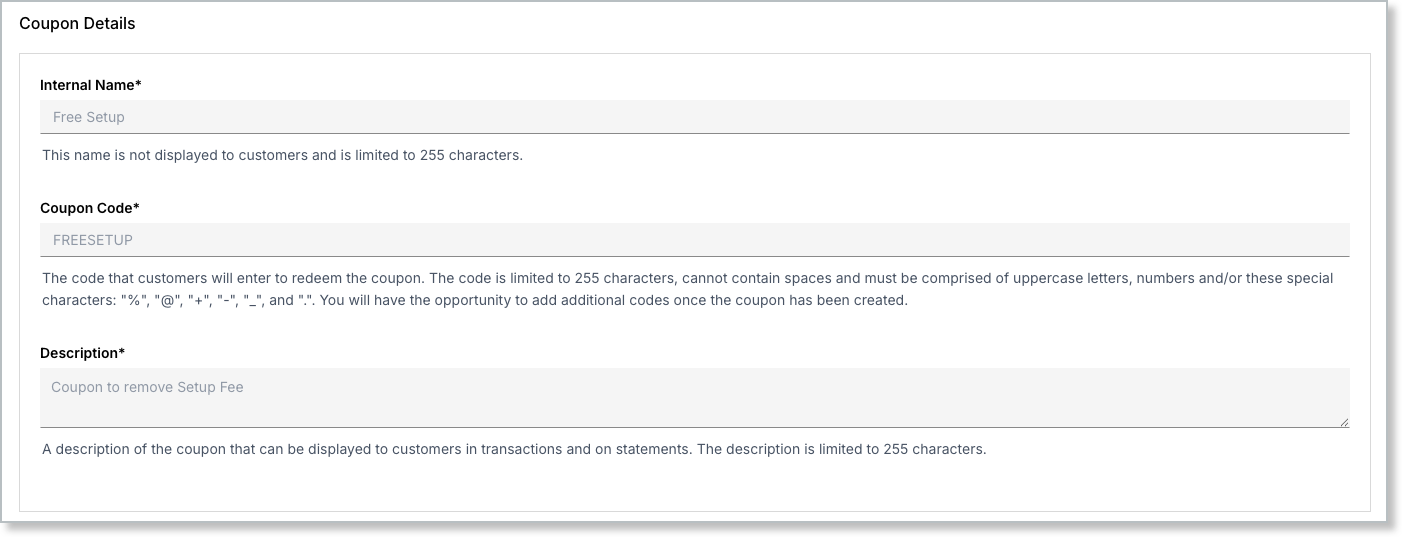
Internal name
Give your coupon a descriptive internal name that helps your team quickly identify its purpose, up to 255 characters. While not a system requirement, a clear name makes it easier for others to understand which Plans or services the coupon is intended to discount.
Coupon code
This is the code that your Subscribers use to receive a discount for Plans or services, up to 255 characters:
- The code cannot contain spaces.
- The code must be comprised of uppercase letters, numbers, and/or these special characters:
%,@,+,-,_, and..
Because only uppercase letters, numbers, and the listed special characters are permitted, an email-style code may be used only if the characters meet these requirements (for example, uppercase only and no unsupported symbols). You can add additional codes to the coupon once the coupon has been created.
Description
A description of the coupon that can be displayed to customers in transactions and on statements, up to 255 characters.
Discount Configuration
These settings control the discount amount, how it's calculated, and how long it applies:
Discount
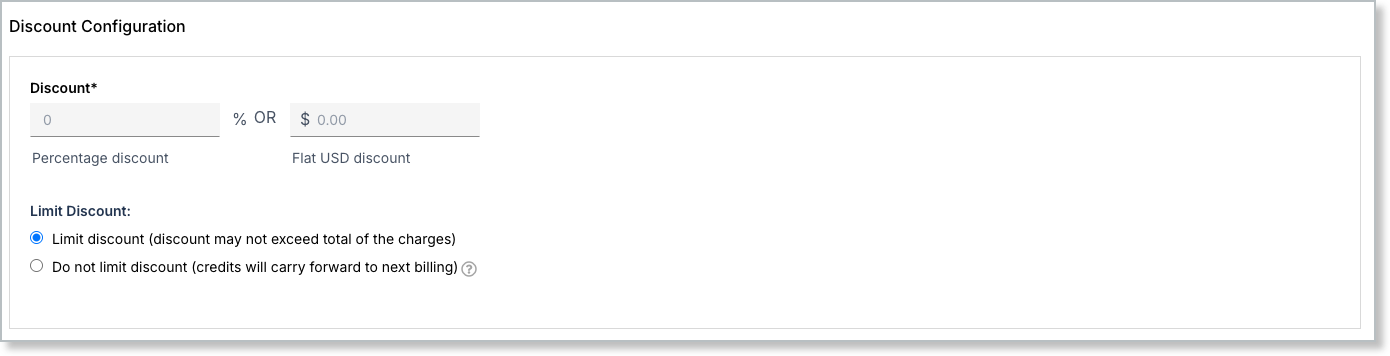
You may specify the discount amount in one of two ways:
- As a Percentage Discount with up to four decimal places.
- As a flat amount in your site's default currency.
In the case of percentage-based discounts, the final calculated discount is rounded to the nearest cent based on the cost of the Plan.
Flat amount coupons apply in a specific order: first to any initial or setup fees, then to Plan charges, and finally to Product charges. This order ensures the discount is fully consumed before moving to the next type of charge.
Discount Limit
Choose whether the discount can push a subscription's balance negative:
-
Limit discount (discount may not exceed total of the charges)
Caps the discount so it can't exceed the total of the charges it applies to. This is the default. -
Do not limit discount (credits will carry forward to next billing)
Allows the discount to exceed the amount due, leaving a negative balance on the subscription that carries forward as a credit to the next billing cycle.
Credits can only be carried forward for coupons that do not have restrictions.
Example: If you apply a $100 coupon to a $30 Plan with Do not limit discount selected, you have a -$70 balance on the Subscription. With Limit discount selected instead, your balance would be $0.
Recurring Discount
Toggle Enable Recurring Discount on to apply the discount at every renewal instead of only at signup. This is off by default, meaning the discount applies once, at signup.
When enabled, choose one of two behaviors:
-
Apply the discount indefinitely
The discount applies at signup and every renewal afterward, with no end date. -
Apply the discount initially and for the next X renewal periods
The discount applies at signup and for a set number of renewal periods afterward. Enter a whole number from 1 to 120, then choose the length of one renewal period from the interval drop-down, for example 1 month. The drop-down lists the billing intervals of the active Products in the Product Family. It does not appear on Sites that allow Planless Subscriptions.
Example: If you enter 12 renewal periods and choose 1 month, the coupon applies 13 times on a Subscription that renews monthly: once at signup, plus the 12 renewals that follow.
The coupon stops applying when a Subscription has received the discount that many times. If a Subscription renews on a different interval than the one you chose, Maxio also stops the discount once the time you set has passed. That time is the number of renewal periods multiplied by the interval you chose, counted from signup (after any trial) or, when you add the coupon to an existing Subscription, from its next renewal. The discount ends at whichever limit is reached first. For example, a coupon set to 3 renewal periods of 1 month does not apply once a year for 3 years on a Subscription that renews yearly.
Multi-Currency Pricing
This option becomes available if a flat amount discount is chosen and the site has more than one currency defined. By default, a coupon uses the site-level exchange rate to determine how much of a discount to apply. In order for a subscription to add a particular coupon, that coupon must have a price defined that matches the subscription's currency.
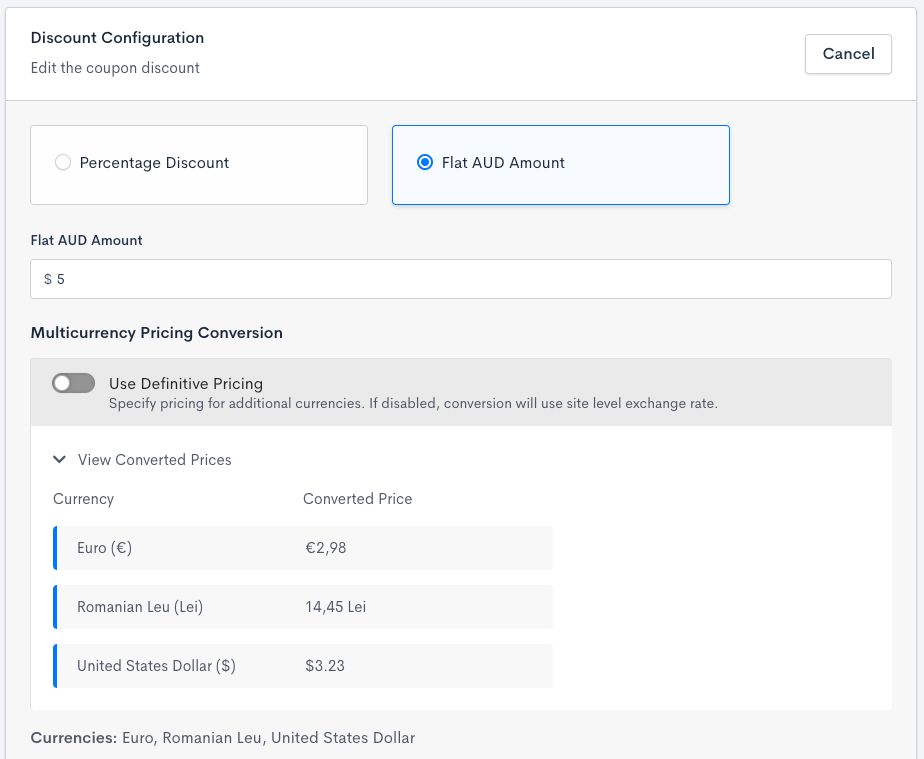
This coupon relies on the exchange rates defined in the currency settings to determine the converted prices
The Use Definitive Pricing toggle lets you set explicit prices for a specific currency instead of relying on the exchange rate. For example, $5 AUD might translate to €2,98 at the current exchange rate; if rounded numbers are desired, definitive pricing can be configured as in the screenshot below.
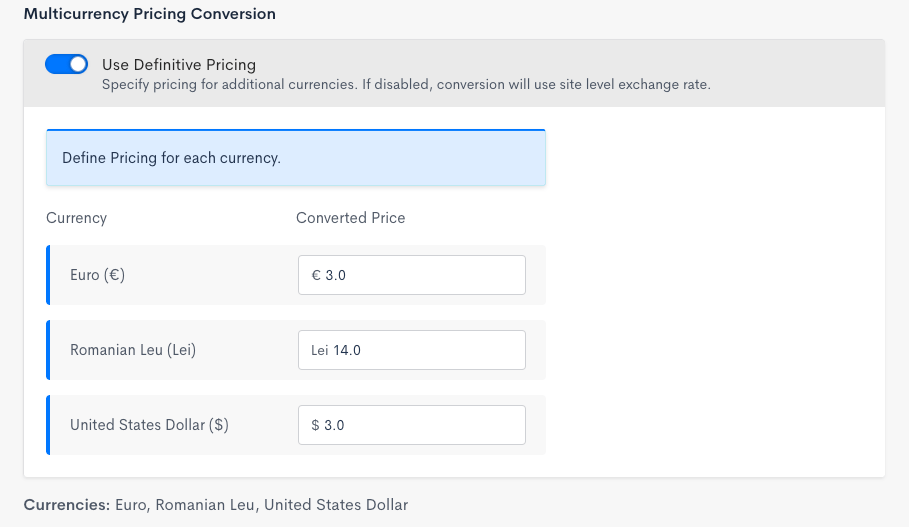
Specify unique pricing for a particular currency on this coupon
For more on the difference between definitive pricing and using the site-level currency definition, see Understand Multi-Currency in Advanced Billing.
Advanced Options
These settings give you finer control over how, when, and to whom a coupon's discount applies.
Stackable coupons
Toggle Enable Stackable Coupon on to allow this coupon to be combined with other stackable coupons on a Subscription. This is off by default.
Ordering and Compounding
These options appear if Enable Stackable Coupon is turned on:
-
Compound this coupon after all other discounts
Percentage-based discounts are calculated against the remaining price, after prior discounts have been calculated. -
Apply to the full price before other discounts
Percentage-based discounts are always calculated against the original item price, before other discounts are applied.
Mid-Period Allocation Discount Behavior
When a Subscriber changes Plans or Products mid-period, you can control how the discount applies to the resulting prorated charge.
Toggle Exclude discount on mid period allocations on to prevent the discount from applying to prorated amounts generated by mid-period Plan or Product changes. This is off by default, meaning mid-period allocations are discounted along with everything else.
Cancel at the End of Period Discount Behavior
Toggle Apply discount at the end of period cancellation on to keep the discount applied during the final billing period of a subscription that's scheduled to cancel at the end of that period. This is off by default, meaning the discount does not apply to that final billing period.
Expired Subscription Final Period Usage Discount Behavior
Toggle Apply discount to the expired subscriptions final period usage off to stop the discount from applying to usage-based charges billed during the final period of an expired subscription. This is on by default, meaning the discount applies to that final usage.
Setup Fee Behavior
Toggle Apply to Setup Fees off to stop the discount from applying to initial setup or onboarding fees. This is on by default, meaning setup fees are discounted along with everything else.
Trial Behavior
Toggle Apply to Trial off to stop the discount from applying during a subscription's trial period. This is on by default, meaning trial charges are discounted.
Expiration Date
Toggle Enable Expiration Date on to reveal a date picker. Once set, the coupon can no longer be added to subscriptions after the end of that day in your time zone. However, recurring discounts already applied continue even after the expiration date.
Coupons expire at midnight based on the site's time zone at the time the expiration date is set. If you later change your site's time zone, existing coupons still expire according to the original time zone set at creation or last update.
Conversion Limit
Toggle Limit Conversion on to reveal the Conversion Limit field, which limits the number of times a coupon can be used. If you add additional codes to the coupon, this limit applies to each code separately.
Example: If you leave the limit toggle off, the coupon can be used as many times as you'd like across your entire site. This is the most frequently used conversion setting in Advanced Billing. If you set a Conversion Limit of 1, that coupon can be used exactly 1 time across your entire site. If it has 100 codes, each code can be used exactly once.
What Counts as a Use for a Recurring coupon
For a recurring coupon, a normal renewal application always counts as one use toward the conversion limit. Mid-period allocations, discounts applied outside of a regular renewal, for example when a Subscriber is charged for a Plan or Product mid-cycle, are counted differently depending on what they're applied to:
- A mid-period allocation against a one-time (non-recurring) Product counts as a use. These Products are only ever billed mid-period, never as part of a regular renewal, so this is the only opportunity for the coupon's usage to be counted against them.
- A mid-period allocation caused by a quantity change or proration on a recurring Product does not count as a use. Only that Product's normal renewal applications count.
This distinction only applies to recurring coupons. For a one-time coupon (one that applies the discount only once), any application counts as its single use, including mid-period allocations.
Plan/Product restrictions
Toggle Restrict Coupon on to limit a coupon to only apply to specific Plans or Products. When restricted, select only the Plans or Products the coupon should apply to; when nothing is selected, the coupon is unrestricted and applies to all current and future Plans and Products.
Where a restricted coupon can be added depends on whether the subscription already exists:
- On an existing subscription, a restricted coupon may be added to any subscription within the same Product Family, even if none of its current charges match the restriction. Restrictions control discount eligibility on a charge-by-charge basis: the coupon remains present on the subscription but applies only when a charge includes a Plan or Product that matches the configured restrictions. See Coupon restrictions for the warning shown when a coupon doesn't currently apply to anything on the subscription.
- When creating a new subscription on a Site that allows Planless Subscriptions, a restricted coupon can't be selected until you add a Plan or Product it applies to. See Step 5: Configure subscription items. On other Sites, the subscription form still lets you select a restricted coupon, and it applies only to charges that match its restrictions.
Still need help?
Reach out and our support team will take it from here.