
Set Up and Collect SEPA, BACS, and BECS Direct Debit Payments with Stripe
Applies to: Advanced Billing
Last updated on Sep 19, 2026
Stripe SEPA, BACS, and BECS Direct Debit are payment methods available in the Stripe platform that allows Advanced Billing merchants to easily collect Direct Debit payments in different currencies. Your subscriber may easily add existing banking information to seamlessly pay for products and services.
Direct Debit types supported through Stripe
| Type | Currency |
|---|---|
| SEPA | Euro |
| BACS | British Pound |
| BECS | Australian Dollar |
Requirements
Stripe SEPA, BACS, and BECS Direct Debit has the following requirements:
- We allow merchants using Relationship Invoicing to use Stripe SEPA, BACS, or BECS Direct Debit
- Stripe SEPA, BACS, or BECS Direct Debit is available only on sites with enabled multi-gateway support
- Stripe SEPA, BACS, or BECS Direct Debit may not be used with Advanced Billing sites that use the legacy invoices/statements functionality.
- Stripe SEPA Direct Debit supports only the Euro currency (SEPA is an acronym for Single Euro Payments Area). Stripe BACS Direct Debit supports only the British Pound currency. Stripe BECS Direct Debit supports only the Australian Dollar currency.
- Bank accounts may not be created from within the admin UI, including when manually creating a subscription.
- This is because the customer must view and confirm the details of their mandate, which is not possible if another individual is entering the information for them.
- When creating a subscription manually, a workaround is to sign the customer up on a free trial or with a future billing date so they can enter their bank account information after signup.
Stripe SEPA, BACS, or BECS Direct Debit setup
To begin using Stripe SEPA, BACS, or BECS Direct Debit in your Advanced Billing site, go to Config > Payment Gateways for your site and add Stripe as a gateway. Partway through, you're securely redirected to Stripe to log in or create an account.
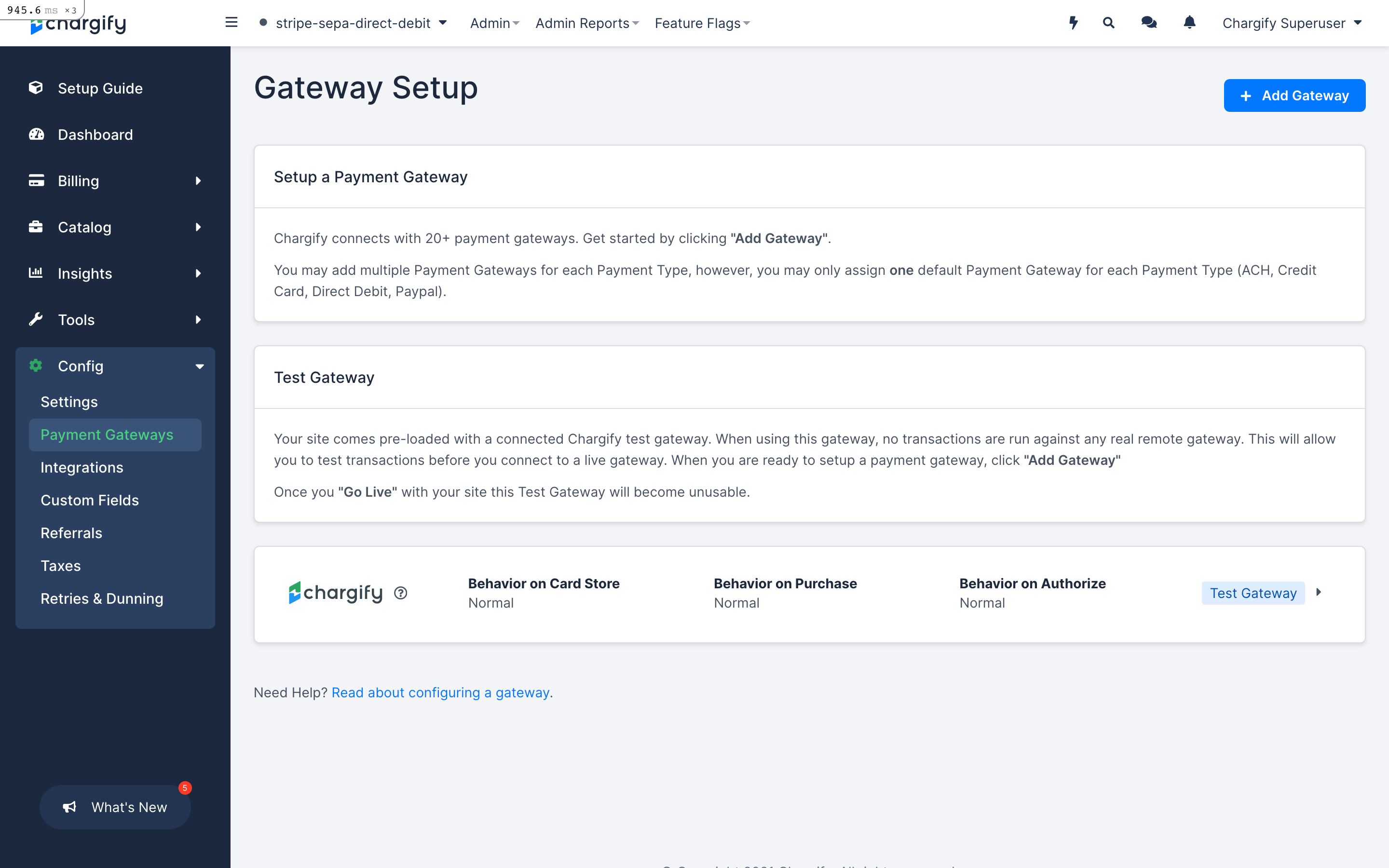
Step 1 - Select Add Gateway.
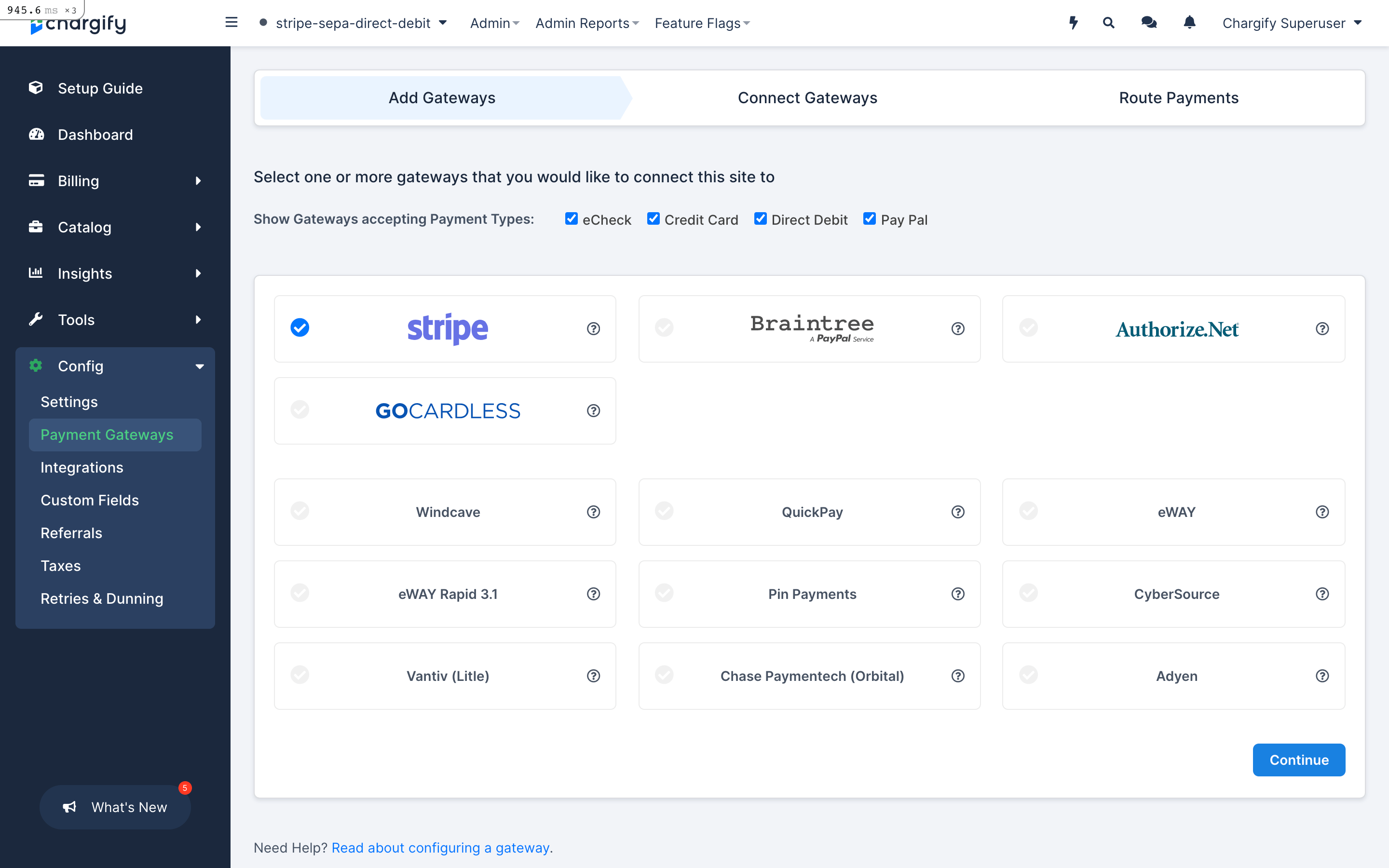
Step 2 - Select Stripe from the list of available gateways and select Continue.
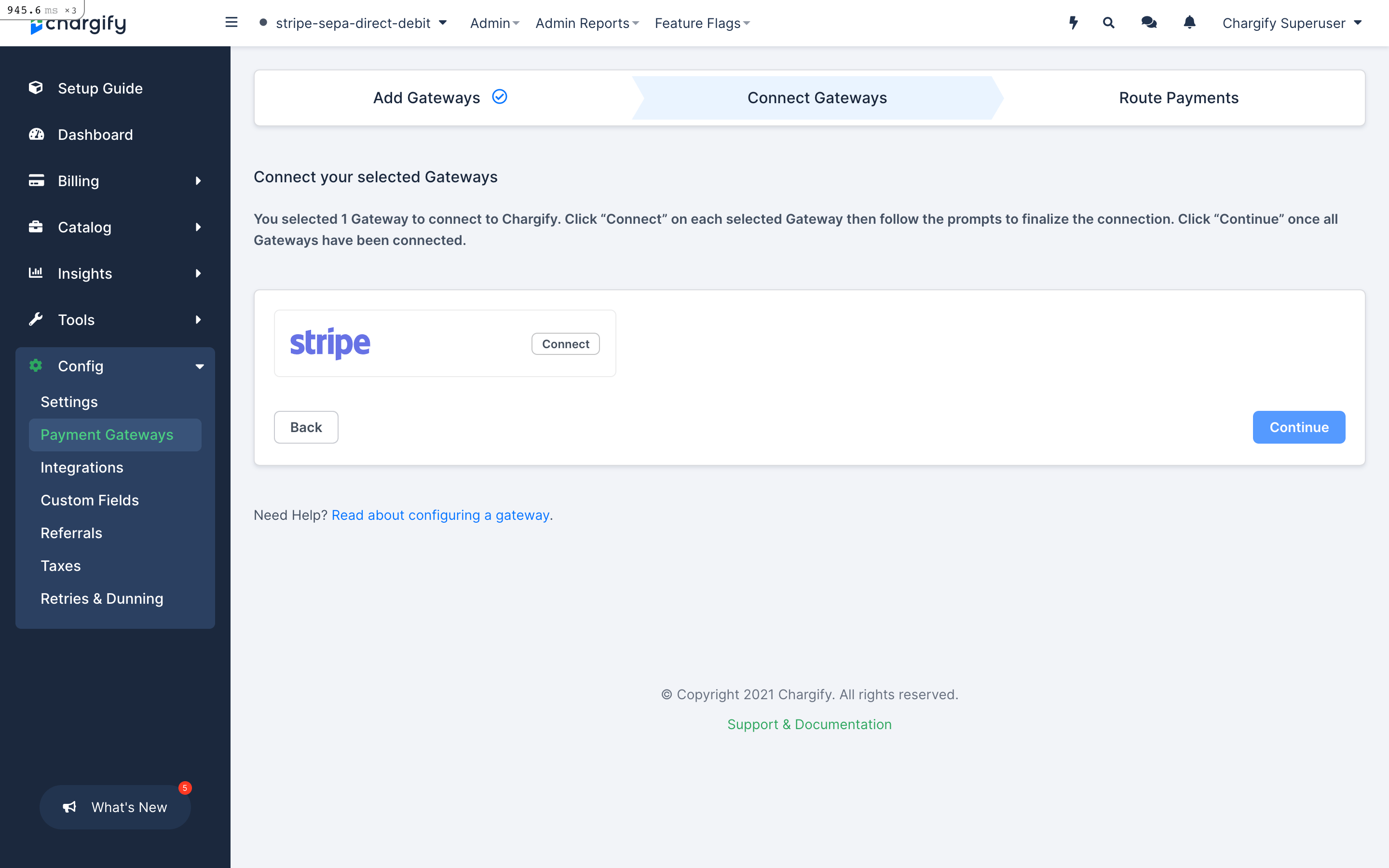
Step 3 - Select Connect.
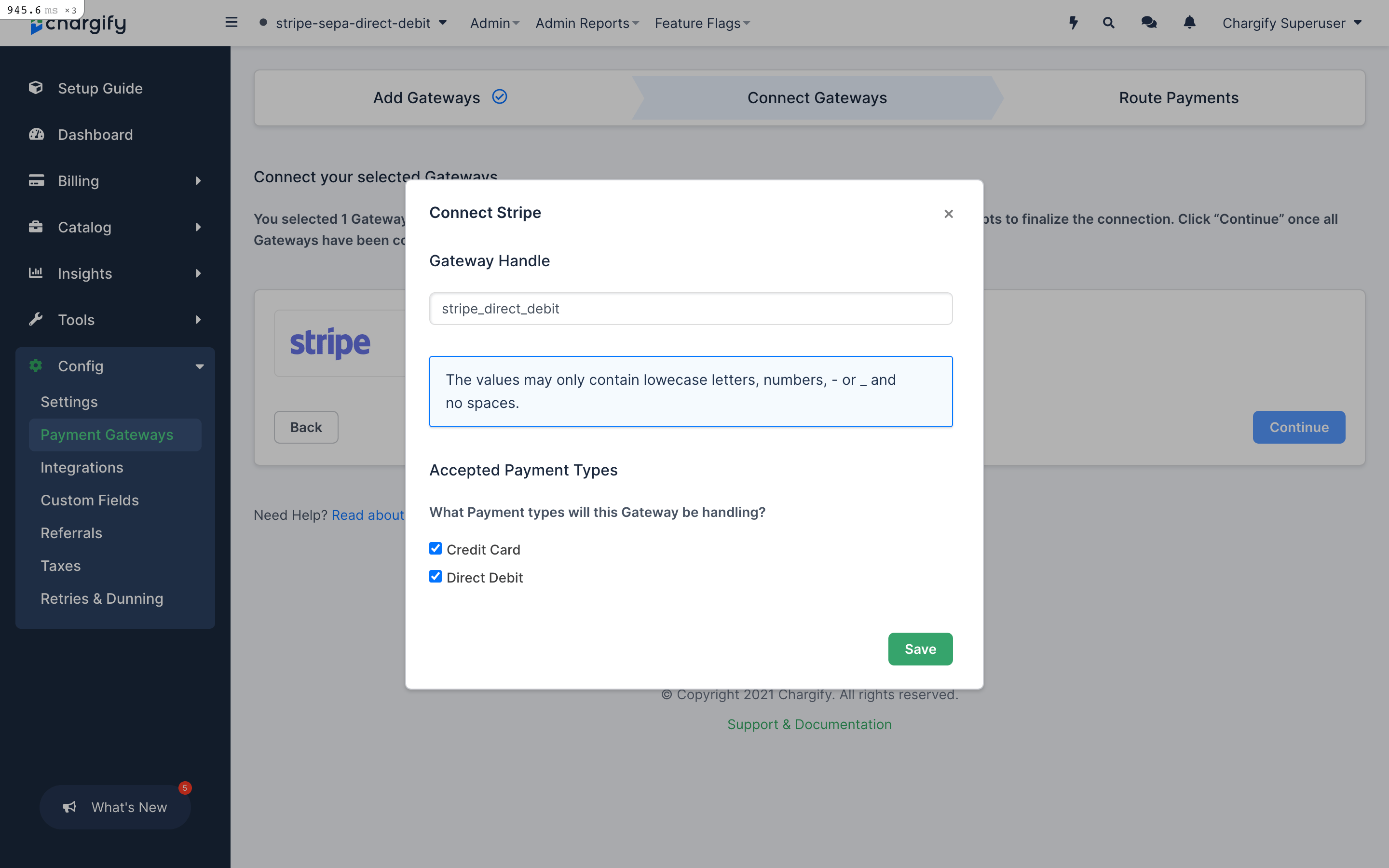
Step 4 - Fill in Gateway Handle and select accepted payment types, then select Save.
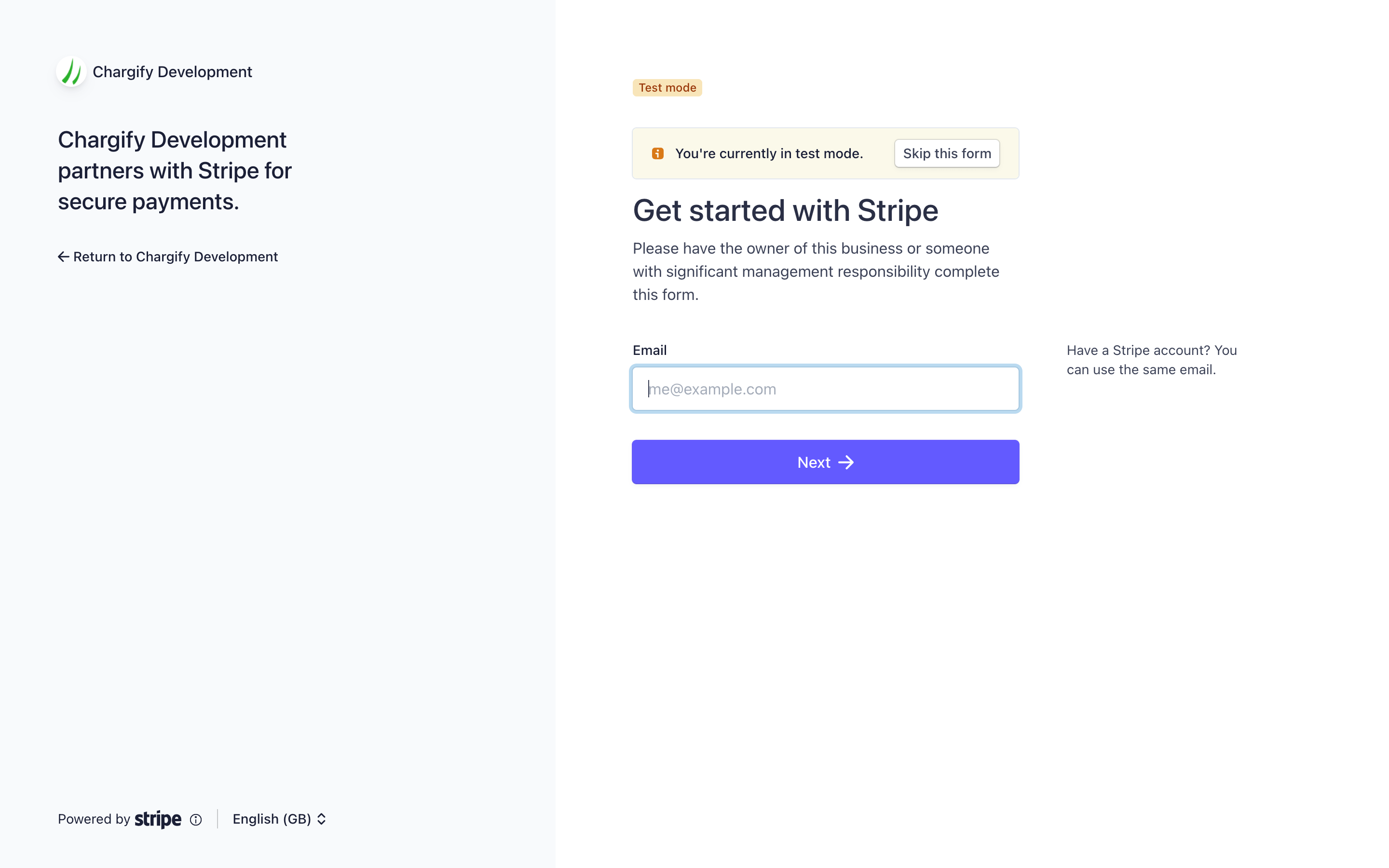
Step 5 - You're redirected to Stripe. Log in with your account, or create a new one.
Step 6 - After you log in to your Stripe account, you're redirected back to Advanced Billing.
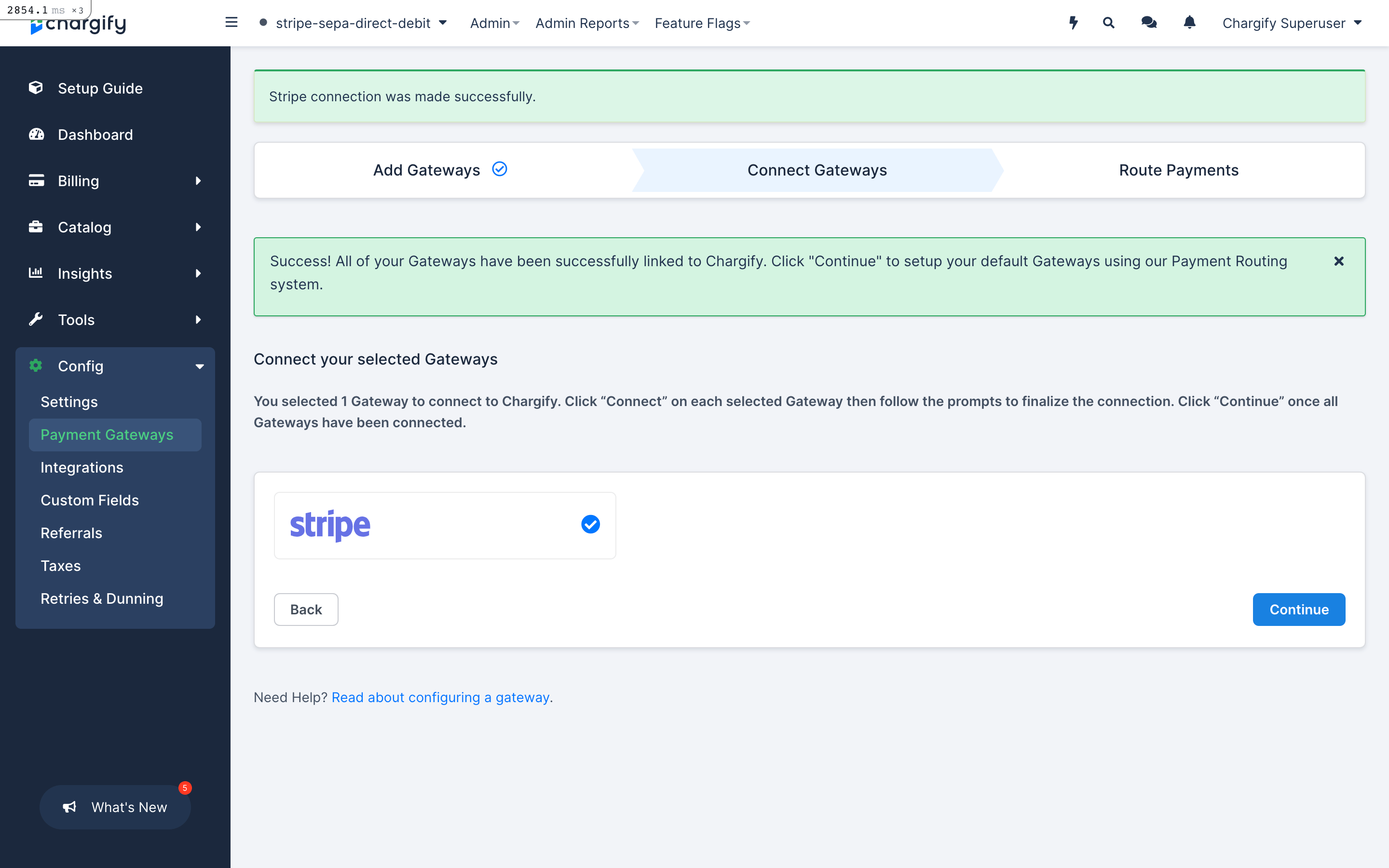
Step 7 - After returning from the Stripe site, you see a blue circle with a white check mark. Select Continue.
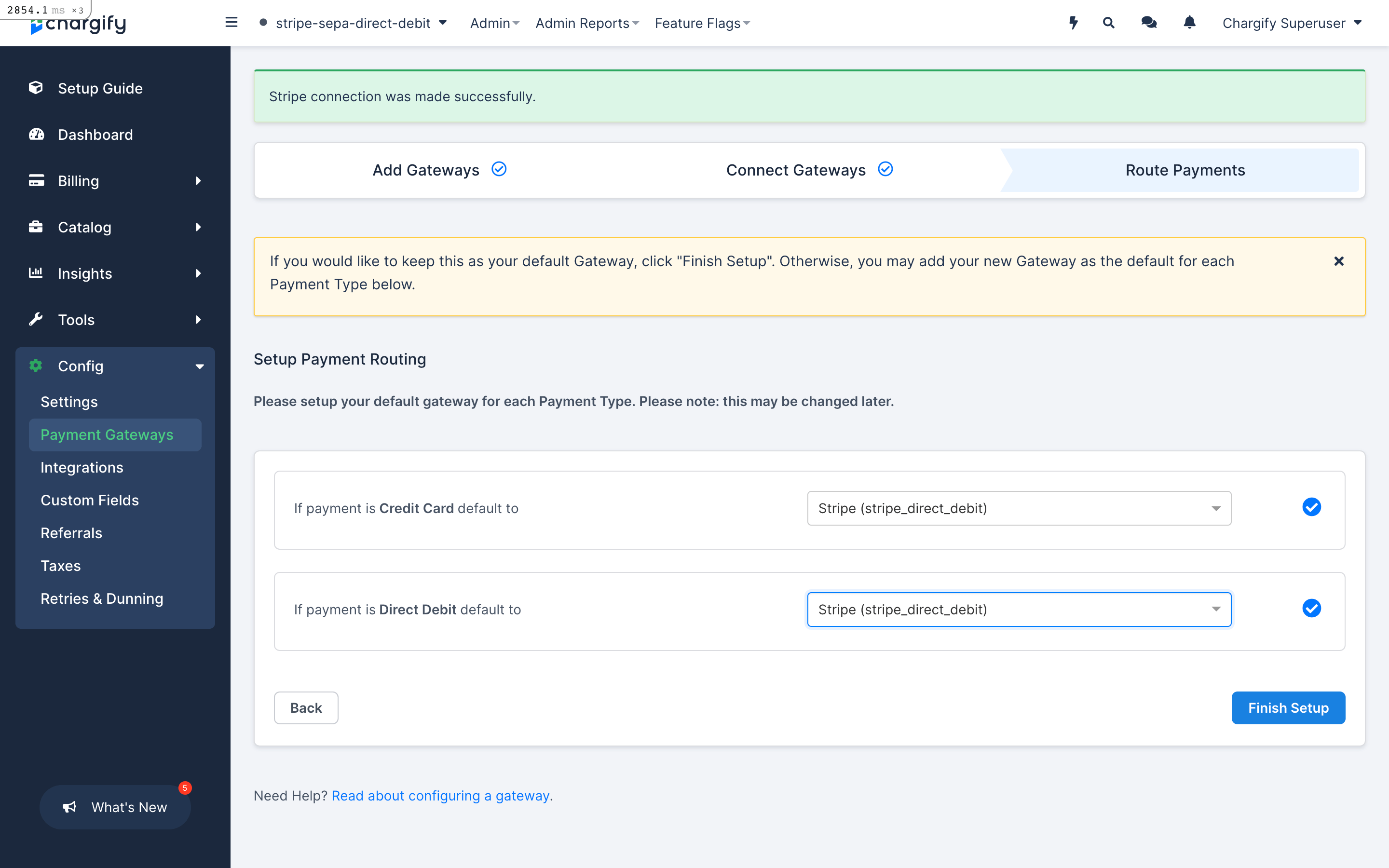
Step 8 - Select which payment method you want to associate with which gateway.
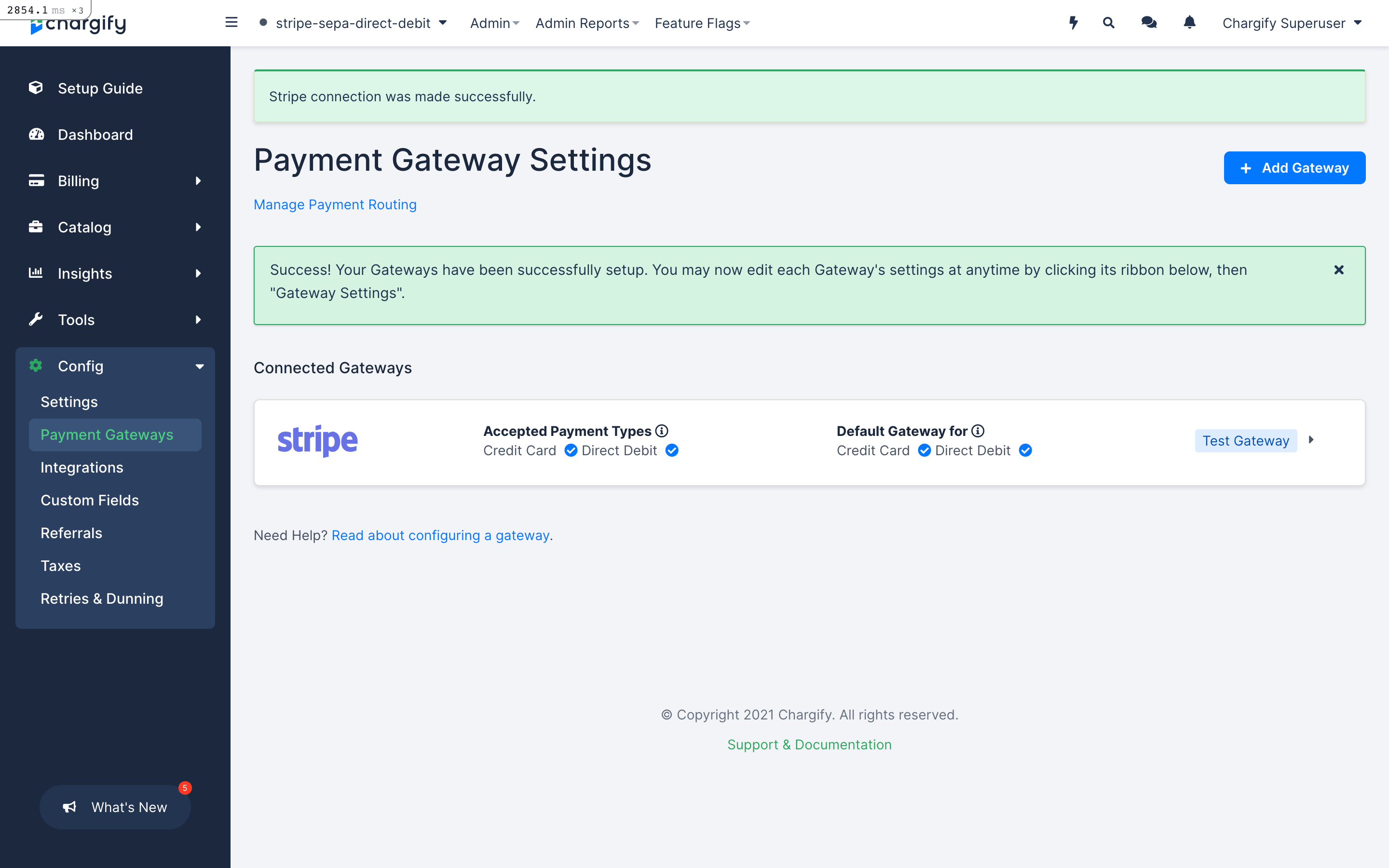
Step 9 - The gateway is now configured and ready to use.
Specific workflows
Now that your Advanced Billing site is connected to Stripe, it’s time to start accepting subscriptions that contain SEPA, BACS, or BECS Direct Debit information as a payment method. Creating a new subscription follows this path:
- Create a subscription to a product in Advanced Billing
- Provide contact information
- Include IBAN as the payment method (SEPA Direct Debit)
- Include Sort Code and Account Number as the payment method (BACS Direct Debit)
- Include BSB and Account Number as the payment method (BECS Direct Debit)
- Confirm the mandate for the current subscription
- View on-screen receipt for subscription or be redirected to a thank you page
Test IBAN account numbers (SEPA)
Use the following test IBAN numbers in your test environment:
DE89370400440532013000The charge status transitions from pending to succeeded.DE62370400440532013001The charge status transitions from pending to failed.
More test IBAN account numbers for different countries.
Test account numbers (BACS)
Use the following test account numbers in your test environment:
- Sort Code:
108800, Account Number:00012345The charge status transitions from pending to succeeded. - Sort Code:
108800, Account Number:22222227The charge status transitions from pending to failed.
More test account numbers for various scenarios
Test account numbers (BECS)
Use the following test account numbers in your test environment:
- BSB:
000000, Account Number:000123456The charge status transitions from pending to succeeded. - BSB:
000000, Account Number:111111113The charge status transitions from pending to failed.
More test account numbers for various scenarios
Public Signup Page flow
Using Stripe to accept payments via Public Signup Pages with SEPA or BECS Direct Debit is extremely straightforward. Your subscriber completes the following steps when they purchase a product:
- Customer-based information
- Complete billing information, include IBAN (SEPA) or BSB and Account Number (BECS)
Once a subscriber selects Place My Order, they are asked to confirm the Direct Debit mandate. The subscriber must agree to the mandate in order to complete the purchase.
SEPA
For a SEPA payment, the subscriber sees the following:
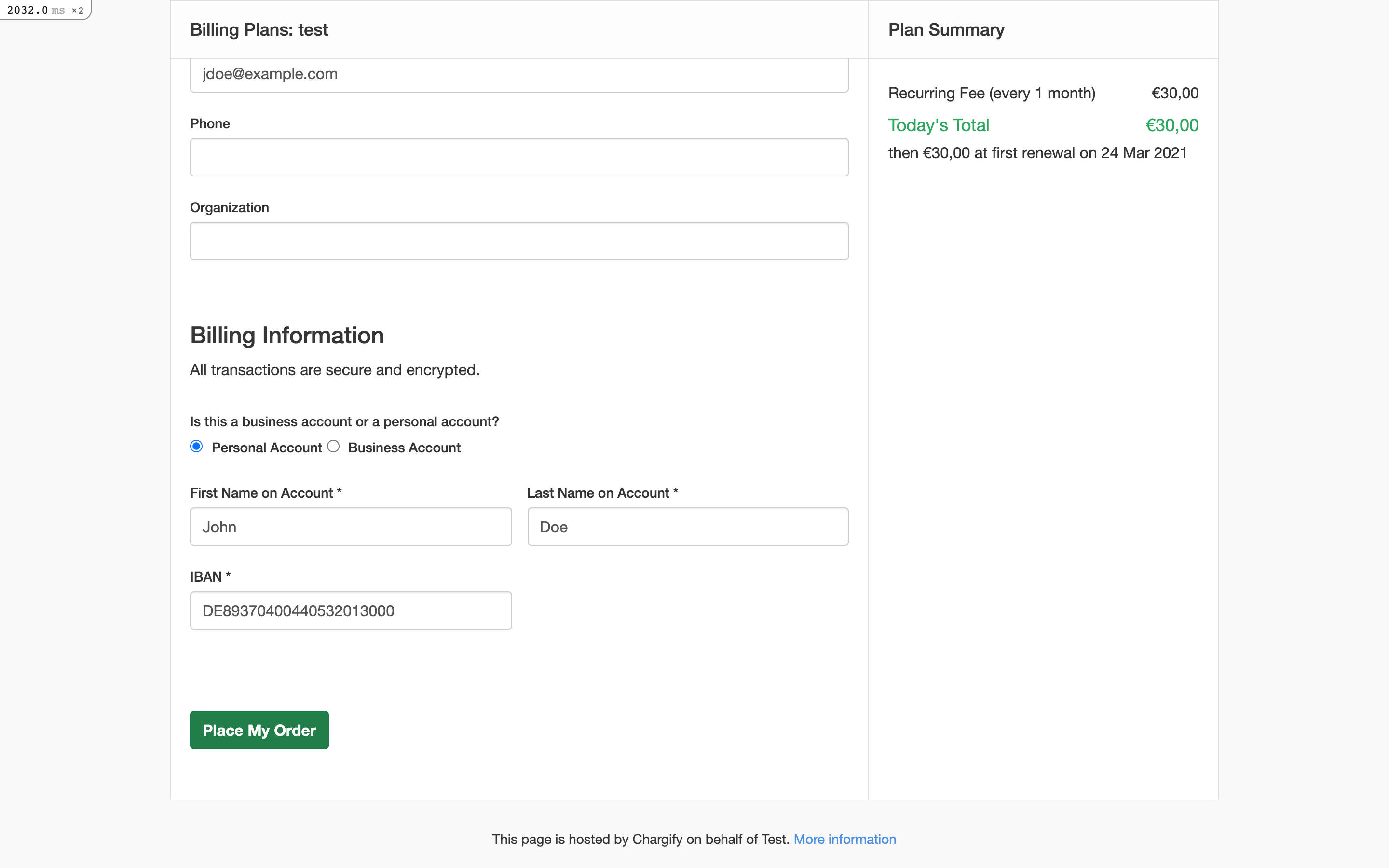
Confirm purchase within Public Signup Page
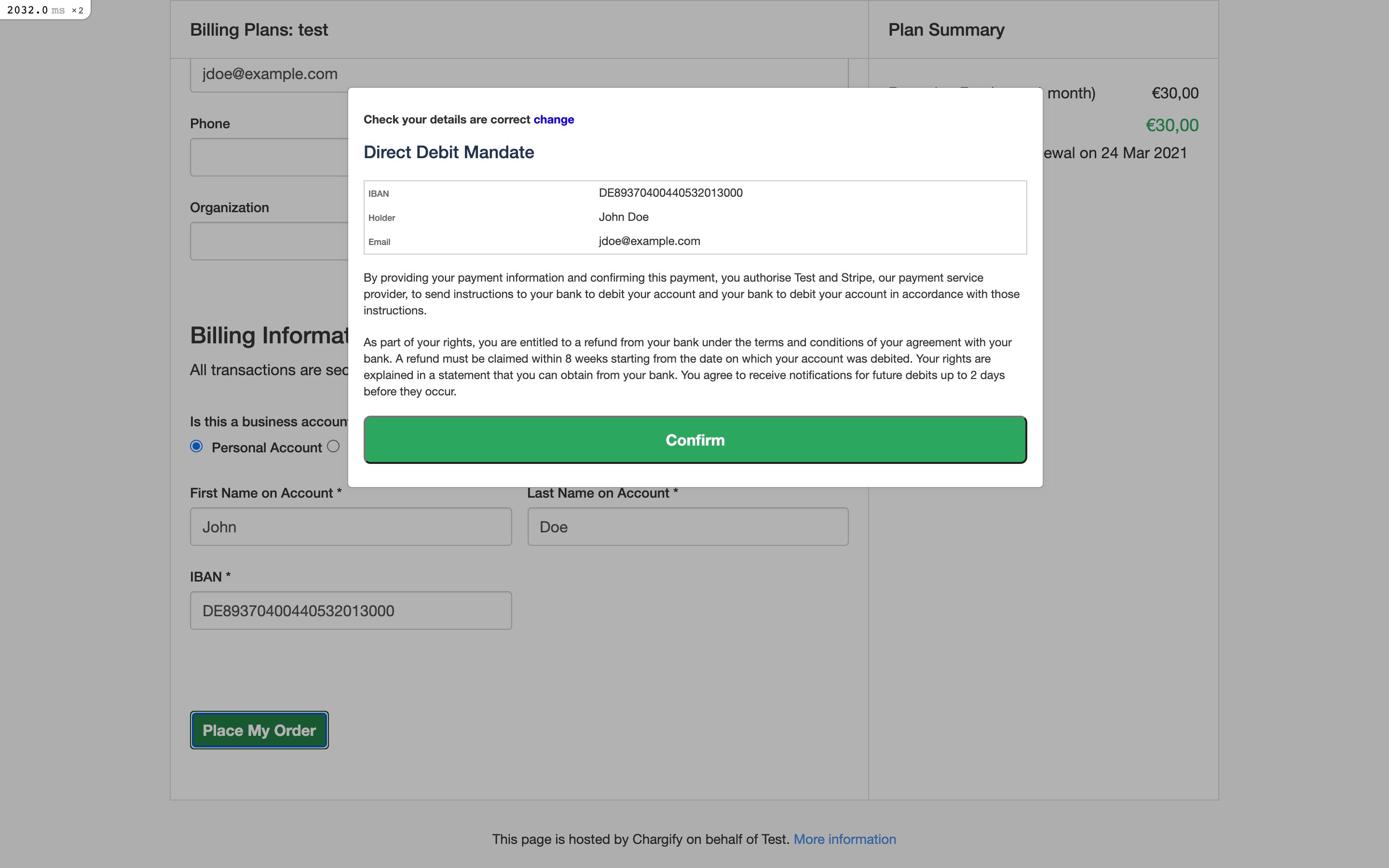
Agree to Direct Debit mandate
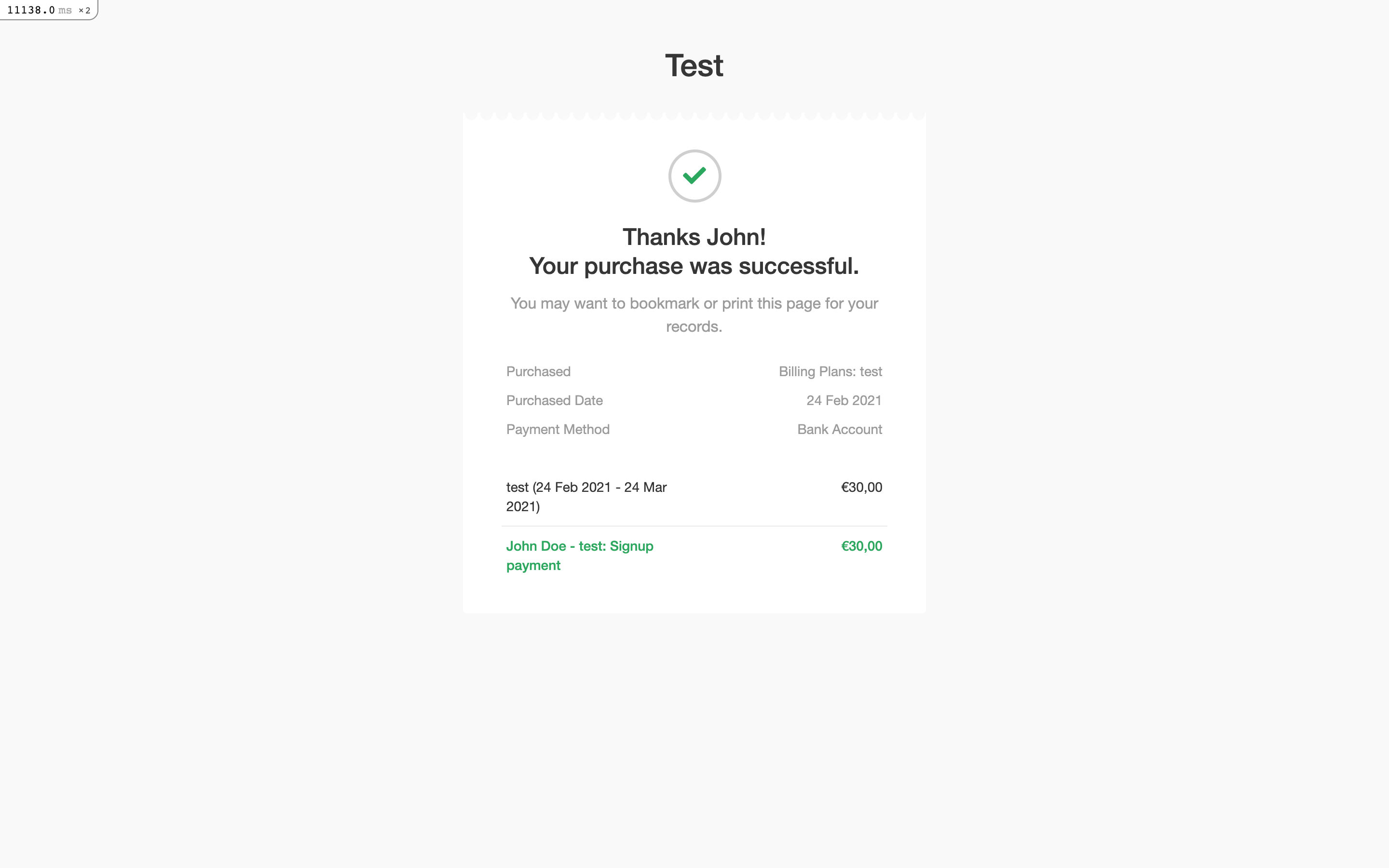
Receipt page
BECS
For a BECS payment, the subscriber sees the following:
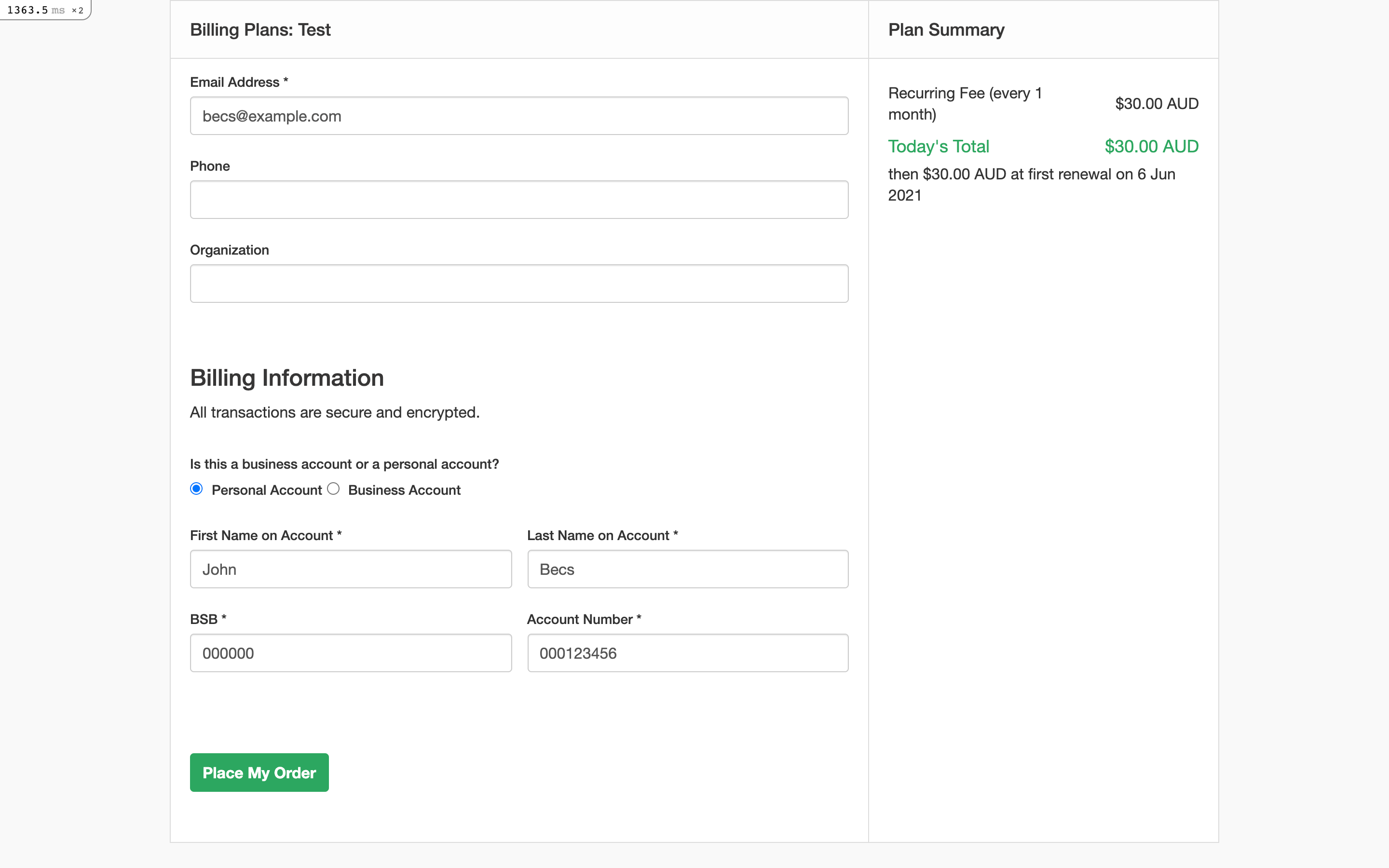
Confirm purchase within Public Signup Page
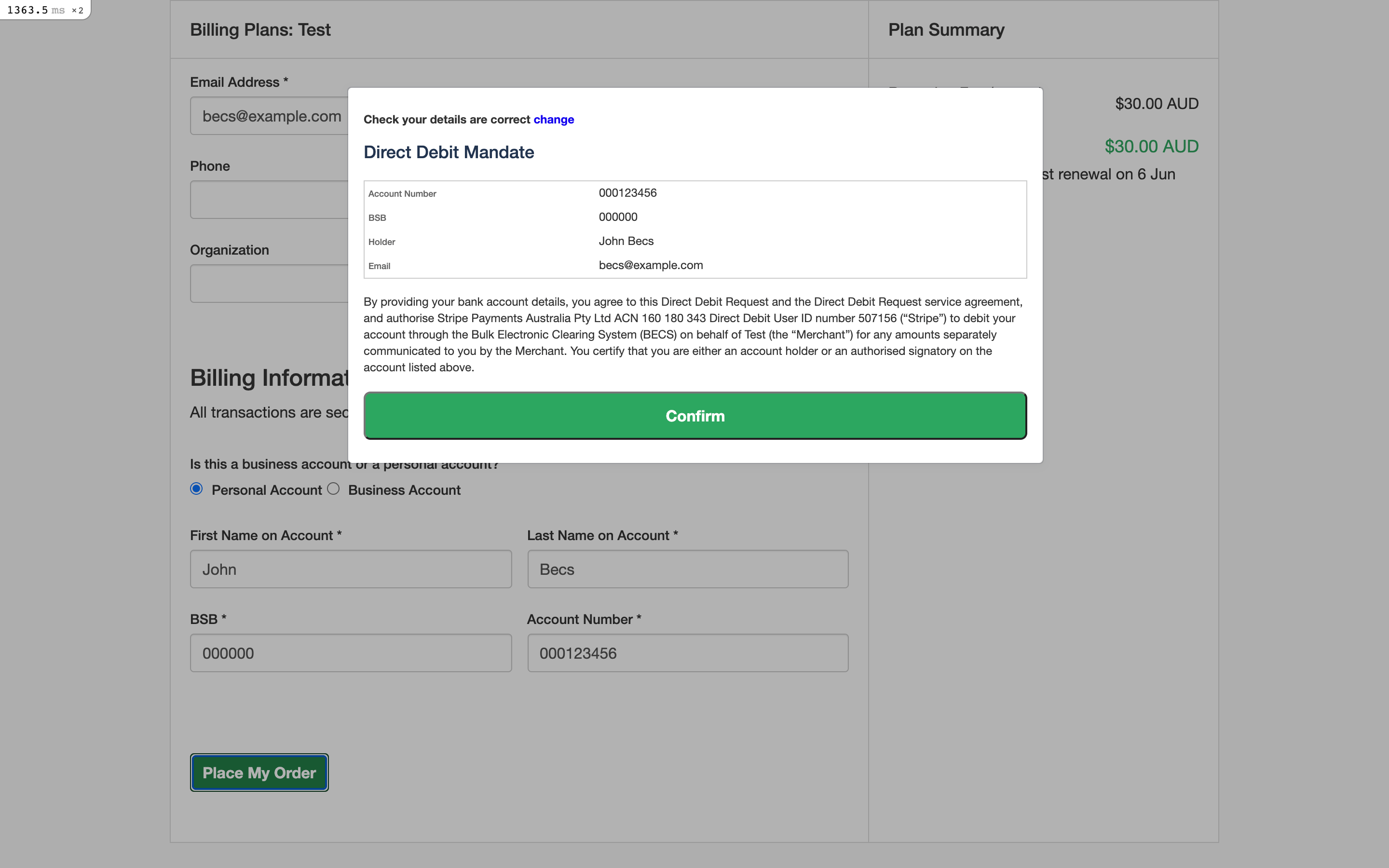
Agree to Direct Debit mandate
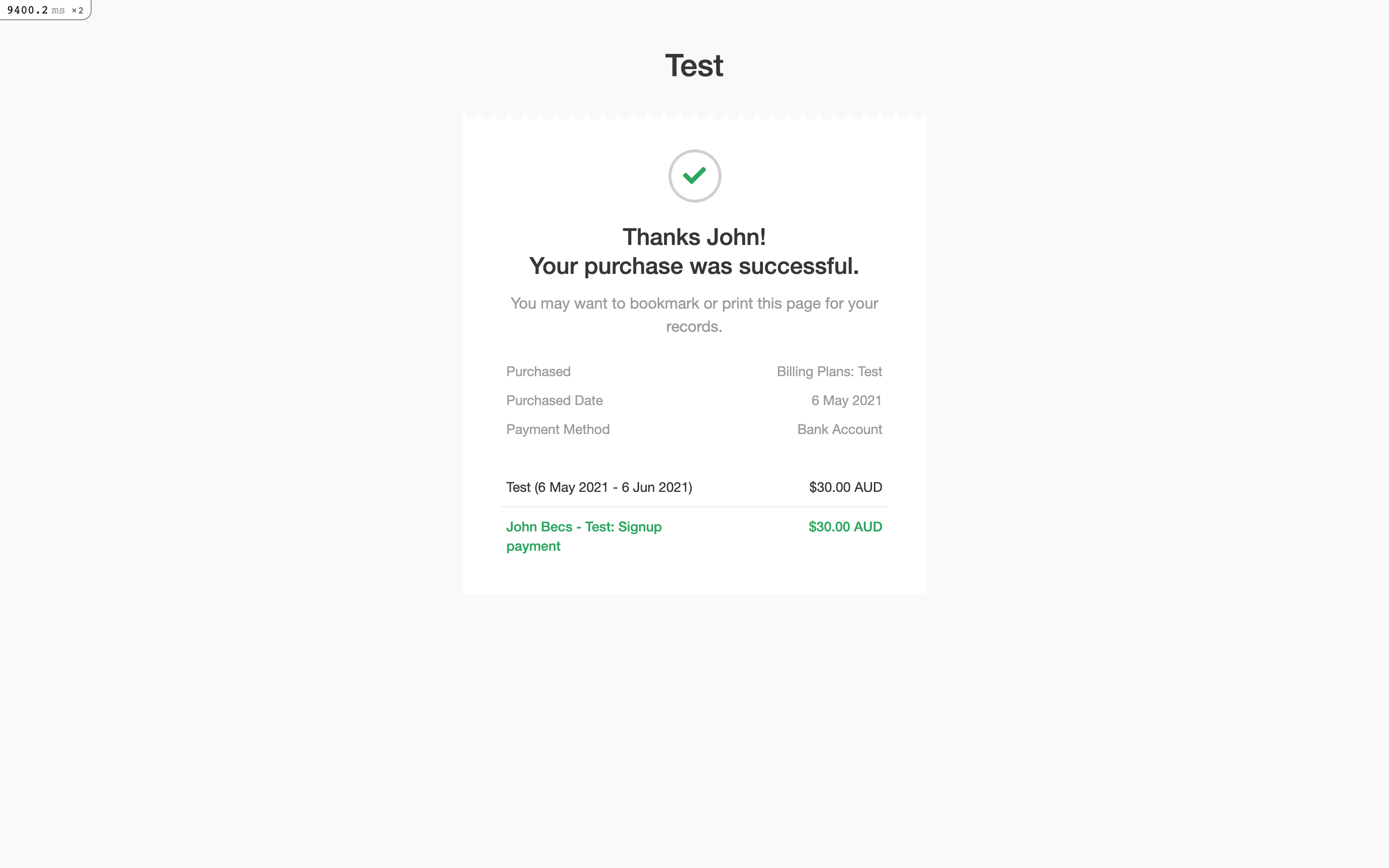
Receipt page
From here, all recurring payments are processed via the payment method provided at signup. Subscribers can update their payment method via a Self-Service Page.
Self-Service Page flow
Occasionally, a subscriber needs to update their payment method. They can do this easily using a Self-Service Page. If you’re unfamiliar with how Self-Service Pages work, we recommend reviewing an overview on how these pages function.
When an existing subscriber visits a Self-Service Page, they can enter a new bank account.
SEPA
For a SEPA payment, the subscriber sees the following:
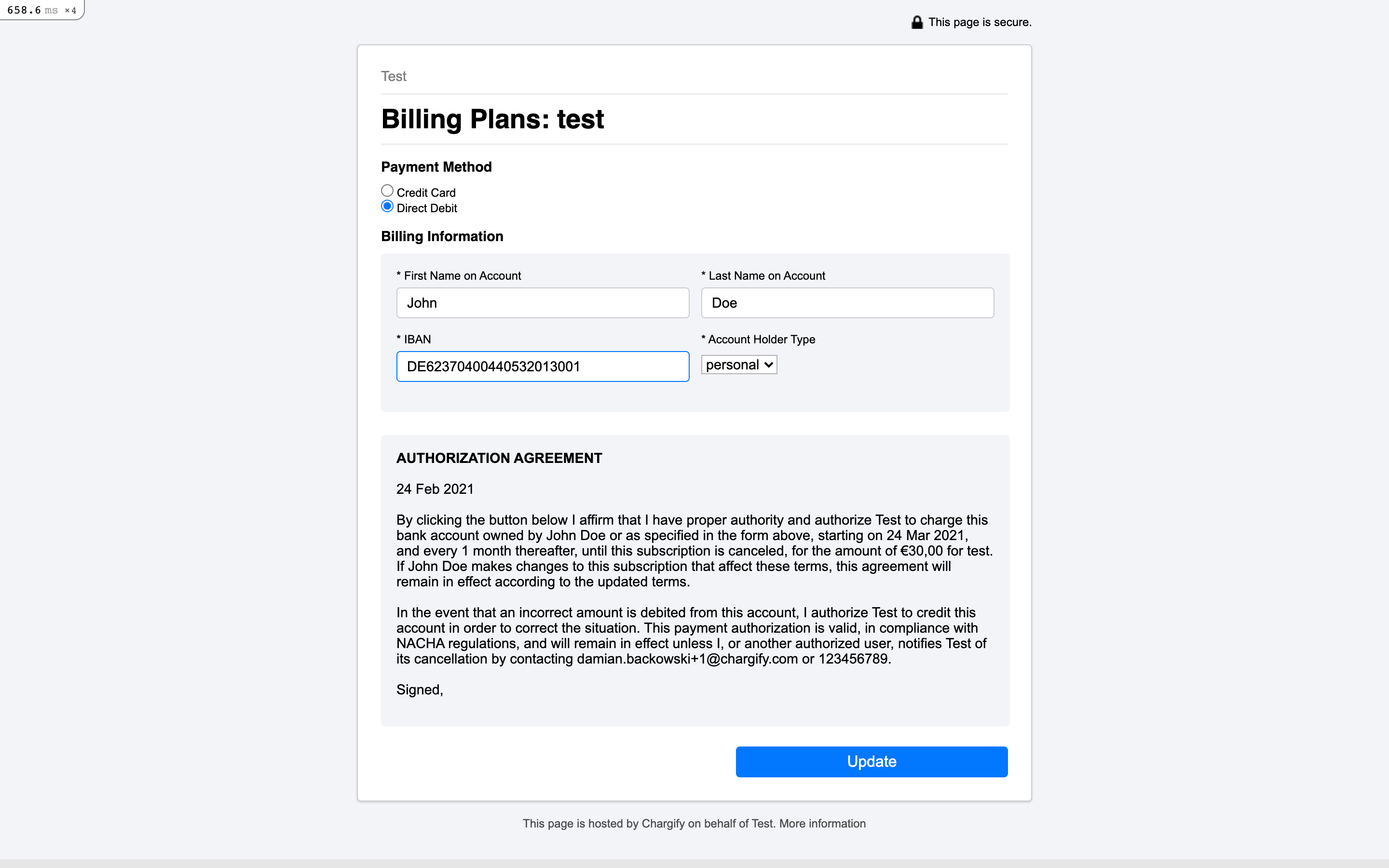
Example Self-Service Page
Once they enter valid information, they confirm the mandate for the new payment method associated with the subscription.
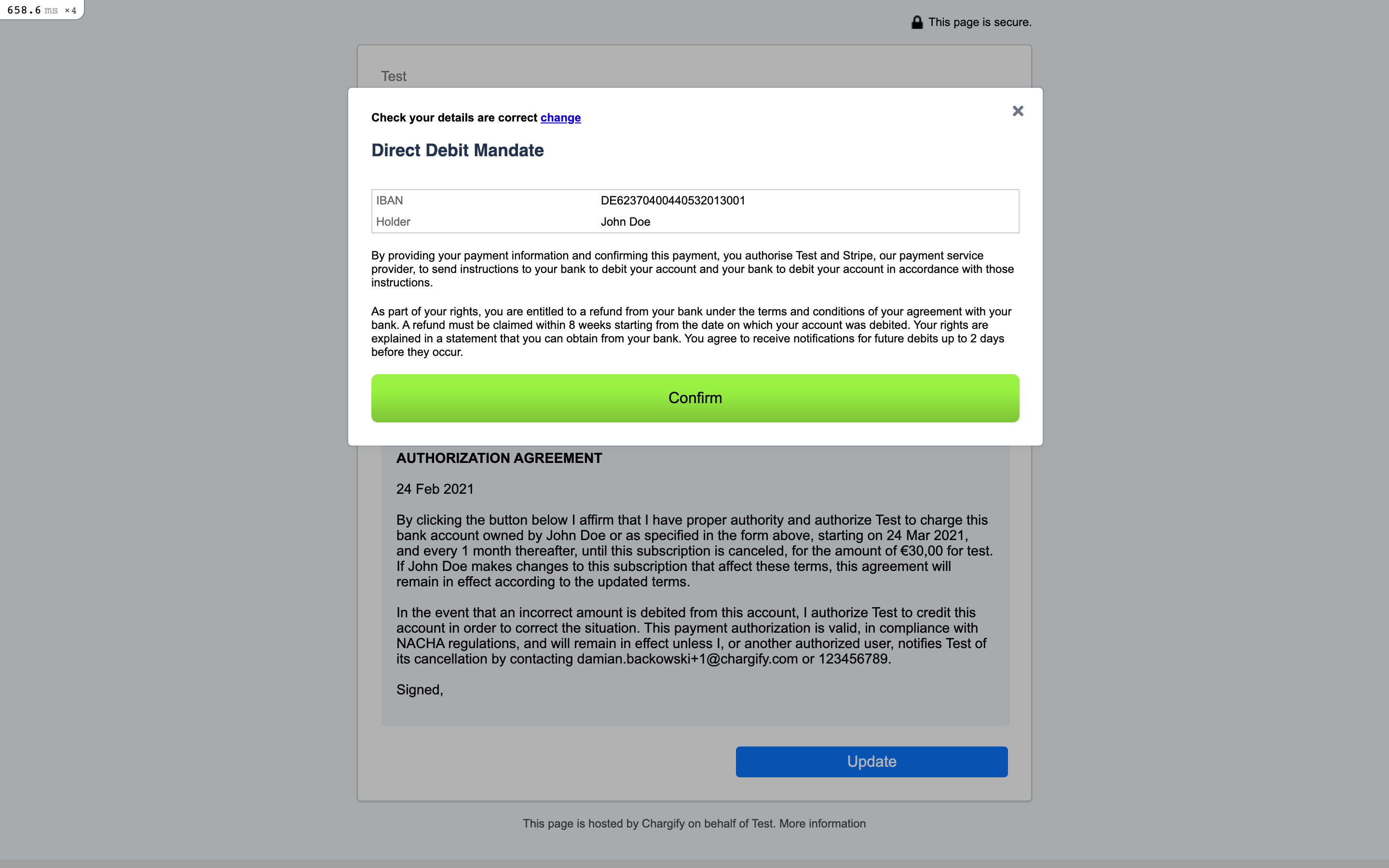
Confirm mandate for new payment method
BECS
For a BECS payment, the subscriber sees the following:
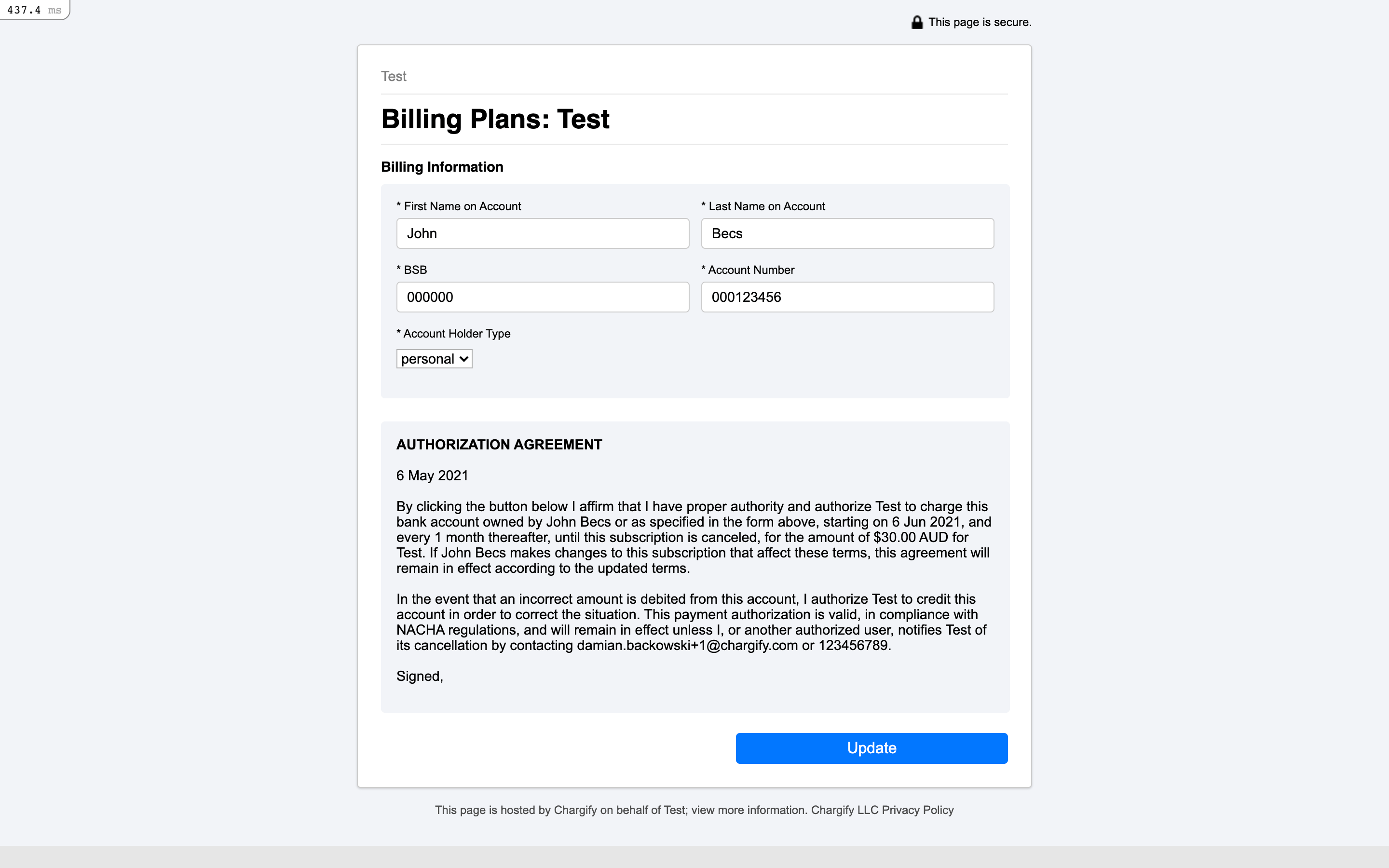
Example Self-Service Page
Once they enter valid information, they confirm the mandate for the new payment method associated with the subscription.
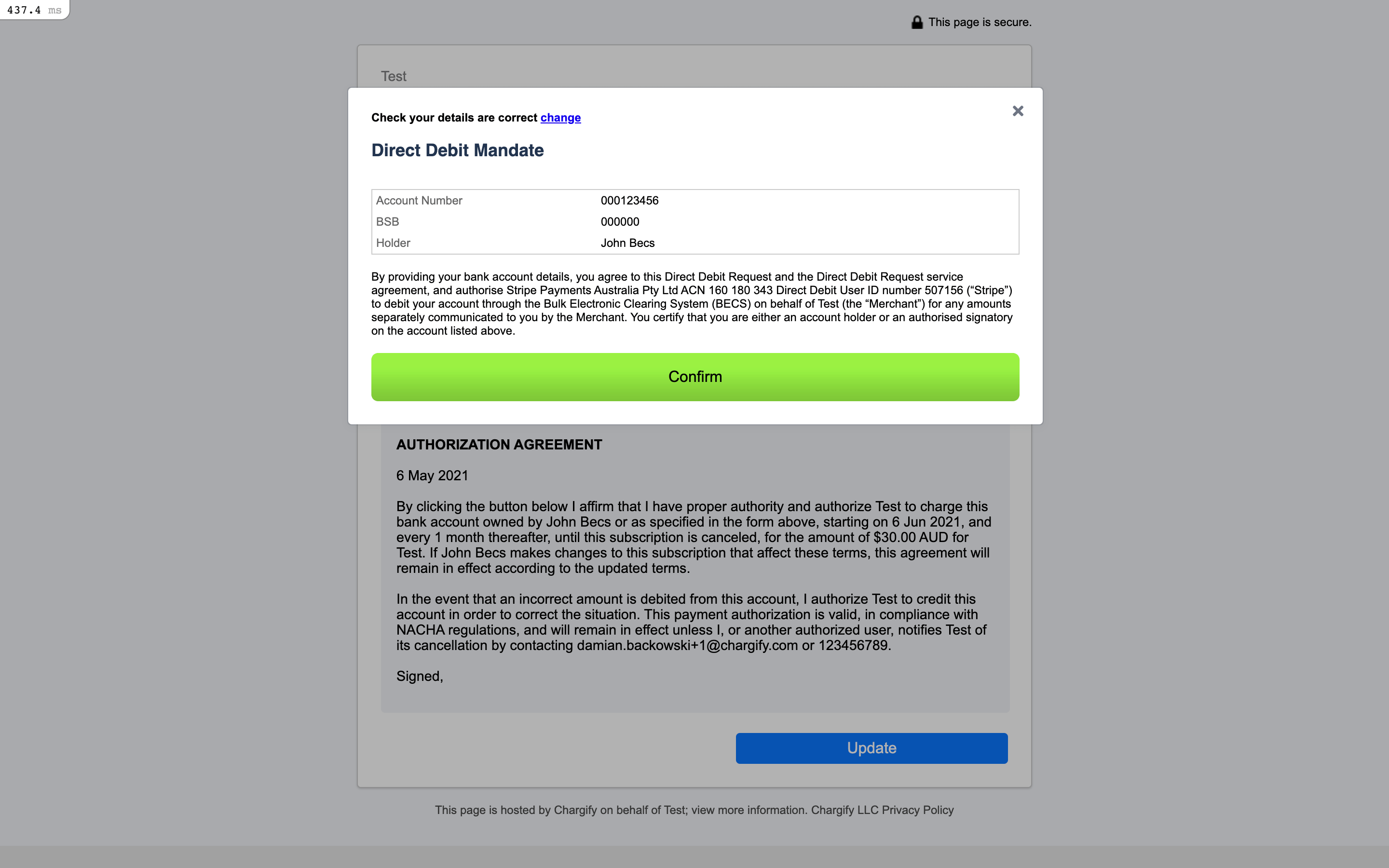
Confirm mandate for new payment method
For the Multi Gateway feature, the customer can change their Payment Profile to a different payment method if one is set. The only restriction to that is when a Direct Debit payment is still pending. Until it is resolved, the customer can only change their Payment Profile to another Direct Debit Account.
Webhooks
There are three webhooks in Advanced Billing that are related to payments status change:
direct_debit_payment_pending- This webhook is sent when payment was created in Stripe (payment is waiting for being processes).direct_debit_payment_paid_out- This webhook is sent when payment was successfully processed in Stripe.direct_debit_payment_rejected- This webhook is sent when payment was rejected in Stripe (e.g. insufficient funds on the customer account).
For more information about webhooks see our Webhooks Reference.
Still need help?
Reach out and our support team will take it from here.