
Move an Invoice Between Contracts
Applies to: Maxio Core
Last updated on Aug 24, 2026
Moving an Invoice between Contracts in Maxio Platform is straightforward when specific conditions are met. Invoices are groupings of Invoice Line Items, assembled by Maxio Platform based on Customer and Invoice date.
Rules for moving Invoices
- The Invoice date must not fall within the Maxio Platform closing date, the QuickBooks closing date, or the Xero lock date, whichever is latest.
- If multicurrency is enabled, the destination Contract's register must use the same currency as the source register. Invoices may move between registers, but the currency must match.
- All Invoice Line Items must be dissociated from Transactions before the Invoice can be moved.
- A draft Invoice, or an Invoice with a committed Invoice number (under committed invoice sequencing), cannot be moved.
- Invoices cannot be moved to Contracts that belong to different Customers. To move an Invoice to another Customer, move the associated Transaction instead. For details, see Move Transactions.
- If the Invoice is synced to QuickBooks Desktop, it cannot be moved to a Job Contract, and if its current Contract is itself a Job, it cannot be moved at all.
- An Invoice can be moved even if it has been synced to the general ledger, as long as it meets the criteria above. Moving a synced Invoice to a different Contract can cause it to no longer match its associated GL Transaction or Customer, since GL records don't automatically move with it. This appears as a Transaction or Customer mismatch; resolve it using the move function in the mismatch alert, or by manually moving the Transaction.
How to move an Invoice
Moving an Invoice reassigns it, along with its Invoice Line Items, to a different Contract.
To move an Invoice
-
Navigate to the Invoice you want to move.
-
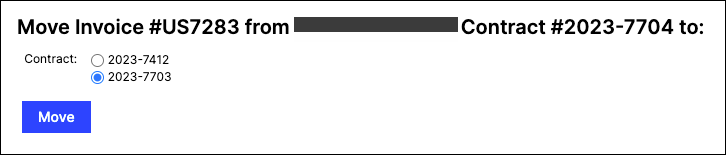
Select the Move option from the Invoice drop-down menu.
-
Choose the Contract to which you want to move the Invoice.
Related information
For more information on Invoices, see How Invoices Work.
Still need help?
Reach out and our support team will take it from here.