
Invoice and Transaction Customer Mismatch
Applies to: Maxio Core
Last updated on Aug 28, 2026
Maxio Platform's Attention Needed area lists an Invoice and Transaction Customer Mismatch alert when an Invoice or Credit Memo has been moved to a different Customer in your GL after it had already synced with Maxio Platform. Moving an Invoice or Credit Memo to a different Customer in the GL results in an out-of-balance condition. See How to Identify and Correct Out-of-Balance Conditions. Merging Customer records in the GL effectively moves the Invoices and Credit Memos to the surviving Customer and can trigger the same condition.
Why moving Invoices in the GL leaves Transactions and Revenue behind
When you move Invoices in your GL and then sync with Maxio Platform, the Invoices move to the new Customer's Contract, but their associated Transactions and Revenue do not move with them. Left uncorrected, this can corrupt historic revenue reporting: moving an Invoice in the GL creates an out-of-balance condition on both Contracts in Maxio Platform, the Contract that originally held the Invoice and the new Contract the Invoice moved to.
Move the Transactions to the Invoices' Contract
If possible, move the Invoice back to its original Customer in the GL and sync again. When moving it back is not practical, correct the mismatch in Maxio Platform instead by moving the Transactions to the same Customer Contract as their associated Invoice Line Items, using either the bulk Move tool or manual moves.
Move Transactions in bulk
The easiest way to move these Transactions is through the bulk-move feature on the Invoice and Transaction Customer Mismatch list.
To move Transactions in bulk
- From the Attention Needed table, select the Invoice and Transaction Customer Mismatch alert link.
- Select the Move option to move all Transactions to the same Customer Contract as their associated Invoice Line Items.
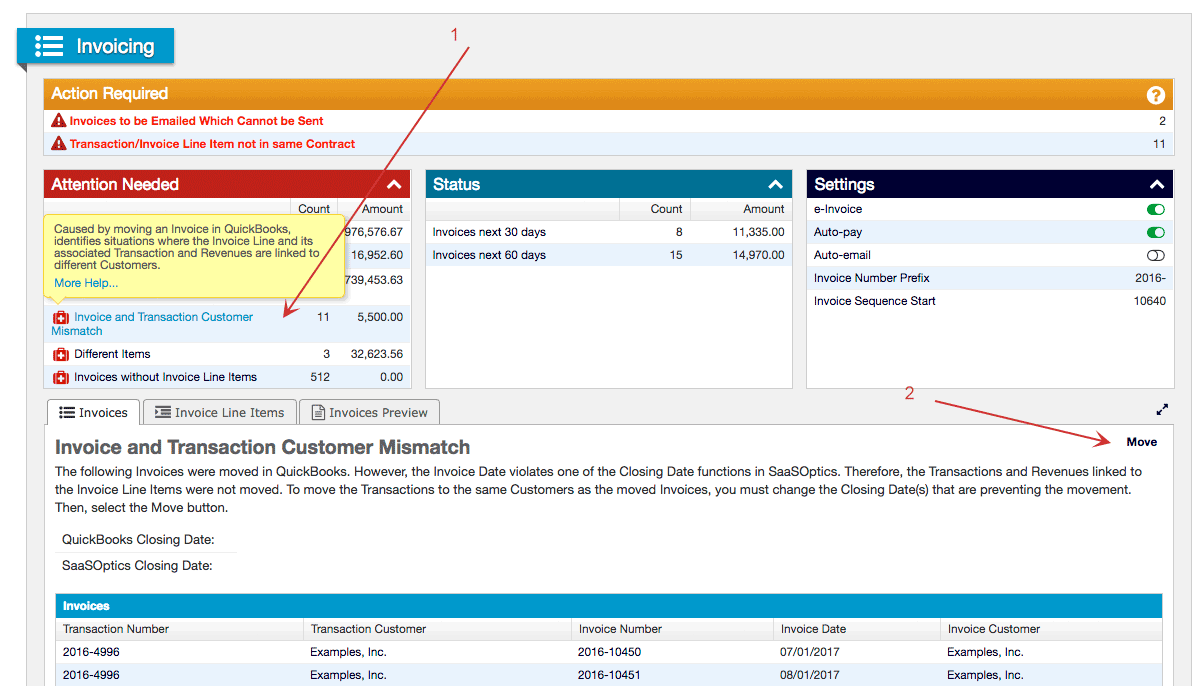
The Move button only moves Transactions that are associated with Invoices that have been moved in the GL. This means that some Transactions that are in different Contracts than their Line Items may be excluded from the move, and will need to be moved individually instead. It's important to recognize that the Invoice and Transaction Customer Mismatch alert and the Transaction/Invoice Line Item Not in the Same Contract alert serve similar, but distinct, purposes.
Be sure to take the following into consideration when using the Move button:
- If an Invoice Line Item is not associated with a Transaction prior to being moved in the GL, the Invoice will not appear in the Invoice and Transaction Customer Mismatch list in Maxio Platform: it will appear in the Invoice Line Items without Transactions/Revenues list instead. See Manage Invoice Line Items for how Invoice Line Items associate with Transactions.
- If the Invoice date is prior to the GL Close Date, the moved Invoice will show up in the Invoice and Transaction Customer Mismatch list, but the Move button will NOT move the Transactions and Revenues. If the Invoice date is prior to the Maxio Platform Close Date, the Invoice move will not be reflected in Maxio Platform. To move these Transactions and Invoices successfully, you will need to adjust your Close Dates. See Manage Closing and Transaction Lock Dates for how to adjust these dates.
- If the Invoice was moved and its source Customer was deactivated in the GL prior to the sync, the Invoice move will not be reflected in Maxio Platform. Similarly, if the Invoice was moved as a result of a Customer merge in the GL, the move will not be reflected in Maxio Platform and the Invoice will not appear in the Invoice and Transaction Customer Mismatch list.
- If only some (but not all) of the Invoices for a Transaction have been moved in the GL, clicking Move will only move the Transaction and Revenue, it will NOT move the remaining Invoices. Before you click Move, read the section below about moving unsynced or future-dated Invoices.
- If you have a Transaction with any future-dated or unsynced Invoices, you will need to move these Invoices manually to the Contract of the GL-moved Invoices.
Move Transactions individually
For any Transactions that can't be easily relocated with the bulk-Move button, use the following steps to consolidate the records into the correct Contract.
To move a Transaction individually
- Make sure the Transaction is dated after the Transaction Lock Date. See Manage Closing and Transaction Lock Dates.
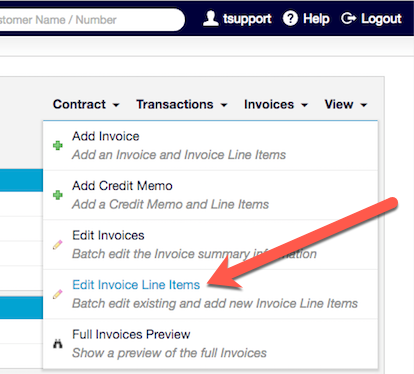
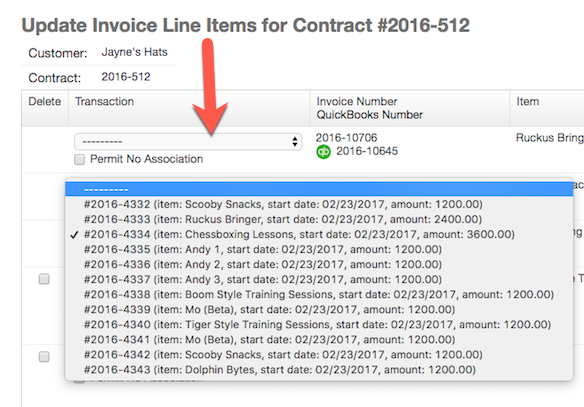
- If the Transaction is associated with synced Invoice Line Items that are in a different Contract, disassociate the Transaction from the Line Items before you can move it. Go to the Contract containing the Line Items and select Edit Invoice Line Items from the Invoice drop-down menu on the right-hand side.
From there, edit the Line Items to remove the Transaction association from each Line Item.
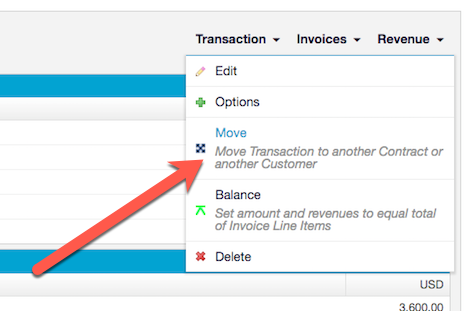
- After the Transaction is no longer associated with synced Invoice Line Items, move the Transaction by selecting the Move option from the Transaction drop-down menu. If this option is greyed out, check for any other conditions preventing the move.
- Once the Transaction has moved successfully to the correct Contract, re-associate the Line Items to the Transaction using the Edit Invoice Line Items option again. Your Transaction, Contracts, and Customers should now be in balance.
Move unsynced or future-dated Invoices
If you move some, but not all, of a Transaction's Invoices in the GL, whichever Invoices are not moved in the GL will not be moved in Maxio Platform. This is most often seen when a Transaction is active and only some of its Invoices have synced with the GL, as Invoices are typically synced once they come of date. For example:
- Tigger, Inc. has an active one-year Transaction, 2017-1.
- 01/01/2017 through 12/31/2017
- Billed quarterly; Invoices are synced with the GL once they come of date
- Tigger, Inc. is acquired by Hundred Acre Woods, ULTD on 08/15/2017.
- Invoices for Quarters 1 through 3 have been synced with the GL
- Invoice for October (Q4) has not been synced yet
- Tigger, Inc.'s Invoices are moved to Hundred Acre Woods in the GL, then a sync is performed.
- Invoices for Q1-Q3 are now located in Hundred Acre's Contract in Maxio Platform
- Invoice for Q4 is still located in Tigger's Contract in Maxio Platform
- Transaction 2017-1 and the Revenue for the Transaction are still located in Tigger's Contract
Important: If the Move button is clicked at this point, only the Transaction and Revenue will be moved.
- Invoices for Q1-Q3 are in Hundred Acre Woods
- Transaction 2017-1 and Revenue are now in Hundred Acre Woods
- Invoice for Q4 is still in Tigger, Inc.'s Contract
To remedy this, move the Contract containing all the unsynced Invoices from Tigger, Inc. to Hundred Acre Woods, preferably before the Move button is pressed. See Understanding Contracts for more on how Contracts work.
To consolidate unsynced Invoices into the moved Contract
- Make sure the Contract only contains Invoices that are not synced with the GL. The Contract cannot be moved to another Customer if it contains synced Invoices.
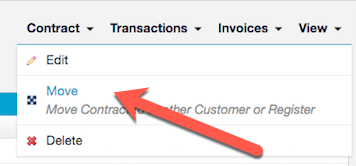
- Move the Contract to the new Customer using the Move option from the Contract drop-down menu.
- At this point, you will have two Contracts under the new Customer: one containing the synced Invoices and one containing the unsynced Invoices. From the Invoices drop-down menu, select the Edit Invoice Line Items option and disassociate either all the unsynced Invoice Line Items or all the synced Invoice Line Items, whichever group is smallest, from their Transactions.
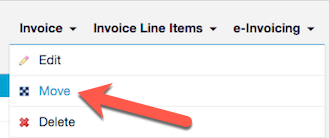
- Once these Line Items are no longer associated with a Transaction, move their Invoices into the final Contract using the Move option from the Invoice drop-down menu. After all the disassociated Line Items have been moved, you should have all your Invoices, both synced and unsynced, in a single Contract.
- Use the bulk-move function from the Invoice and Transaction Customer Mismatch list to move the Transactions and Revenues in bulk to the consolidated Contract. Then re-associate the Line Items with their Transactions and delete the now-empty source Contract to complete the process. All Transactions, Contracts, and Customers affected by the moved Invoices should now be in balance.
Prevent this mismatch
Moving or merging Customer records directly in the GL is what creates this mismatch in the first place, so treat any Customer-level change to a Customer with synced records carefully. Following the correct order of operations when merging Customers keeps Invoices, Transactions, and Revenue together on the same Customer.
Before merging Customers in QuickBooks, review Merge QuickBooks Customers the Right Way so your Invoices move to the consolidated Customer without leaving their Transactions and Revenue behind.
Related information
If you want to understand what happens to Invoices when Customers are merged in QuickBooks Online, before this mismatch appears, read What are the effects of merging Customers in QuickBooks Online?
Still need help?
Reach out and our support team will take it from here.