
Create Cadence Templates
Applies to: Maxio Core
Last updated on Sep 19, 2026
Create cadence templates to define when reminder emails are sent, which actions occur at each step, and which email messages are used. With configurable schedules, internal escalation actions, and cloning or replacing templates, you can tailor your collections workflow to match your A/R strategy.
This feature is a part of the Cadences functionality. Cadences is a feature of Maxio Platform's Collections functionality that generates and sends emails to customers to remind them to pay their outstanding invoices.
You can learn more about Cadences by checking out this help article: Cadences Overview.
Configure the Cadence Steps
Cadence Templates define when to email collection reminders to customers as well as which message templates to use for each step. Make sure you have already created all of the email templates that you plan to use in the message library before completing the steps below.
-
Open the Cadence Templates tab in the Collections and Dunning settings.

-
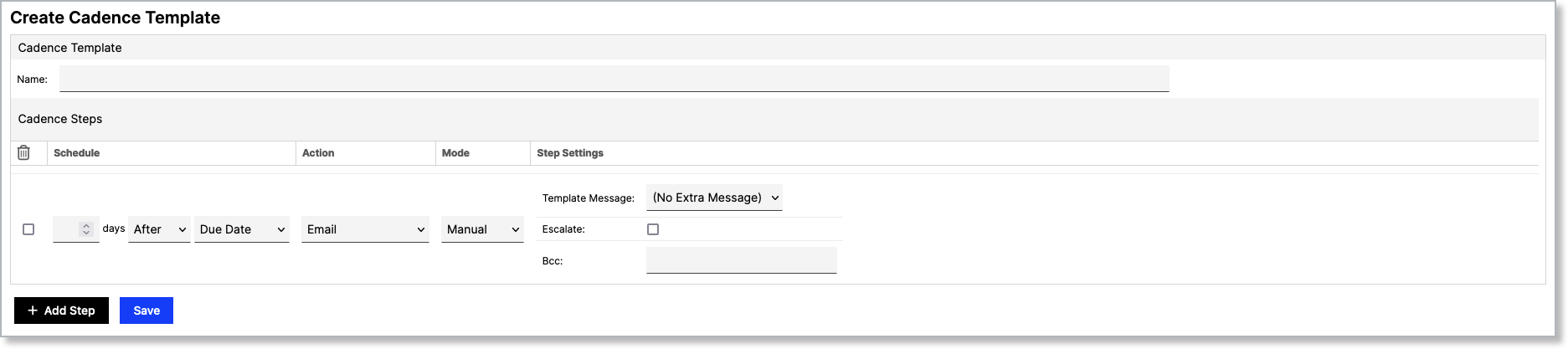
Click the plus sign to create a new template and begin by entering a name for the Cadence.
-
Configure the following settings for the cadence's first step:
- Schedule: Define the number of days before/after/on the due date or the invoice date that the system should execute this step.
- Action: Select the task the system should perform at this step. Available options include:
- Email - Will email the customer with a template message with the option to BCC and escalate. For autopay customers, the default payment method on file will be retried.
- Enable Credit Card Payment - Allows the customer to pay this invoice by credit card. Only available if credit card payments are configured on your account.
- Escalate Internally - Will trigger a notification that the user is past due and needs internal escalation.
- Issue to Billing Portal - Automatically issues invoices to the Billing Portal. This eliminates the need for manual issuing, streamlining your AR workflow and improving visibility
- Retry Payment - The system attempts to retry the payment method. No email is sent to the customer for this step, whether the retry succeeds or fails.
- Suspend Access - Will trigger a notification that the user is past due and needs access suspended.
- Custom Steps - These can be created in the Collections and Dunning settings and set to send a notification for a specific action.
- Mode: Determine whether to complete this step's action automatically or manually.
- Template Message: Select the email message you would like to send at this step.
- Escalate: Check this box to have the system send the email to the customer's escalation contact.
- Bcc: Include the email address of any internal team members to send them the email reminder as well.
-
Click Add Step to include another step in the cadence template.
-
Repeat steps 2 and 3 until you have added all the needed steps.
-
Once you have added all the needed steps, click Submit at the bottom of the screen.
The Suspend Access and Escalate Internally actions are intended to be completed internally and do not actually have an effect in the system. For example, if a Cadence reaches the "Suspend Access" step, that is a signal to members of your team to suspend that customer's access to your product/system.
Clone, Edit, Replace, and Delete
The following options are available when you hover the cursor over a cadence's action menu:
-
Clone: Make a copy of an existing template and use it as the basis for a new template.
-
Edit: Make changes to the template.
-
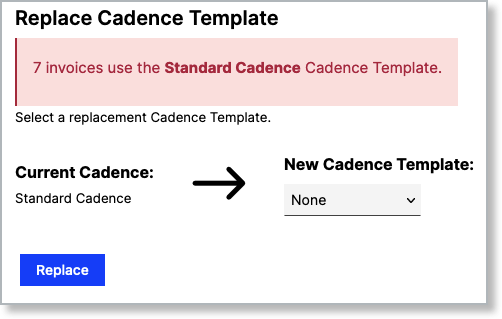
Replace: This option allows you to transfer Invoices from one Cadence to another in bulk. The system displays the number of invoices on the current Cadence and allows you to transfer them to another template.
-
Delete: When you delete a Cadence template, the system displays the number of invoices on the current Cadence and allows you to transfer them in a similar fashion as the Replace function. This way, your dunning process is never interrupted. Note that you also have the option to select "None", which effectively removes the Invoices from the Cadence.
Custom Manual Actions
You can create your own custom Cadence actions and insert them into templates. These actions are intended to be completed by you internally and do not actually have an effect in the system. Use them to track any tasks you complete during your collections and dunning process (such as calling a specific contact). Complete the following steps to add a custom action:
-
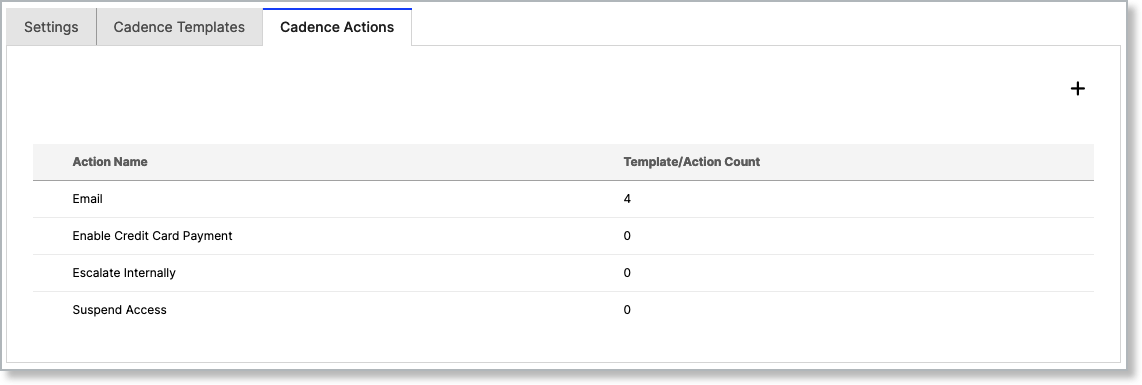
Navigate to the Collections and Dunning settings and open the Cadence Actions tab.
-
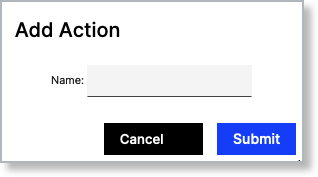
Click the plus icon and then enter a label for the action.
-
Click Submit. You can now add this action to a Cadence template.
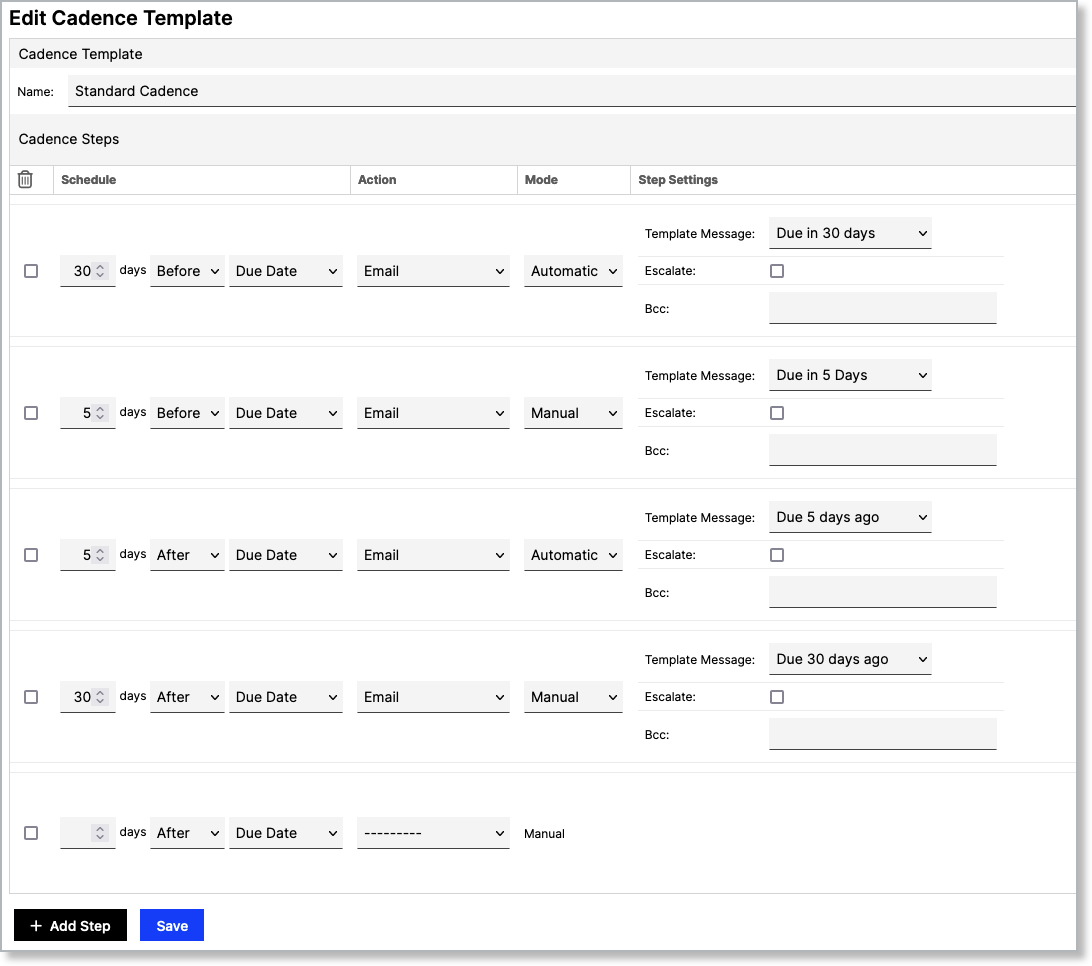
Example of Cadence Template
You would like to set up a cadence with three email steps to inform the customer of the following:
- Their payment is due in 5 days.
- Their payment is due today.
- Their payment is a week past due.
These requirements can all be satisfied with a cadence template like the image below. When the payment is past due, the Cadence is configured to also send the invoice to the customer's escalation contact.
Still need help?
Reach out and our support team will take it from here.