
Use Cadences to Manage Collection Emails
Applies to: Maxio Core
Last updated on Aug 26, 2026
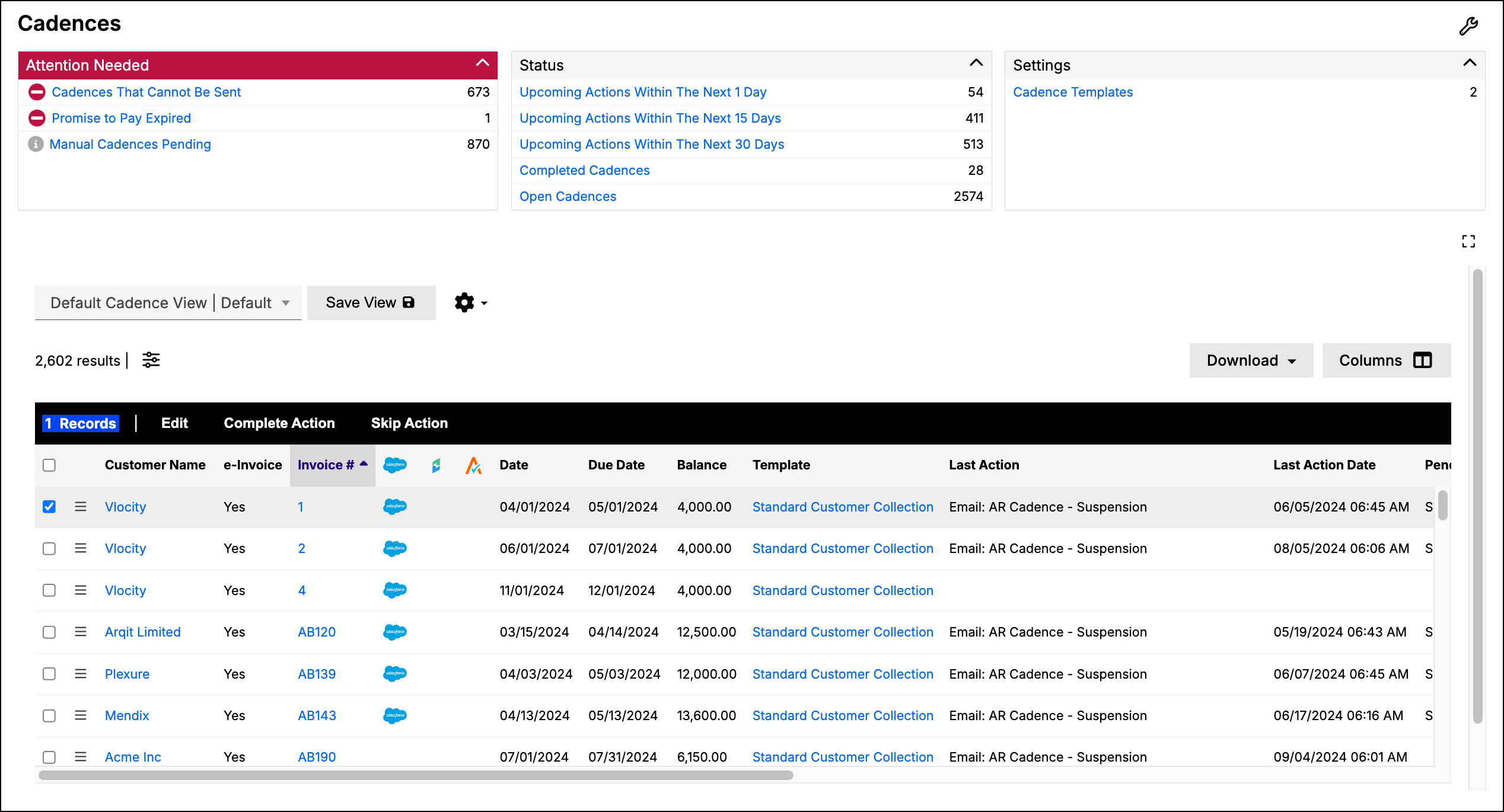
The Cadences screen (Accounts Receivable > Cadences) provides a dashboard for tracking and managing your collection cadences. You can monitor all invoices assigned to collection cadences, review upcoming actions, and manually complete steps when needed. Filters, status widgets, and attention alerts help you spot pending, completed, or problem cadences so you keep payment reminders running smoothly. You can also manually execute the steps for any cadences not set to run automatically.
This feature is a part of the Cadences functionality. Cadences is a feature of Maxio Platform's Collections functionality that generates and sends emails to customers to remind them to pay their outstanding invoices.
You can learn more about Cadences by checking out this help article: Cadences Overview.
| Tool | Description |
|---|---|
| Attention Needed | Highlights any manual cadences with pending steps, any cadences with an expired Promise to Pay date, and any problem cadences that cannot be sent. Problem Cadences are discussed further below. |
| Status | Allows you to apply a filter to display any invoices with actions that are due in the next 1, 15, or 30 days, as well as the following:
|
| Settings | Open the cadence template settings screen. |
Manually Execute Cadence Steps
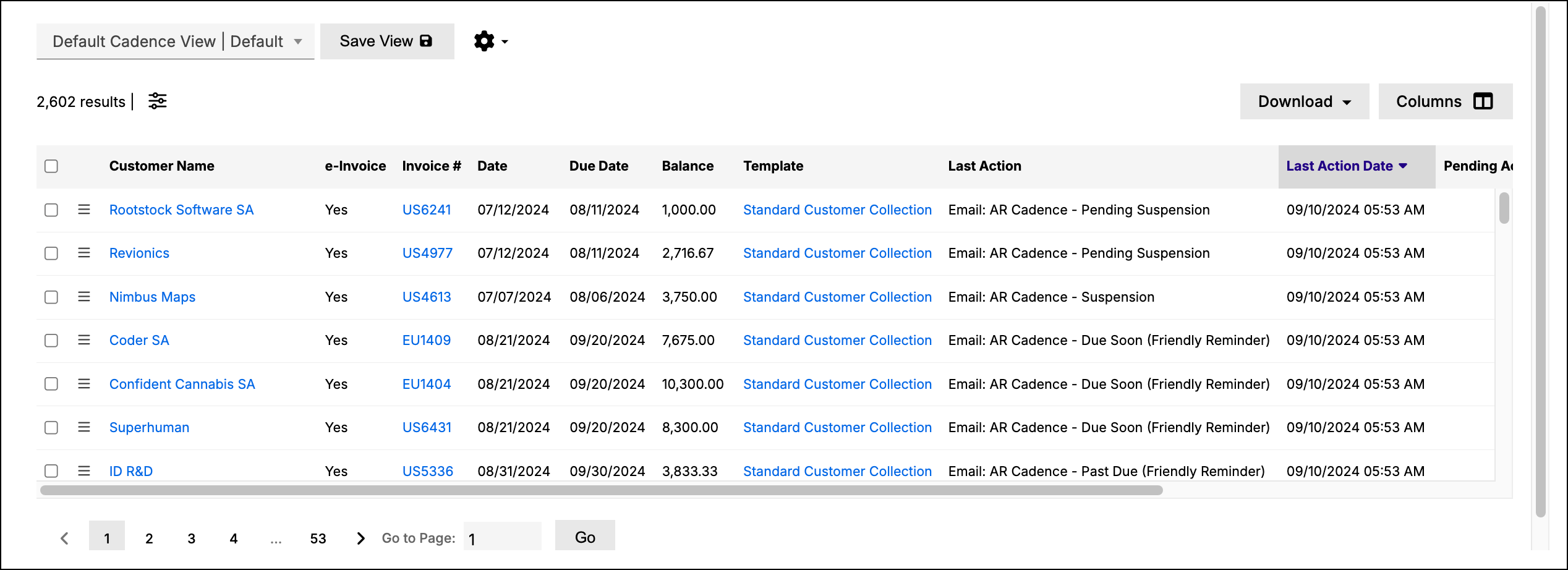
The main part of the screen displays all invoices assigned to cadences. Notice that each invoice contains fields detailing the last action taken, pending actions, future actions, and the dates of the next action.
To manually execute cadence steps
- Check the boxes next to the invoice(s) with pending actions.
- Click the Complete Action button at the bottom of the screen. The system then sends the emails according to the steps' configurations.
Problem Cadences
A Cadence is not able to be sent if the Invoice's Customer is missing an email or if the email is incorrect. This can also occur if the Customer has e-Bill turned off. You must correct this issue before the Cadence can send the Customer their invoice.
Related information
You can customize the list view by setting filters, columns, column order, and column sorting.
Still need help?
Reach out and our support team will take it from here.