
Consolidate Multiple Contracts into One
Applies to: Maxio Core
Last updated on Aug 28, 2026
The Consolidate Contracts feature allows you to move the invoices, Transactions, and Payments of multiple Contracts into a single "master" Contract. Doing this may be necessary if you realize a Customer contains superfluous Contracts that you would like to simplify.
This feature is related to managing the Contracts in your Maxio account. Contracts serve as containers for key records like Transactions and invoices. A Customer can have one or more Contracts and each Contract can hold one or more Transactions and invoices.
Consolidate Contracts
To consolidate multiple Contracts into one.
-
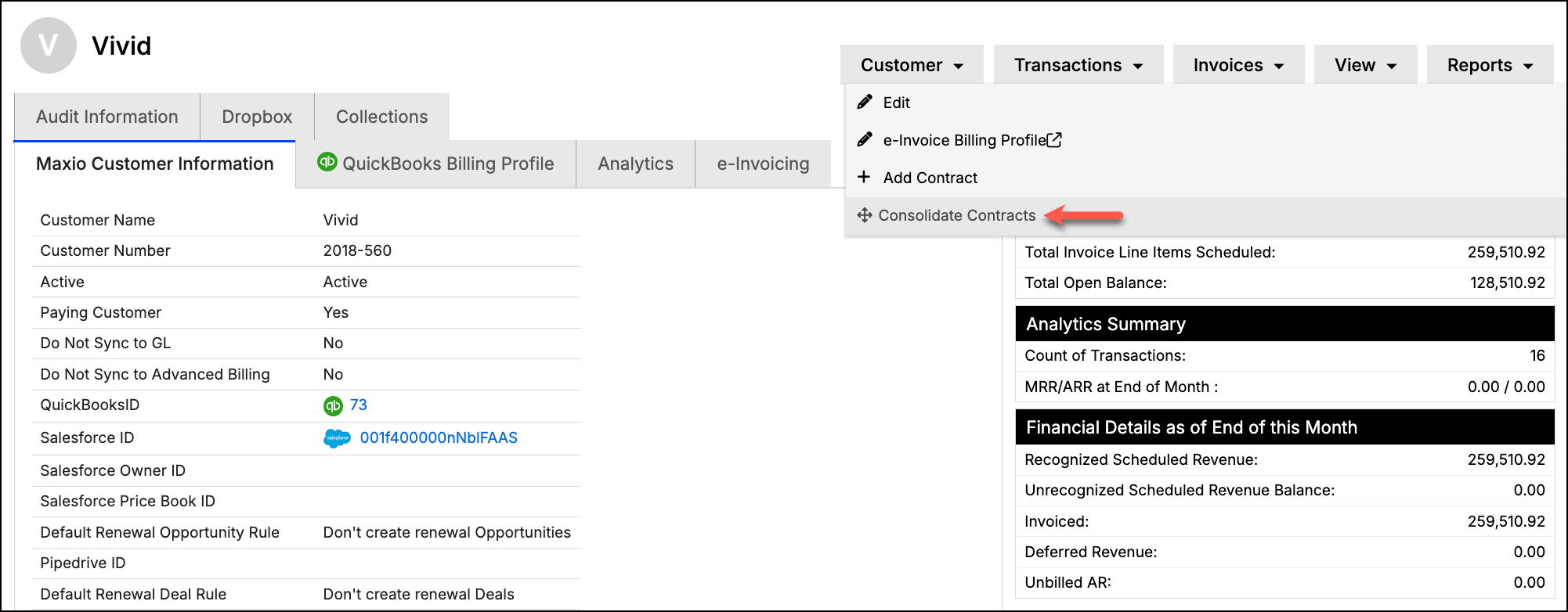
Navigate to a Customer and select the Consolidate Contracts option from the Customer drop-down menu.
-
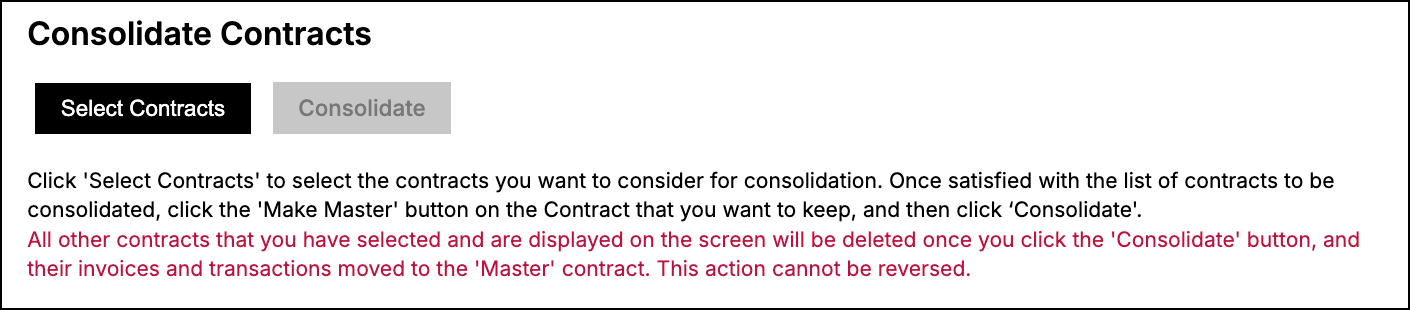
On the Consolidate Contracts page, click Select Contracts.
-
In the Select Contracts to Consolidate dialog, select at least two Contracts to consolidate, then click OK. Contracts marked CONTRACT INELIGIBLE can't be selected.
-
In the list of selected Contracts, click the Make Master radio button on the Contract you want to keep.
-
Click Consolidate.
WARNING: All other Contracts you selected are deleted once you click Consolidate, and their invoices, Transactions, and Payments move to the Master Contract. This action cannot be undone.
Consolidation restrictions
The tool enforces key controls. You can't consolidate across registers, consolidate a Contract that has a Transaction before your Transaction Lock Date, or consolidate a Contract that's synced as a QuickBooks Job. If a Contract is ineligible for consolidation, it will appear grayed out on the selection screen.
Related information
For a conceptual overview of how Contracts work in Maxio, see Understand Contracts.
Still need help?
Reach out and our support team will take it from here.