
Add, Edit, and Delete Contracts
Applies to: Maxio Core
Last updated on Aug 24, 2026
Contracts in Maxio are automatically created when you add Transactions or process sales orders, helping you organize key financial records like invoices and billing details. Each Customer can have one or more contracts, and each Contract can contain multiple Transactions and invoices.
Add a Contract
If you need to add a Contract to a Customer manually.
-
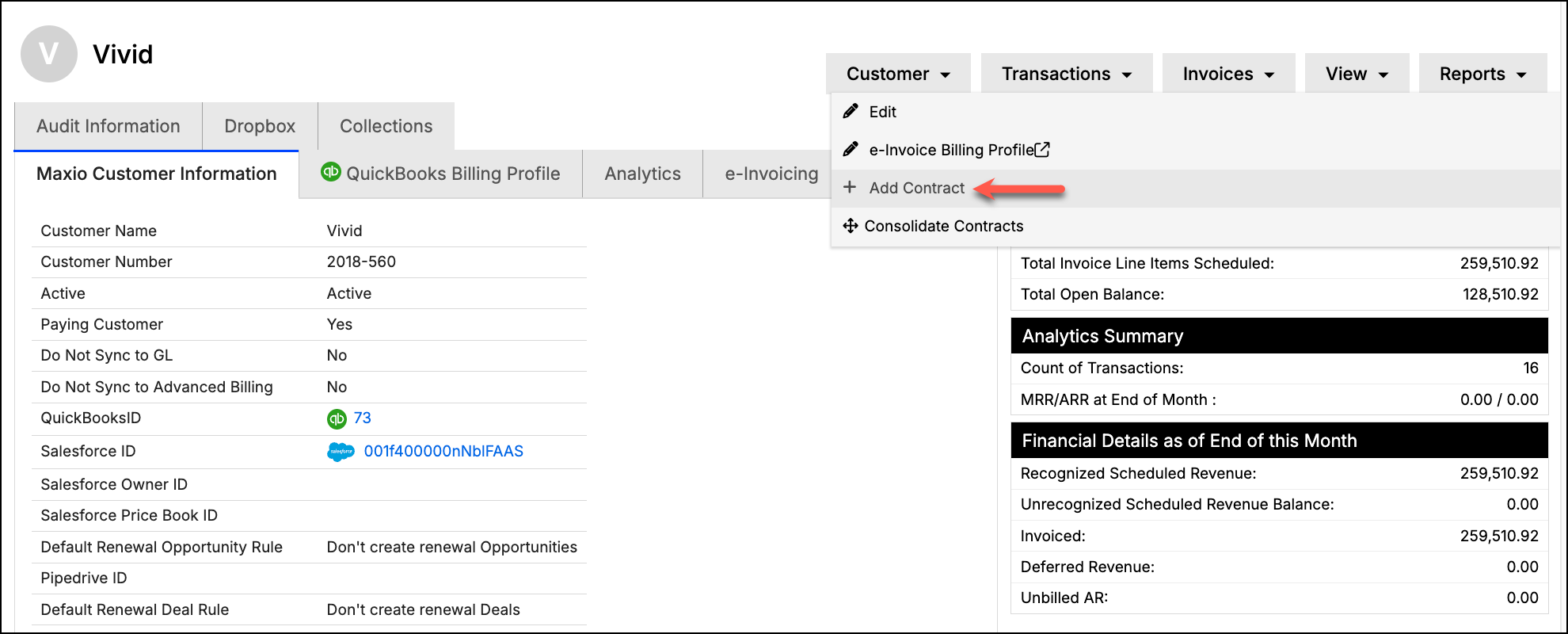
Navigate to the Customer that owns the contract.
-
Click the Add Contract option under the Customer drop-down.
-
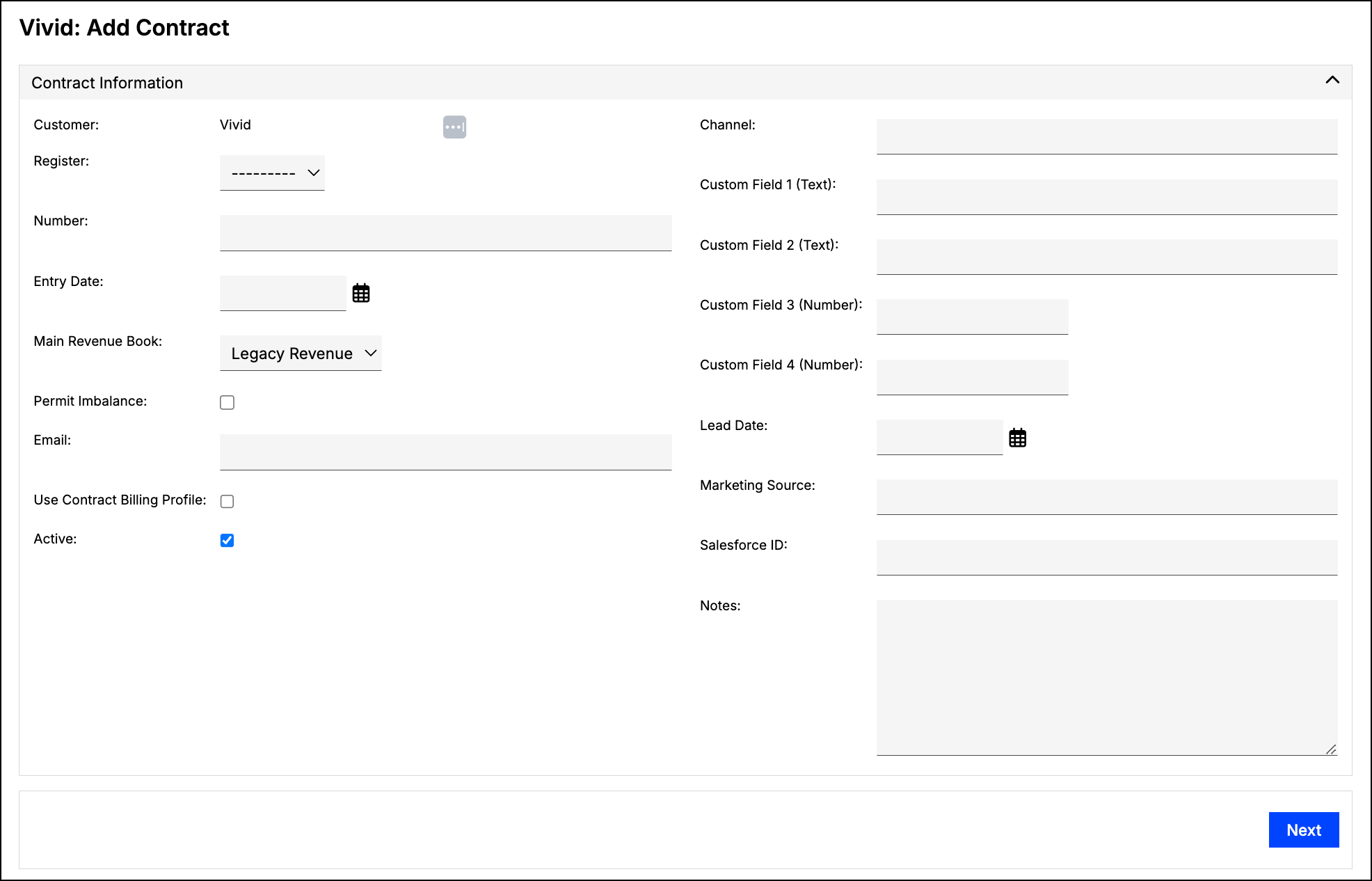
Enter information about the Contract according to the field definitions.
-
Click Next.
You can now add Transactions to this Contract, if necessary.
Edit a Contract
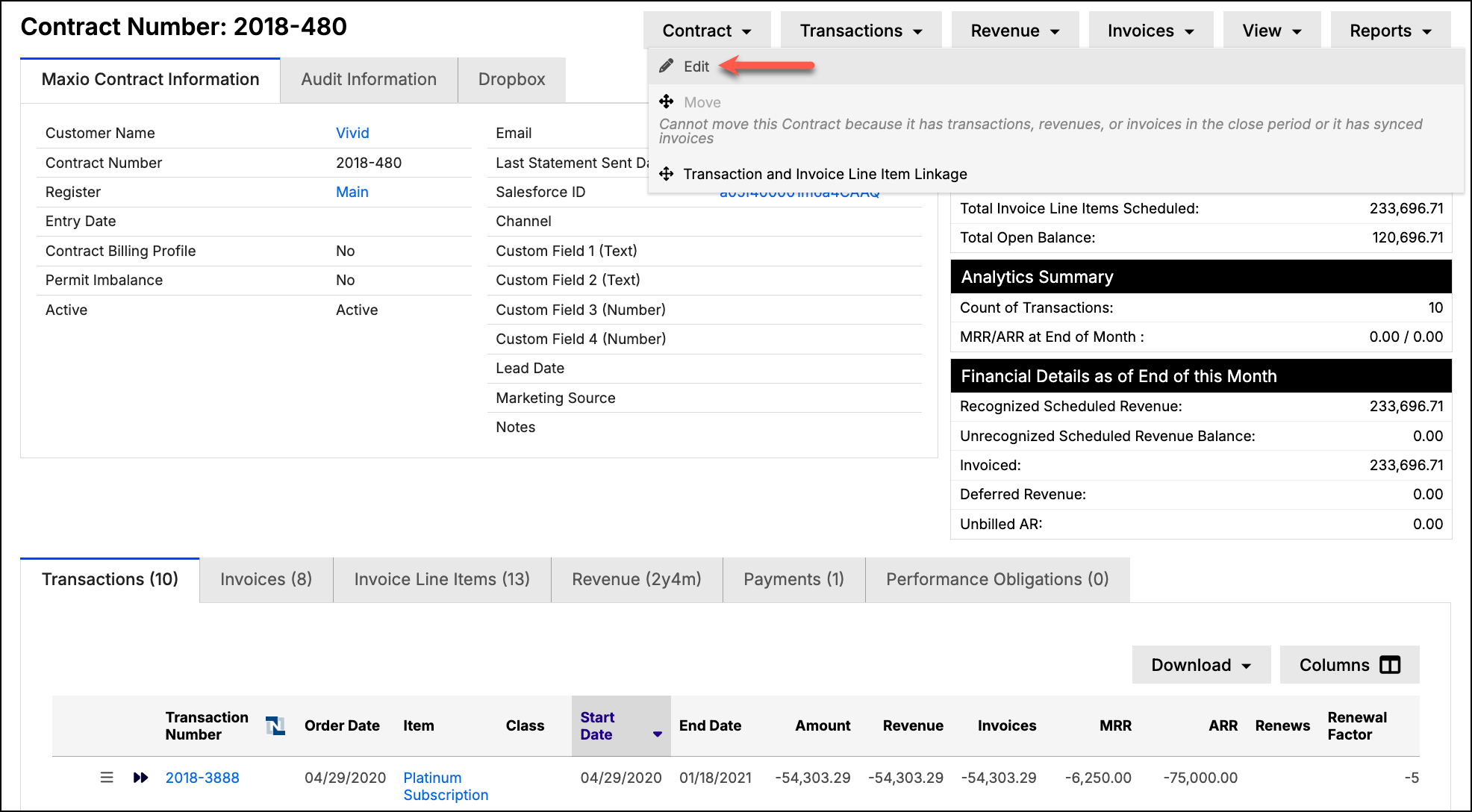
You can edit an existing Contract to add or update its information. Navigate to the intended Contract and then select the Edit option under the Contract drop-down. You can also use the Bulk Edit function to edit multiple contracts at once.
Delete a Contract
When you delete a Contract, all of the Transactions, revenues, invoices, and invoice line items associated with the Contract are also deleted. Deletion is disabled if the Contract contains any records in the Close Period, if any of its invoice line items have already synced to a connected general ledger, or if the Contract is a synced QuickBooks Job or Subcustomer.
As with all Delete functions in Maxio, there is no undo. Use caution when deleting a contract.
Related information
For a conceptual overview of how Contracts work in Maxio, see Understand Contracts.
Still need help?
Reach out and our support team will take it from here.