
Use Bulk Edit to Update Multiple Records
Applies to: Maxio Core
Last updated on Aug 26, 2026
Bulk Edit lets you set values for the selected fields for multiple records at the same time—customers, contracts, transactions, invoices, items, and more. This article shows operations and admin users how to select records from list screens, choose fields to update, run the bulk edit, and review results, with safeguards like automatic backups when editing over 100 records.
Bulk Edit is available for a number of lists throughout the application, including:
- Customers
- Contracts
- Transactions
- Invoices
- Invoice Line Items
- Items
- (Chart of) Accounts
- Expenses (Items, Vendors, etc.)
- Payments
- Deposits
- Open Balance (Transactions and Invoice Line Items)
- e-Bill Options
Bulk Edit options vary for each given list. Editing more than 100 records triggers an automatic backup of your data before the update runs.
Complete a bulk edit
-
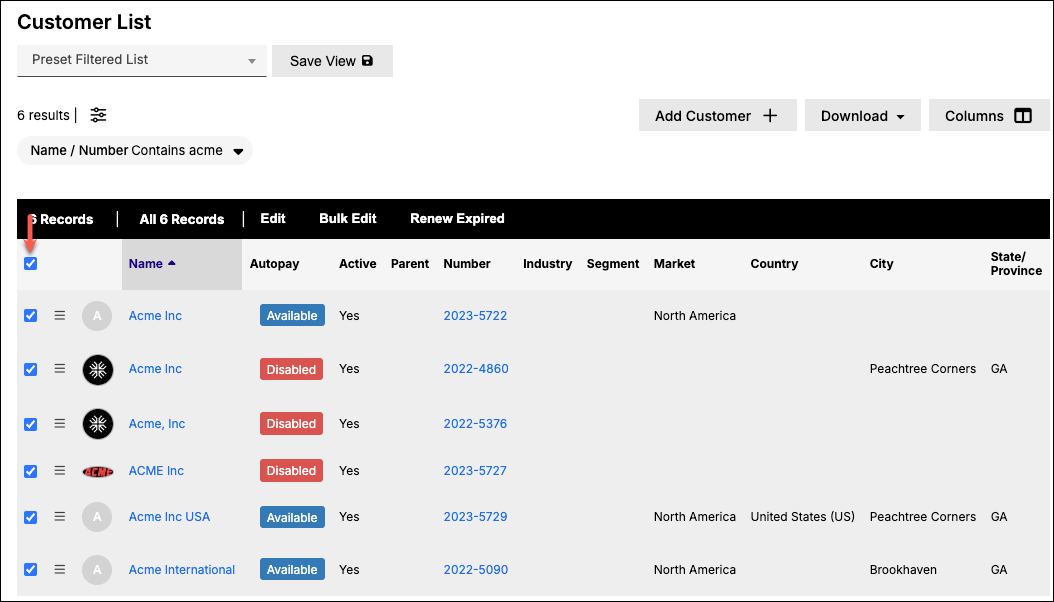
From a list or home screen (such as Customers), select one or more records by clicking the corresponding checkboxes. Note that you also have the ability to select all of the records currently displayed on the screen as well as all of the records in the account.
-
Then, select the Bulk Edit option on the dark blue ribbon that appears at the top of the list.
-
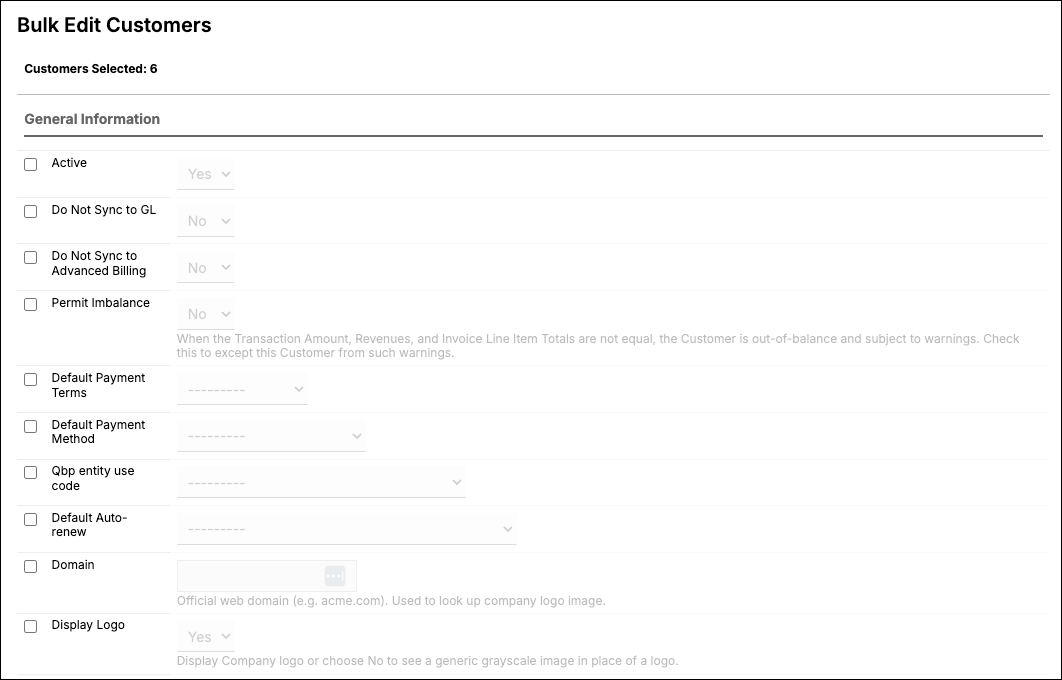
On the Bulk Edit screen, click the checkbox next to the field(s) you would like to update. Only checked fields will be updated. In the example below, all selected customers will be set to Active:
-
Finally, click Update. Upon doing so, you will see a confirmation banner indicating the updates are being saved. Click on the hyperlink to see specifics on the status of your Bulk Edit task. Additionally, all Admin users are able to review Bulk Edit Results by clicking Admin > Bulk Edit Results.
Still need help?
Reach out and our support team will take it from here.