
Review and Resolve Revenue Issues
Applies to: Maxio Core
Last updated on Oct 17, 2026
Use the Revenue screen to quickly identify and resolve issues that may impact revenue accuracy and financial reporting. This dashboard highlights out-of-balance records, missing links, and other data conditions that require attention so you can maintain clean, reliable revenue data. Regularly reviewing this page helps ensure your financial statements remain accurate and audit-ready.
Make sure all of your records are in balance and address any revenue issues in your account that could compromise the integrity of your Financial Reports. You can use this page to work through any out-of-balance conditions in your account as well as several other data issues. We highly recommend you check this screen consistently to make sure there are no Attention Needed items that are going unaddressed.
Correcting revenue issues
The Attention Needed section of the Revenue screen alerts you to all the current revenue-related issues that require corrections. Click on one of the alerts to display the corresponding records in the list at the bottom of the screen.
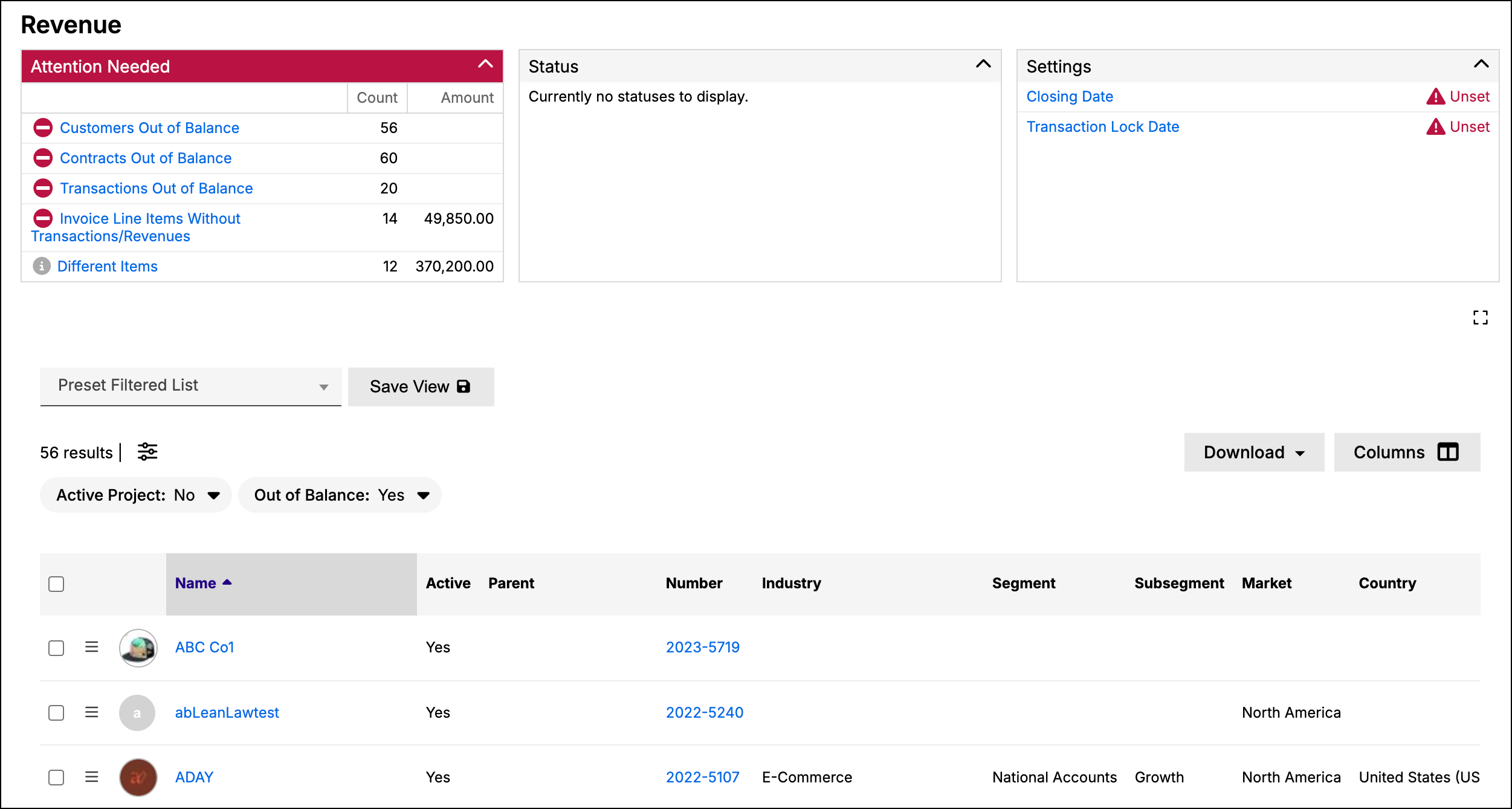
You can then make changes to a record by accessing the options in its action menu or by navigating directly to the record and making changes from there.
Common issues
Check the linked help article for each issue to learn more about it and how to fix it. You may encounter the following common issues on the Revenue screen:
| Issue | Description |
|---|---|
| Customers/Contracts/Transactions Out of Balance | A record is out-of-balance if its amount, invoice line items, and revenue are not equal. This condition can cause reporting issues and usually needs to be corrected. The most efficient approach to fixing out-of-balance conditions is to address the out-of-balance transactions first, as their changes can roll up to the contracts and customers. See How to Identify and Correct Out-of-Balance Conditions. |
| Different Items | When the invoice line item and transaction to which it is linked use different items, the integrity of your Financial Reports can be compromised. See Understand and Resolve Invoice Alerts. |
| Items With Incomplete Account Settings | Every Item needs an Income account for certain functions to produce complete revenue reports. If the Item also has a Liability account set for deferred revenue, it also needs an Asset account set for unbilled accrued revenue. See Manage the Chart of Accounts to fix an Item's account settings, or Understand Finance Report Results to see how this affects your reports. |
| Invoice Line Items Without Transactions/Revenues | Maxio performs optimally when invoice line items are associated with a transaction. This helps avoid out-of-balance conditions and supports the usage of some reports, like the Deferred Revenue by Transaction report. See Manage Invoice Line Items. |
| Transactions With Recognize Revenue Off | Revenue for a transaction with Recognize Revenue turned off is excluded from all Financial Reports. Confirm this is intentional for each flagged transaction before leaving it as-is. |
Still need help?
Reach out and our support team will take it from here.