
Manage Invoice Line Items
Applies to: Maxio Core
Last updated on Sep 14, 2026
An invoice line item is a building block of an invoice, representing a single line such as a subscription fee or one-time charge. Associating each line item with a Transaction keeps your financial records balanced and helps you avoid out-of-balance conditions.
Add, edit, and delete Invoice Line Items
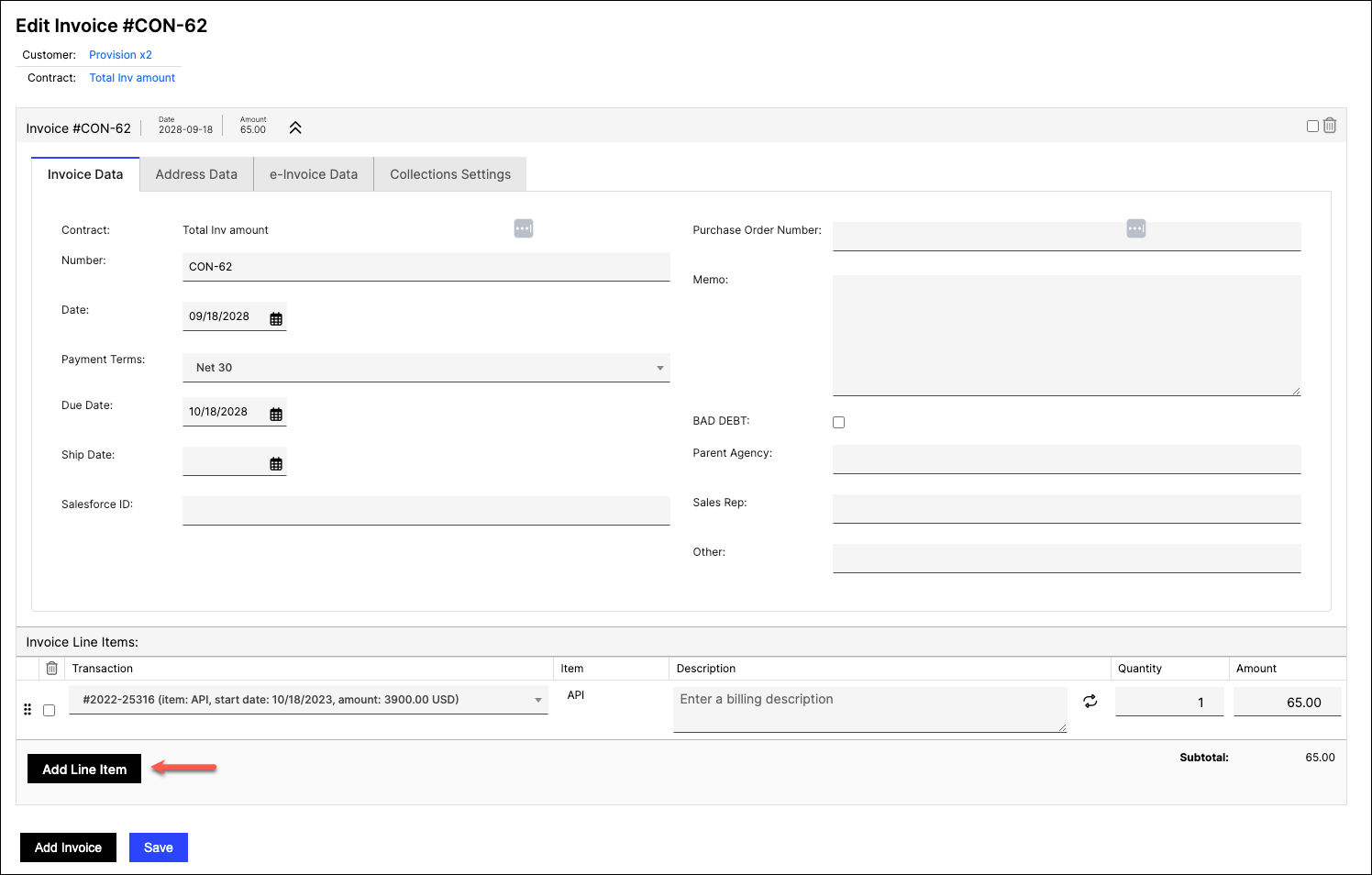
Invoice line items are typically created, updated, or removed as part of managing other financial records in Maxio. For example, new line items are added when transactions are created or sales orders are processed. You can add line items directly to an existing invoice by editing it, as explained in How Invoices Work.
WARNING: Changes to invoice line items can result in an out-of-balance condition.
Important: You can't edit a line item if its Invoice is in the close period or is committed (if your account uses committed invoice sequencing) — except to associate it with a Transaction, which is still allowed in both cases. If the Invoice is still a pending Advanced Billing draft, you can't edit the line item at all; make changes in Advanced Billing instead. You also can't delete a line item under any of these conditions, or if the line item itself is synced to an external system (a general ledger or Advanced Billing).
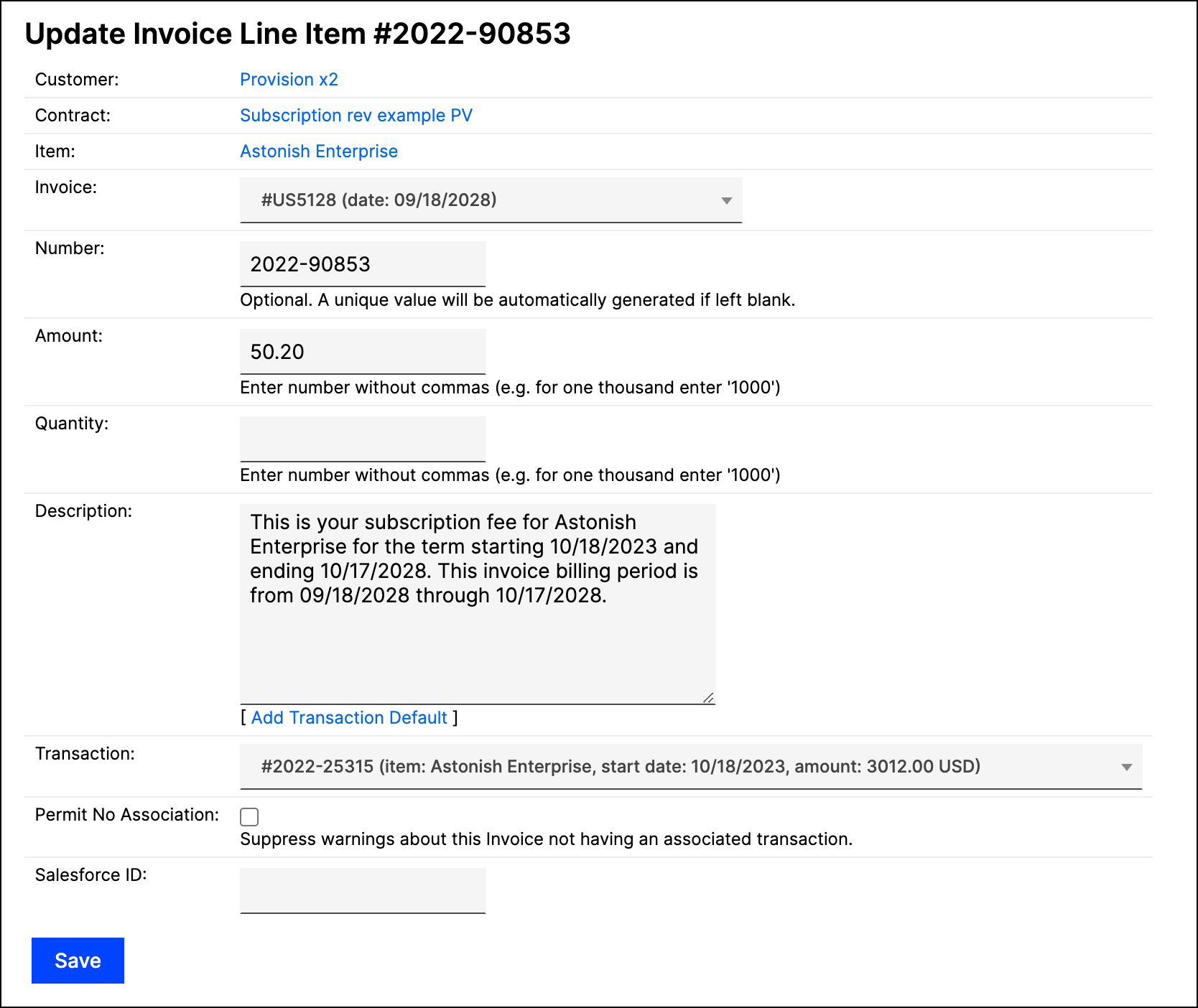
Individual invoice line items can be edited or deleted as needed, for example to correct mistakes or update details. To do this, navigate to the line item and click Edit or Delete under the Invoice Line Item drop-down menu.
Choose which columns display
The Invoice Line Items table on the Invoice detail page shows a default set of columns, but you can change which ones appear and in what order. Click the Columns icon in the table's caption to open the column selector, then move columns between the hidden and active lists and reorder the active ones — the same mechanism described in Customize List Views. Available columns are:
- Line Item Number
- Item
- Description
- Quantity
- Local Amount
- QuickBooks Class (only when QuickBooks Online integration is enabled and at least one Class exists)
- Transaction
- Permit No Association
- GL Sync Date (only when the Invoice is synced with your general ledger)
This preference is saved per user and applies only to the Invoice Line Items table on the Invoice detail page — it's separate from your column choices on the standalone Invoice Line Item List. You can also set your default columns for this table from Configure User Preferences and Default Views.
Invoice Line Items and Transactions
Creating transactions and revenues in Maxio typically generates associated invoices and invoice line items. However, invoices synced from a general ledger may have disassociated line items.
To resolve this, create a transaction for the disassociated line items or associate them with existing transactions to ensure financial balance.
Associate and disassociate with Transactions
Associating invoice line items with transactions helps keep both in balance. If an invoice was created in the general ledger and synced to Maxio, you may need to associate the line items with transactions manually. Alternatively, you can create a new transaction, as described below.
To associate a line item
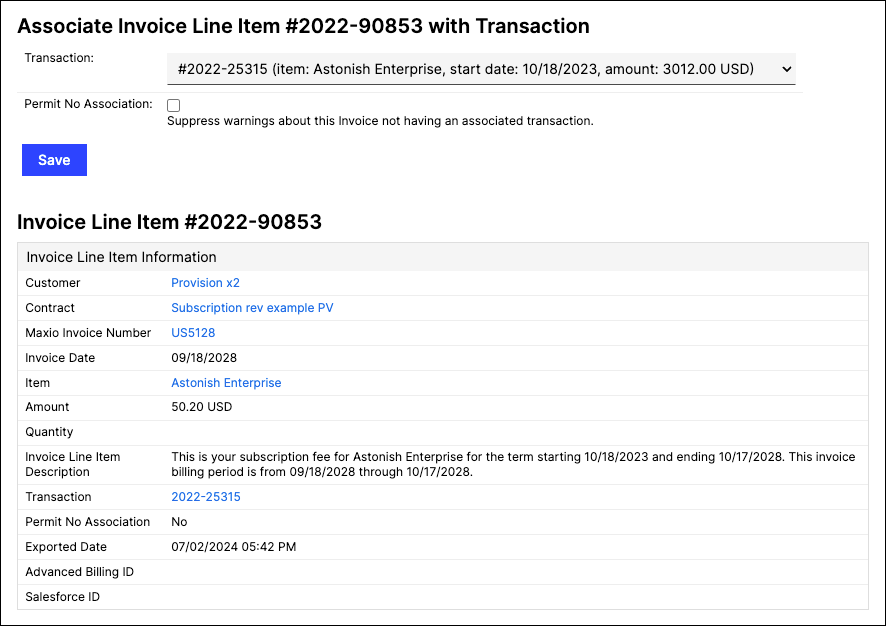
- Navigate to the line item and select the Associate option from the Transaction drop-down menu.
- Choose the appropriate transaction. As explained in the next section, you can choose not to associate the line item.
- Click Save.
To disassociate a line item, select Disassociate from the Transaction drop-down menu. This removes the line item's current transaction link; you can then associate it with a different transaction.
Allow a Line Item to have no Transaction
Disassociating a line item is not the same as permitting it to have no association. While it is best practice to associate all invoice line items with transactions, some scenarios may require exceptions. Disassociated invoice line items often arise when invoices are synced from a general ledger or created manually in Maxio. These situations can trigger warnings due to potential revenue and billing implications.
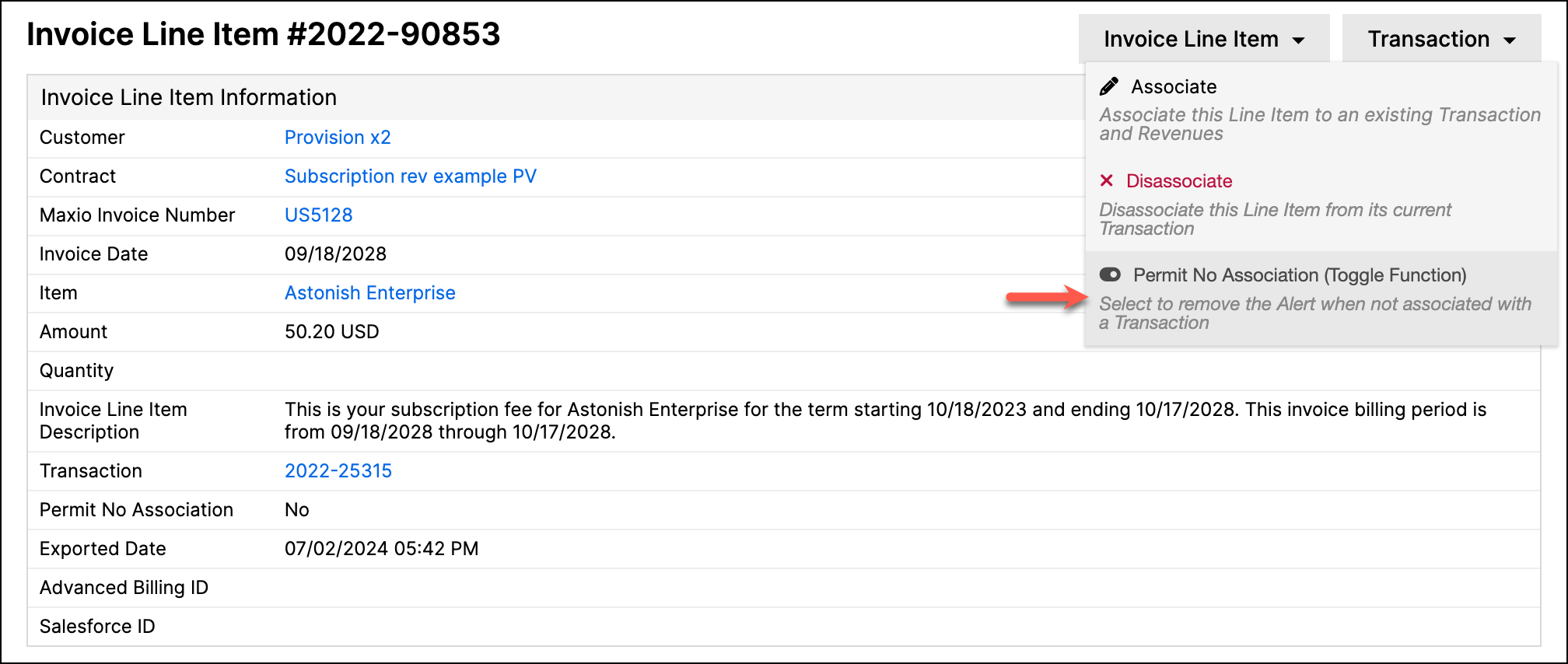
Use the Permit No Association option to suppress warnings for a specific line item that will not be associated with a transaction. You can toggle this setting directly from the Transaction drop-down menu, independent of whether the line item currently has a transaction linked. Note that line items with this setting are excluded from the Create Transactions and Generate Transactions functions.
Related information
For definitions of each Invoice Line Item field, see Invoice Field Glossary.
For alert conditions related to invoice line items and transactions, see Resolve Invoice Line Items without Transactions.
Still need help?
Reach out and our support team will take it from here.