
How to Identify and Correct Out-of-Balance Conditions
Applies to: Maxio Core
Last updated on Aug 26, 2026
Maxio Core supports accurate financial reporting by identifying and alerting you to imbalances between invoices, revenues, and transaction amounts across customers, contracts, and transactions. The system provides tools and alerts to help you correct discrepancies, but accuracy ultimately depends on reviewing and resolving the flagged records.
An out-of-balance contract indicates a potential invoicing or revenue reporting problem. Maxio Core uses the following logic to define balanced vs. out-of-balance:
Balanced: The total transaction amount, invoice line items, and recognized revenues are equal within the same currency.
Σ Transaction Amount(s) = Σ Invoice Line Items = Σ Transaction Revenues (per currency)
Out-of-Balance: An imbalance exists when any one of these totals differs from the others for a given currency. In other words, an imbalance exists whenever the equality above does not hold. The three totals do not all have to differ from each other.
Where "Σ" is the total sum of each item.
Example:
$12,000 Transaction Amount ≠ $10,000 Invoice Line Items = $12,000 Revenues
In this case, the transaction and revenue totals match, but the invoice total does not, creating an out-of-balance condition.
The term, Invoice Line Items, refers to the total of the line items, not the total of the Invoices. Invoices often include taxes, which are not part of the out-of-balance check because taxes are not recognized revenue. Also, Invoice Line Items that are not linked to Transactions may cause out-of-balance conditions. These line items may appear on invoices but are excluded from revenue-recognition logic unless they are properly linked.
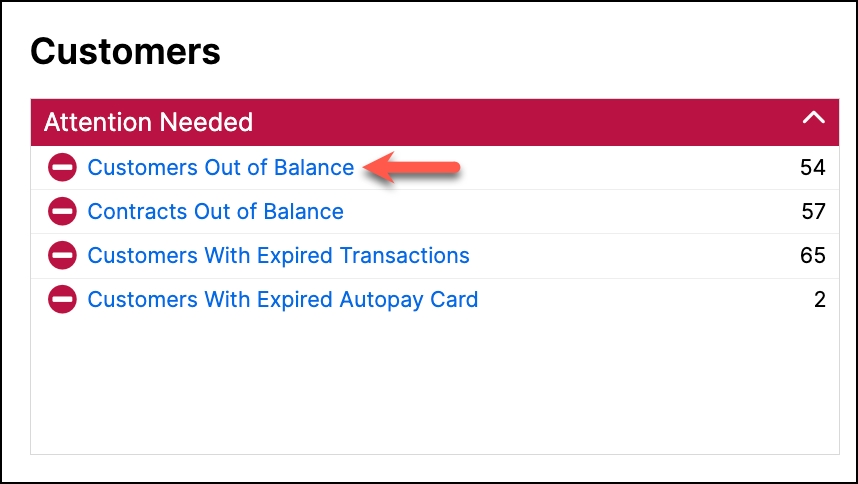
Alerts for customers, contracts, transactions, and invoice line items are designed to draw your attention to any problem records.
Types of conditions
The following table lists the types of out-of-balance conditions you may encounter.
| Condition Type | Description |
|---|---|
| Out-of-Balance Customers | A customer’s balance is based on the combined totals of all their contracts. A customer is out of balance when the overall totals for invoices, transactions, or revenues do not align. In some cases, differences across contracts may offset each other and make the customer appear balanced, even though one or more contracts are not. To keep reporting consistent, it’s recommended that each contract remain balanced whenever possible. |
| Out-of-Balance Contracts | A contract becomes out of balance when the totals for its transactions, invoice line items, or recognized revenues don’t match. This can happen if invoice line items aren’t linked to transactions or if transaction amounts or revenue schedules are changed manually. Keeping contracts balanced ensures accurate reporting for both contracts and customers. |
| Out-of-Balance Transactions | Out-of-balance transactions can cause the contract to be out of balance. It is recommended to keep all transactions balanced. However, it is possible to have out-of-balance transactions while maintaining balanced contracts and customers. |
| Unassociated Invoice Line Items | Invoice line items may not have balance since a transaction can have multiple linked invoice line items. Alerts identify unassociated line items, as they may indicate an out-of-balance condition. |
Common causes
The following actions may lead to out-of-balance conditions in Maxio Core:
Maxio Core actions
The following actions can cause or contribute to out-of-balance conditions:
- You create invoices manually instead of through a sales order, thereby skipping automatic linking.
- You edit a Transaction’s amount without regenerating its related revenues or invoices.
- You delete or modify a Transaction that is linked to synced Invoice Line Items.
- You manually edit a revenue schedule without keeping totals aligned.
- You edit or delete unsynced Invoice Line Items that are not properly linked.
- You import incomplete or mismatched data.
- You delete invoices that affect posted balances.
General ledger causes
Certain actions in your general ledger system can lead to imbalances after syncing with Maxio Core, including:
- You delete or void invoices that have already synced.
- You reassign or merge Customers, which moves linked invoices.
- You edit or re-create Invoice Line Items in the GL without updating Maxio Core. The effect depends on your integration settings and how frequently data syncs.
Projects
Projects create invoices and revenue schedules as milestones are completed. Temporary imbalances can appear while milestones are still in progress or partially synced. Once all milestones and related Transactions are complete and properly linked, balances usually realign automatically, though you should confirm before closing the Project.
How to correct imbalances
To correct an imbalance, review the related Transactions and Invoice Line Items:
- If the records are editable (not in a closed period or fully synced), you can use Balance, Edit Revenues, or Edit Invoice Line Items to fix the totals. The Balance action appears on a Transaction only while it is actually out of balance, and is shown disabled on a locked Transaction with the note "Can't change amount on a locked Transaction".
- If the records are locked or fall in a closed period, make adjustments through revenue entries or invoice line items that are outside those periods.
Balancing requires that the Transaction amount, total Invoice Line Items, and recognized revenues match for each currency. When you regenerate revenues or invoices, Maxio Core deletes and recreates those records to realign the totals.
Transaction not in a closed period, with no synced Invoice Line Items
If the Transaction isn’t in a closed accounting period and its Invoice Line Items aren’t synced, you can usually edit most fields directly. Typical corrections include adjusting amounts, regenerating revenues or invoices, or linking invoice line items.
- Use Edit Transaction to change the amount or regenerate invoices/revenues.
- Or use Balance to set the Transaction amount and revenues to the Invoice Line Item total.
Transaction with synced Invoice Line Items
When a Transaction has synced Invoice Line Items, editing options are more limited. You can still rebalance totals, but changes must respect the sync state.
- Use Balance to set the Transaction total to the synced Invoice Line Item total.
- Adjust revenues with Edit Revenues or Generate Revenues, if allowed.
- For any unsynced line items, use Edit Invoice Line Items to correct totals.
Transaction in a closed period
If the Transaction falls within a closed accounting period, you cannot directly change the Transaction or regenerate invoices for that period. You can still correct records outside the locked dates.
- Use Edit Revenues to adjust the timing or totals for revenue entries outside the closed period.
- Use Edit Invoice Line Items to adjust unsynced or open-period line items.
Imbalance originating in Invoice Line Items
If the imbalance originates from Invoice Line Items, such as missing links or incorrect amounts, you can resolve it by editing or associating those items.
- Use Edit Invoice Line Items in the Customer, Contract, Transaction, or Invoice view (based on your permissions).
- If needed, Create Transactions from Invoice Line Items to link orphaned items to new Transactions.
Every tool named above is described in Correction options.
Correction options
Depending on sync status and accounting period, the following tools may be available:
| Action | Description |
|---|---|
| Edit Transaction | Change the Transaction amount or regenerate related invoices and revenues when permitted. |
| Balance | Sets the Transaction amount and its revenues to equal the total of the Invoice Line Items, for the same currency. Invoice Line Items are the source of truth; the Transaction moves to match them. Available only while the Transaction is out of balance, and disabled if it is locked. |
| Edit Revenues | Manually adjust revenue amounts or timing outside closed periods. |
| Generate Revenues | Recreate revenue schedules without changing the Transaction amount. |
| Edit Invoice Line Items | Modify or re-link unsynced line items to match totals. |
| Create Transactions from Invoice Line Items | Create new Transactions from unlinked Invoice Line Items when appropriate. |
Still need help?
Reach out and our support team will take it from here.