
Create a Transaction from QuickBooks Invoice Line Items
Applies to: Maxio Core
Last updated on Aug 24, 2026
Generate a single Transaction by grouping QuickBooks-synced Invoice Line Items that don't have an associated Transaction. The Create Transactions function works only for Invoice Line Items on Invoices created in QuickBooks, not for those created in Maxio, and is designed for scenarios where an Invoice Line Item syncs into Maxio without a corresponding Transaction. By selecting eligible line items within the same Contract and Item, you can quickly create a consolidated Transaction using the earliest Invoice date and the combined total amount.
This method is ideal for cleanup scenarios or one-off corrections, since you choose exactly which Invoice Line Items to include and review the resulting Transaction before saving it. For bulk processing across many unassociated Invoice Line Items instead, see Generate Transactions from Unassociated Invoice Line Items.
To create a Transaction from QuickBooks Invoice Line Items
-
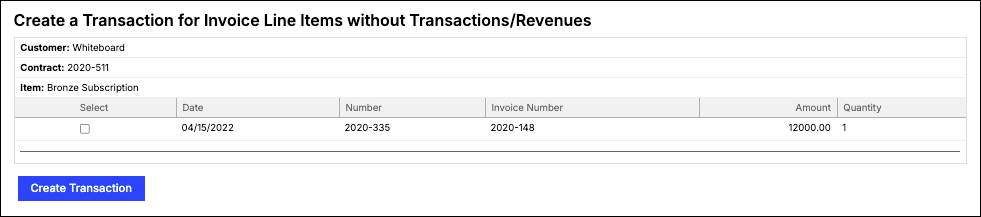
Select one or more Invoice Line Items within the same Contract and Item, then click Create Transaction. Once you select the first checkbox, the only other checkboxes that stay selectable are those within that same Contract and Item.
-
Review the pre-filled Transaction. Its Start Date defaults to the earliest selected Invoice Line Item's Invoice date, its End Date is calculated from the Item's default duration, and its amount is the total of the selected Invoice Line Items. Adjust any fields you need, then save the Transaction.
Related information
For a broader look at how Transactions work, see Understanding Transactions.
Still need help?
Reach out and our support team will take it from here.