
Generate Transactions from Unassociated Invoice Line Items
Applies to: Maxio Core
Last updated on Sep 19, 2026
This function generates Transactions and revenue for Invoice Line Items that aren't associated with a Transaction. You can have an unassociated Invoice Line Item when:
- Importing Invoices directly to a Contract
- Using the Add Invoice function on the Contract screen
- Syncing Invoices that were created in QuickBooks
WARNING: This is a batch process that cannot be undone, with no preview before you run it. Back up your account before using this function. Any Transaction that would start on or before the Transaction Lock Date is skipped rather than created, and any revenue generated before the Closing Date is moved to the day after it. To review and create Transactions individually instead, see Create a Transaction from QuickBooks Invoice Line Items.
The Generate Transactions function works only for Invoice Line Items in Invoices created in QuickBooks. It does not work for Invoice Line Items for Invoices created in Maxio.
How the process works
On the Generate Transactions screen, a Transaction is created for each orphaned Invoice Line Item when you click Generate. Only Items with the Generate setting enabled are included, and the rules used to set the Transaction's Start and End Dates, along with any renewal linkages and classifications, are defined by the settings for each individual Item.
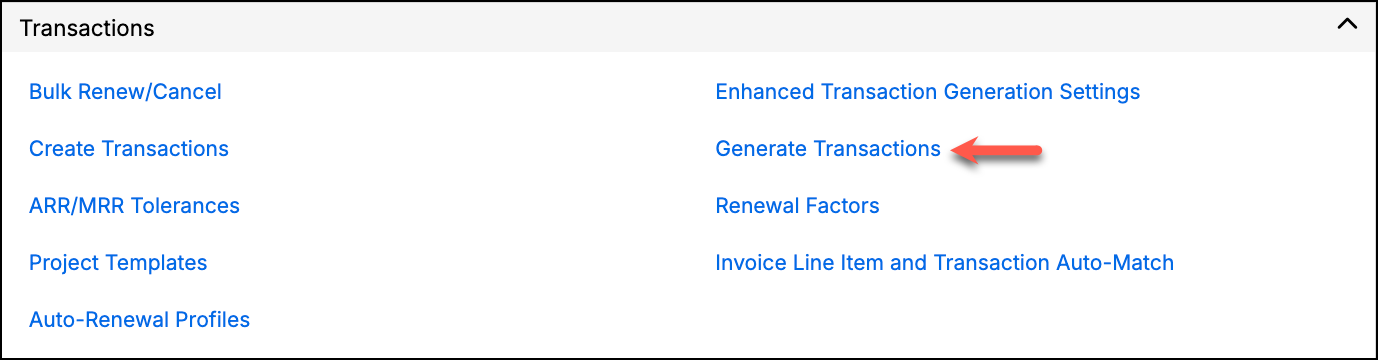
Maxio Admin Setting for Transactions
Related information
For a broader look at how Transactions work, see Understanding Transactions.
Still need help?
Reach out and our support team will take it from here.