
Set Up and Manage Prepaid Products
Applies to: Advanced Billing
Last updated on Sep 30, 2026
Prepaid Products let you charge for usage before it happens, then decide how units recorded past the paid limit are handled.
Prepaid allocations and usage
There are two main aspects to a Prepaid Product:
- Prepaid allocations
- Prepaid usage
A prepaid allocation is the purchase of a block of units for a customer to use. Using up that block of units is referred to as prepaid usage. Generally, a subscriber purchases an allocation first, then records usage over time. If the usage recorded exceeds the amount allocated, or an allocation wasn't purchased to begin with, those units of usage are billed as Overage.
One unique aspect of Prepaid Products is that proration is neither calculated nor applied when purchasing allocations or recording usage. The full amount due is charged when buying the allocation.
Prepaid Products are only available if your site uses Relationship Invoicing. See Understand How Invoices are Generated for how invoices reflect prepaid usage under this invoicing model.
For users of the full Maxio suite with Advanced Billing, you can add Prepaid Products to Term Subscriptions. For example, you could create an annual term Plan and Subscription with a prepaid monthly Product. Create the Prepaid Product and add it to a Subscription that uses a term Plan. If you're using Invoice-centric billing, you can also add Prepaid Products to Subscriptions with a future activation date. See Understand Awaiting Signup for details.
Prepaid product settings
Product details
This section isn't any different than the normal Product form. Review the Understanding Product Settings article for details.
Product pricing
Like other Products, the Pricing Scheme for a given Price Point can be Per Unit, Volume Based, Tiered, or Stairstep.
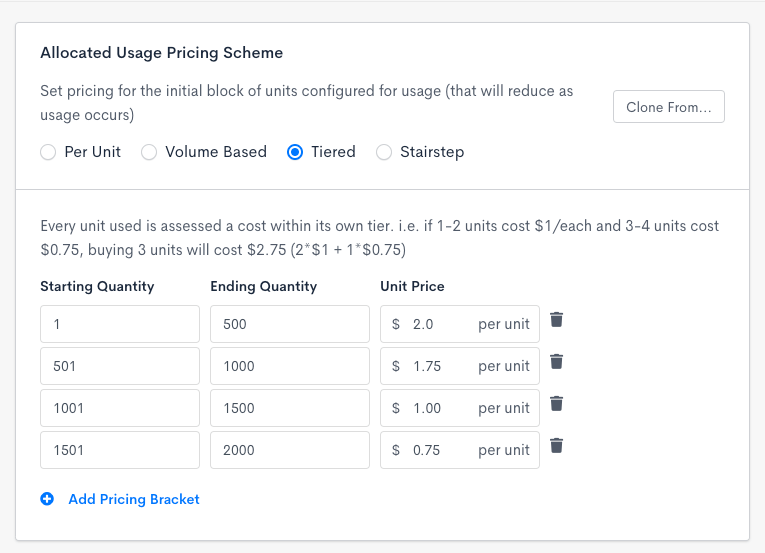
Configure the pricing for prepaid allocations
Recurring allocations
Enable Recurring Allocations to automatically repurchase the same amount of allocated units for a subscriber at each renewal. Leave it off, the default, and a prepaid allocation you purchase isn't renewed for the next billing period.
Recurring Allocations doesn't add units mid-period on its own. See Purchasing additional units mid-period below if a subscriber needs more before the next renewal.
Purchasing additional units mid-period
Purchasing more units for a recurring Prepaid Product presents a Purchase Type toggle with two options:
- One-time: Adds a block of units once, without changing the recurring amount. Whether unused units survive renewal follows the Product's rollover and expiration settings, the same as any other allocation.
- Recurring: Changes the amount that renews every period going forward.
Switching the toggle changes the rest of the form, not just what the purchase does. Each purchase type presents its own set of options.
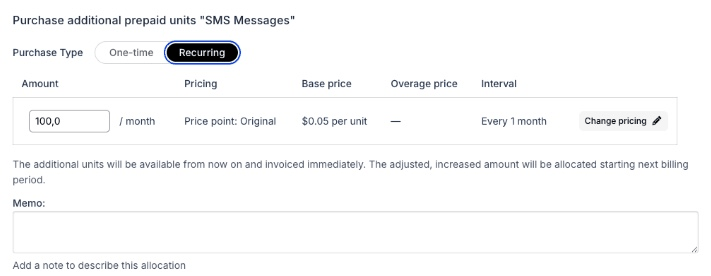
A Recurring purchase shows the Product's base price, Overage price, and renewal interval
A Recurring purchase confirms that the units are invoiced immediately, while the adjusted amount takes effect at the next billing period.
Raising and lowering the recurring amount don't behave the same way:
- Raising the recurring amount charges the difference immediately, at the Product's current pricing, and the higher amount takes effect starting with the next billing period.
- Lowering the recurring amount doesn't generate a charge, and Maxio doesn't refund or credit any unspent units. The lower amount takes effect starting with the next billing period.
You can also lower (but not raise) the recurring amount from the Subscription's Edit Subscription page, using the same no-charge, next-renewal behavior as the purchase form.
If you need to schedule a recurring raise for a future date without being charged immediately, use Edit Subscription's future-dated change with delayed proration instead of the purchase form. This option is only available to administrators on sites that support planless Subscriptions.
If a Subscription already has unbilled overage on the component, a One-time purchase also presents a Keep or Offset choice:
- Keep overage (bill it as usual): Overage already recorded this period is left untouched and bills as usual at renewal. This is the default on any site that hasn't been set to offset.
- Offset overage with this purchase: Applies the units you're purchasing against the overage already recorded this period first, reducing (or clearing) what will be billed, before any remaining units are available for further usage.
This choice only appears for a One-time purchase, and only when the component actually has unbilled overage; a Recurring purchase never shows it, since raising the recurring amount doesn't touch overage already recorded. The form pre-selects whichever behavior the site is configured to use by default, and you can change the selection before completing the purchase. An offset can reduce the overage that's billed, but it never increases it, and it can't reach into a previous period whose overage has already been billed.
Rollover of units
Enable Rollover of Units to carry any leftover units from the Subscription's current allocations over to the next renewal.
For example, if a subscriber has only used 60 of 100 total units, those remaining 40 units are available during the next billing period without incurring Overage. The Product displays as having 40/40 units remaining in the admin UI.
Expiration of allocated units
Expiration of Allocated Units is a type of rollover, so enable Rollover of Units first before turning this on. When a Prepaid Usage Product Price Point is created with an expiration interval and unit, all allocations have an expiration date based on the Product's expiration settings.
When an allocation has an expiration date, its quantity is always available beyond renewal dates, and only the expiration date is respected. Once the allocation has expired, any additional usage recorded is charged at Overage pricing.
Each individual allocation block made to a Subscription can have its own expiration date. This means that if a Prepaid Usage Product is set to expire in 6 months, an allocation made in month 1 and another made in month 4 have different expiration dates. The expiration takes effect exactly the specified days or months after the allocation is created. For example, if an allocation is created at 9:58 AM on July 6th and is set to expire in one month, the effective expiration date is August 6th at 9:58 AM.

Enable allocations to expire after a certain amount of time
After checking the box to enable the setting, enter a number and select either Days or Months to set the expiration interval.
Setting the overage pricing scheme
Another unique facet of Prepaid Products is the ability to define Overage pricing. Say a subscriber has purchased an allocation of 100 units, and has recorded usage for all of them. If 5 more usages are recorded, each of those 5 can be billed at a different cost than the original 100 units cost.
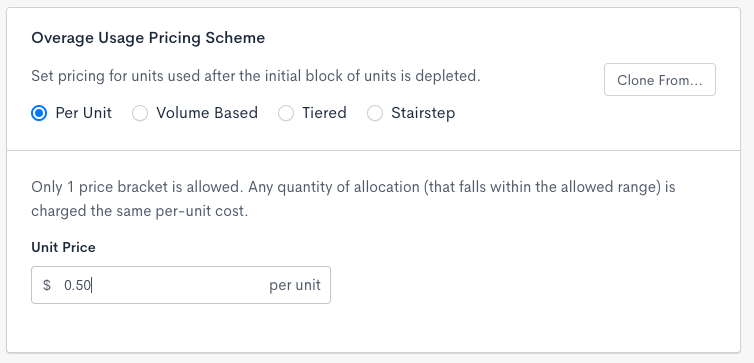
After the initial block of allocated units is used up, specify the new Pricing Scheme
In the example above, once a subscriber has fully depleted their allocated units, they're billed a flat $0.50 for each additional usage recorded.
Accumulating and using allocations
Allocations are always additive and cumulative. For example, if a subscriber requests an allocation for 600, and then another for 800, the total allocation is 1,400.
Allocations are used up in a first in, first out fashion. This means that if 50 units are purchased initially, and then another 50 units are bought later, usage is recorded against the first allocation of 50. This gives subscribers the maximum amount of time to use their allotted allocation before any expirations (if configured) take place.
Allocations are typically described as a "purchase," but it's possible for an allocation to be at no charge, if the Product is free, or to be accrued until the next renewal, if the credit card is declined upon allocation.
Allocations can be reduced or deleted via API request. You can also delete a one-time purchase in Advanced Billing if none of its units have been used and it hasn't expired. See Delete a One-Time Prepaid Purchase. Any expiration dates per allocation block may also be updated via API.
Preventing and reducing overages
To prevent Overage pricing from taking effect, a customer must first purchase an allocation.
Unless your site is set to offset by default, purchasing additional allocations doesn't wipe out any existing units in Overage; those units are billed at renewal. A One-time purchase can offset that overage instead: choosing Offset overage with this purchase on the purchase form (see Purchasing additional units mid-period above) applies the newly purchased units against the overage already recorded this period, before anything is left over for further usage.
To reduce the units already in Overage for a given Subscription without making a purchase, record negative usage instead. Overage units are diminished first, followed by recorded usage.
Changing price points
Each allocation for a subscriber's Prepaid Product inherits settings from the Price Point used at the time of allocation. If the subscriber changes Price Points, the new Price Point doesn't take effect until a new allocation is purchased. For example, say a Subscription purchases 10 units on a default Price Point that doesn't allow units to roll over at renewal. Afterwards, the subscriber changes to a new Price Point that does allow rollover. If the subscriber only records 6 usage before renewing, those other 4 units aren't rolled over, since that would violate the original Price Point's configuration.
It may be useful to think of it this way: usage isn't recorded against the current Price Point. It's recorded against the allocation that was made, and follows the configuration set by that allocation's original Price Point.
Unlike Plan Price Points, the pricing information of a Product's Price Point can be edited while subscribers are actively using it. If the Price Point itself has its options changed, allocations begin following the new settings of that Price Point. For this reason, use caution when editing Product Price Points that are actively in use.
Related information
See Understand Products for how Products fit into the Catalog overall.
See Understand How Products Are Billed for more on purchasing allocations, recording usage, and changing Price Points within Advanced Billing.
Still need help?
Reach out and our support team will take it from here.