
Edit Invoice Template Layout
Applies to: Advanced Billing
Last updated on Aug 25, 2026
Customize invoice layouts using the Template Editor to control how billing data is displayed. Adjust structure, preview outputs, and generate PDFs for accurate invoice presentation. The editor supports saving, previewing, generating a PDF, and navigating back to the themes list. It is the main workspace for invoice template customization.
Open the Template Editor
You can open the Template Editor from more than one place:
- It opens automatically right after you create a new theme.
- On an existing theme, click Actions, then Template Editor.
Once you're in the editor, make your revisions and click Update Template to save them.
What you can do in the editor
The editor includes tools for editing, previewing, and exporting the invoice template. Depending on the section you are editing, you can adjust layout properties such as background colors and column settings. Additional layout options may be available depending on the template configuration.
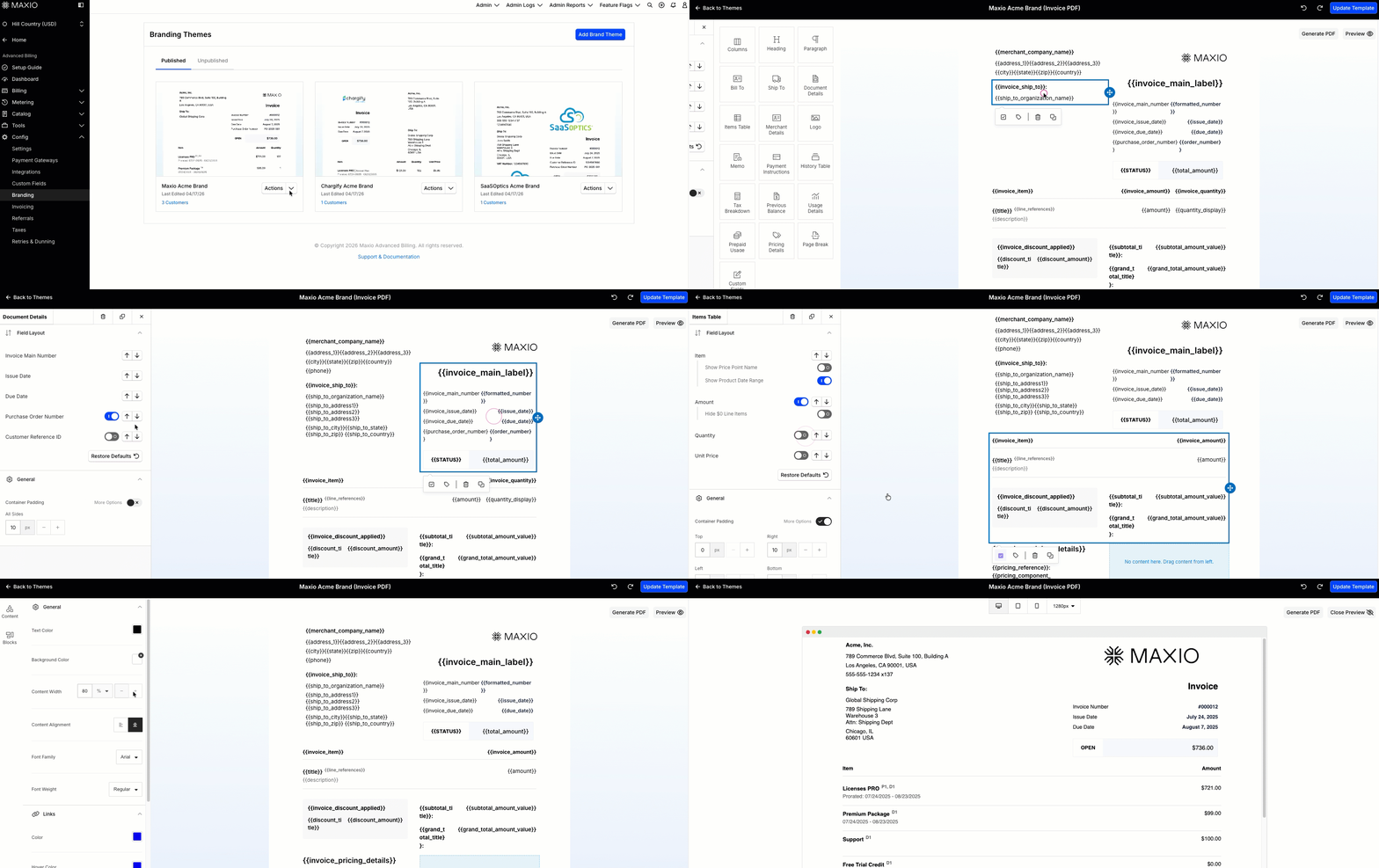
Save your work
Click Update Template to save your latest template changes. Saving can also refresh the theme preview image when preview generation succeeds.
If you try to leave with unsaved changes, the app displays a warning before navigating away. This helps prevent accidental loss of work.
Related information
To reorder and align individual layout elements on an Invoice, see Reorder and Adjust Invoice Layout Elements.
For the undo, redo, and template-switching controls in the Template Editor, see Using Template Editor Navigation and Controls.
Before publishing your changes, see Preview a Theme Before Publishing to check how they appear to Customers.
Still need help?
Reach out and our support team will take it from here.