
Preview a Theme Before Publishing
Applies to: Advanced Billing
Last updated on Aug 25, 2026
Preview Branding Themes before saving or publishing changes to confirm how Invoices, hosted pages, and related email styling appear to Customers. Use the preview area to validate invoice branding, review theme status, and confirm customer-facing outputs.
Switch between preview tabs
Use the preview tabs to move between available customer-facing outputs:
- PDF document
- Hosted Page
Note: Hosted Page and Email tabs may show placeholder preview states depending on the current implementation. Use them to move between preview surfaces while working on the theme.
Review the invoice preview
The PDF document tab shows a working invoice preview with the current theme settings applied. Some changes may require saving before they appear in the preview.
The tab also shows theme status details and provides access to Edit Template.
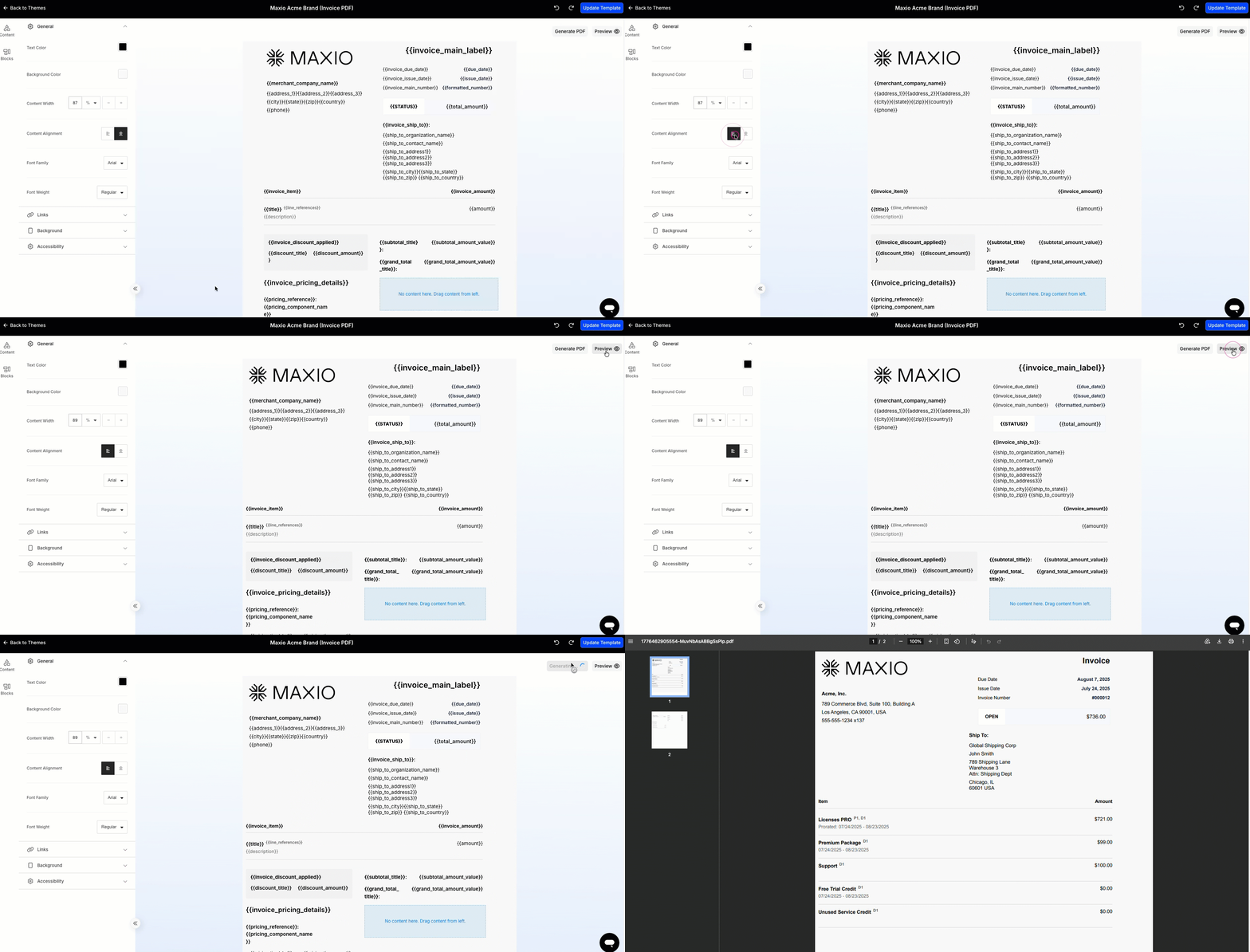
While the preview is loading
A loading indicator appears while preview content is being prepared. The preview displays automatically when it is ready.
What the timestamps mean
The preview header shows key status information to help you track the theme state. These details are especially useful when reviewing draft and published versions.
- Published for themes that have been published
- Edited for the latest update
Related information
For the rest of what you can do in the Template Editor, see Edit Invoice Template Layout.
To change an existing theme's colors, fonts, language, or logos, see Update Theme Settings.
Still need help?
Reach out and our support team will take it from here.