
Understand Invoice Customization
Applies to: Advanced Billing
Last updated on Aug 26, 2026
Customize what appears on your Invoices, from branding and Customer details to line items, tax breakdowns, reference numbers, and document formatting. These settings apply across the Invoice PDF, public Invoice view, and email attachments, so you can tailor your Invoices to your business needs and keep them clear for your Customers.
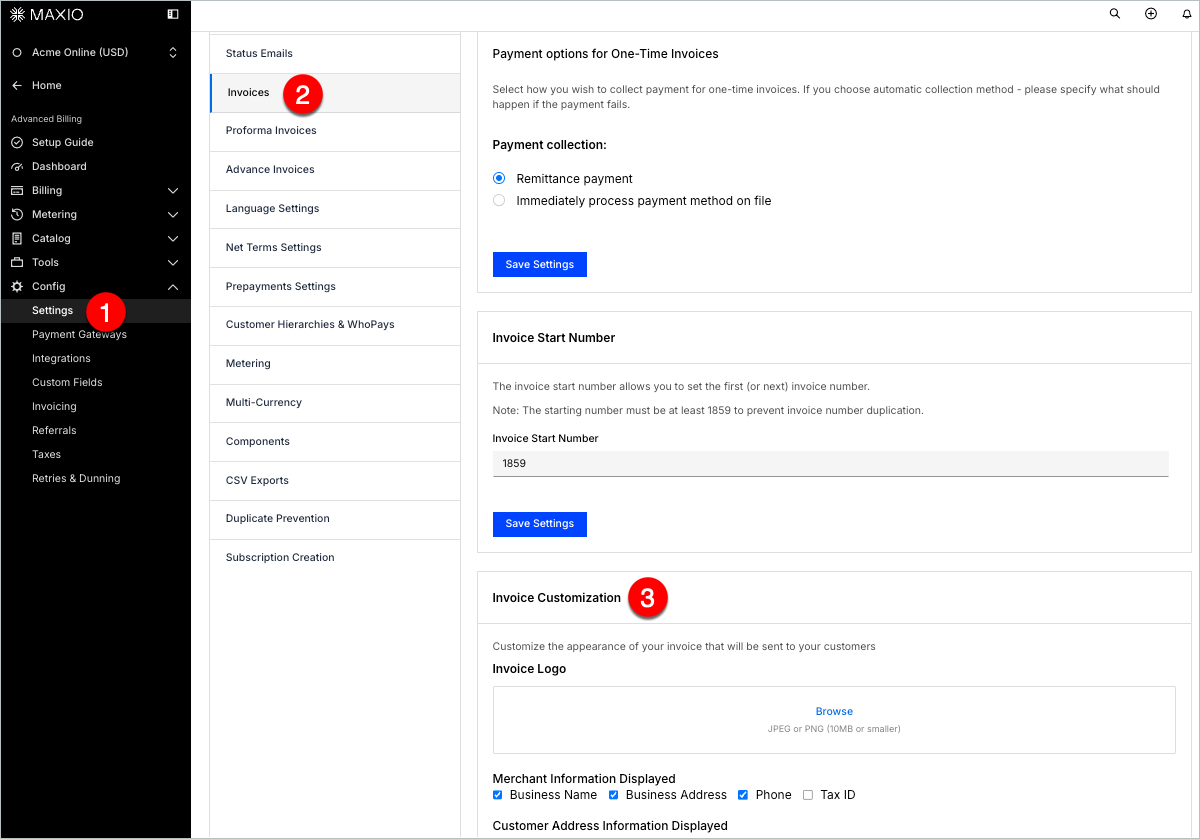
To customize any of these settings, go to Config > Settings > Invoices and scroll down to the Invoice Customization section.
Key capabilities
Each article below covers one part of invoice customization:
- Setting Business Details and Customer Address
Add or remove your logo, Business Name, address, phone number, and Tax ID, and control how Customer names and addresses appear on Invoices. - Control What Appears in Invoice Line Items
Decide whether to display unit prices, quantities, date ranges, $0 line items, and prorated amounts. - Display Previous Balances, Memos, Payment Instructions, and Credit Notes
Show outstanding balances, add custom Invoice memos, and provide payment or remittance instructions. - Show Tax Breakdowns by Region
Show regional tax information on Invoices for EU VAT, UK VAT, and New Zealand GST. - Configure Document Settings
Choose whether to show page numbers on PDFs, hide billing history, or format Child Invoices. - Display the Customer Reference ID on Invoices
Show a Customer's internal reference ID across every Invoice format. - Display the Purchase Order Number on Invoices
Show your Customers' PO Numbers to help speed up payment.
Related information
To review the full set of Invoice settings, including collection methods and email delivery, see Manage Invoices Settings.
Still need help?
Reach out and our support team will take it from here.