
Manage Customers
Applies to: Advanced Billing
Last updated on Aug 26, 2026
Edit, delete, export, and email your Customers in Advanced Billing, and manage their tax-exempt status and Payment Profiles, to keep billing, compliance, and reporting accurate.
Edit customers
Update a Customer's information any time their details change.
To edit a customer
- From Advanced Billing, go to Billing > Customers and select the Customer.
- From the Actions dropdown, select Edit.
- Update the Customer's information.
- Click Save Changes.
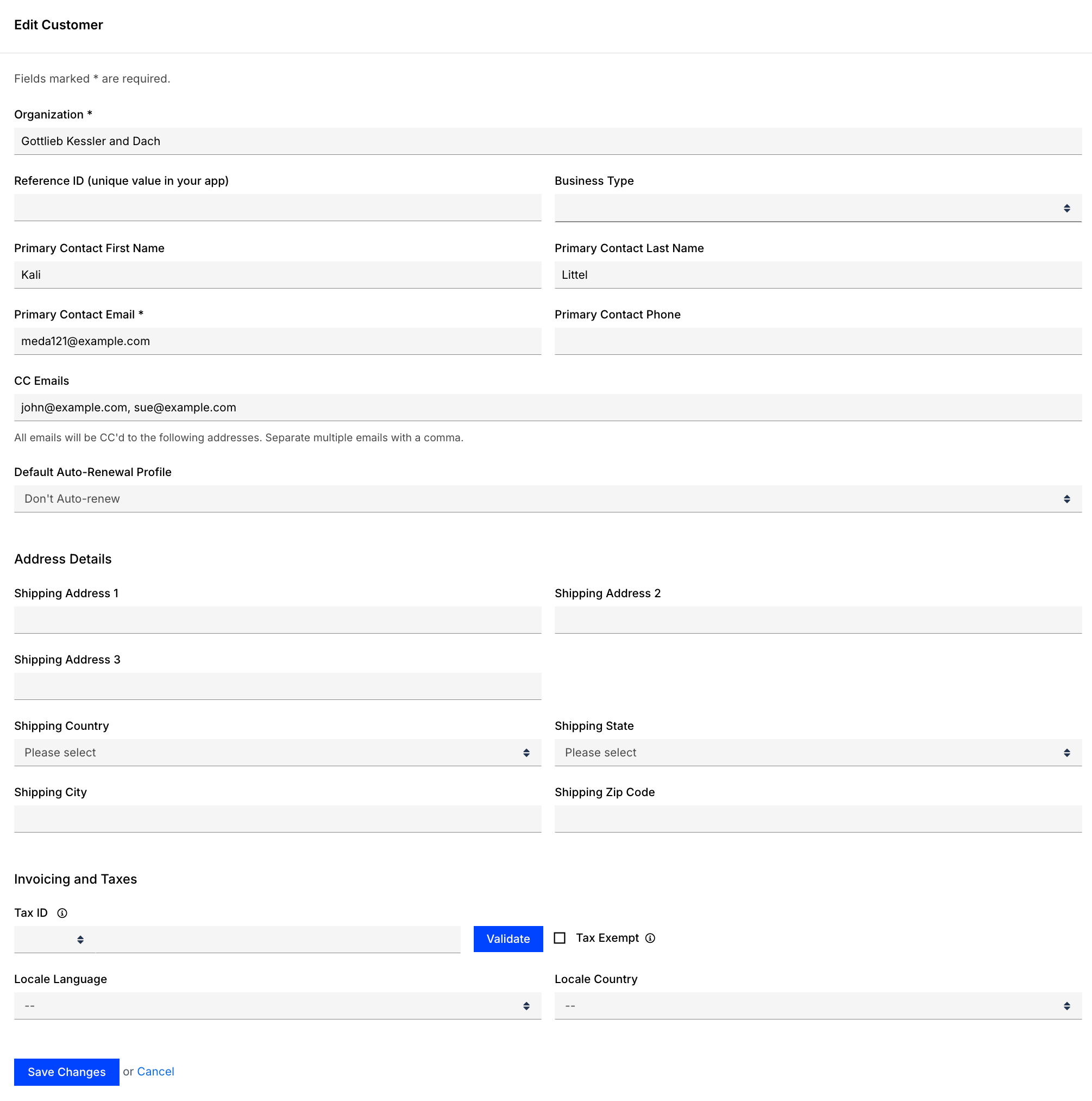
Edit basic information such as names, email addresses, and organizations, as well as advanced fields like tax IDs, VAT numbers, and custom fields. Keeping Customer data accurate helps ensure that Subscriptions, Invoices, and tax calculations stay correct and up to date.
Delete customers
Remove a Customer's record entirely when it's no longer needed.
WARNING: Deleting a Customer can't be reversed.
To delete a customer
- From Advanced Billing, go to Billing > Customers and select the Customer.
- From the Actions dropdown, select Delete.
- Confirm the deletion.
You can't delete a Customer that has any Subscriptions associated with the account. Delete the Subscriptions first.
If your site is connected to Maxio Core, note that Customer deletion is also restricted there to protect financial data in both systems. If a Customer is synced between the two systems and can't be deleted in Maxio Core, the Customer remains in Advanced Billing.
Export customers
Select Export Customers from the Customers list to generate a report of Customer data. Advanced Billing prepares the export in the background. Once it's ready, download it from your Exports list, or from the email notification if you have that enabled. For details about the exported fields, see Customer fields in the Billing Export Fields Reference.
Email customers
Send a mass email to your Customers from the Subscriptions list, not the Customers list. Select the Subscriptions you want to email, either all of them to reach your entire Customer base or filtered by Plan to target specific Subscribers, then use Bulk Email > Send Custom Email to open the Create a Mass Email window.
WARNING: Recipients can't opt out of these emails. Use this feature only for essential service-related announcements, such as outages or Plan changes.
Clearly identify your company or team in the email body so recipients understand the context. Otherwise, your emails may be flagged as spam or create confusion. See Send Bulk Email to Subscribers for detailed guidance.
Set customers as tax exempt
Set the Tax Exempt checkbox on the Customer's Edit page to exclude tax line items when calculating Invoices and statements for that Customer. This overrides other tax settings for Plans, Products, and so on.
Payment details
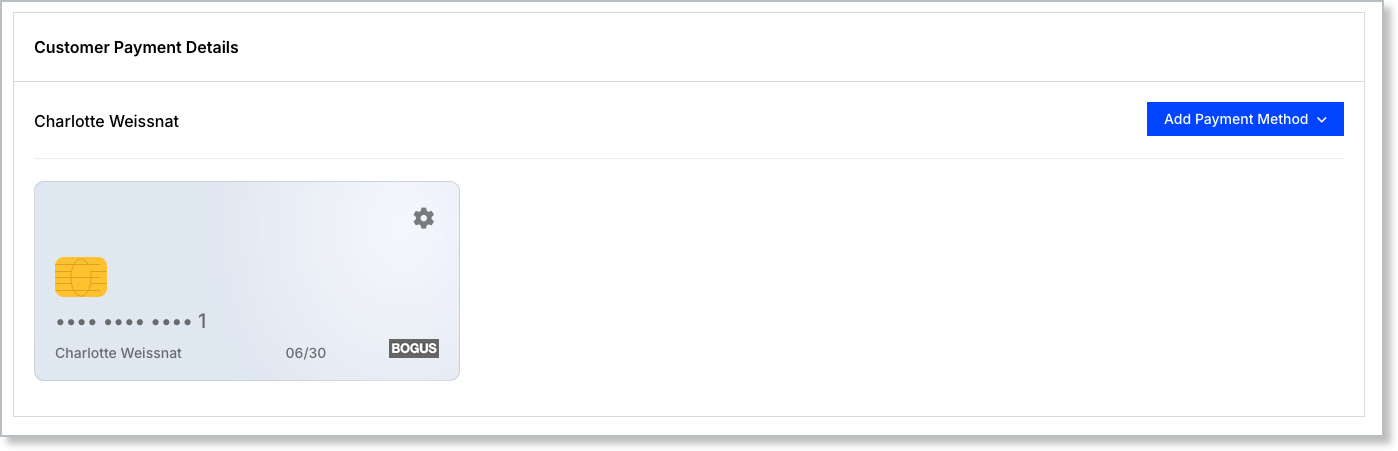
View, add, or delete a Customer's Payment Profiles from their Customer Payment Details page. For some payment gateways, a Payment Profile is disabled if an Account Updater can't find the stored card on the gateway's side and removes it.
Once a Payment Profile is disabled, deletion is the only action available for it. See Managing Payment Methods for more information.
Related information
To create a new Customer, see Add New Customers.
To view a Customer's information, see View Customer Information.
Still need help?
Reach out and our support team will take it from here.