
Cancel a Subscription
Applies to: Advanced Billing
Last updated on Sep 19, 2026
A Canceled Subscription is no longer billed. A Subscription can be canceled several ways:
- You cancel it immediately, or schedule it for the end of the period or a specific future date, from the Subscribers list or the Subscription's own page.
- Dunning exhausts its retries with no payment collected for an overdue balance.
- The Customer requests cancellation themselves through the Billing Portal.
Cancel a Subscription
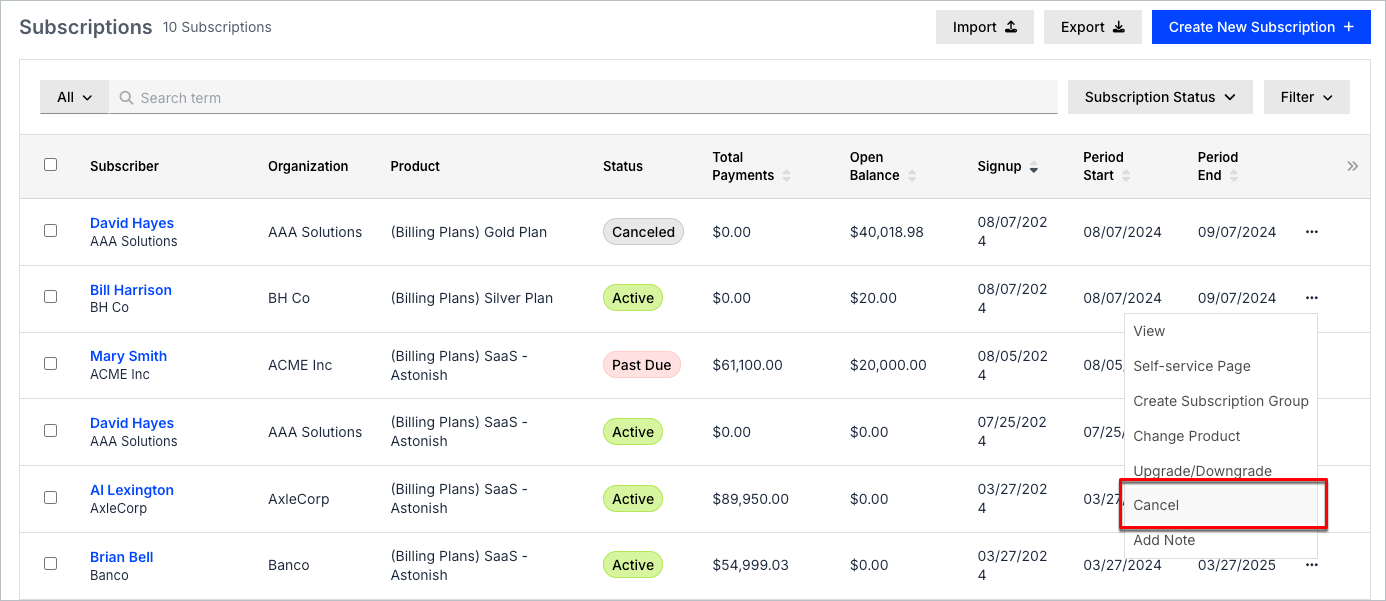
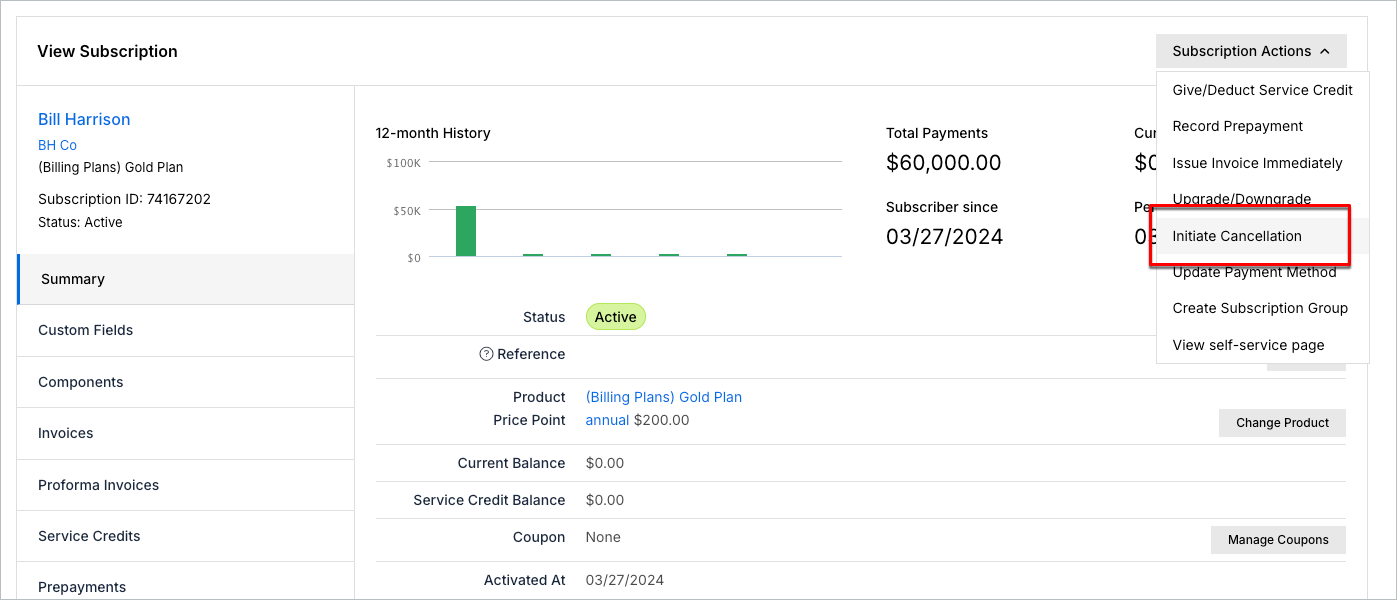
You can start a cancellation from the Subscribers list or from the Subscription's own page. Both routes reach the same Cancellation screen.
To cancel a Subscription
-
From the Subscribers list, select Cancel from the row's More menu, or open the Subscription and select Initiate Cancellation from the Subscription Actions menu.
-
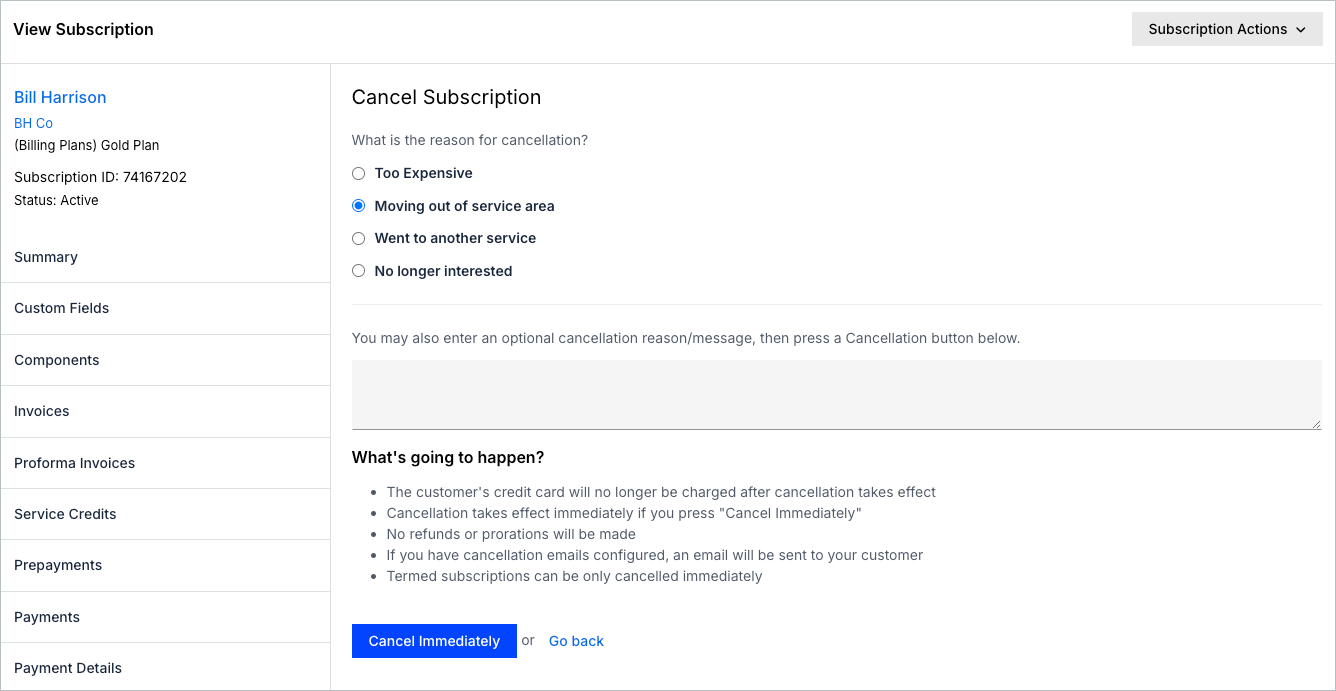
Optionally, select a cancellation reason and enter a note.
-
Open the Cancellation Timing dropdown and select Cancel Immediately, Cancel at End of Period, or Cancel on Specific Date.
-
Click Confirm Cancellation.
Selecting Cancel Immediately terminates the Subscription right away, and no further charges occur. See Schedule a Subscription Cancellation for how the two scheduled options work, and what to expect while one is pending.
What happens when you cancel
Canceling a Subscription, whether immediately or on a schedule, has the following effects:
- The Customer's credit card is no longer charged for this Subscription once the cancellation takes effect.
- No refunds or prorations happen automatically.
- An email is sent to the Customer only if you enable cancellation emails.
You can later reactivate a Canceled Subscription.
Related information
For what happens while a scheduled cancellation is pending, see Clear a Pending Cancellation.
For how automatic dunning-triggered cancellation works, see Understanding How Dunning Works.
Still need help?
Reach out and our support team will take it from here.