
Configure Email Settings
Applies to: Advanced Billing
Last updated on Oct 29, 2026
Advanced Billing provides configurable email settings that allow you to control billing notifications, renewal reminders, Subscription communications, and Customer email templates. Go to Config > Settings > Emails to enable each email, choose which products it applies to, and manage its timing. Changing these settings requires the permission described as manages product catalog, settings, and integrations.
Important: Customize each email after you enable it. The default templates carry only basic details, so review and update the wording before real Customers receive them.
Subscription email notifications
Most of the emails below can be scoped to products, so you choose whether each one applies to all products or only to the ones you select. Emails are then sent only for the selected products. BCC, Update Payment Request, and Upcoming Term Expiration are the exceptions. BCC and Update Payment Request aren't tied to a product, and Upcoming Term Expiration emails apply to every product once you enable them.
Signup, Customer Receipt, Cancellation, Card Expiration, End of Trial, Term Renewal, and the Prepaid Subscription emails share one product selector. Select Send to subscribers of only the products I choose (labeled Send to subscribers of only the Plans I choose on sites that allow productless Subscriptions), then click the button beneath it to open a searchable list grouped under Active products and Archived products. Type in the search box to filter the list, then select or deselect entries, or use the select-all control to toggle everything currently shown. The button reads Choose products when nothing is selected, All products selected when everything is, and a count such as 3 products selected otherwise. On End of Trial Emails the two groups are named Currently offering a trial and Archived products that offered a trial instead.
Which sections appear depends on your Site. Card Expiration Emails appear only if your Site accepts credit card payments, Term Renewal Emails and Upcoming Term Expiration Emails appear only if your Site uses Term Subscriptions, and the payment method and prepaid sections listed further down each depend on the gateway or feature they relate to.
BCC email settings
The BCC Email Setting allows you to send a blind copy of Customer emails to one or more internal email addresses. Toggle this setting on or off and enter multiple email addresses separated by commas.
This setting does not cover dunning and retry emails, which are managed in Configure Retries and Dunning.
Signup emails
Send notifications when a Subscription is created. The section splits into Emails to You and Emails to Your Customers, and you can apply either to all products or to selected products.
The two settings are independent. Enabling Emails to You sends you the internal notification whether or not Emails to Your Customers is enabled.
Customer receipt emails
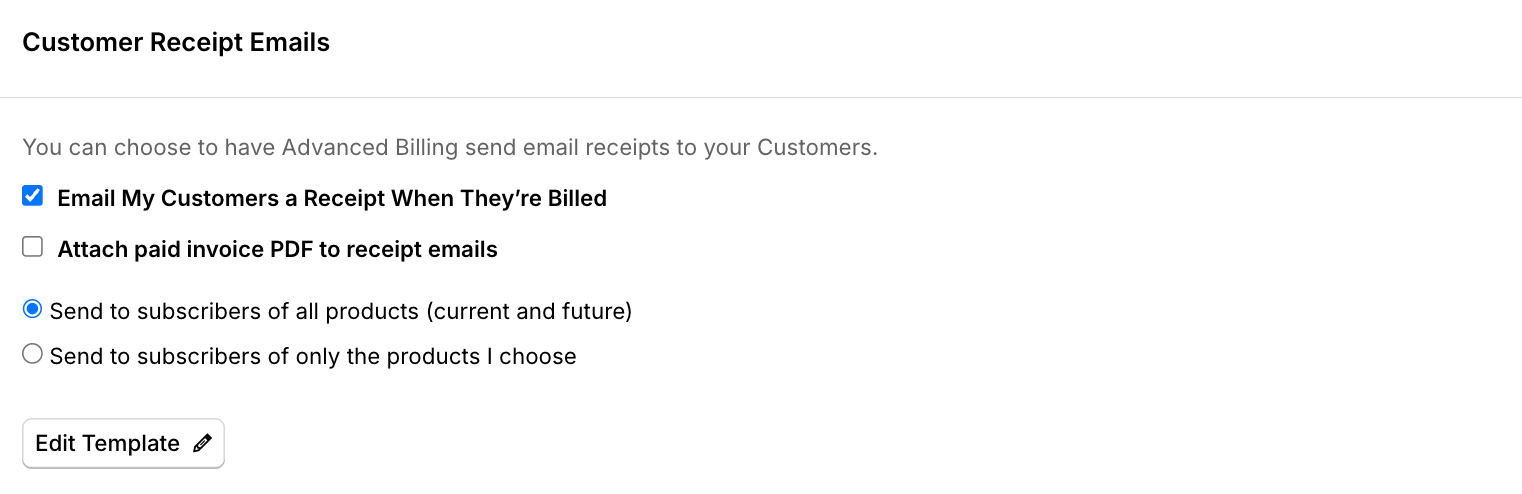
Configure whether Customers receive receipt emails after billing events. Apply to all products or selected products. Templates are customizable.
Receipt emails are also generated for external payments not processed through your gateway.
Card expiration emails
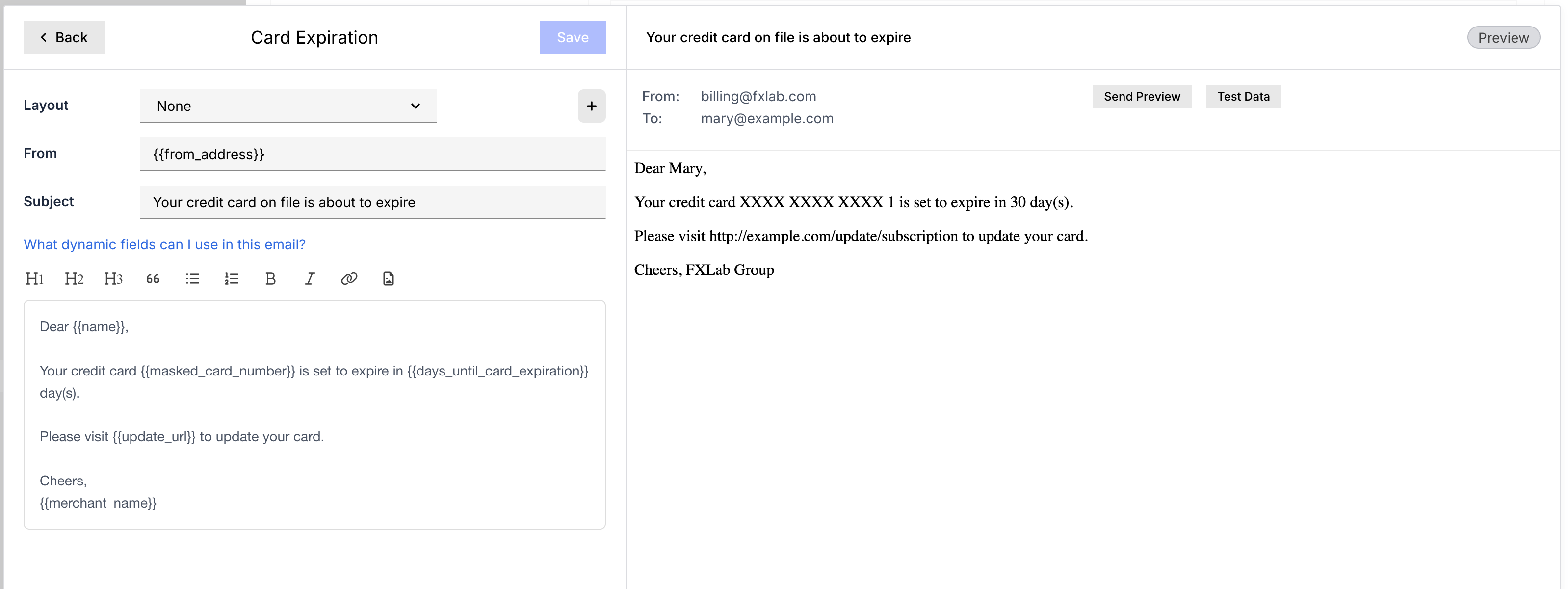
Notify Customers when their payment method is about to expire. Advanced Billing sends these three times during the month the card expires: on the 1st, on the 15th, and exactly one week before the end of the month. Because that third date is calculated from the length of the month, it falls on a different date from month to month.
Only live Subscriptions with a credit card whose expiry falls in the current month receive these emails. This section appears only if your Site accepts credit card payments.
End of trial emails
Send automated notifications before a trial Subscription converts to paid. Set the number of days prior to trial end, default is three days. Configure per product or for all products. Templates are fully customizable.
If you see an activity entry such as “End of trial for trial ending on …”, the trial is ending. Whether an email is sent depends on your End of Trial Email settings and enabled products.
Upcoming invoice emails
Notify Customers before a Subscription renews. Configure email timing globally or by product and product price point. You may create multiple timing rules.
If a Subscription is in a trial period, Advanced Billing does not send Upcoming Invoice emails. To notify Customers before a trial converts to paid, configure End of Trial Emails.
To create a custom rule
- Click Add Custom Rule.
- Select a product, then choose a Renewal Timing option.
- Enter the number of days before renewal.
- Click Save Rule.
If Upcoming Invoice Emails are disabled, the “upcoming renewal notice” event is still generated using the configured default timing.
Exclude trialing and awaiting signup subscriptions
By default, Subscriptions in an Awaiting Signup state still receive Upcoming Invoice emails, even though Trialing Subscriptions do not.
To stop Upcoming Invoice emails from going to Customers who have not yet completed signup, check Don't send this email to subscriptions that are trialing or awaiting signup in the Upcoming Invoice Emails section. This is off by default, so existing behavior is unchanged unless you enable it.
This setting applies whether you send Upcoming Invoice Emails to all products or use custom rules for individual products. A Subscription that moves into a trialing or awaiting signup state after an email was scheduled is still excluded at send time. The exclusion suppresses the email only, so the upcoming renewal notice is still recorded in the Subscription's activity.
How Maxio prevents duplicate renewal emails
Several rules protect Customers from receiving duplicate or last-minute renewal notices.
- An Upcoming Invoice email only sends when an invoice is actually expected: an auto-renewal or scheduled renewal that issues an invoice at term end or renewal start, or a final arrears-billed usage invoice, for example for metered or EBB components. No email or activity event is sent otherwise.
- No renewal email or activity event is sent if the next billing date is less than 18 hours away, since a notice that close to renewal is not useful.
- If an email was already sent for a renewal date, editing that timing rule does not trigger a duplicate.
- Product-specific rules override “All Products” rules.
- Switching between global and product-specific settings does not generate duplicate emails for the same renewal date.
One case is deliberately allowed rather than blocked. If you create a second custom rule with different timing, a Customer receives a notice from each rule, on each rule's own day. Use this when you want a reminder both well ahead of renewal and closer to it, and avoid it if you only want one notice.
Cancellation emails
Automatically send a confirmation email when a Subscription is canceled. Configure this setting for all products or selected products. You can also customize the email template.
Term renewal emails
Enable this option to send confirmation that a Subscription Term has renewed. This is good for annual/term-based plans where Customers expect renewal notice.
You have the option to send to Subscribers of all products or of only the products you choose.
Upcoming term expiration emails
Enable this option to tell Customers ahead of time that their Subscription Term is ending without a renewal. This section appears only if your Site uses Term Subscriptions. The email is off by default and applies to Subscriptions of all products, so this section has no product selector.
To enable upcoming term expiration emails
- In the Upcoming Term Expiration Emails section, select Email my customers before their subscription term expires.
- In The number of days before the term expires to send the email, enter a whole number from 1 to 365. The default is 30.
- Click Save Settings.
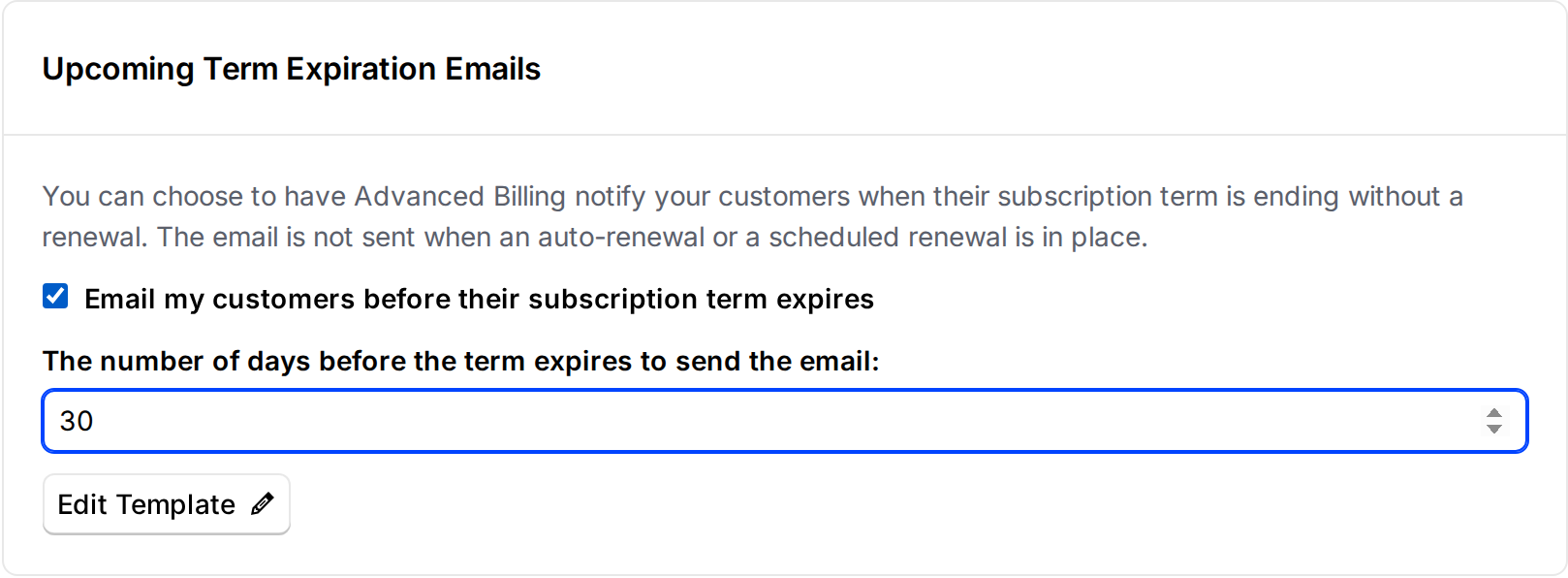
If the number of days is not a whole number from 1 to 365, the settings are not saved and an error is shown. You can always turn the email off, whatever the days field holds.
The email goes to the Customer's email address and any CC addresses on the Customer, plus your BCC addresses if you set them. The default template tells the Customer the date and approximate time the Subscription expires, based on its Term End. You can customize it like the other templates on this page.
Advanced Billing sends the email only to Subscriptions that are ending without a renewal. It is not sent when:
- the Subscription has an auto-renewal, or a scheduled renewal that is not a draft
- a cancellation is scheduled on or before the Term End
- the Subscription is trialing
- the Term End is less than 18 hours away
A Subscription whose Term End is already closer than the number of days you set receives the email as soon as it qualifies, unless the Term End is less than 18 hours away. Each Subscription receives the email once per Term End. If you add a renewal or a cancellation after the email is scheduled, it is not sent. If you turn the email off, pending emails are canceled, and if you turn it back on or change the number of days, they are rescheduled.
Subscriptions that are ending without a renewal but have components billed in arrears can also receive an Upcoming Invoice email for that final invoice.
Update payment request emails
Ask a Customer to update their card or billing details securely. These are triggered when you send them, for example from a Subscription's payment details workflow, rather than on a schedule. See Update Payment Request Emails for how to customize the template.
Use HTML layouts
If you plan to use HTML layouts in your email templates, follow the formatting requirements in the Build HTML Email Layouts help article. Layouts that don't meet them are rejected.
Payment method emails
These sections appear only when your Site uses a gateway that supports the payment method they relate to.
ACH authorization agreement email
Available for Sites with ACH enabled on Authorize.Net, Stripe, Forte, or BlueSnap. Sends a copy of the authorization agreement after a Customer adds a bank account using the self-service page. Enabling ACH turns this email on for you.
Bank account verification email
Available for Sites with ACH enabled on Stripe, which is the only gateway that uses this verification step. Sends a request for Customers to verify their bank account.
Update payment request email template
Customize the wording of the email that asks Customers to update their payment details.
Direct debit instruction email
Customize the Direct Debit Instruction email template. Available for Sites using GoCardless on the BECS scheme, which Advanced Billing applies to Sites billing in Australian dollars, or the BECS NZ scheme, applied to Sites billing in New Zealand dollars. Your Site currency determines the scheme, so you do not select it yourself.
This section appears once you turn on Maxio Advanced Billing sends notifications instead of GoCardless for your scheme, under Config > Settings > Direct Debit.
For the Liquid variables you can use, see the Customize Email Templates help article.
Prepaid subscription payment receipt emails
When enabled, this receipt email applies to prepaid Subscriptions instead of the standard receipt email. Available for Relationship Invoicing sites with prepaid Subscriptions enabled.
Suspended prepaid subscription emails
Send an email when a prepaid Subscription is suspended due to a depleted prepayment balance. Available for Relationship Invoicing sites with prepaid Subscriptions enabled.
Reactivated prepaid subscription emails
Send an email when a suspended prepaid Subscription is reactivated. Available for Relationship Invoicing sites with prepaid Subscriptions enabled.
Invoice emails are not configured here. To customize the summary Customers receive with a link to the hosted Invoice page, go to Config > Invoicing > Invoices, and turn the emails themselves on or off under Config > Settings > Payment Collection.
Still need help?
Reach out and our support team will take it from here.