
Manage Two-Factor Authentication for Your Account
Applies to: All Maxio modules
Last updated on Sep 19, 2026
Two-Factor Authentication (2FA) adds a layer of security by requiring a second verification step in addition to email and password.
Which 2FA applies to a user
Maxio runs 2FA two different ways, and which one applies to a user depends on how that user signs in. Confirm which one applies before you try to change a user's 2FA, because the control sits in a different place for each.
Each sign-in type uses a different 2FA system, managed in a different place.
| How the user signs in | Where 2FA is managed |
|---|---|
| With a Maxio account | The Enable 2FA checkbox on the user's record. An administrator turns it on or off. |
| With a Maxio Core username and password | The Two-Factor Auth page on the user's own record. The user enrolls themselves, and an administrator can only remove it. |
| Through Enterprise Single Sign-On | Your identity provider. Maxio does not manage 2FA for these users. |
Require 2FA for every user
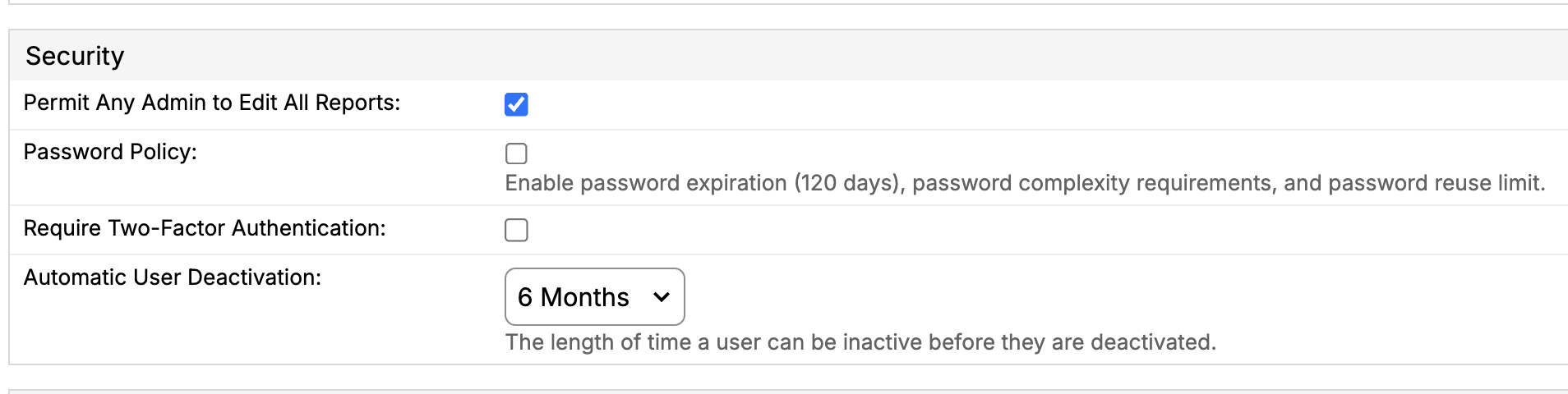
Requiring 2FA applies to everyone who signs in with Maxio credentials, and it takes away the per-user choice. While the requirement is on, Enable 2FA stays selected and cannot be cleared for an individual user, and any user who signs in with a Maxio Core username and password is sent to the 2FA setup page until they enroll.
To require 2FA for every user
-
Go to Admin > Settings > Account Settings.
-
Select Update Settings.
-
In the Security section, select Require Two-Factor Authentication.
-
Select Save.
Maxio applies the requirement to existing users who sign in with a Maxio account as a background job, so it does not take effect for all of them the instant you save.
Enable 2FA for a new user
Turning 2FA on while you create a user puts it in place before their first sign-in, rather than leaving it to be added later.
To enable 2FA for a new user
-
Go to Admin > Settings > Users.
-
Select Add User.
-
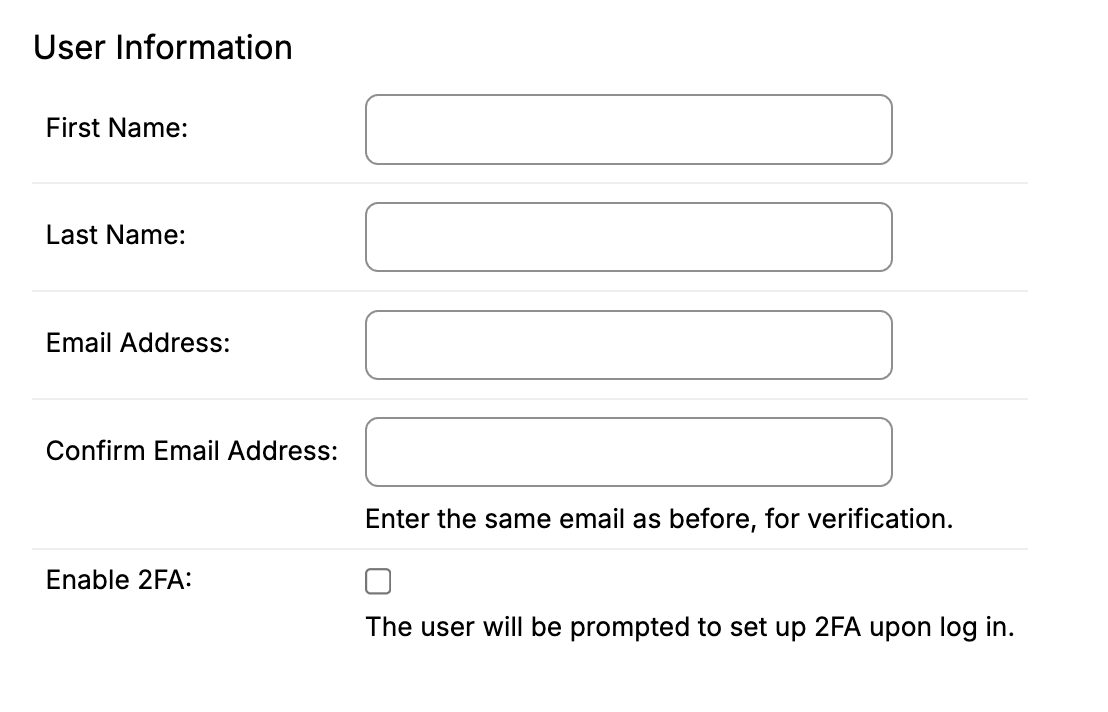
Complete the User Information fields.
-
Select Enable 2FA.
-
Select Save.
Maxio prompts the user to set up 2FA the first time they sign in. For what the user sees at that point, see the Set Up Two-Factor Authentication at Log In help article.
Change 2FA for an existing user
What you can change depends on which 2FA system applies to that user, so start from the table above.
Users who sign in with a Maxio account
An administrator turns 2FA on or off directly on the user's record.
To turn 2FA on or off for a user
- Go to Admin > Settings > Users.
- Select the user's email address, then select Edit.
- Select or clear Enable 2FA.
- Select Save.
If Enable 2FA does not appear on the form, either the user signs in with a Maxio Core username and password instead of a Maxio account, meaning they enroll themselves per the next section, or the user's email address sits on a domain configured for Enterprise SSO. If your account requires 2FA for everyone, Enable 2FA still appears, but selected and disabled so it can't be cleared.
Users who sign in with a Maxio Core username and password
These users enroll in 2FA themselves, so an administrator cannot turn it on for them. An administrator can remove it, which is the fix when someone loses their authenticator device and cannot get back in. Removing 2FA deletes every device registered to that user, and if your account requires 2FA, they are sent to the setup page to enroll again at their next sign-in.
To remove 2FA from a user
- Go to Admin > Settings > Users.
- Select the user's email address.
- Select Disable Two-Factor Auth.
- Confirm on the Deactivate Two-Factor Authentication page.
Enterprise SSO and 2FA
Maxio does not manage 2FA for users who authenticate through Enterprise SSO, because their identity provider handles it. Maxio states this in two places as you work: Require Two-Factor Authentication and Enable 2FA both carry the help text "Does not apply for Enterprise SSO" once Enterprise SSO is enabled on your account.
Related information
To learn what Enterprise SSO changes about how your users authenticate, see the Understand Enterprise Single Sign-On (SSO) help article.
To help a user who cannot complete a 2FA challenge, see the Troubleshoot Two-Factor Authentication help article.
Still need help?
Reach out and our support team will take it from here.