
Troubleshoot Two-Factor Authentication
Applies to: All Maxio modules
Last updated on Sep 1, 2026
Two-Factor Authentication (2FA) can block your sign-in for reasons that have nothing to do with your password. The recovery options open to you depend on which Maxio product you are signing in to, because each one presents a different verification screen.
I did not receive my verification code
Start by confirming your phone has service and can receive text messages, then wait a moment and try again. Codes sometimes arrive late rather than never.
If the code still does not arrive, use whichever fallback your verification screen offers.
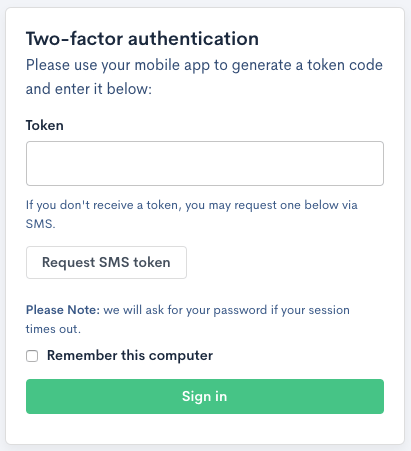
In Advanced Billing, select Request SMS token to send a new code. This button appears only if your account has SMS fallback turned on, so it is not on every Advanced Billing sign-in screen.
In Maxio Core, the verification screen lists your other registered devices under "Or, alternatively, use one of your backup devices:" and offers a Use Backup Token button under "As a last resort, you can use a backup token:".
I lost my phone or cannot use my authentication device
Use a backup method you set up earlier. In Maxio Core, that means another registered device or Use Backup Token, using one of the backup tokens Maxio issued when you enrolled. Each backup token works once.
If you have no backup method left, you cannot restore access yourself. An administrator on your account can remove 2FA from your user record, which clears every device registered to you and lets you enroll again from scratch. Ask them to do that, and if nobody on your account can, contact Contacting Support.
Maxio asks for a code every time, even on a computer I trust
In Advanced Billing, selecting Remember this computer on the verification screen stops Maxio asking for a code on that computer for one week. After a week the trust expires and you are challenged again, which is expected rather than a fault.
You are also challenged again sooner if you clear your browser cookies, switch browsers, or sign in from a different computer, because the trust is stored as a cookie on that one browser.
Why does Maxio ask me to set up 2FA?
An administrator on your account either enabled 2FA for you or required it for everyone. Until you finish enrolling, Maxio returns you to the setup screen instead of letting you continue.
I use Enterprise SSO
Your identity provider handles second-factor verification, not Maxio, so none of the steps above apply to you. Contact your internal IT team for help.
Related information
To enroll in 2FA for the first time, see the Set Up Two-Factor Authentication at Log In help article.
Administrators who need to remove 2FA from a user, or change who it applies to, should see the Manage Two-Factor Authentication for Your Account help article.
Still need help?
Reach out and our support team will take it from here.