
Set Up Two-Factor Authentication at Log In
Applies to: All Maxio modules
Last updated on Sep 19, 2026
Two-Factor Authentication (2FA) protects your account by asking for a second verification step when you sign in, on top of your password.
When Maxio prompts you to enroll
Maxio prompts you to enroll the first time you sign in after an administrator enables or requires 2FA for you. Until you finish enrolling, Maxio returns you to the setup screen instead of letting you continue.
Find the screen you are on
Maxio has two enrollment screens, and the methods on offer differ between them. The screen's own heading tells you which one you have:
- Keep Your Account Safe means you sign in with a Maxio account.
- Set Up Two-Factor Authentication means you sign in with a Maxio Core username and password.
If your organization uses Enterprise Single Sign-On, you do not see either screen. Your identity provider handles second-factor verification, so set up 2FA there instead.
Enroll from Keep Your Account Safe
This screen offers three methods, and you can add more later from the same place.
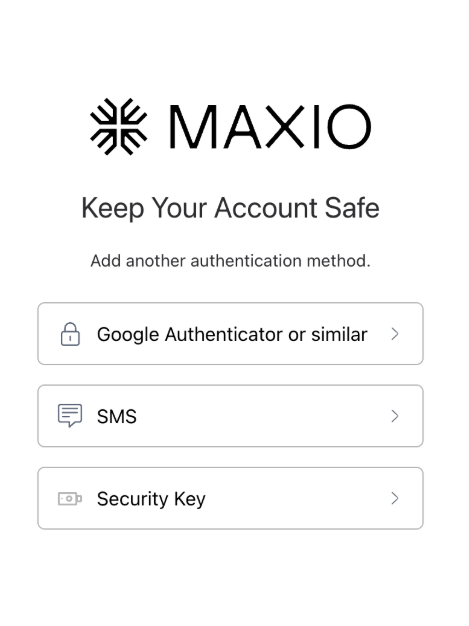
To enroll from Keep Your Account Safe
- Sign in with your email address and password.
- Select a method:
- Google Authenticator or similar to use an authenticator app.
- SMS to receive a code by text message.
- Security Key to use a hardware key.
- Follow the prompts to connect your device.
- Enter the verification code to confirm your method.
Enroll from Set Up Two-Factor Authentication
This screen offers a different set of three methods.
To enroll from Set Up Two-Factor Authentication
- Sign in with your username and password.
- Select a method:
- Token generator to use an authenticator app.
- Phone call to receive a code by voice call.
- Text message to receive a code by SMS.
- For Token generator, scan the QR code with your authenticator app. For Phone call or Text message, enter the phone number to use.
- Enter the token your chosen method produces, to confirm it works.
Maxio also issues backup tokens for this path, which let you sign in if you lose your device.
Sign in after you enroll
Enter your password as usual, then supply a code from the method you set up. Maxio asks for the second factor every time you sign in, not only the first time.
Related information
To learn how an administrator enables, requires, or removes 2FA, see the Manage Two-Factor Authentication for Your Account help article.
If you cannot complete a 2FA challenge or you lost your device, see the Troubleshoot Two-Factor Authentication help article.
Still need help?
Reach out and our support team will take it from here.