
Loading article…
Loading article…
Last updated on Aug 26, 2026
Every option on the custom field create and update screens, and the capacity limits for each object. For what custom fields are and when to use them, see Custom Fields Overview.
Navigate to Admin > Custom Fields. Here, you can update or create custom fields.
To create a custom field, open the corresponding tab and then click the plus (+) icon at the top right corner of the page.
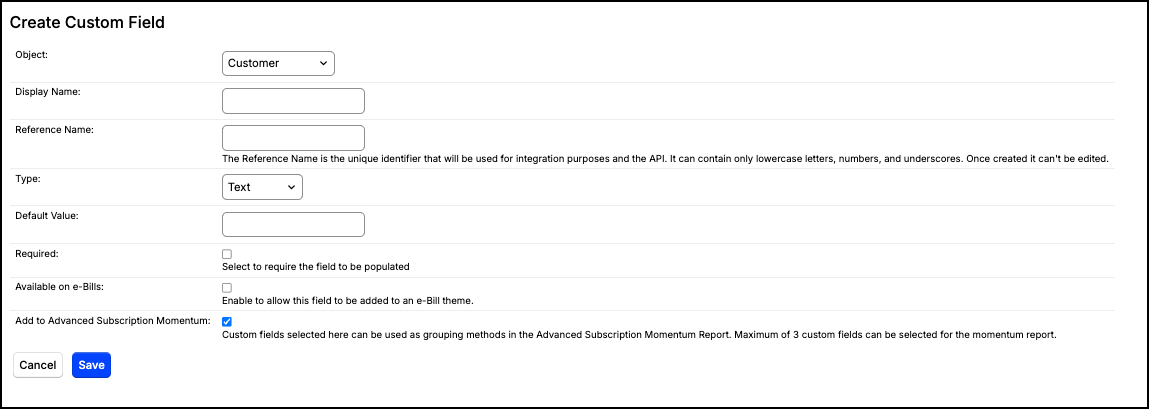
| Option | Description |
|---|---|
| Object Type | Determines the core area in Maxio where this field will live. Choose from any of the objects listed in the Overview. Cannot be changed once the custom field is created. |
| Display Name | The name shown for this field throughout Maxio. |
| Reference Name | The unique identifier used for integration purposes and the API. It can contain only lowercase letters, numbers, and underscores. Cannot be changed once the custom field is created. |
| Field Type | The kind of value the field holds:
|
| Values | (Dropdown fields only) The options a user can choose from. Place each value on a separate line. |
| Default Value | Sets the value of the field upon record creation. Default values can be set for Text, Number, Date, and Boolean fields. Dropdown fields do not support defaults. |
| Required | Select to require the field to be populated. When enabled, the custom field must be filled out for all existing and newly created records. |
| Available on e-Bills | (Customer and Invoice objects only) Enable to allow this field to be added to an e-Bill theme. |
| Add Custom Fields to the Advanced Subscription Momentum Report | Check this box to use this custom field for grouping in an Advanced Subscription Momentum Report. You can select up to 10 custom fields for momentum calculations. |
| Include in Auto-Renewal | (Transaction object only) Enabled by default. When enabled, this field's value is copied onto renewal Transactions created by any renewal method: scheduled Auto-renew, a manual Renew, Bulk Renew/Cancel, and Renew at End of Term. Disable it for one-time or onboarding data that shouldn't carry forward to future Transaction terms; the field is then left blank (not set to its configured default value) on the renewal Transaction. |
To edit an existing custom field, click the menu icon next to the field and click Edit.
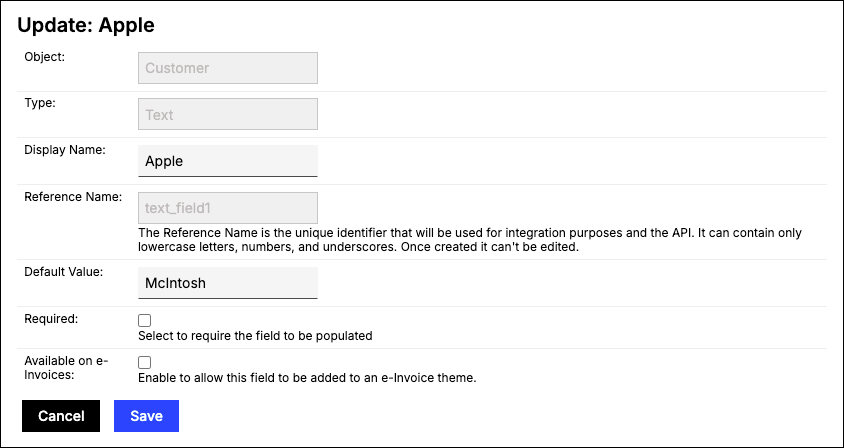
Be aware of the following when updating an existing custom field:
Important: You cannot clear Add Custom Fields to the Advanced Subscription Momentum Report while an Advanced Subscription Momentum report still uses that field as its momentum calculation basis. Maxio blocks the change and lists the reports involved, so update those reports to use a different basis first.
Each object type in Maxio Core has a maximum number of custom fields. These limits exist because custom fields are stored in a fixed set of database columns. Once those columns are used, you cannot add more custom fields.
The counts below are the fields available for your own use, after any columns reserved for built-in values.
| Object | Text | Number | Boolean | Date | Dropdown | URL | Notes |
|---|---|---|---|---|---|---|---|
| Most objects | 20 | 20 | 20 | 20 | 20 | 4 | Applies to most standard Maxio objects. |
| Customer | 46 | 20 | 20 | 20 | 20 | 4 | Customer carries 50 text columns, four of which are reserved for the built-in Industry, Segment, Subsegment, and Market values. The rest are available for your custom use. |
| Contract | 18 | 20 | 20 | 19 | 20 | 4 | Two text columns are reserved for the built-in Channel and Lead Source values, and one date column for Lead Date. |
Still need help?
Reach out and our support team will take it from here.