
Create and Map Transaction Classes
Applies to: Maxio Core
Last updated on Sep 19, 2026
Transaction Classes group Transactions into subscription categories for reporting. Using them, you can break down report results into subscriptions that are New (in their first terms), Renewals (those that have seen increases or decreases in Amount from one Term to the next), and upgrades or extensions to an existing Transaction. In short, Transaction Classes let you group like Transactions by their renewal characteristics.
What a class applies to
Class is a Transaction property used for added detail and for filtering results in Analytics reporting. Although Transaction Classes do, in a way, classify a Transaction's product, Classes are a Transaction property, not an Item property. To group your Items, use Create and Use Item Groups instead.
A Transaction's Class does not define renewal linkages. The Transaction fields Renews and Renewed By are entirely independent of the Class field, which is an analytic field only.
Working with Transaction Classes requires Admin permissions.
What the transaction classes screen shows
The screen holds two tables. System Transaction Class Mappings at the top shows which of your Classes is currently assigned to each of the five system categories. Below it, Transaction Classes lists every Class in your account, with actions to edit or delete each one.
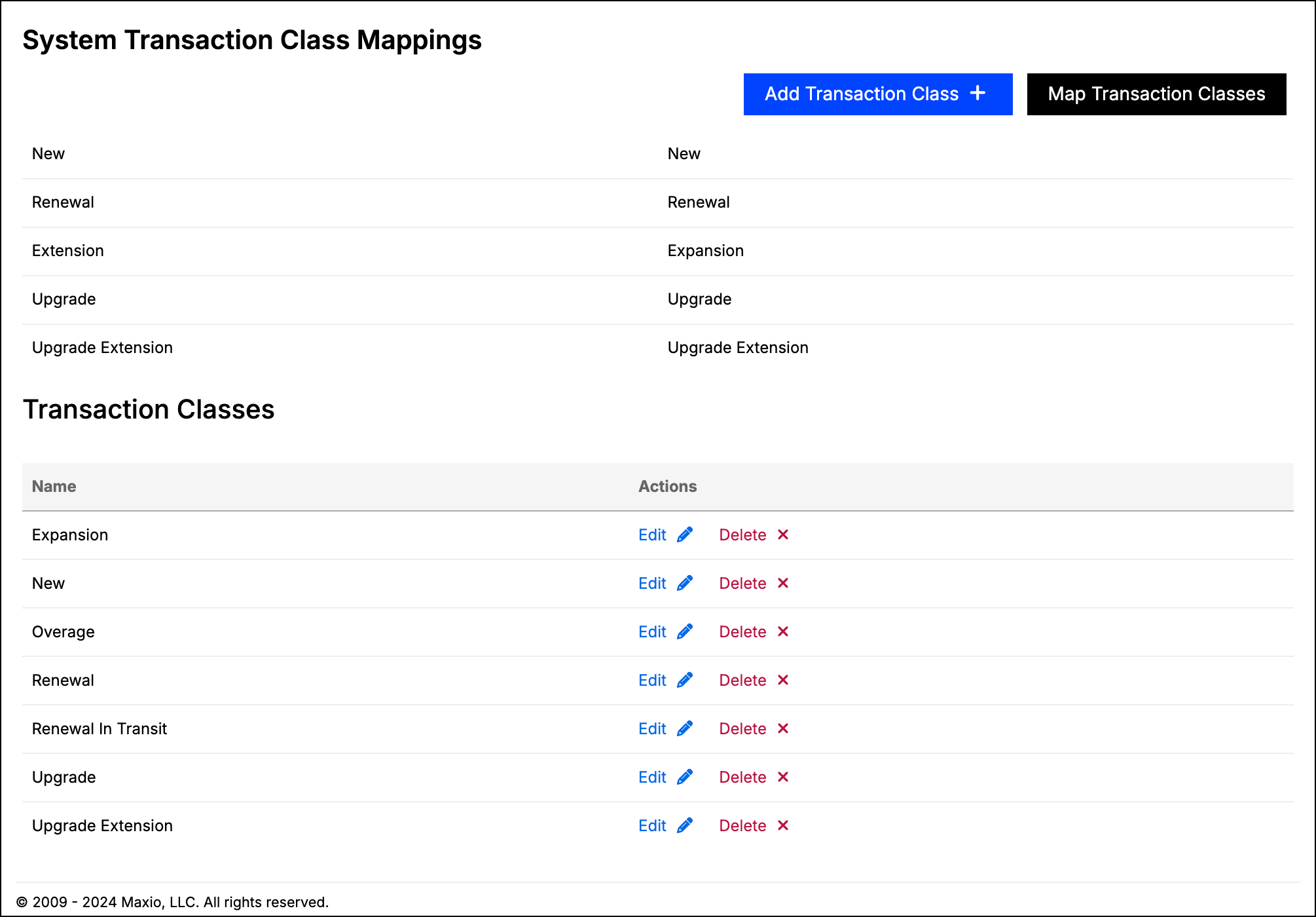
A Transaction Class is only a name, and each name must be unique. There is no description, code, or active flag.
How system transaction classes work
You can create Transaction Classes for any category you like, but only the five System Transaction Classes are wired into built-in Maxio functionality. A Class mapped to a system category is assigned automatically when you perform the matching action. Every other Class must be set manually on each Transaction, or set during a Transaction import.
New accounts are provisioned with five Transaction Classes named after the five system categories, already mapped to them.
| System category | Assigned when |
|---|---|
| New | A Transaction is created through Add Transactions or Add One Transaction, through the new Contract wizard, or as part of creating a Contract. In general, a Transaction that is non-recurring or in the first term of a subscription receives the New Class. |
| Renewal | A Transaction is created by renewing a Transaction, by Auto-Renew, or by renewing in bulk from a Register. |
| Extension | A Transaction is created through the legacy Extend function. |
| Upgrade | A Transaction is created through the legacy Upgrade or Downgrade function. Downgrades receive the Upgrade Class as well; there is no separate Downgrade category. |
| Upgrade Extension | A Transaction is created through the legacy Upgrade Extension function. |
Mapping a Class to a system category is optional. If a category is left unmapped, the matching action assigns no Class at all.
How the legacy transaction functions behave
Extend, Upgrade or Downgrade, and Upgrade Extension are reached from a Transaction's Legacy Options menu, which is labeled simply Options on some accounts. Maxio's own description of that menu is that these functions have been superseded by Contract Changes.
The menu is not always available:
- It appears only when legacy Transaction options are enabled for your account. Contact support@maxio.com if you need them.
- It does not appear for Transactions managed by Advanced Billing.
- Extend and Upgrade Extension appear only for recurring Items. Upgrade or Downgrade is the only one of the three offered for a non-recurring Item.
Add a Transaction Class
Click Add Transaction Class at the top of the Transaction Classes screen, enter a name, and click Save.
Edit or delete a Transaction Class
Use the Edit and Delete actions next to a Class in the Transaction Classes table.
WARNING: Deleting a Transaction Class clears it from every Transaction that used it, and clears any System Transaction Class Mapping that pointed at it. Maxio asks you to confirm first, and the confirmation names that side effect, but the Class cannot be recovered on those Transactions afterwards. To change what a Class is called, edit it rather than deleting and recreating it.
Map Transaction Classes
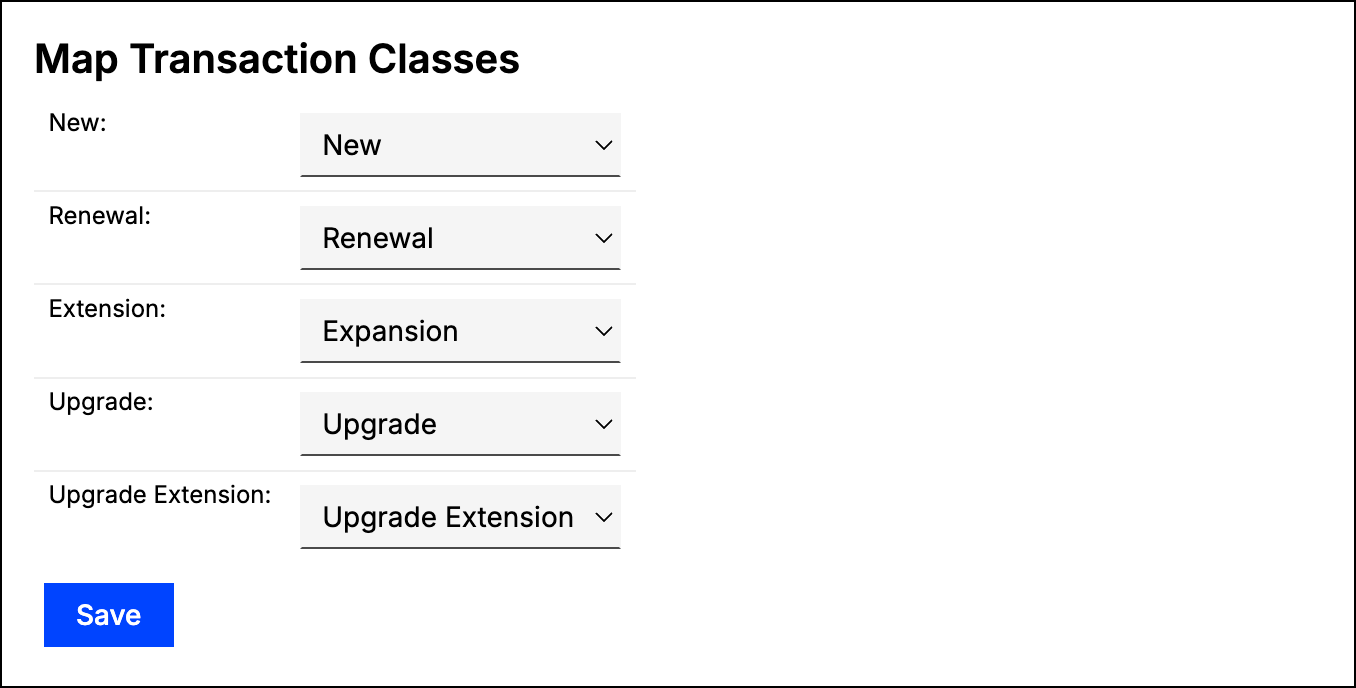
Click Map Transaction Classes to choose which of your Classes fills each system category. Each system category is linked to specific functions in Maxio, but the Class assigned to it is yours to pick.
For example, if your organization offers a single product, the term Upgrade may not describe your Transactions that show an increase in amount. You might prefer terminology that fits your workflow, such as Additional Users, if increased contracts are exclusively due to more users gaining access to your product. Create a Class with that name and map it to the Upgrade category.
Set classes during an import
Transaction imports can set the Class on each imported Transaction. The import map has a Class field you can point at a column in your source data, and an Automatically Set Classes option, enabled by default, which applies your System Transaction Class Mappings to the Transactions being imported.
Still need help?
Reach out and our support team will take it from here.