
Sync Customers and Payments
Applies to: All Maxio modules
Last updated on Oct 12, 2026
Customers and Payments sync in both directions between Maxio Core and Advanced Billing, so an update made in one system reaches the other on the next sync.
How Customer updates travel
Changes made to a Customer in Maxio Core, such as an address or email, are sent to Advanced Billing when the Send Customer Updates sync step is enabled. In the other direction, Customer address information syncs from Advanced Billing onto the Maxio Core Customer record through the Get Customers step.
Both steps are listed under the integration's sync steps and can be enabled or disabled independently.
How address fields are mapped
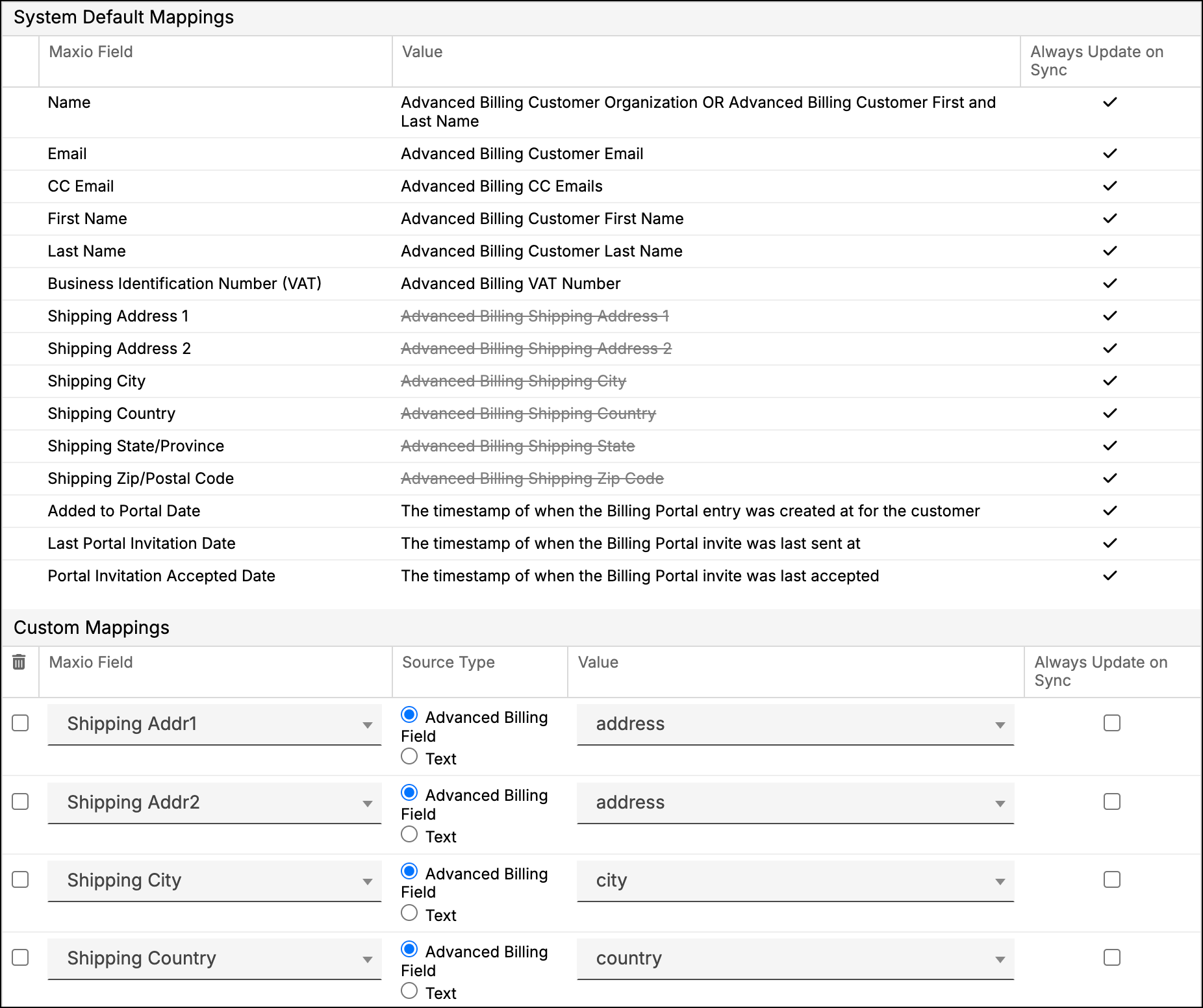
By default, the Advanced Billing Shipping City, Shipping State/Province, and Shipping Country map to the City, State/Province, and Country Analytic fields on the Maxio Core Customer, in that order.
Overriding a default with a Custom Mapping replaces it: the default mapping is then shown struck out and is no longer used.
How Customer reference maps to Customer Number
On accounts provisioned after this default was introduced, the Get Customers step also carries a Custom Mapping from the Advanced Billing Customer Reference field to the Maxio Core Customer Number field, with Always Update on Sync enabled. That gives you one identifier tying a Customer to the same reference on both sides.
Advanced Billing's Customer Reference is optional free text, while Maxio Core's Customer Number must be unique, so the sync only writes the value when it is safe to do so.
- If the Advanced Billing Customer Reference is blank, the Maxio Core Customer Number is left alone and a sync issue notes that the reference was empty.
- If the Customer Reference is already in use as another Customer's Customer Number, the sync leaves the number unchanged and reports a sync issue naming the conflicting Customer, while still syncing the rest of that Customer's data.
- If the Customer Reference already matches the Customer's own Customer Number, nothing changes and no issue is raised.
You can edit or delete this mapping under Custom Mappings on the Get Customers step, as with any other mapping, and your change survives disabling and re-enabling the Advanced Billing integration. Accounts that existed before this default was introduced do not get it automatically, but you can add the same mapping yourself.
How a mapping to a setting-hidden field is kept
A few Maxio Core fields are only offered as mapping choices while a related account setting is turned on, such as Enable ACH Payments (tied to your e-Bill and One Maxio settings) or Customer QuickBooks Billing Profile: Resale Number (tied to One Maxio). Turning that setting off does not remove a Custom Mapping that already points at one of those fields.
The next time you open the sync step configuration screen, that row keeps showing the field it is actually mapped to, labeled (hidden by an account setting). Saving the screen, even to add or edit an unrelated row, leaves that mapping unchanged. A new mapping row never offers a hidden field, so you cannot map it again until you turn the setting back on, at which point the label clears on its own.
Where to receive payments
Choose one system to receive payment in. Processing payments in both systems within the same window causes timing problems that are awkward to unpick afterwards.
Before posting a payment, check that the associated invoice data matches across every synced system.
Still need help?
Reach out and our support team will take it from here.