NEW Catalog Terminology
We’re transitioning the terminology used in the Maxio Product Catalog. If you’re using the new experience, you’ll see updated naming in the application—Products are now Plans, and Components are now Products.
Our documentation is still being updated, so you may see previous terminology (especially in screenshots); refer to these definitions for the most accurate interpretation.
Advanced Billing offers the ability to change the Subscriber’s associated Plan at any point in the Subscription lifecycle. You can upgrade or downgrade a Subscription in the middle of a recurring billing period, with proration. Alternately, you can change the associated Plan with zero proration. Both of these processes are handy should a Subscriber want to make changes to their subscription.
There are four methods to changing the associated Plan with a Subscription:
- Plan changes (non-prorated)
- Prorated upgrades/downgrades (or migrations)
- Delayed product changes
- Preserve Period for upgrades/downgrades
We’ll cover many examples in the following sections that take into example use cases for many examples. We’ll also build on the knowledge you learn in this document and illustrate advanced examples of proration.
Here's a list of the various Plan Change/Upgrade/Downgrade scenarios and what to credit or charge in each case.
Plan Changes
Plan changes do not trigger any prorated charges or credits. Instead, they simply change the Plan on the subscription, and the new amount is billed normally at the next normal billing period.
Plan Change Attributes
- No proration is done - your customer is not charged or credited at this time
- The selected Plan immediately becomes the current Plan listed in Advanced Billing
- The current recurring period will not be affected (except in the case of a trial; see below.)
- The new Plan’s charges will be assessed at the start of the next period
- Products are unchanged and Product charges will be assessed at the start of the next period.
If the new Plan belongs to a different Product Family, Product usage will no longer show in the “Components (Line-Items)” tab since Products belong to a specific Product Family.
- If the new Plan does not have delayed initial charges, any pending initial charges will not apply
- If the subscription is moving to a Plan that expires, then the subscription’s expiration will be calculated from today.
- If the subscription is moving to a Plan that does not expire, the subscription’s expiration date (if any) will be removed and the subscription will never expire.
- If the subscription is trialing and is moving to a Plan with a longer trial, then the subscription’s trial will be extended.
Initiate Plan Change
To initiate a Plan change through the application, you’ll want to begin by viewing the subscription’s summary page. There are two ways to access the Change Product option.
From the list of Subscribers, click the More icon (...) next to the given Subscriber
From the Subscription page, next to the Product Price Point
Once you are in the Plan change page, you’ll be presented with a list of all available Plans. Find the Plan you wish to change to and optionally select a price point to use. If no price point is selected, it will use the default price point. Next, choose the Change to product option from the Actions button.
Select "Change to product"
You will see a message upon a successful completion of the Plan change.
Plan changes may also be made via the API by updating the product_handle on the subscription, as mentioned in the documentation on the API Update/PUT method on subscriptions.
Products and Plan Changes
If you are switching the subscriber to a new Product Family, all Product balances will be reset. You must re-allocate Products. However, this is not true for metered Products with EBB. In this case, the Product will need to be deactivated to stop billing; a Product Family change does not automatically deactivate the Product.
Component transitions are handled reliably, with configurations and states maintained correctly throughout each migration path.
Coupons and Plan Changes
There are two scenarios that can happen under Plan changes when coupons are present. For the sake of clarity, when we refer to “the coupon being restricted to the product,” this translates to the coupon being applied to the Plan.
- The new Plan is restricted to the coupon. In this case, the coupon will be applied.
- The new Plan is not restricted to the coupon. In this case, the coupon will not be applied. However, the coupon will still be added to the subscription. It may be applicable in the future if the restrictions of the coupon are edited to include the current Plan.
Coupons and Plan Changes Across Product Families
A coupon can only be added to a subscription to the Plan in the same Product Family. If a Plan change is initiated across Product Families, the coupon may be kept on the subscription, even if the new Plan is in a different family. In this case, if there are no coupon restrictions present, the coupon will apply to charges from the new Product Family.
Delayed Plan Changes
Delayed Plan changes schedule a Plan change to the next renewal. Since the change happens exactly during the renewal process, no proration is necessary. A full charge for the new Plan will be applied at the start of the next period.
To initiate a delayed Plan change, open the Subscription page then click Change Product. From the Change Product page, go to the Plan and click the Actions button.
Select "Schedule change for next billing cycle"
If you wish to cancel the delayed Plan change, you can do so at any time by clicking the Cancel link next to the Scheduled product change bar within the subscription header.
You'll see a success message when your product change has been scheduled
Setup Fees With Plan Changes
When changing between Plans that might have a setup fee, this is a guide to when that fee will be honored or not. The following table can be read as changing from the Plan described in Column 1 to a Plan in another column.
Setup fee table for product changes
Upgrades and Downgrades
Upgrades/downgrades (or migrations) trigger prorated charges or credits. If you simply want to switch the subscriber to a new Plan, do a product change instead.
We've compiled list of the various Upgrade/Downgrade/Product Change scenarios and what to credit or charge in each case.
Proration Attributes
Upgrading or downgrading a subscriber’s Plan is especially handy when you’d like to credit a subscriber for their unused portion of their subscription purchase towards their new subscription.
-
Prorated credit: A prorated credit will be created to reimburse the customer for their current Plan, which includes any Product charges from that period.
This is not a refund; no money will be returned to the user. The credit only affects the customer’s balance. - Charge (new invoice): A charge for the full amount of the new Plan will be applied. A charge for the full amount of all Product charges will also be applied.
- Updated Period Start/End Dates: The period start date will be reset to today’s date.
- Additional Resets: All metered Products will reset to zero. If switching to a new Product Family, all Product balances will be reset.
The prorated credit is generally at least 0.01 currency units (for instance, $0.01), even if your customer only had the Plan for a few seconds. The exception is when there was no payment issued toward the current Plan, in which case the prorated credit would be 0.
Any setup fee on the current Plan is excluded from the proration calculation, meaning it will not count as money spent towards the Plan.
Preserve Period
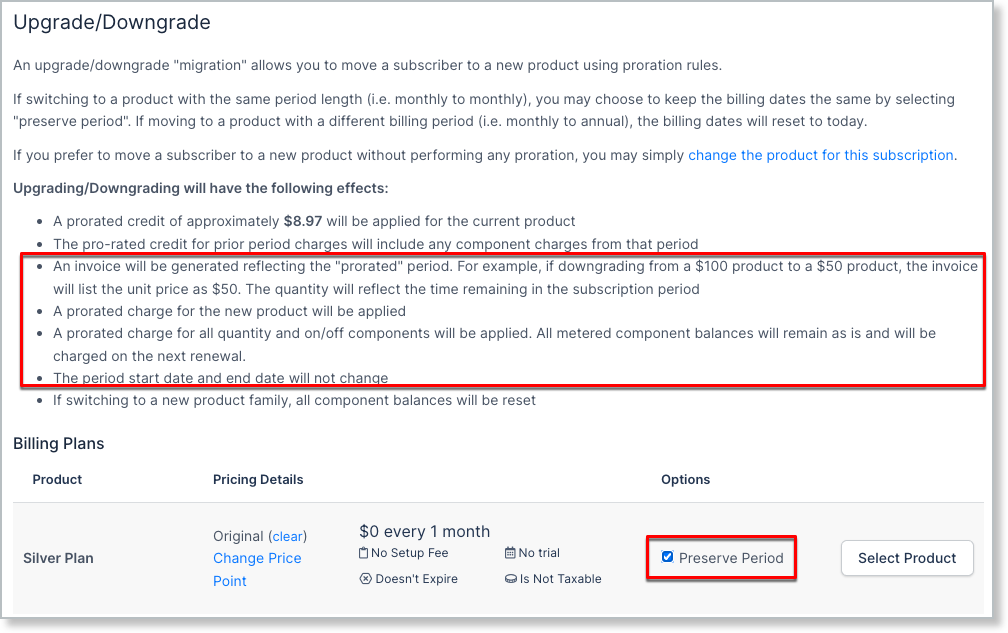
The Preserve Period option allows you to initiate a migration without resetting the billing dates.
The Preserve Period option is enforced by default for Term Subscriptions.
Whether this option is applied automatically (forced) or manually (opt to check the box), the following occurs:
- An Invoice reflecting the prorated period is generated. The quantity will reflect the time remaining in the Subscription period.
- A prorated charge is applied for the new Plan.
- A prorated charge is applied for all Quantity-based and On/Off Product types. Metered Product type balances remain "as-is" and will be charged on the next renewal.
- Period start and end dates do not change.
Important things to note
- Preserved Period migrations only work when moving between Plans that have the same billing interval or frequency (monthly renewal to monthly renewal). Attempting to migrate, for example, from a monthly plan to an annual plan results in an error.
- The Include Trial option is not supported when Preserve Period is enabled.
Proration and Previous Refunds
In some cases, prior to an upgrade/downgrade, a refund for the current recurring period’s charges may have been issued to a subscriber. This may be a full refund or a partial refund.
If a refund is applied, before a migration (upgrade/downgrade) the following will occur:
Full Refunds
- A prorated credit will not applied to the subscription
- The migration will charge the subscriber the full cost of the new Plan.
Partial Refunds
- The amount of the partial refund reduces the amount available as a prorated credit.
- The prorated credit will be applied to the subscription
- The migration will charge the subscriber the cost of the Plan minus the reduced prorated credit available.
In both cases, we recommend previewing the upgrade/downgrade to view the amount that will be applied as a prorated credit (if any) to the subscription.
Advanced Billing calculates the amount of credit applied to a subscription via the following equation:
(Time left of recurring period / Recurring period) * Cost of a recurring period
Initiate Prorated Upgrade/Downgrade
To initiate an upgrade or downgrade, select the subscriptions & Upgrade/Downgrade link in the subscription options.
Select "Upgrade/Downgrade" from the Subscriber's More option (...)
Or, select "Upgrade/Downgrade" when viewing the Subscription
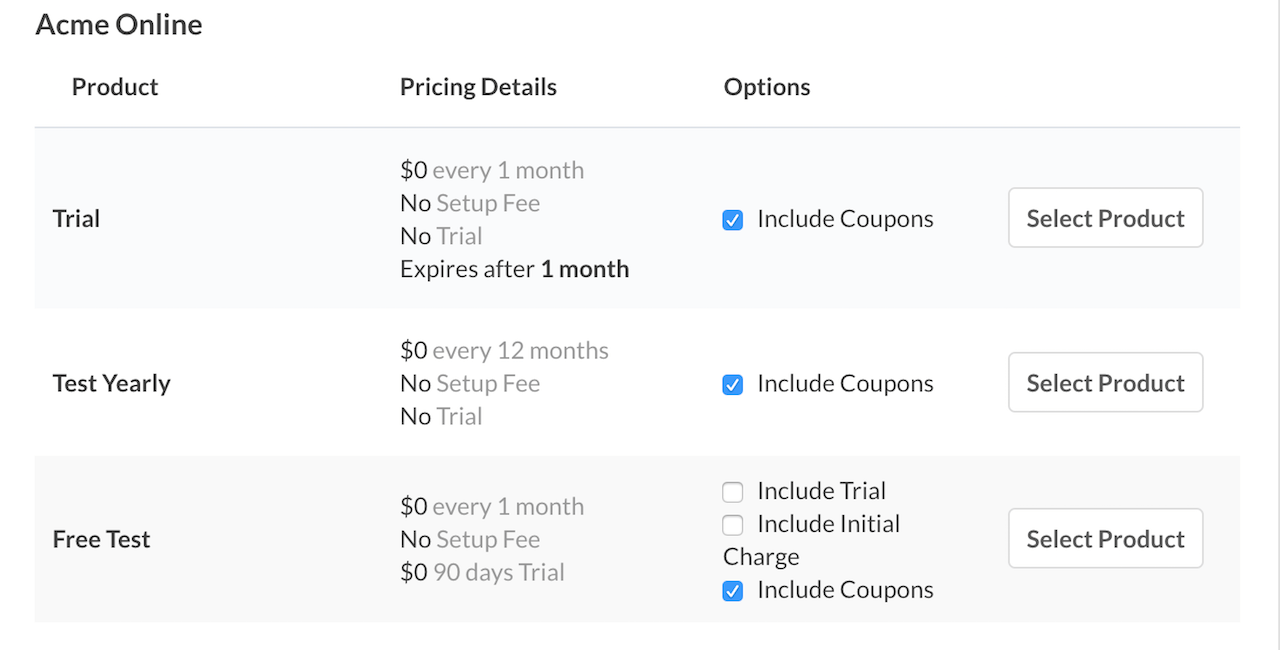
Upon clicking Upgrade/Downgrade, you will be able to view the available Plans, along with a selector beside each Plan to choose a Plan price point. If no price point is selected, the current default will be used. To migrate to a Plan, press the Select Product next to that Plan.
Select the product you'd like to migrate to in Advanced Billing
You will see a success message upon completion of the upgrade or downgrade. Check the subscription’s transactions tab for a list of the credits/charges that were created during the process.
Upgrade/Downgrade Example
If you have a subscriber who has purchased a monthly plan for $100 and they are downgraded to a $50/month plan, the following will occur:
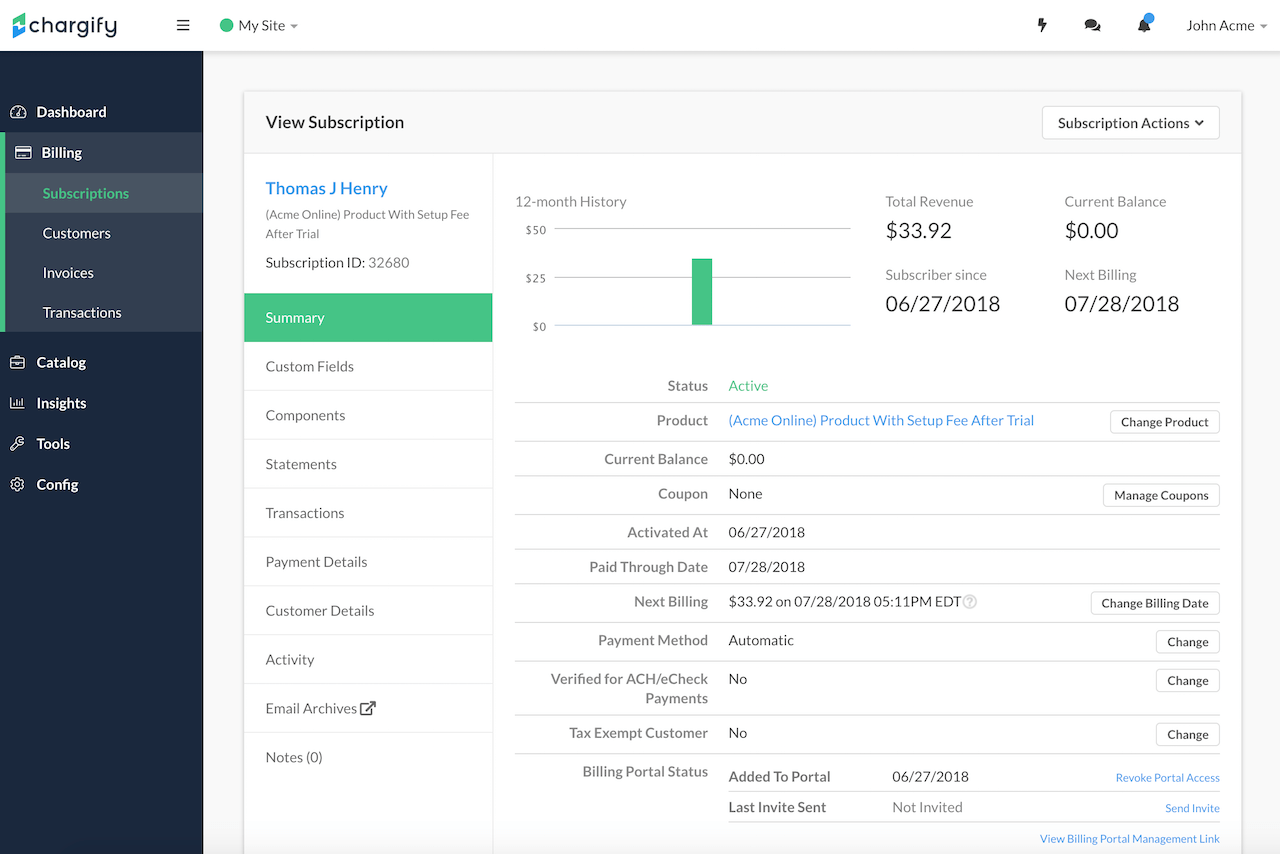
Before downgrading to the new Plan:
- A prorated credit of the unused amount of the subscription will be applied for the current Plan.
- Any leftover dollar amount will be added as a credit to the subscription.
- The pro-rated credit for prior period charges will include any Product charges from that period
Subscription before the migration
After downgrading to the new Plan:
- A charge for the full amount of the new Plan will be applied
- A charge for the full amount of all on/off and quantity-based Product charges will be applied.
- All metered Products will be reset to zero.
- The period start date will be reset to today’s date
- If you are switching to a Plan within a new Product Family, all Products will be rest to zero.
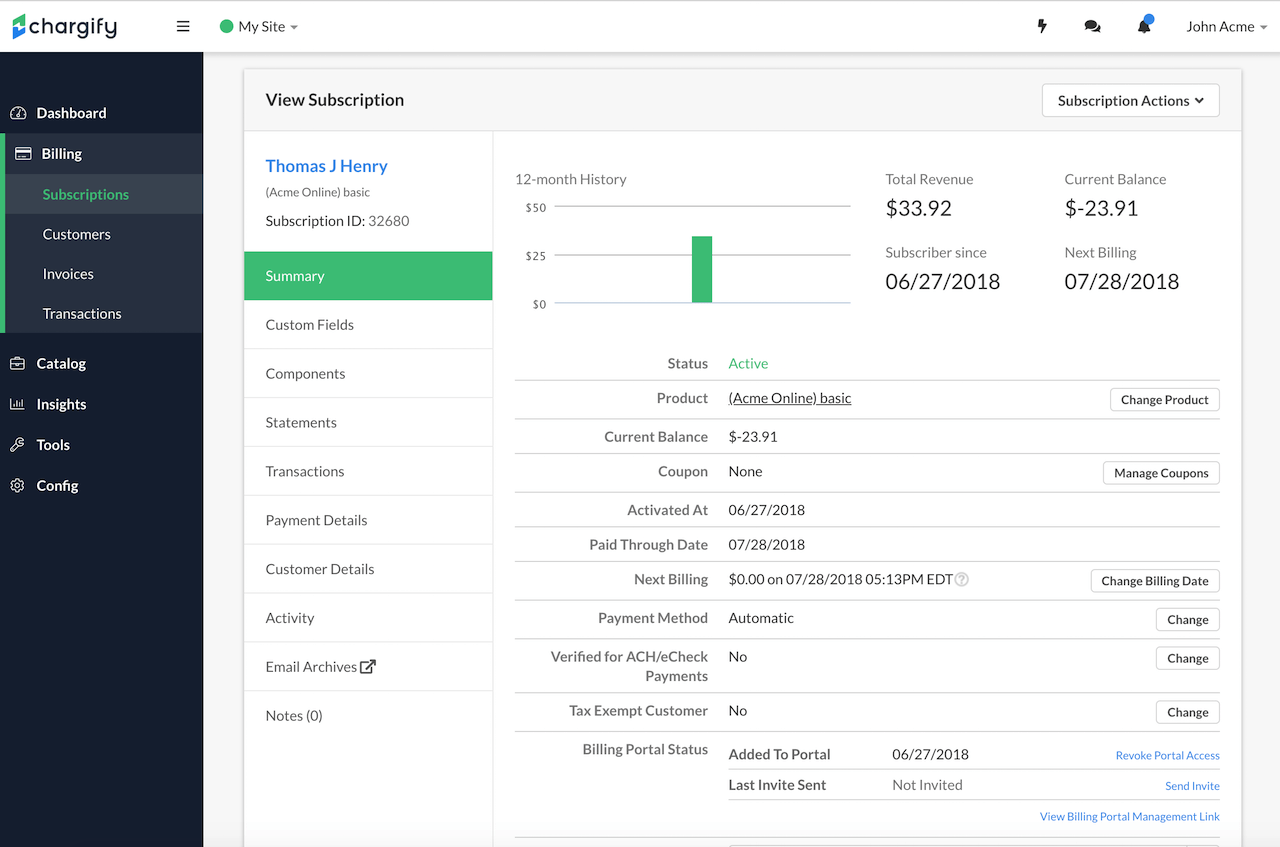
Subscription after the migration
As you can see in the examples above, we see that the total revenue for the subscription has not changed. However, there is a credit applied in the amount of -$23.91.
In our example, we downgraded the subscription within minutes after the purchase. Thus, only a small amount of the subscription purchase has actually been consumed. This usage was reflected in the credit applied.
Advanced Billing calculates the amount of the credit applied to a subscription via the following equation:
(Time left of recurring period / Recurring period) * Cost of a recurring period
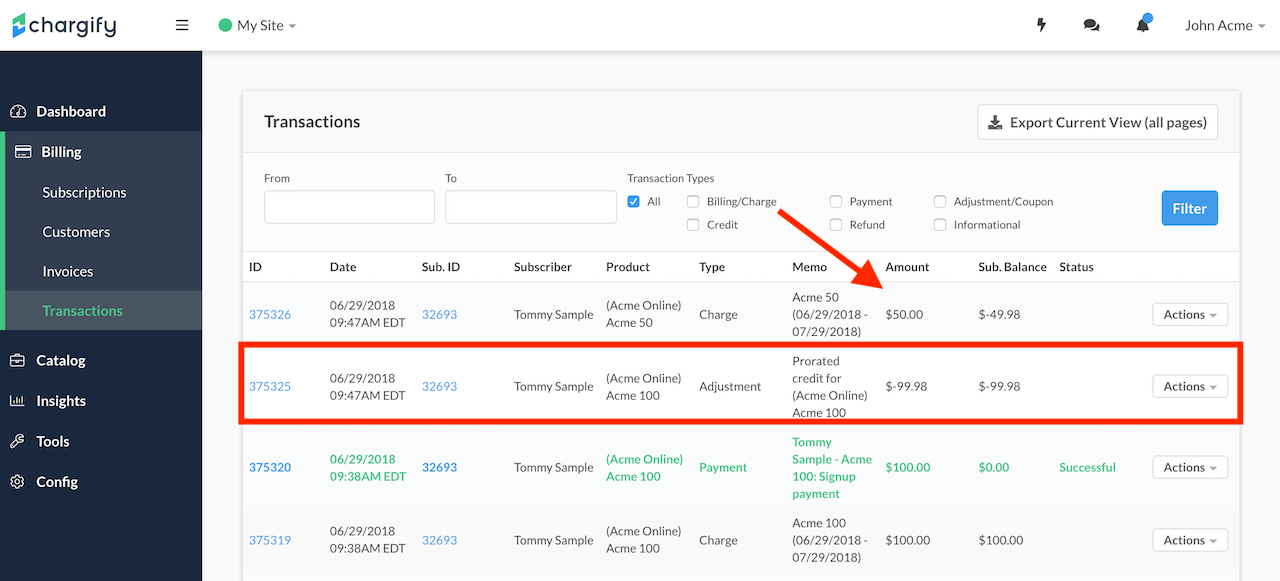
Now, as we look toward the transaction tab, we see some very useful information that helps illustrate more detail about the upgrade/downgrade:
Transaction view after the migration
- Notice the red box around the adjustment applied to the subscription in the amount of $-99.98. This is the amount of the subscription that is unused and is denoted as a credit.
- The remaining balance left of $23.91
Products Example
In this example, we’ll use the same example as above. To restate, the subscriber has purchased a $100/month subscription and is downgrading to a $50/month subscription.
Additionally, the following purchases have been applied to the subscription:
- 100 Metered Products, at a total of $100.00
- 100 Quantity-based Products, at a total of $100.00.
- 1 On/Off Product at a total of $35.00
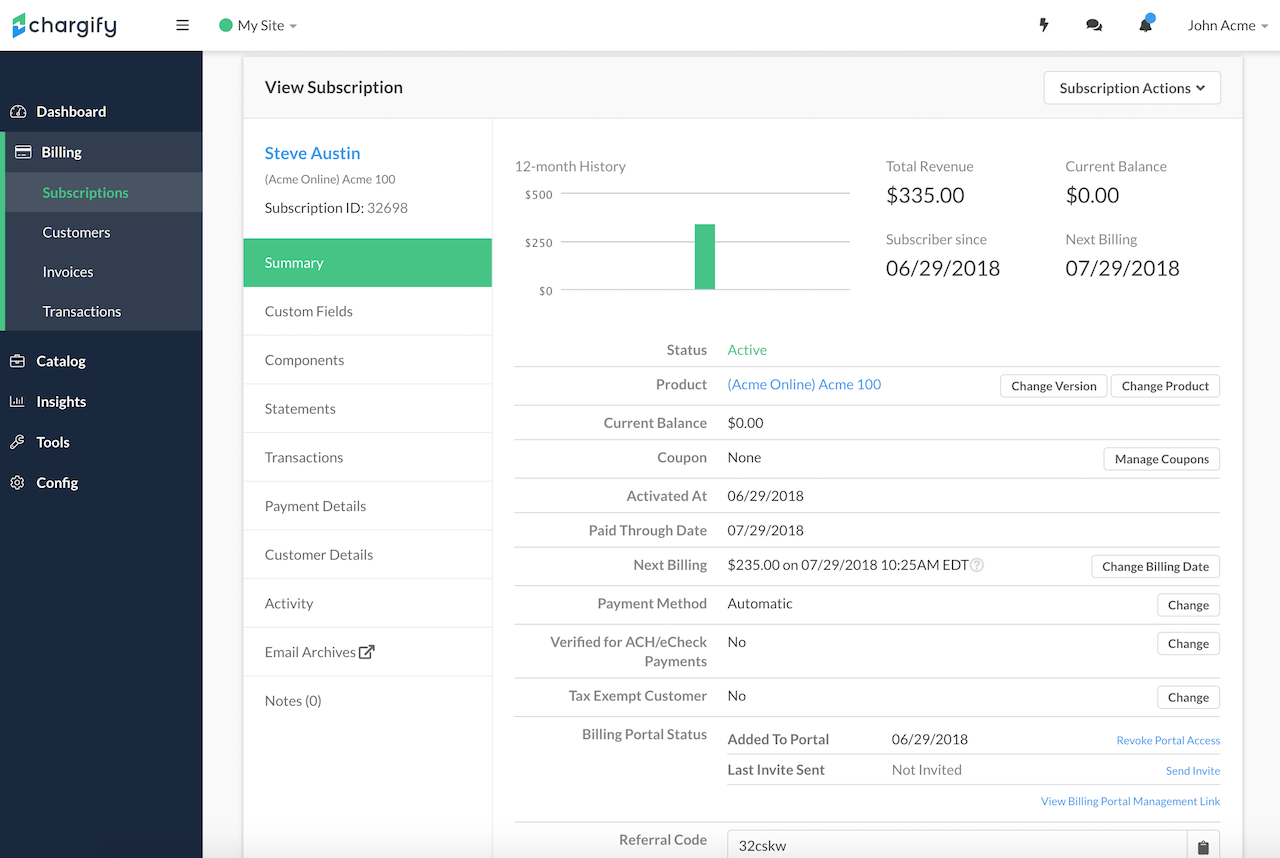
The total Product-based charges are equal to $235.00, with the total revenue @ $335.00. This is due to the fact that the revenue includes the total cost of the $100 Plan.
Subscription balances before migration
If we downgrade them to the $50/month plan, here’s what will occur:
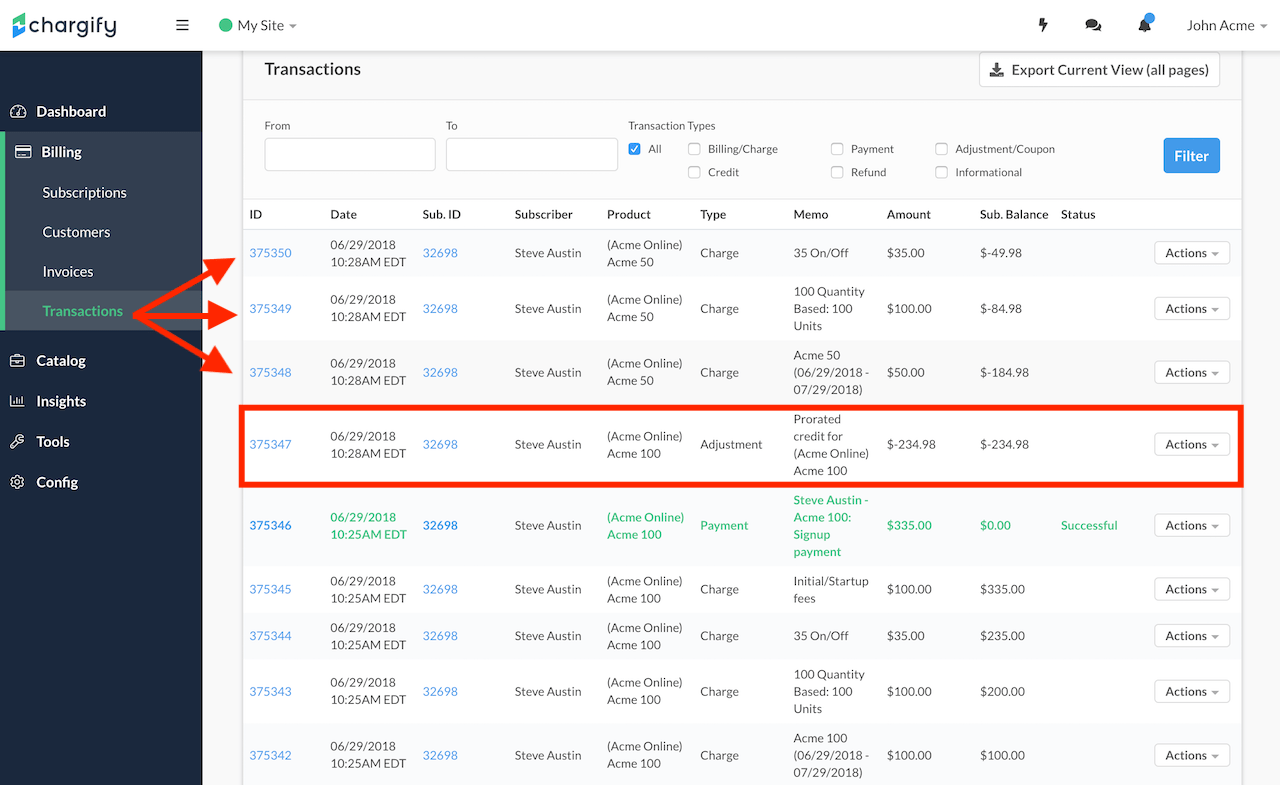
- Notice the red box around the adjustment in the amount of $234.48. This is the amount of the subscription that is unused and is denoted as a credit.
- Notice that the credit amount does not include any costs that were pre-paid as a result of purchased metered Products.
- Afterward, the full price for the subscription in the amount of $50.00 is added as a charge to the subscription. This is noted next to the first red arrow.
- The quantity-based Products ($100) and the On/Off Product ($35.00 cancellation fee) are added as new charges to the subscription.
- The remaining balance left of $23.91
Search by "Period Ends"
Below is an example of the newly downgraded subscription:
- The “Next Billing” amount is comprised of the new Plan cost, on/off Products, and quantity-based Products.
- The “Next Billing” date is set to follow the recurring period of the new Plan.
Summary of transactions incurred through the migration
Products and Product Family Change
We’ll use the same Product configuration as above. However, this time as we downgrade the subscription, we’ll downgrade them to a Plan outside their current Product Family.
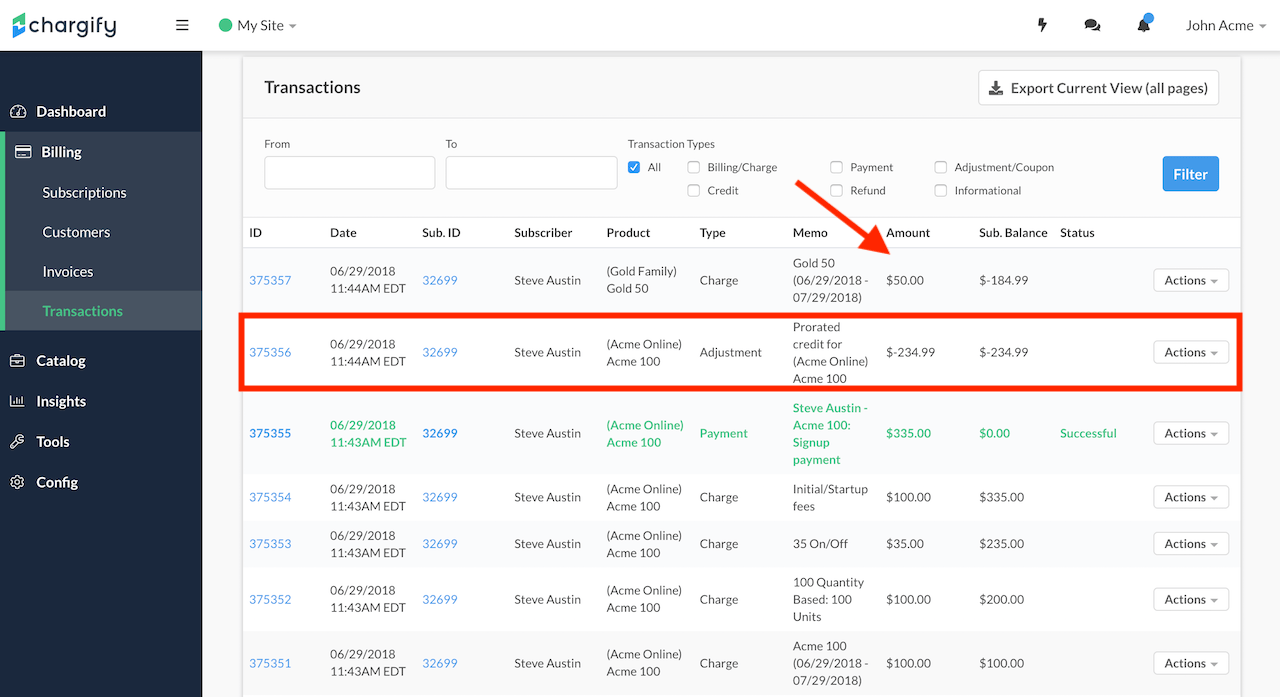
- The prorated credit is applied as an adjustment for the unused portion of the Plan, the on/off Products, and the quantity-based Product.
- This prorated credit totals -$234.98.
- The charge for the new Plan at a cost of $50.00 is applied
- The remaining balance is -$184.98
As expected, what’s not included in this proration credit is the cost for the metered Products. Additionally, note that no Products are applied. Products will need to be re-allocated as subscriptions move across Product Family lines.
Migration across product family transaction example
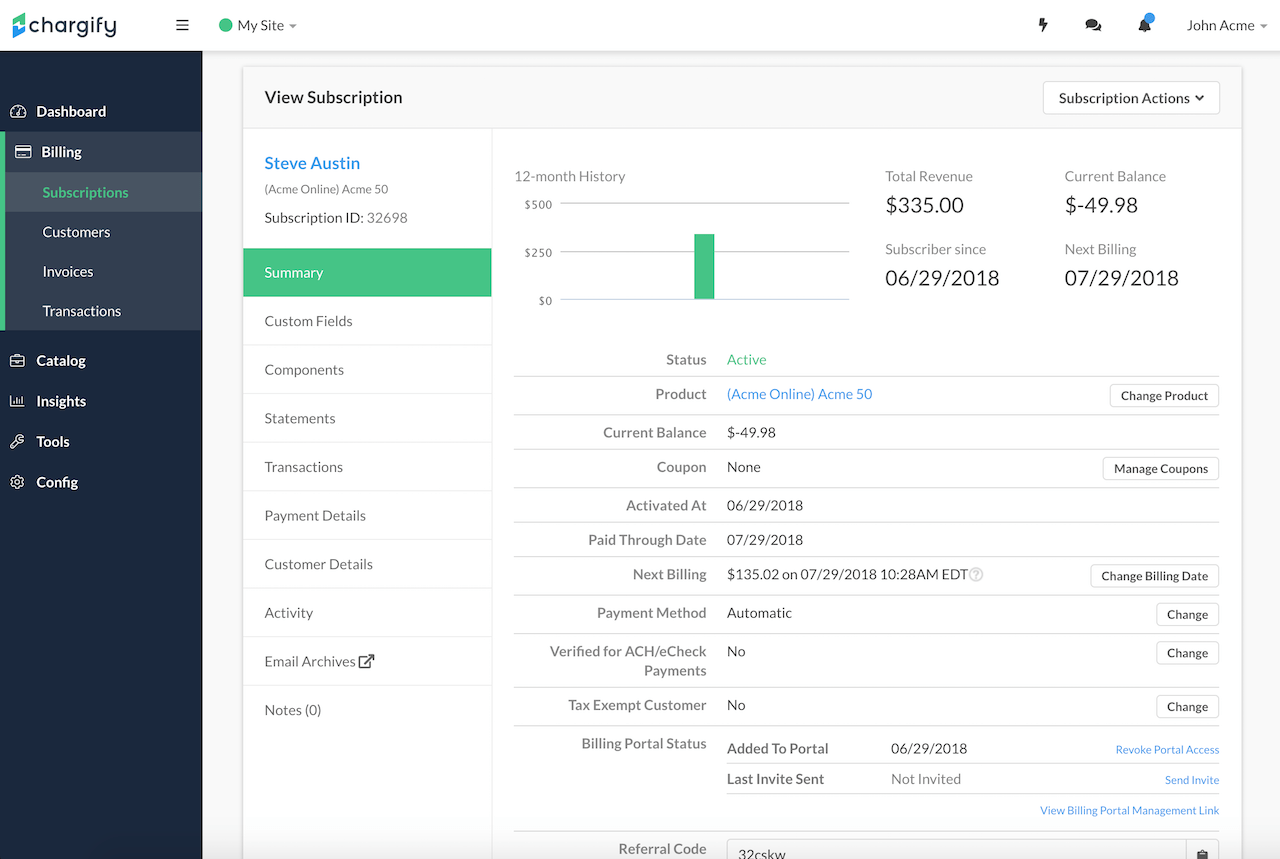
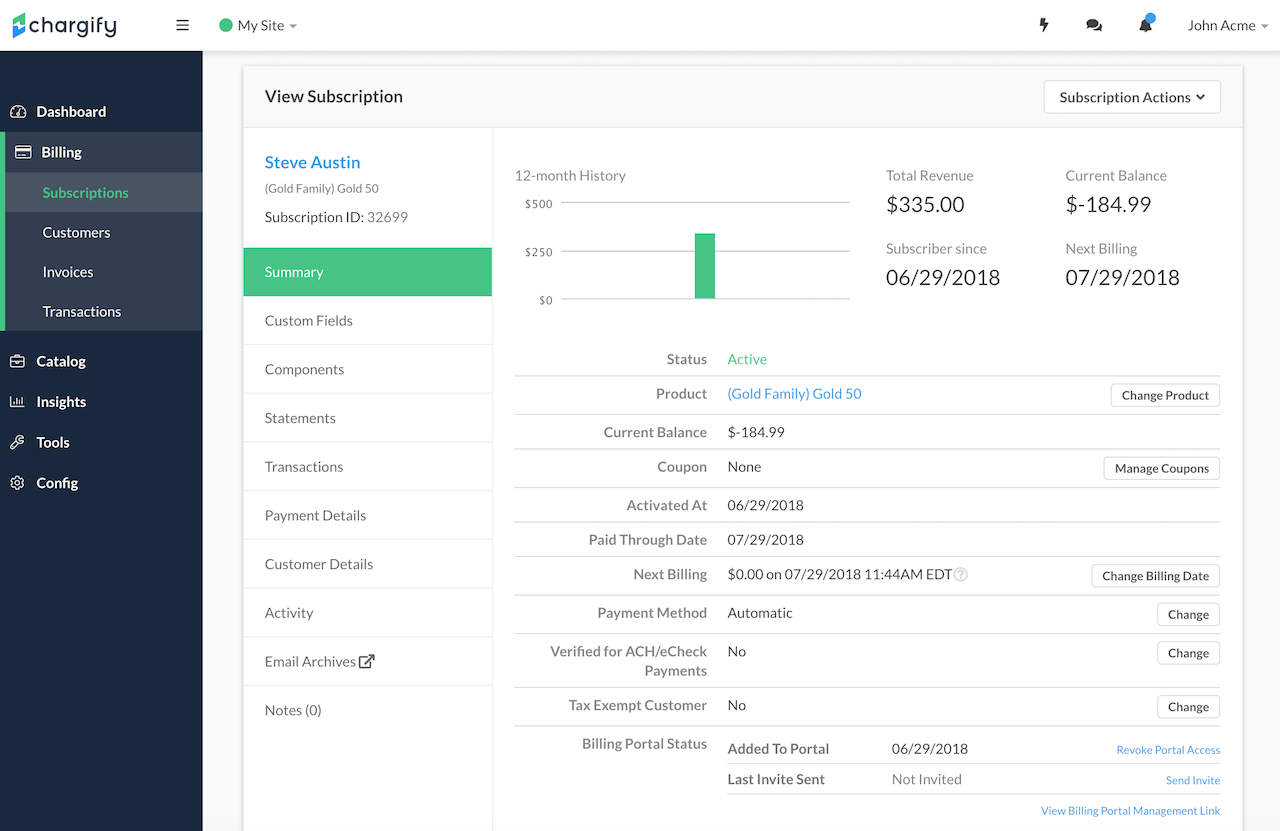
Below is an example of the newly downgraded subscription:
- The “Next Billing” amount is comprised of the new Plan only.
- The “Next Billing” date is set to follow the recurring period of the new Plan.
Migration across product families is complete
Coupons and Upgrade/Downgrades
When you upgrade/downgrade a subscription, you have the option to include any coupon(s) that are currently applied to the subscription with the migration. Depending on the rules of your coupon setup, this will affect how the coupon(s) will be applied to the subscription.
Un-checking the “Include Coupons” checkbox will prevent coupon(s) from applying to any amount due for the migration. It will not remove the coupon(s) from the subscription, and the coupon(s) may be applied to future renewals. See the subscription coupons documentation for more information on adding and removing coupons from a subscription.
Include coupons in migration
Coupon Restrictions During Upgrade/Downgrade
During an upgrade/downgrade, you must take into consideration if the current coupon is restricted (applicable) to the Plan. Another way of stating this is to ask yourself the following questions:
- Is the current coupon restricted to the current Plan?
- Is the coupon be restricted to the next Plan?
- The coupon will be applied.
- Is the coupon not restricted to the next Plan?
- The coupon will not be applied.
- Would I like to have the current coupon restricted to the next Plan?
- The coupon will be applied if the coupon is restricted to the next Plan.
In any of these cases, you must consider the coupon restrictions for the Plan.
Upgrade/Downgrade with Coupons Across Product Families
A coupon can only be added to a subscription to the Plan in the same Product Family, however, if an upgrade/downgrade is initiated, the coupon may be kept on the subscription, even if the new Plan is in a different family. In this case, if there are no coupon restrictions present, the coupon will apply to charges from the new Product Family.
Statements
When a subscriber’s payment method is the automatic method and you upgrade/downgrade a subscriber’s Plan, the following will occur:
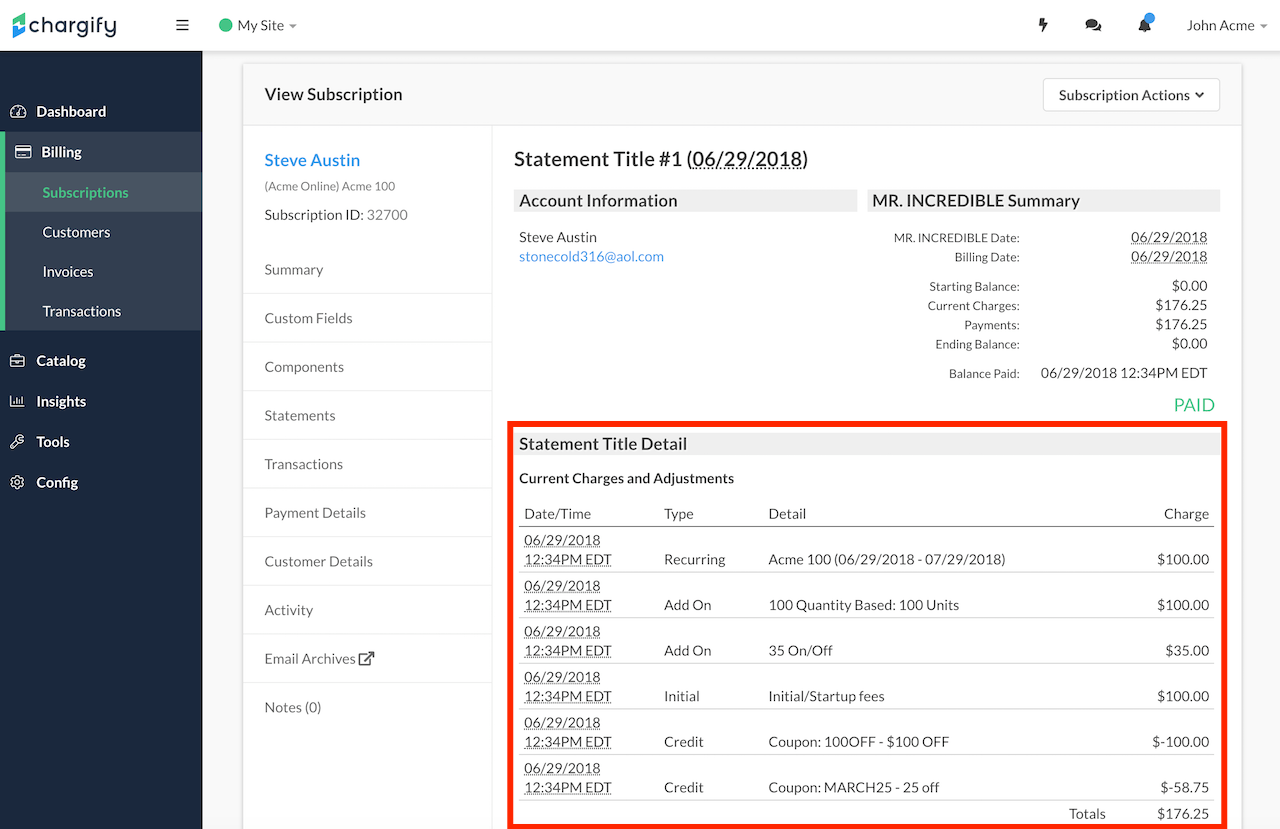
Statement #1
- Statement #1 shows the original charges/payments for the signup of the Plan.
- The statement is closed after the upgrade/downgrade action is initiated.
Statement detail including migrations
Statement #2
- The first line item, credit, show the credit for the unused portion of the Plan.
- The second line item, recurring, shows the cost for the Plan the subscriber has been upgraded/downgraded to on your site.
- The total is the difference between the two line items.
- Since the subscription is on the automatic payment method, the card on file will be charged immediately.
- This results in payment, shown by the red arrow, processed against the card on file.
Invoices
When a subscriber’s payment method is the invoice method and you upgrade/downgrade a subscriber’s Plan, the following will occur:
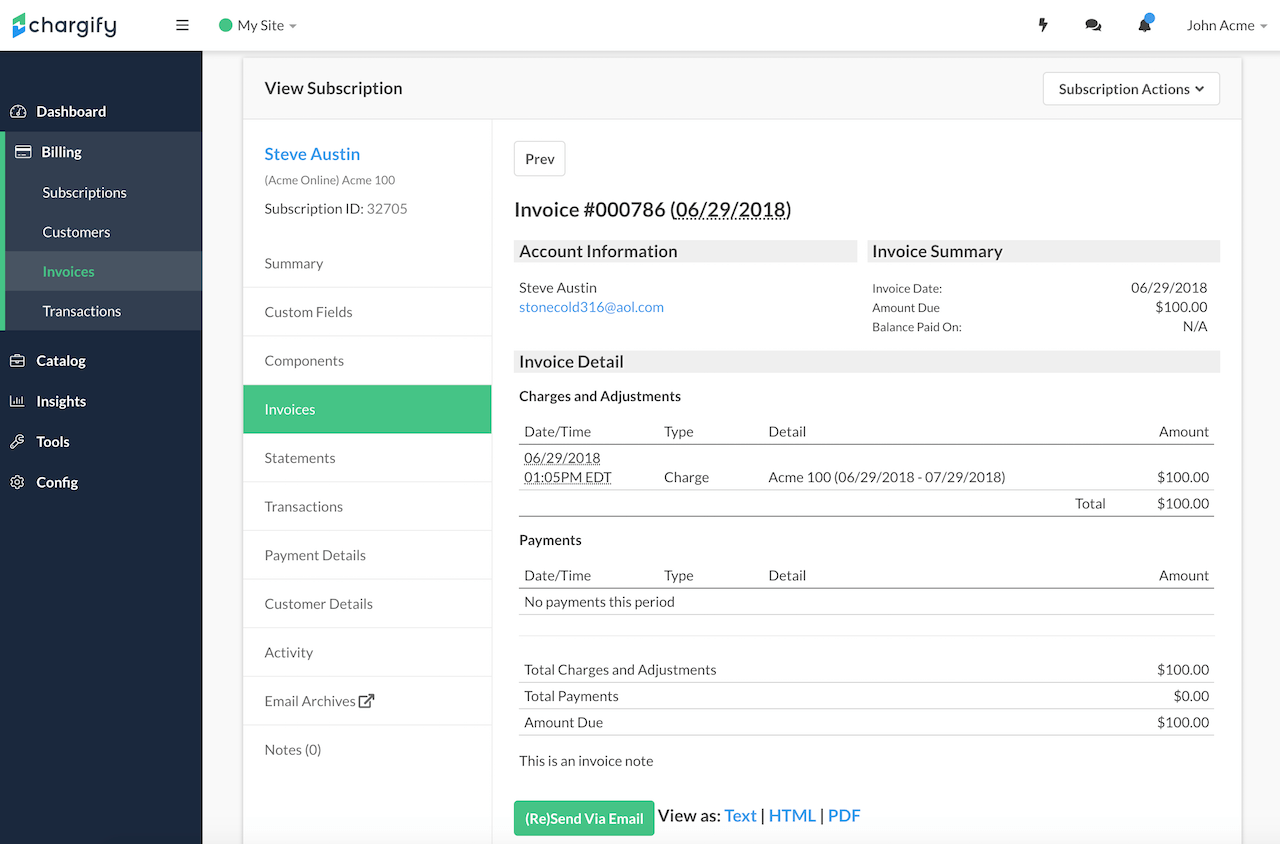
- The current open invoice will have a prorated credit applied (if applicable) for the unused portion of the current Plan.
- This recent credit will be immediately applied to the current open invoice.
- The amount due on the invoice will be for the portion of the Plan that the subscriber used.
- A new invoice will be generated for the Plan the subscriber upgraded/downgraded to within Advanced Billing.
- An invoice for the new Plan will be generated.
Invoice #1
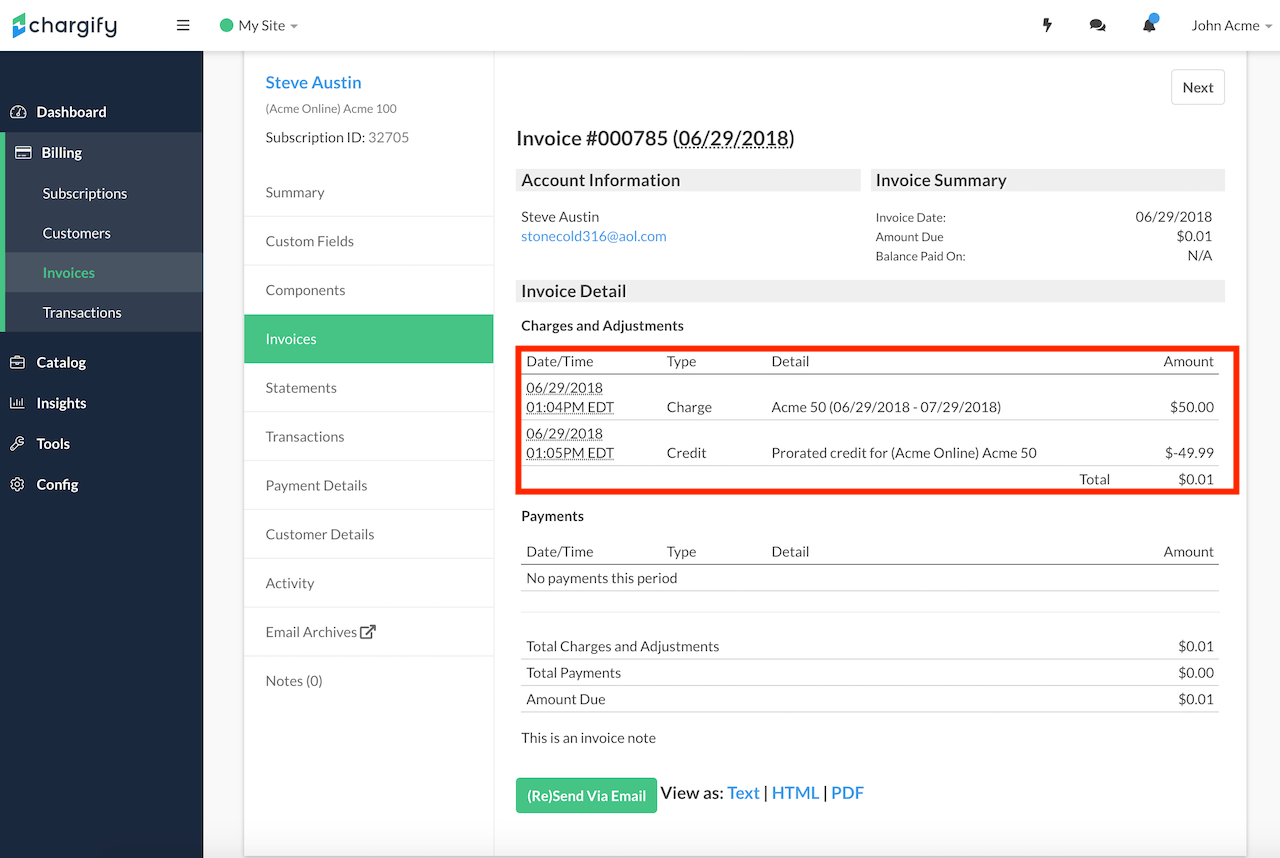
The following invoice shows the following two line items:
- Charge for $50.00: Denotes the initial Plan the subscriber signed up for within your Site.
- Credit for $-49.99: Specifies the credit for the unused portion of the Plan.
- Amount due for $0.01: Amount the subscriber owes for the portion of the Plan they used during the billing period.
Example of migrations on invoice detail
Invoice #2
The second invoice is for the new Plan charges.
New invoice for new product charges and new recurring period
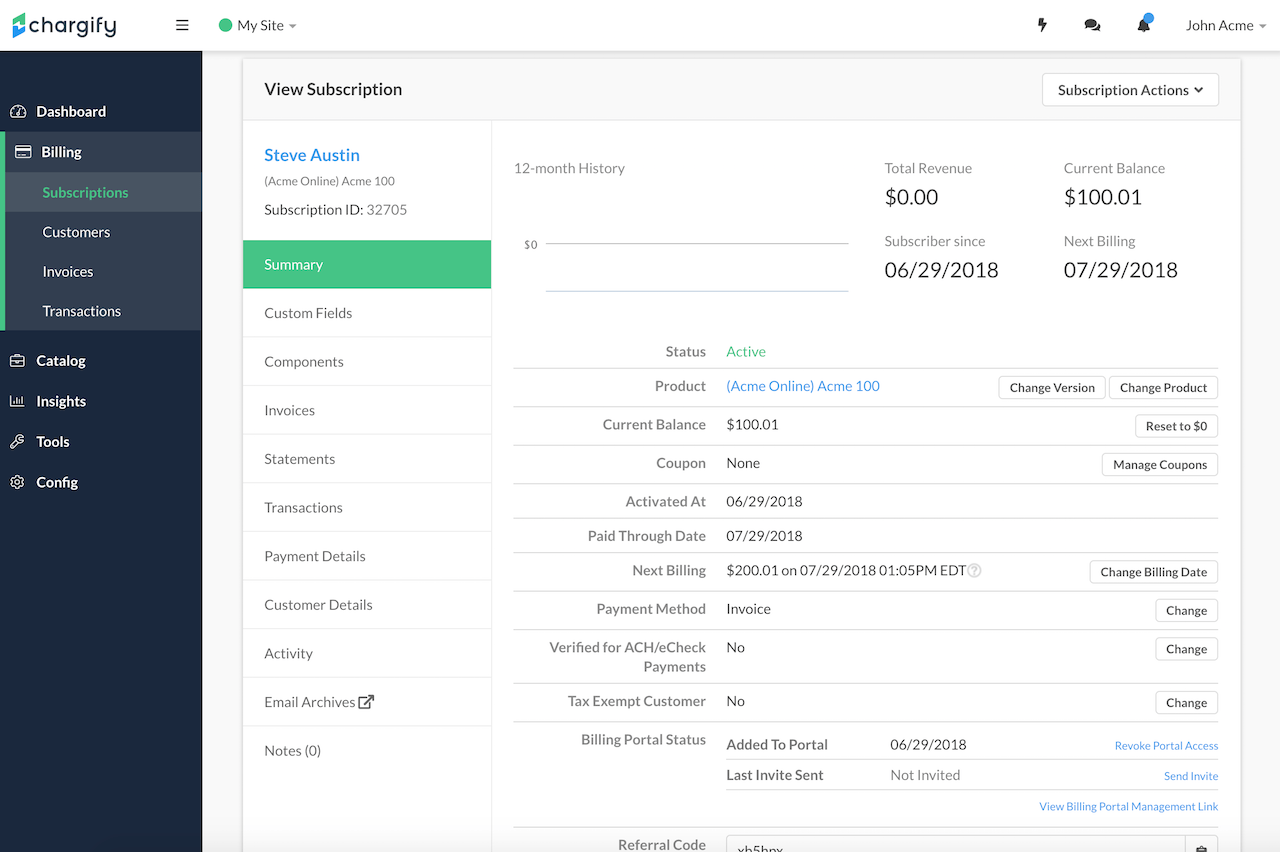
Subscription Summary
As we look at the subscription summary, we can see the remainder due on invoice #1, plus invoice #2. This results in a total amount due of $100.03.
Augmented new balance post-migration
Comments
Article is closed for comments.